 DegenerateGaming
- DegenerateGaming
- JIRAUSER758189
- Europe/Stockholm
- Yes
- No
 BDS-18523
 MCPE-188420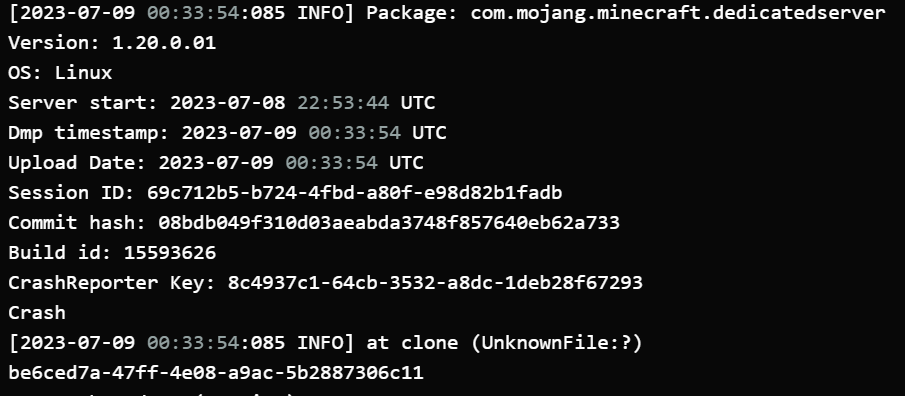

Attempting to use item tags as a recipe input will result in the recipe appearing in the book, but the recipe will be extremely buggy when attempting to craft it. If the player has the item set as a tag and has everything else, they will simply not be able to craft the recipe, but if the player does not possess the item but does have everything else, it will crash the server and yield the following to the console:
Recipe File:
{
  "format_version": "1.12",
  "minecraft:recipe_shaped": {
    "description": {
    "identifier": "lzrd:superstar_boots"
    },

    "tags": [ "crafting_table" ],
    "pattern": [
      "X#X",
      "X X"
    ],
    "key": {
      "X": {
        "item": "minecraft:wool",
        "data": 12
      },
      "#": {
        "tag": "lzrd:elemental_shard" //The "Water Shard" item has this tag in it's file
      }
    },
    "result": {
      "item": "lzrd:superstar_boots"
    }
  }
}
Visual proof in Attachments.Attempting to use item tags as a recipe input will result in the recipe appearing in the book, but the recipe will be extremely buggy when attempting to craft it. If the player has the item set as a tag and has everything else, they will simply not be able to craft the recipe, but if the player does not possess the item but does have everything else, it will crash the server and yield the following to the console:
Steps to Reproduce:
1. Turn on your server
2. Join your server
3. Craft the custom recipe that utilizes an item tag
4. CrashObserved Results:
You are not able to left click to craft the item, and shift-clicking places the item in your inventory and crashes the serverExpected Results:
You are able to craft the recipe with no issues; the server does not crash.This is not an issue in normal Minecraft worlds that are ran with this Add-on applied; you are able to craft the items as normal with no problems.
Recipe File:
{
  "format_version": "1.12",
  "minecraft:recipe_shaped": {
    "description": {
    "identifier": "lzrd:superstar_boots"
    },

    "tags": [ "crafting_table" ],
    "pattern": [
      "X#X",
      "X X"
    ],
    "key": {
      "X": {
        "item": "minecraft:wool",
        "data": 12
      },
      "#": {
        "tag": "lzrd:elemental_shard" //The "Water Shard" item has this tag in it's file
      }
    },
    "result": {
      "item": "lzrd:superstar_boots"
    }
  }
}
Further visual proof in Attachments.
If there are any valid skin pack folders placed in the skin_packs subfolder, the button to open each Marketplace Classic Skin Pack is offset, instead being placed on the skin pack under the pack it truly belongs to. This is repeated for each custom skin pack installed (Example: with one custom skin pack installed, attempting to open "Spring Friends" would open "Luxury Life", but with four custom skin packs installed, attempting to open "The Travelling Trader" instead opens "Luxury Life".)
There are no resource packs applied in the video, and there are four custom skin packs installed in the skin_packs subfolder of the com.mojang game folder.
Steps to reproduce:
- Download and apply the "my craft Ultimate Skin Collection" pack
- Open the game, create a new character and open the Classic Skins menu.
- The Skin Pack does not open, and attempting to open the pack below it also does not work.
Observed Results:
The custom skin pack does not open, and the buttons to open each subsequent pack has been offset.
Expected Results:
Each pack is possible to open, and clicking the "+n" button opens the skin pack it belongs to instead of the skin pack above.
If there are any valid skin pack folders placed in the skin_packs subfolder, the button to open each Marketplace Classic Skin Pack is offset, instead being placed on the skin pack under the pack it truly belongs to. This is repeated for each custom skin pack installed (Example: with one custom skin pack installed, attempting to open "Spring Friends" would open "Luxury Life", but with four custom skin packs installed, attempting to open "The Travelling Trader" instead opens "Luxury Life".)
There are no resource packs applied in the video, and there are four custom skin packs installed in the skin_packs subfolder of the com.mojang game folder.
Steps to reproduce:
- Download and apply the my craft.mcpack
my craft.mcpack
- Open the game, create a new character and open the Classic Skins menu.
- The Skin Pack does not open, and attempting to open the pack below it also does not work.
Observed Results:
The custom skin pack does not open, and the buttons to open each subsequent pack has been offset.
Expected Results:
Each pack is possible to open, and clicking the "+n" button opens the skin pack it belongs to instead of the skin pack above.
Updated this one as instructed. More details have been added, let me know if I missed anything else.