 user-69bf7
- jirauser334703
- JIRAUSER334703
- Europe/Stockholm
- No
- No
 MC-151722
![[Mojang] Georgii Gavrichev](../../../data/avatars/users/22428.png)
 WEB-1938
![[Mojang] Grum (Erik Broes)](../../../data/assets/gravatar/grum.png)














https://www.youtube.com/watch?v=aibebCj0TeU
https://www.youtube.com/watch?v=qnYBpQt6Ke0
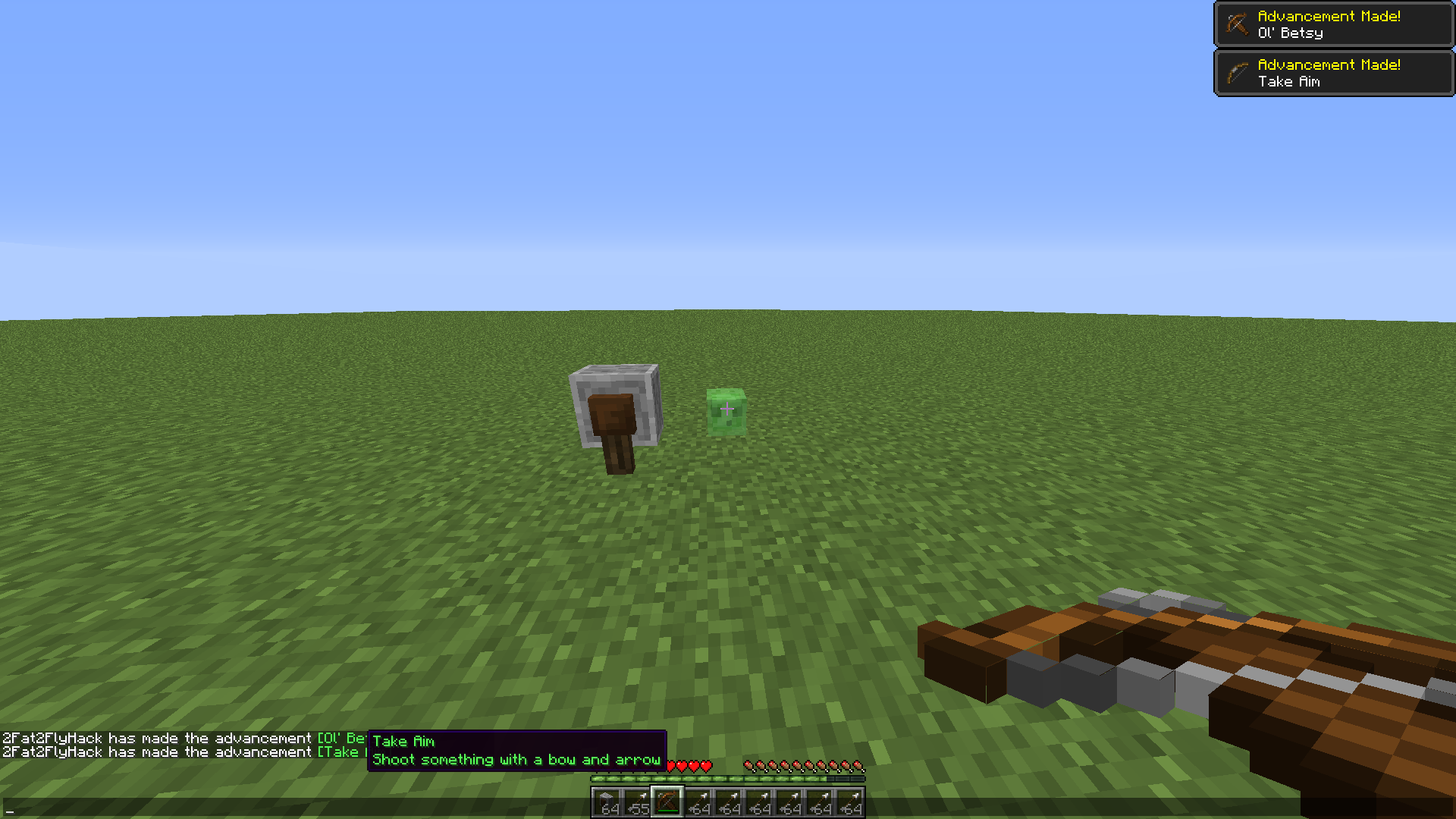
In the videos linked, I explain how it happens/how to reproduce.As well as other visual weirdness with weapons such as pulling crossbows when having a bow in your offhand and whatnot - just looks weird
win10 x64
When attempting to teleport a player at a location (after they've fallen in the void), they just freeze and are unable to move and whatnot until they relog. They "jitter" around, it's really weird.
I think this is due to a chunk loading issue, but I'm not too sure.
When trying to set the time with /time set day/night/noon/midnight it doesn't work same with /time add, it sets it back to day - never really works
While walking and hitting the ground with a sword in creative mode you get these kind of
slowdowns, spikes of some sort.While walking and hitting the ground with a sword in creative mode you get these kind of freezes, you get frozen for half a second when left clicking the ground
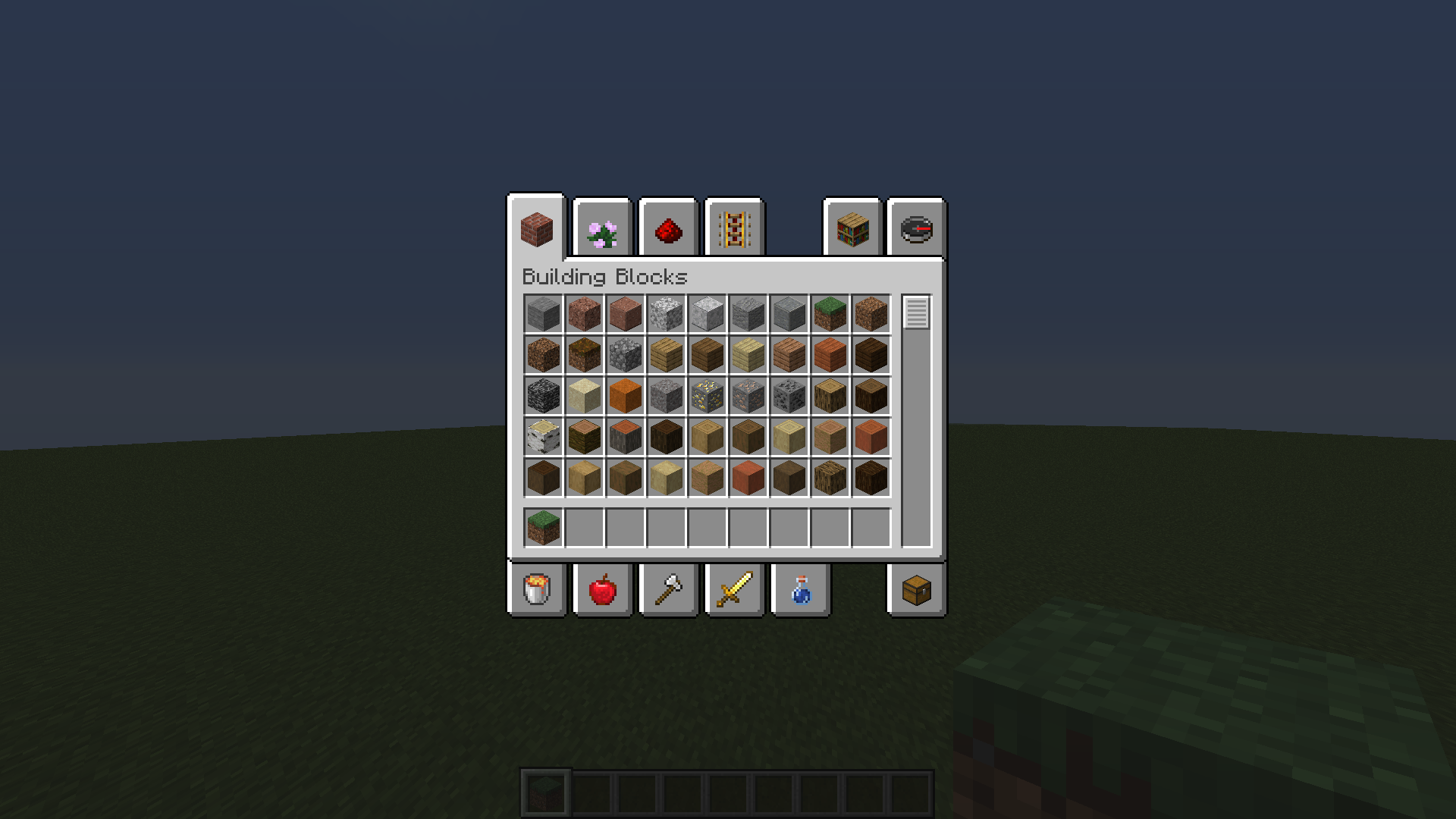
When you first try to shoot with a bow in creative mode after clicking on it in the combat tab and dragging it into your chosen hotbar slot, it appears as if the bow has no arrow though it would shoot an arrow without any issues!

When you first try to shoot with a bow in creative mode after clicking on it in the combat tab and dragging it into your chosen hotbar slot, it appears as if the bow has no arrow though it would shoot an arrow without any issues!
When you first try to shoot with a bow in creative mode after clicking on it in the combat tab and dragging it into your chosen hotbar slot, it appears as if the bow has no arrow though it would shoot an arrow without any issues!

image-2019-08-05-06-32-59-156.png
VisualBug with drop keyVisual bug with drop key
Visual bug with drop key (whilst dropping)
win10 x64, java 8_201
Visualbugwith drop key (whilst dropping)Visual issue with drop key (whilst dropping)
Get a stack of any block/item, hold your drop key on an empty slot, then as you're holding the drop key, switch to the slot you put your block/item of your choice in. It looks as if you dropped something, but you didn't - it can be seen at the video start.
Video
:
https://youtu.be/kRgl3l3SAEYGet a stack (preferably) of any material and place this material in any slot you wish. Next, on an empty slot, switch to the slot you put your materials in while holding your drop key on your keyboard without letting go. You'll notice that the item drop animation plays an the amount of the aforementioned material has decreased.
[Video here.| https://youtu.be/kRgl3l3SAEY]
Get a stack (preferably) of any material and place this material in any slot you wish. Next, on an empty slot, switch to the slot you put your materials in while holding your drop key on your keyboard without letting go. You'll notice that the item drop animation plays an the amount of the aforementioned material has decreased.
[Video here.|
https://youtu.be/kRgl3l3SAEY]Get a stack (preferably) of any material and place this material in any slot you wish. Next, on an empty slot, switch to the slot you put your materials in while holding your drop key on your keyboard without letting go. You'll notice that the item drop animation plays an the amount of the aforementioned material has decreased.
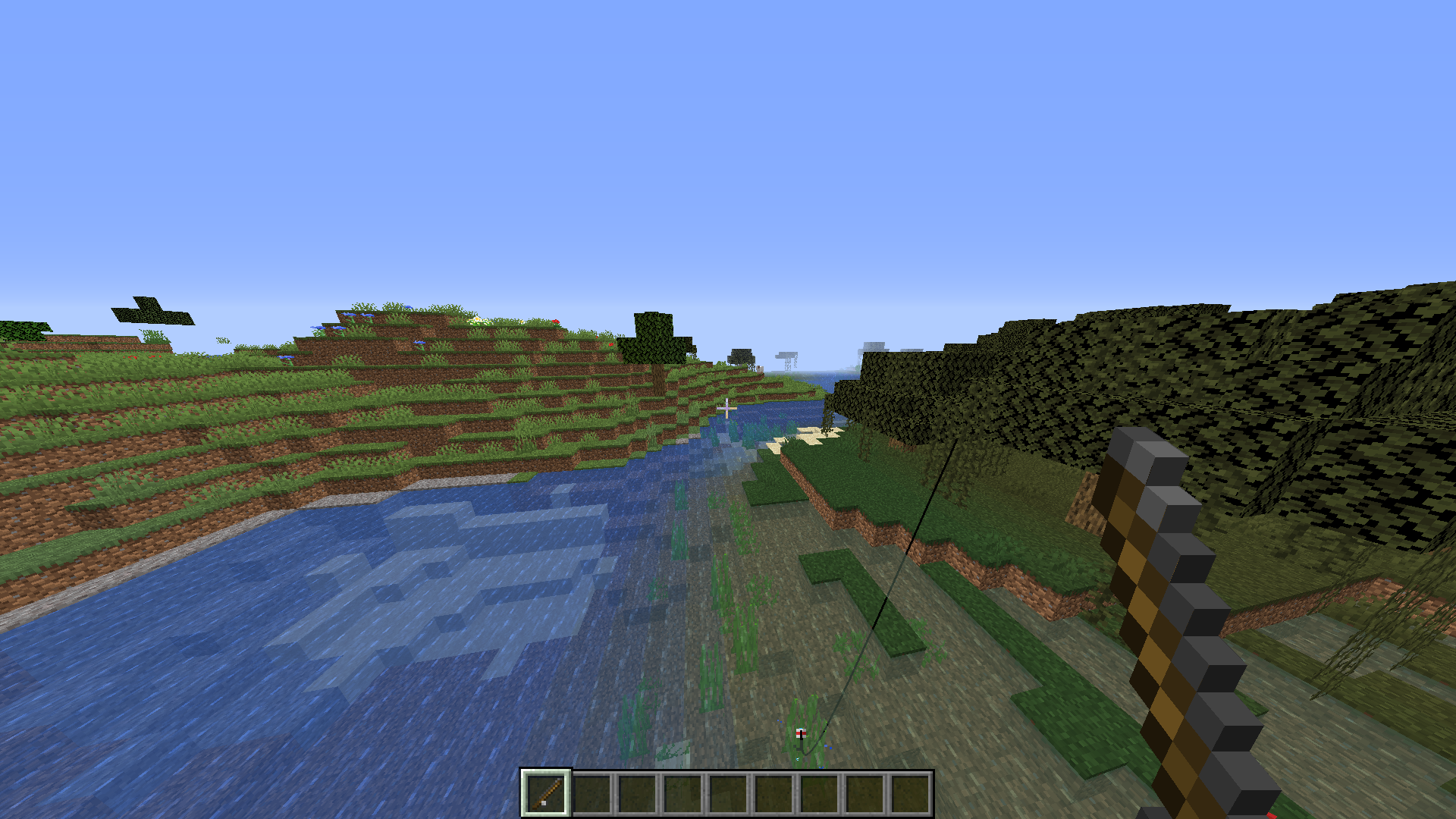
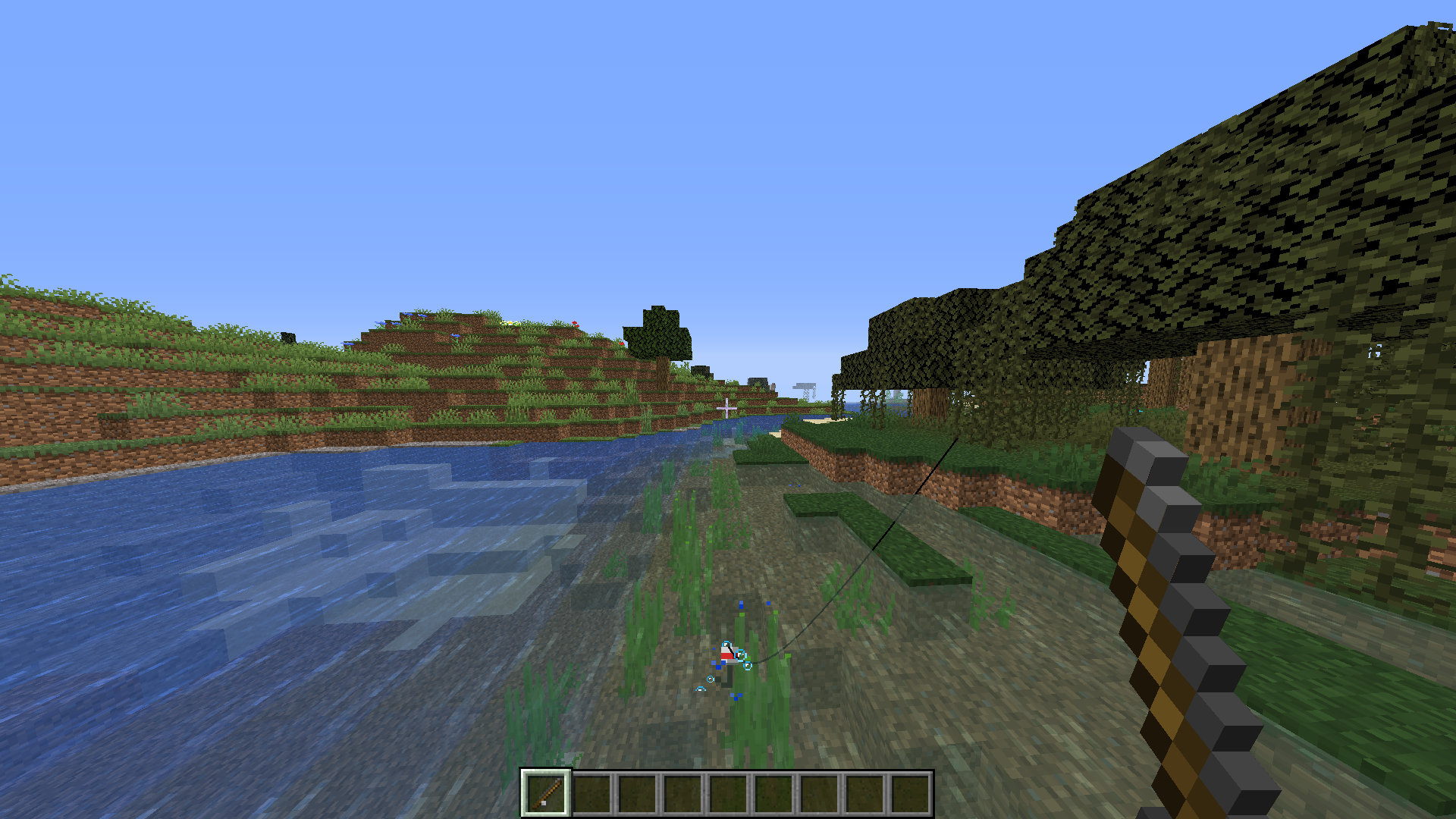
Projectile bubbles do not appear when the player is above water, only underwater upon using something.
You can see the bubbles appearing for a split second when the projectile
enters the water.Projectile bubbles do not appear when the player is above water, only underwater upon using something.
You can see the bubbles appearing for a split second when the projectile hits the water.
Block outlineWater renders over block outline
Slime/Honey blocks do not render when under a slime, this can be seen with the slight transparency of the slime.
https://youtu.be/g-x6a2BPrRQSlime/Honey blocks do not render when under a slime, this can be seen with the slight transparency of the slime.
Update: This also seems to be the case with water, it will not render when the player is looking at it through a slime.
Slime/Honey blocks and water do not render when under or seen through a slime mob
win10 x64, java 8_201
win10 x64, java 8_201
win10 64bit
the elder guardian animation is supposed to on the players screen (at the crosshair), but it shows up above the players crosshair when getting close to a monument obviouslyThe elder guardian animation is supposed to on the players screen (at the crosshair), but it shows up above the players crosshair when getting close to a monument obviously
World
/l;ocate
/locate in the latest version 1.14.1 if in a world with generate structures turned off, your world would actually freeze (not the game) and you wouldn't be able to do anything.
Saving and quitting to title also does nothing - just stuck on Saving world... and never saves it
!/locate, in the latest version 1.14.1, if in a world with generate structures turned off, your world would actually freeze (not the game) and you wouldn't be able to do anything.
Saving and quitting to title also does nothing - just stuck on Saving world... and never saves it.
Block cracking animation freezes while breakingand pausing the gameBlock cracks stuck in any cracking phase
Block cracks stuck in any cracking phaseBlock cracking state not reset upon pausing the game or rejoining a world
Steps to reproduce:
- create a new world, flat preferably
- start breaking a block
- while the block cracking, don't let it break and pause the game with ESC.
- save and quit to title
or unpausethegameby pressing ESC again- ???
- the block cracks are still there, and the block's state is not restored even if you rejoin the world.
see attachments below for an example
Steps to reproduce:
- create a new world, flat preferably
- start breaking a block
- while the block cracking, don't let it break and pause the game with ESC.
- save and quit to title and rejoin the same world.
- ???
- the block cracks are still there, and the block's state is not restored even if you rejoin the world.
see attachments below for an example
Block cracking state not reset uponpausing the game orrejoining a world
Steps to reproduce:
create a new world, flat preferablystart breaking a blockwhile the block cracking, don't let it break and pause the game with ESC.save andquit totitle and rejoin the same world.- ???
the block cracks are still there, and the block's state is not restored even if you rejoin the world.
see attachments below for an exampleSteps to reproduce:
- Create a new world, flat preferably
- Start breaking a block
- While the block cracking, don't let it break and pause the game with ESC.
- Save and Quit to Title and rejoin the same world.
- ???
- The block cracks are still there, and the block's state is not restored even if you rejoin the world.
See attachments below for an example.
Steps to reproduce:
- Create a new world
,flat preferably- Start breaking a block
- While the block cracking, don't let it break and pause the game with ESC.
- Save and Quit to Title and rejoin the same world.
- ???
- The block cracks are still there, and the block's state is not restored even if you rejoin the world.
See attachments below for an example.
Steps to reproduce:
- Create a new world (flat preferably)
- Start breaking a block
- While the block cracking, don't let it break and pause the game with ESC.
- Save and Quit to Title and rejoin the same world.
- ???
- The block cracks are still there, and the block's state is not restored even if you rejoin the world.
See attachments below for an example.
Expected:
a redirect to the correct url allowing me to, in this case, change my passwordGot:
a redirect to the wrong url, https://my.minecraft.net/en-us/change-password
the password section "Manage password at minecraft.net" actually leads to
which is non-existent
when it should beExpected:
a redirect to the correct url allowing me to, in this case, change my passwordGot:
a redirect to the wrong url, https://my.minecraft.net/profile/change-password
the password section "Manage password at minecraft.net" actually leads to
when it should be

When you're flying in creative, having your flight toggled on and mounting/dismounting an entity can sometimes disable it as it shouldn't happen and the player should remain in their original state just as before they mounted a ridable entity.
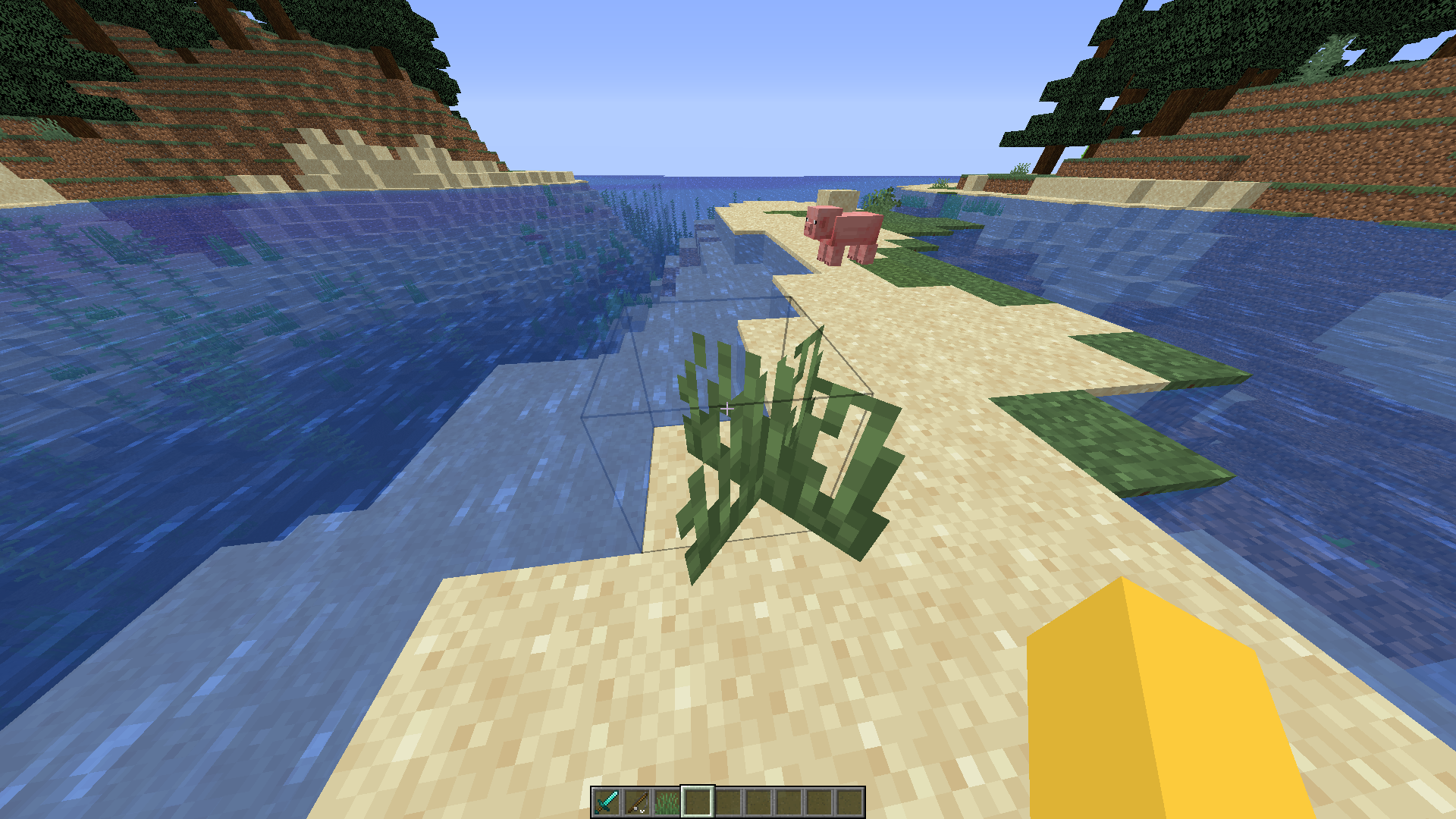
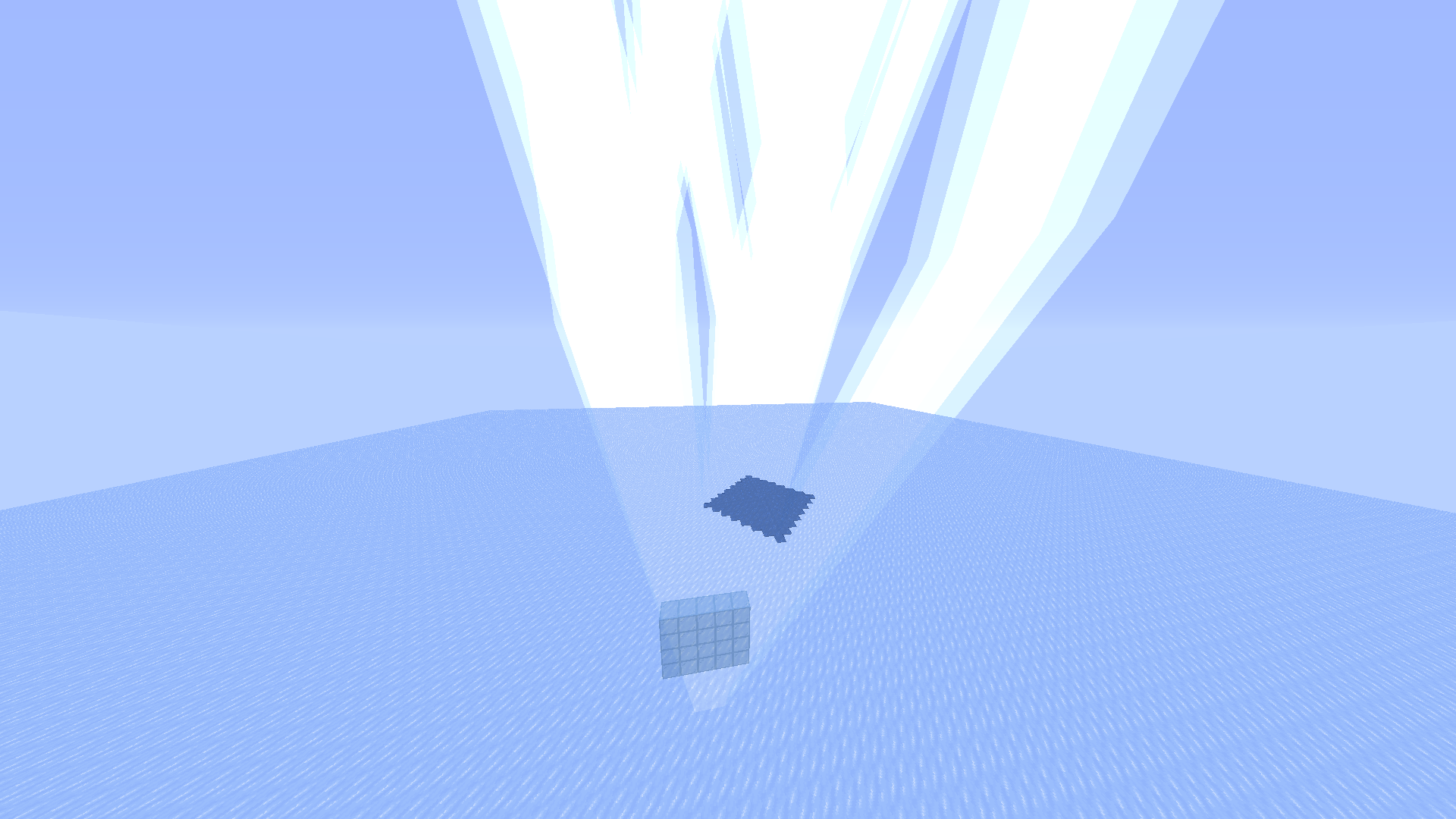
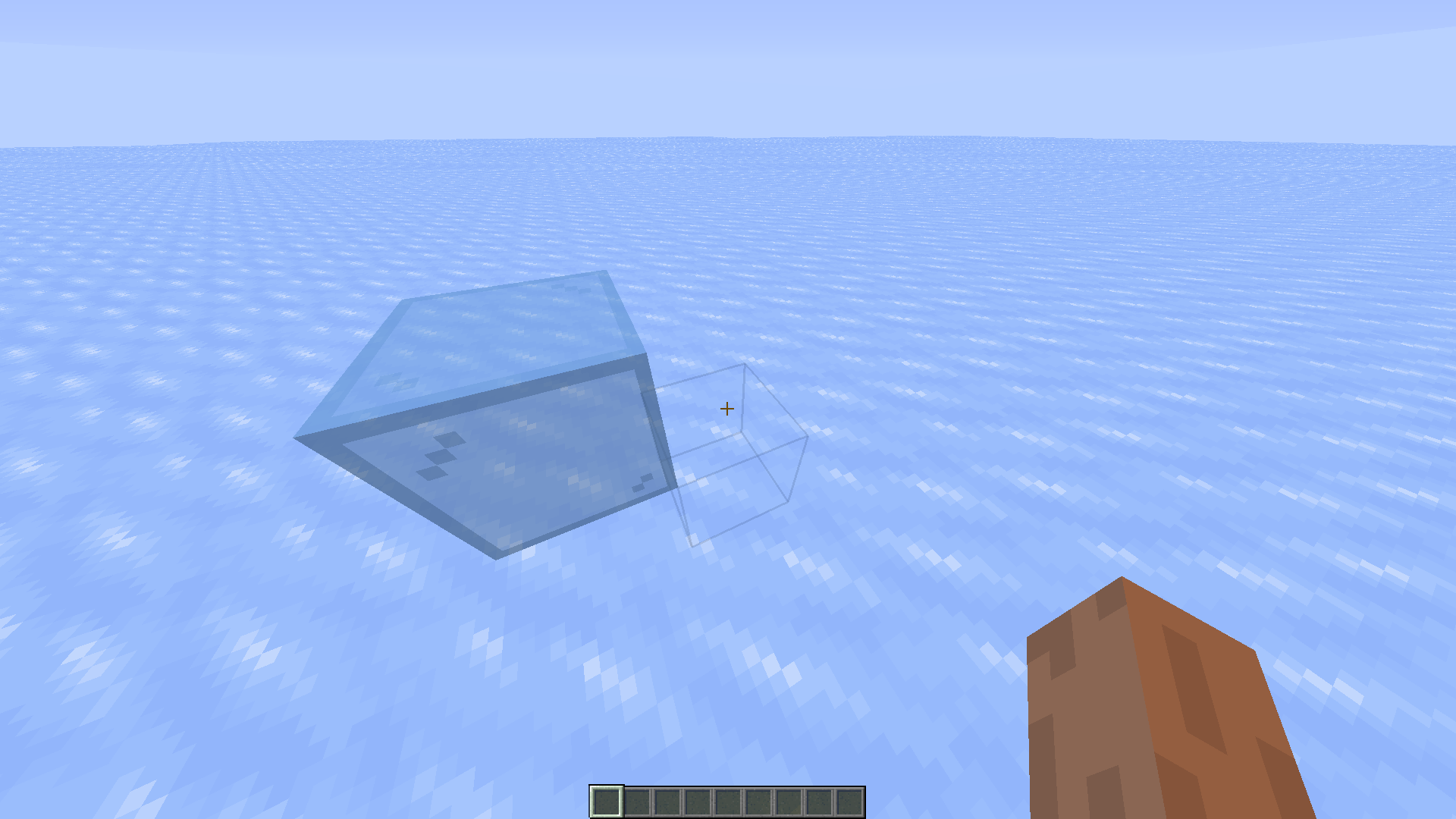
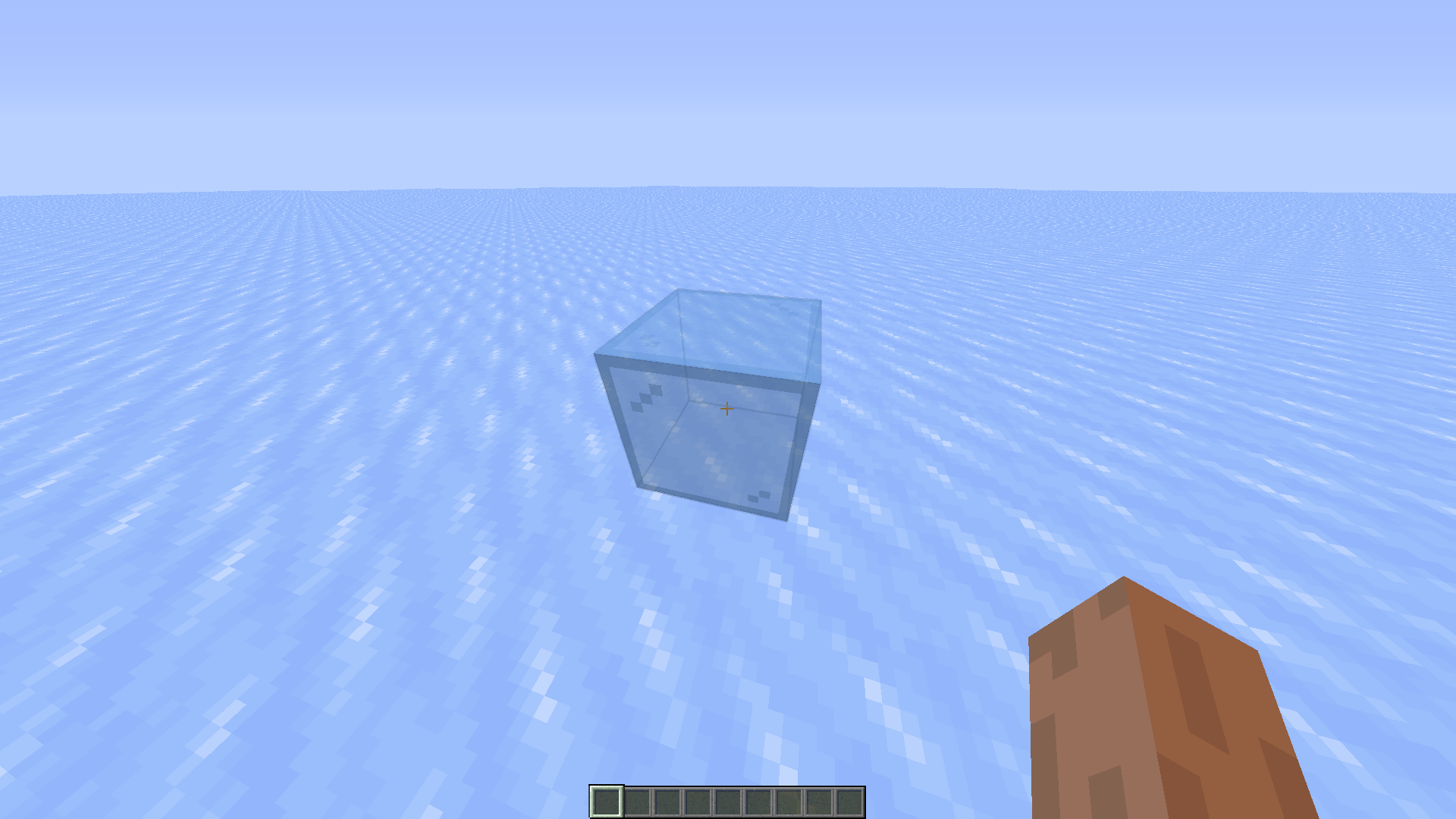
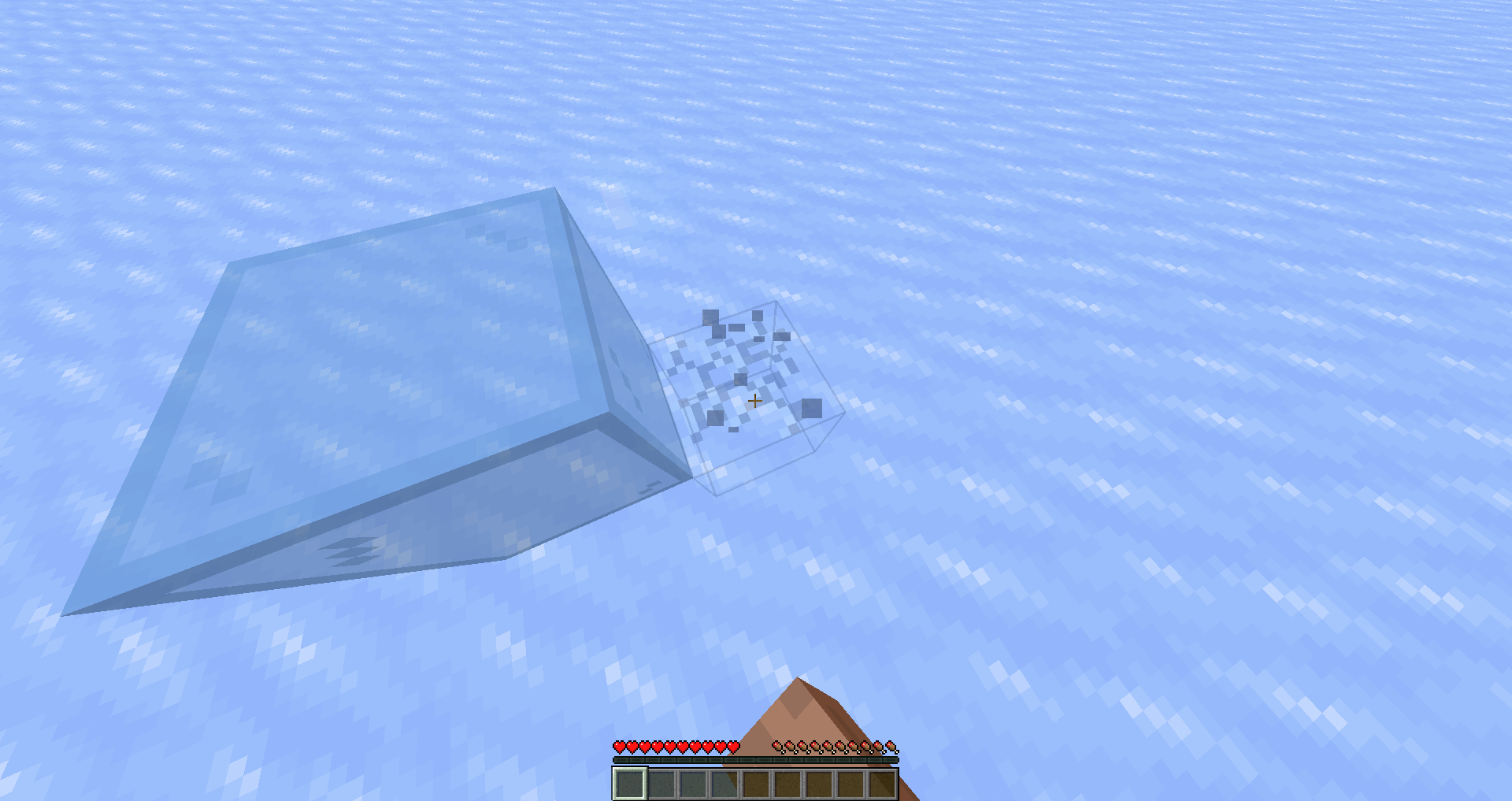
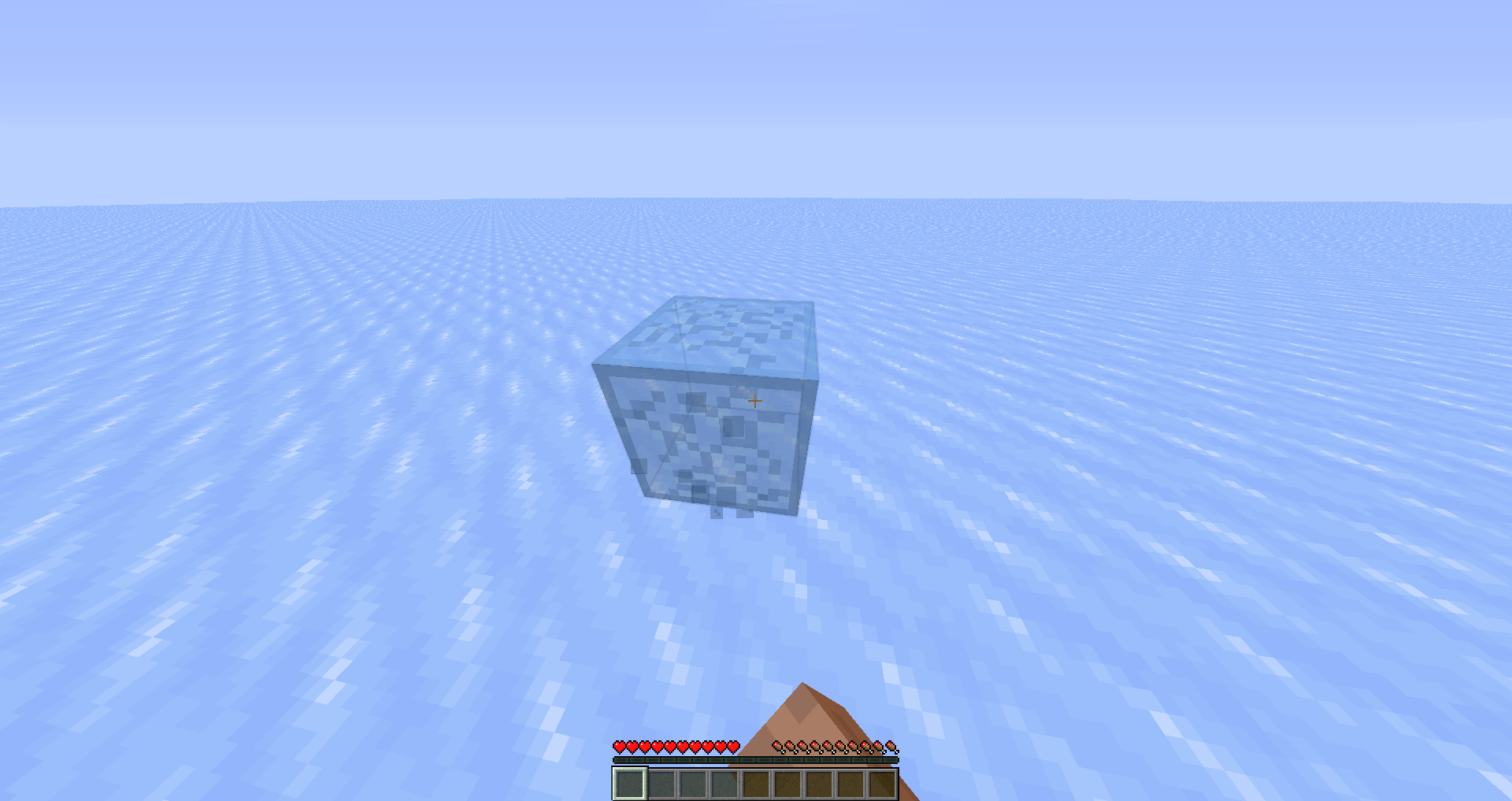
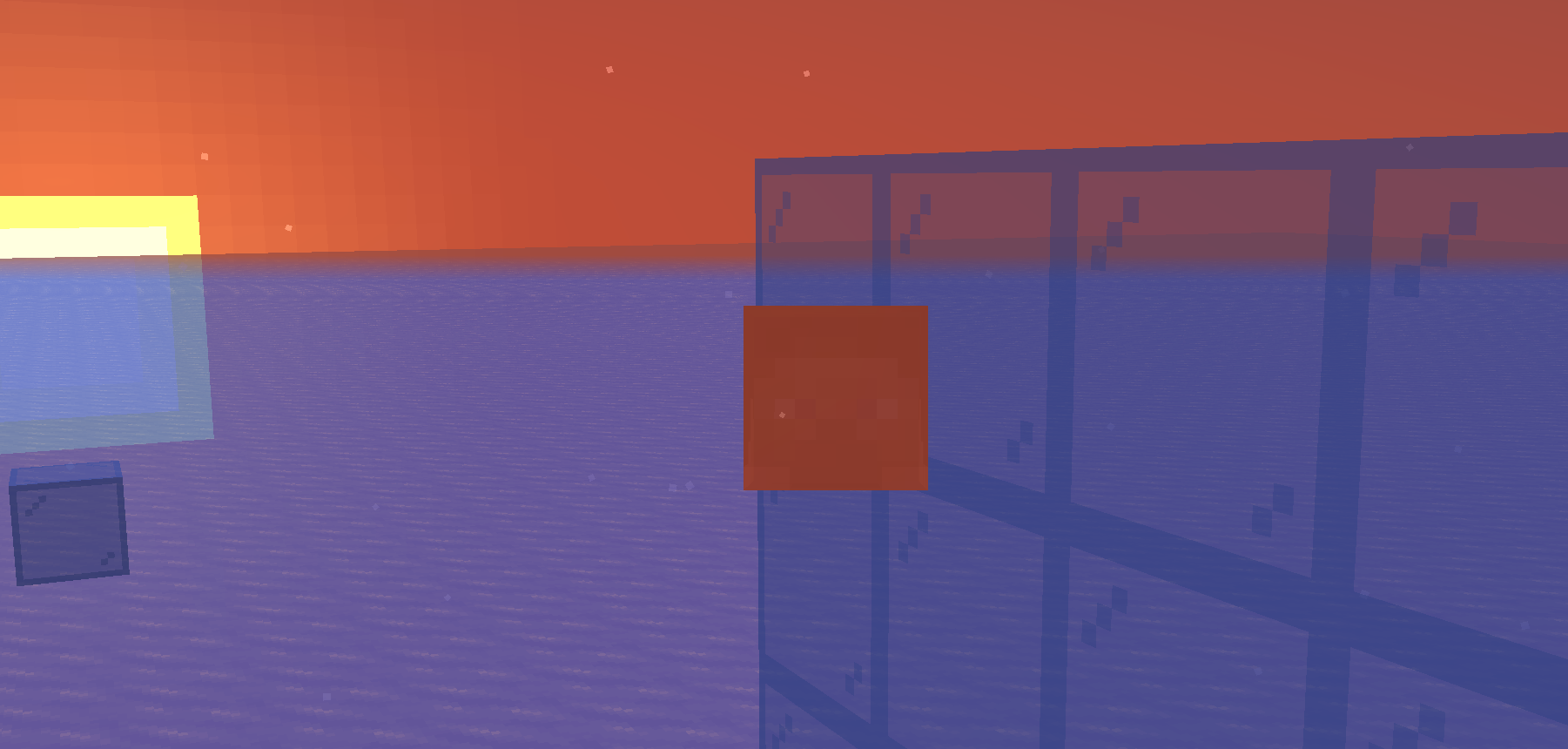
In the attachments below, you can see 3 instances where certain elements are incorrectly rendered. Prior to the 1.15 update, everything was rendered properly. But as with the rendering changes that were made, things changed.
It is highly noticeable in:
- Block break cracking - the cracks are rendered in the back rather than on top of each side of the block.
- Block selection outline - the selection is rendered in the back rather than each corner of the block.
- Lightning - rendered behind transparent objects, in this case, most noticeable on ice, glass & water when it should render in front of them from the player's perspective.
In the attachments below, you can see 3 instances where certain elements are incorrectly rendered. Prior to the 1.15 update, everything was rendered properly. But as with the rendering changes that were made, things changed.
It is highly noticeable in:
- Block break cracking - the cracks are rendered in the back rather than on top of each side of the block.
- Block selection outline - the selection is rendered in the back rather than each corner of the block.
- Lightning - rendered behind transparent objects, in this case, most noticeable on ice, glass & water when it should render in front of them from the player's perspective.
In the attachments below, you can see 3 instances where certain elements are incorrectly rendered. Prior to the 1.15 update, everything was rendered properly. But as with the rendering changes that were made, things changed.
It is highly noticeable in:
- Block break cracking - the cracks are rendered in the back rather than on top of each side of the block.
- Block selection outline - the selection is rendered in the back rather than each corner of the block.
- Lightning - rendered behind transparent objects, in this case, most noticeable on ice, glass & water when it should render in front of them from the player's perspective.
- Update -> Breaking a block while above water while the block is underwater will not display particles in the water.
In the attachments below, you can see 3 instances where certain elements are incorrectly rendered. Prior to the 1.15 update, everything was rendered properly. But as with the rendering changes that were made, things changed.
It is highly noticeable in:
- Block break cracking - the cracks are rendered in the back rather than on top of each side of the block.
- Block selection outline - the selection is rendered in the back rather than each corner of the block.
- Lightning - rendered behind transparent objects, in this case, most noticeable on ice, glass & water when it should render in front of them from the player's perspective.
- Update -> Breaking a block while above water while the block is underwater will not display particles in the water.
In the attachments below, you can see 3 instances where certain elements are incorrectly rendered. Prior to the 1.15 update, everything was rendered properly. But as with the rendering changes that were made, things changed.
It is highly noticeable in:
- Block break cracking - the cracks are rendered in the back rather than on top of each side of the block.
- Block selection outline - the selection is rendered in the back rather than each corner of the block.
- Lightning - rendered behind transparent objects, in this case, most noticeable on ice, glass & water when it should render in front of them from the player's perspective.
Update ->
- Breaking a block while above water while the block is underwater will not display particles in the water.
- Strings of text overlap each other in certain situations where one string of text would be found on top of another (colored being mostly affected)
In the attachments below, you can see 3 instances where certain elements are incorrectly rendered. Prior to the 1.15 update, everything was rendered properly. But as with the rendering changes that were made, things changed.
It is highly noticeable in:
- Block break cracking - the cracks are rendered in the back rather than on top of each side of the block.
- Block selection outline - the selection is rendered in the back rather than each corner of the block.
- Lightning - rendered behind transparent objects, in this case, most noticeable on ice, glass & water when it should render in front of them from the player's perspective.
Update ->
- Breaking a block while above water while the block is underwater will not display particles in the water.
- Strings of text overlap each other in certain situations where one string of text would be found on top of another (titles breaking scoreboard text & colored text being mostly affected)
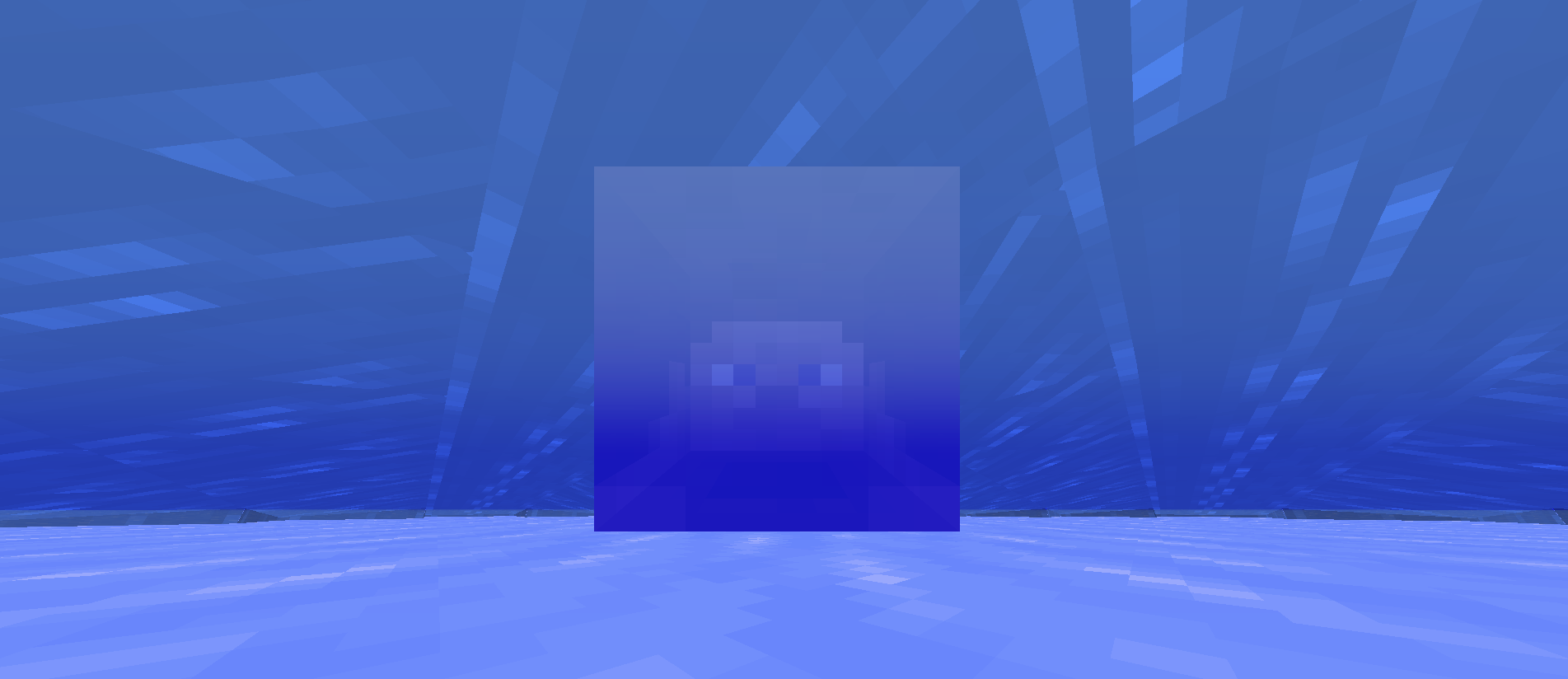
- Player's 'ghostly head' renders on top of transparent objects and when in spectator mode.
- What is rather interesting is the player head turns dark blue-ish/pale when underwater as a spectator and viewing from a different angle.
In the attachments below, you can see 3 instances where certain elements are incorrectly rendered. Prior to the 1.15 update, everything was rendered properly. But as with the rendering changes that were made, things changed.
It is highly noticeable in:
- Block break cracking - the cracks are rendered in the back rather than on top of each side of the block.
- Block selection outline - the selection is rendered in the back rather than each corner of the block.
- Lightning - rendered behind transparent objects, in this case, most noticeable on ice, glass & water when it should render in front of them from the player's perspective.
Update ->
- Breaking a block while above water while the block is underwater will not display particles in the water.
- Strings of text overlap each other in certain situations where one string of text would be found on top of another (titles breaking scoreboard text & colored text being mostly affected)
- Player's 'ghostly head' renders on top of transparent objects and when in spectator mode.
- What is rather interesting is the player head turns dark blue-ish/pale when underwater as a spectator and viewing from a different angle.
In the attachments below, you can see 3 instances where certain elements are incorrectly rendered. Prior to the 1.15 update, everything was rendered properly. But as with the rendering changes that were made, things changed.
It is highly noticeable in:
- Block break cracking - the cracks are rendered in the back rather than on top of each side of the block.
- Block selection outline - the selection is rendered in the back rather than each corner of the block.
- Lightning - rendered behind transparent objects, in this case, most noticeable on ice, glass & water when it should render in front of them from the player's perspective.
Update ->
- Breaking a block while above water while the block is underwater will not display particles in the water.
- Strings of text overlap each other in certain situations where one string of text would be found on top of another (titles breaking scoreboard text & colored text being mostly affected)
- Player's 'ghostly head' renders on top of transparent objects and when in spectator mode.
- What is rather interesting is the player head turns dark blue-ish/pale when underwater as a spectator and viewing from a different angle ([nodding] up/down).
The block selection outline is slightly offset for skulls.


Skulloutline slightly offsetBlock selection outline slightly offset for skulls
Block selection outline slightly offset for skulls if they're placed against a block
The block selection outline is slightly offset for skulls.
Skull is slightly offset from block selection outline.
Block selection outline slightly offset for skulls if they're placed against a blockSkull is slightly offset from block selection outline
For some reason, viewing yourself from third person back/front whilst glowing (glow effect) causes a significant FPS drop.
F3 menu + toggle third person perspective (front/back, any works) and you may notice that your frames drop significantly whilst glowing.
For some reason, viewing yourself from third person back/front whilst glowing (glow effect) causes a significant FPS drop.
F3 menu + toggle third person perspective (front/back, any work
s) and you may notice that your frames drop significantly whilst glowing.
For some reason, viewing yourself from third person back/front whilst glowing (glow effect) causes a significant FPS drop.
F3 menu + toggle third person perspective (front/back, any work)
and you may notice that your frames drop significantly whilst glowing.For some reason, viewing yourself from third person back/front whilst glowing (glow effect) causes a significant FPS drop.
F3 menu + toggle third person perspective (front/back, any work) - it should be immediately noticeable.
For some reason, viewing yourself from third person back/front whilst glowing (glow effect) causes a significant FPS drop.
F3 menu + toggle third person perspective (front/back, any work) - it should be immediately noticeable.
For some reason, viewing yourself from third person back/front whilst glowing (glow effect) causes a significant FPS drop.
F3 menu + toggle third person perspective (front/back, any work) - it should be immediately noticeable.
Additionally, this affects other players around the glowing player while looking at them.
Steps to reproduce:
- Throw a Trident and impale it into the ground.
- Break the blocks under the Trident and let it fall with Sound Subtitles ON.
- Listen. entity.arrow.hit plays instead of the Trident's respective "hit"
sound item.trident.hit.Steps to reproduce:
- Throw a Trident and impale it into the ground.
- Break the blocks under the Trident and let it fall with Sound Subtitles ON.
- Listen. entity.arrow.hit plays instead of the Trident's respective "hit" sound item.trident.hit.
Steps to reproduce:
- Throw a Trident and impale it into the ground.
- Break the blocks under the Trident and let it fall with Sound Subtitles ON.
- Listen. entity.arrow.hit plays instead of the Trident's respective "hit"
sounditem.trident.hit.Steps to reproduce:
- Throw a Trident and impale it into the ground.
- Break the blocks under the Trident and let it fall with Sound Subtitles ON.
- Listen. entity.arrow.hit plays instead of the Trident's respective "hit" sound item.trident.hit.
Arrow hits (entity.arrow.hit) sound plays / subtitle shows when a TridentfallsArrow hits (entity.arrow.hit) sound plays / subtitle shows when a Trident hits the ground
However, this does not directly relate to the latest snapshot release where text rendering issues are present.
It has persisted through 1.15 and onwards.
Simply write something in any text box within any
GUI/chat and select all of it (CTRL + A) and either go in or out of fullscreen. You'll see that the text you've selected is now deselected/no longer highlighted.
While playing around with Piglins, I've noticed that sometimes, when attracted to their golden beloved golden items that are one block above them they fail to jump onto it and grab it (pathfind to it).
This results in them staring at the item endlessly until picked up by the player/something else.
Due to upload limitations, here's a YouTube video demonstrating the bug:
BugWhile playing around with Piglins, I've noticed that sometimes, when attracted to their golden beloved golden items that are one block above them they fail to jump onto it and grab it (pathfind to it).
This results in them staring at the item endlessly until picked up by the player/something else.
Due to upload limitations, here's a YouTube video demonstrating the bug:
MC-189874
While playing around with Piglins, I've noticed that sometimes, when attracted to their
goldenbeloved golden items that are one block above them they fail to jump onto it and grab it (pathfind to it).This results in them staring at the item endlessly until picked up by the player/something else.
Due to upload limitations, here's a YouTube video demonstrating the bug:
MC-189874
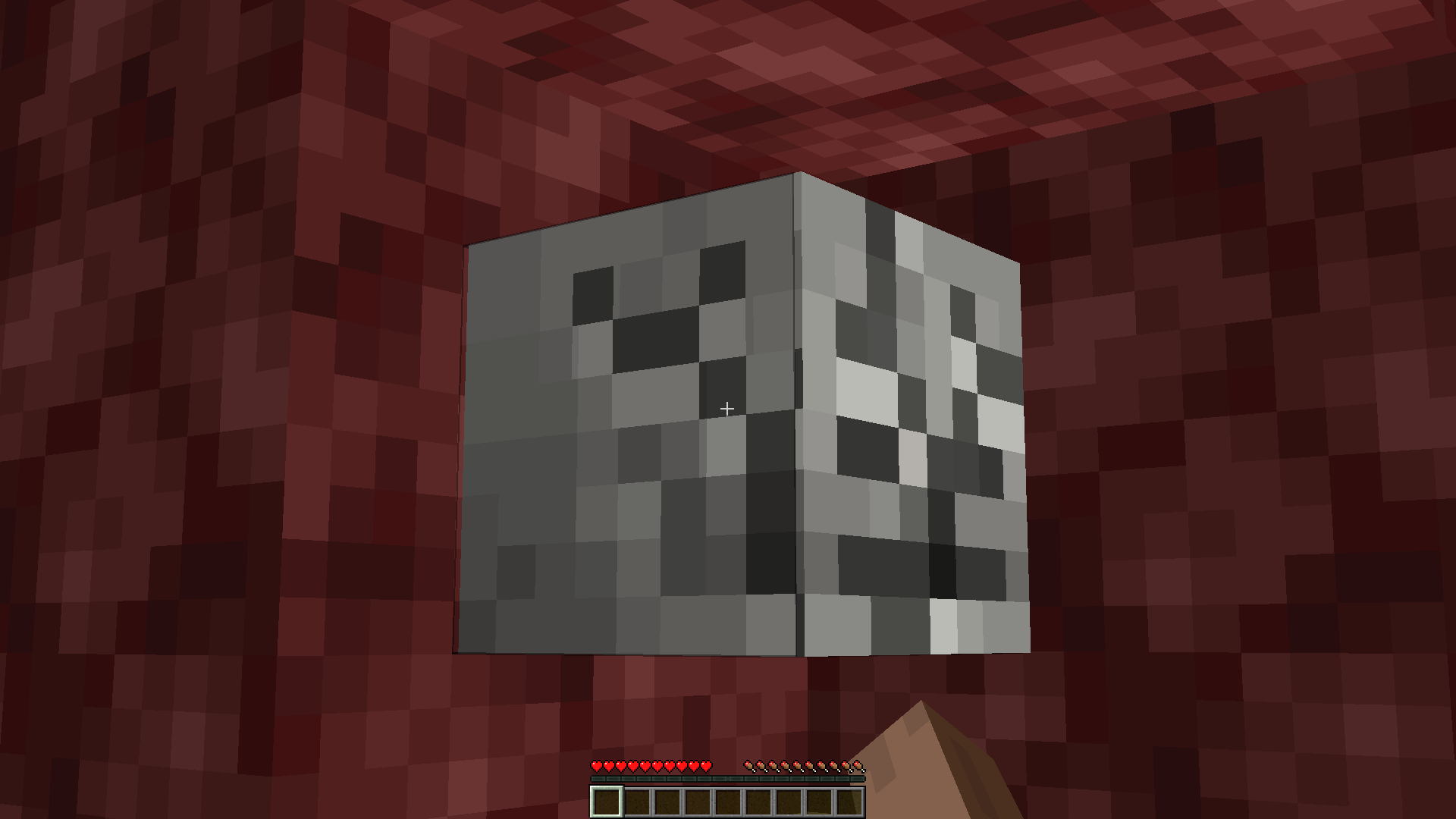
Place a skull against a block and start breaking it. You'll notice that the block crack doesn't quite resemble the skull itself as cracking, but rather, the block outline itself where the skull is completely ignored.
Notice after the bug this ticket relates to was fixed:
Now, in some cases, multiple crack layers appear once the skull starts cracking.
Place a skull against a block and start breaking it. You'll notice that the block crack doesn't quite resemble the skull itself as cracking, but rather, the block outline itself where the skull is completely ignored.
Notice after the bug this ticket relates to was fixed:
Now, in some cases, multiple crack layers appear once the skull starts cracking.
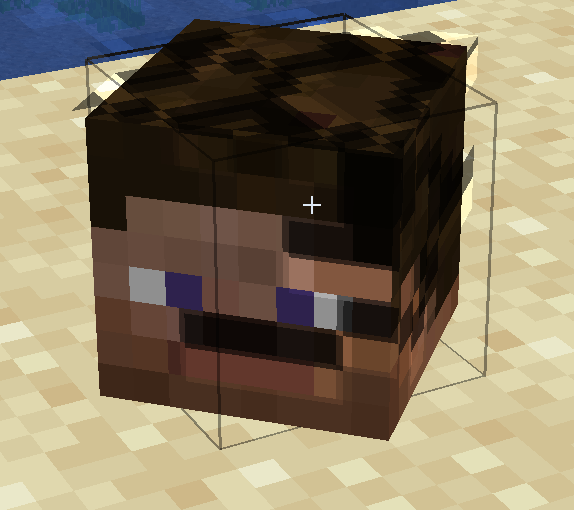
Place a skull against a block and start breaking it. You'll notice that the block crack doesn't quite resemble the skull itself as cracking, but rather, the block outline itself where the skull is completely ignored.
Notice after the bug this ticket relates to was fixed:
Now, in some cases, multiple crack layers appear once the skull starts cracking.
Place a skull against a block and start breaking it. You'll notice that the block crack doesn't quite resemble the skull itself as cracking, but rather, the block outline itself where the skull is completely ignored.
Notice after the bug this ticket relates to was fixed:
Now, in some cases, multiple crack layers appear once the skull starts cracking.
Additionally, the cracking layers can shift whilst breaking the skulls meaning in some cases they may change position.
Place a skull against a block and start breaking it. You'll notice that the block crack doesn't quite resemble the skull itself as cracking, but rather, the block outline itself where the skull is completely ignored.
Notice after the bug this ticket relates to was fixed:
Now, in some cases, multiple crack layers appear once the skull starts cracking.
Additionally, the cracking layers can shift whilst breaking the skulls meaning in some cases they may change position.
Place a skull against a block and start breaking it. You'll notice that the block crack doesn't quite resemble the skull itself as cracking, but rather, the block outline itself where the skull is completely ignored.
Notice after
MC-183915was fixed:
Now, in some cases, multiple crack layers appear once the skull starts cracking.
Additionally, the cracking layers can shift whilst breaking the skulls meaning in some cases they may change position.
Place a skull against a block and start breaking it. You'll notice that the block crack doesn't quite resemble the skull itself as cracking, but rather, the block outline itself where the skull is completely ignored.
Notice after
MC-183915was fixed:
Now, in some cases, multiple crack layers appear once the skull starts cracking.
Additionally, the cracking layers can shift
whilst breaking the skulls meaning in some cases they may change position.Place a skull against a block and start breaking it. You'll notice that the block crack doesn't quite resemble the skull itself as cracking, but rather, the block outline itself where the skull is completely ignored.
Notice after
MC-183915was fixed:
Now, in some cases, multiple crack layers appear once the skull starts cracking.
Additionally, the cracking layers can shift on the skull while the animation is playing.
The sprint key can get disabled in spectator modedisallowing you to sprintfurther in certain casesThe sprint key can get disabled in spectator mode in certain cases not allowing you to sprint in spectator anymore
While flying in spectator and sprinting to increase your flying speed by using the key bound to Sprint in Options -> Controls, go underground F3+N (switch to creative while underground) and F3+N again (switch to spectator while underground) you'll notice that you can no longer use the sprint key in spectator.
While flying in spectator and sprinting to increase your flying speed by using the key bound to Sprint in Options -> Controls, go underground F3+N (switch to creative while underground) and F3+N again (switch to spectator while underground) you'll notice that you can no longer use the sprint key in spectator.
While flying in spectator and sprinting to increase your flying speed by using the key bound to Sprint in Options -> Controls, go underground F3+N (switch to creative while underground) and F3+N again (switch to spectator while underground) you'll notice that you can no longer use the sprint key in spectator.
A demonstration: MC-191669
While flying in spectator and sprinting to increase your flying speed by using the key bound to Sprint in Options -> Controls, go underground F3+N (switch to creative while underground) and F3+N again (switch to spectator while underground) you'll notice that you can no longer use the sprint key in spectator.
A demonstration video (YouTube): MC-191669
The sprint key can get disabled in spectator mode when switching gamemode while sprintkey is pressed, not allowing you to sprint in spectator anymoreSprint key can get disabled in spectator mode when switching gamemode while sprinting underground, not allowing you to sprint in spectator anymore
Sprint key can get disabled in spectator mode when switching your game mode while (F3+N) sprinting underground, not allowing you to sprint in spectator anymore
Sprint key can get disabled in spectator mode when switching your game modewhile(F3+N) sprinting underground, not allowing you to sprint in spectator anymoreSprint key can get disabled in spectator mode when switching your game mode (F3+N) while sprinting underground, not allowing you to sprint in spectator anymore
Cannot sprint with the key bound to Sprint in Options -> Controls when half of your body is in water
Cannot sprint with the key bound to Sprint in Options -> Controlswhenhalf of your body is in waterCannot sprint with the key bound to Sprint in Options -> Controls if half of your body is in water
Enter water in creative mode and attempt to sprint with the key bound to Sprint in Options -> Controls while half of your body is in water. You'll notice that you canno
tsprintwhile half of it is in water.Enter water in creative mode and attempt to sprint with the key bound to Sprint in Options -> Controls while half of your body is in water. You'll notice that you can no longer sprint as if they key gets disabled.
Enter water in creative mode and attempt to sprint with the key bound to Sprint in Options -> Controls while half of your body is in water.
You'll notice that you can no longer sprint as if they key gets disabled.Enter water in creative mode and attempt to sprint with the key bound to Sprint in Options -> Controls while half of your body is in water.
You'll notice that you can no longer sprint as if they key gets disabled.
Enter water in creative mode and attempt to sprint with the key bound to Sprint in Options -> Controls while half of your body is in water.
You'll notice that you can no longer sprint as if they key getsdisabled.Enter water in creative mode and attempt to sprint with the key bound to Sprint in Options -> Controls while half of your body is in water.
You'll notice that you can no longer sprint as if they key got disabled.
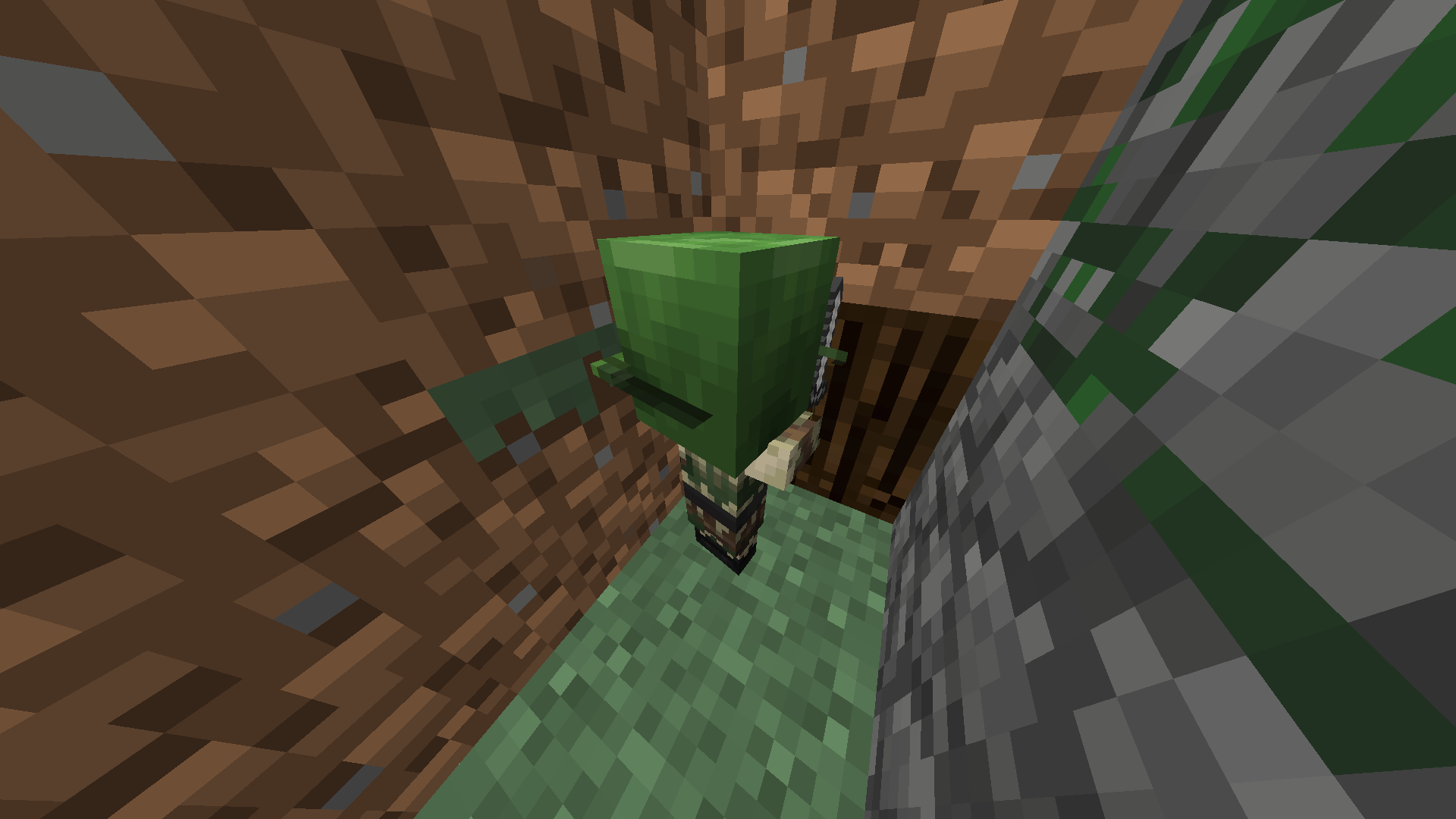
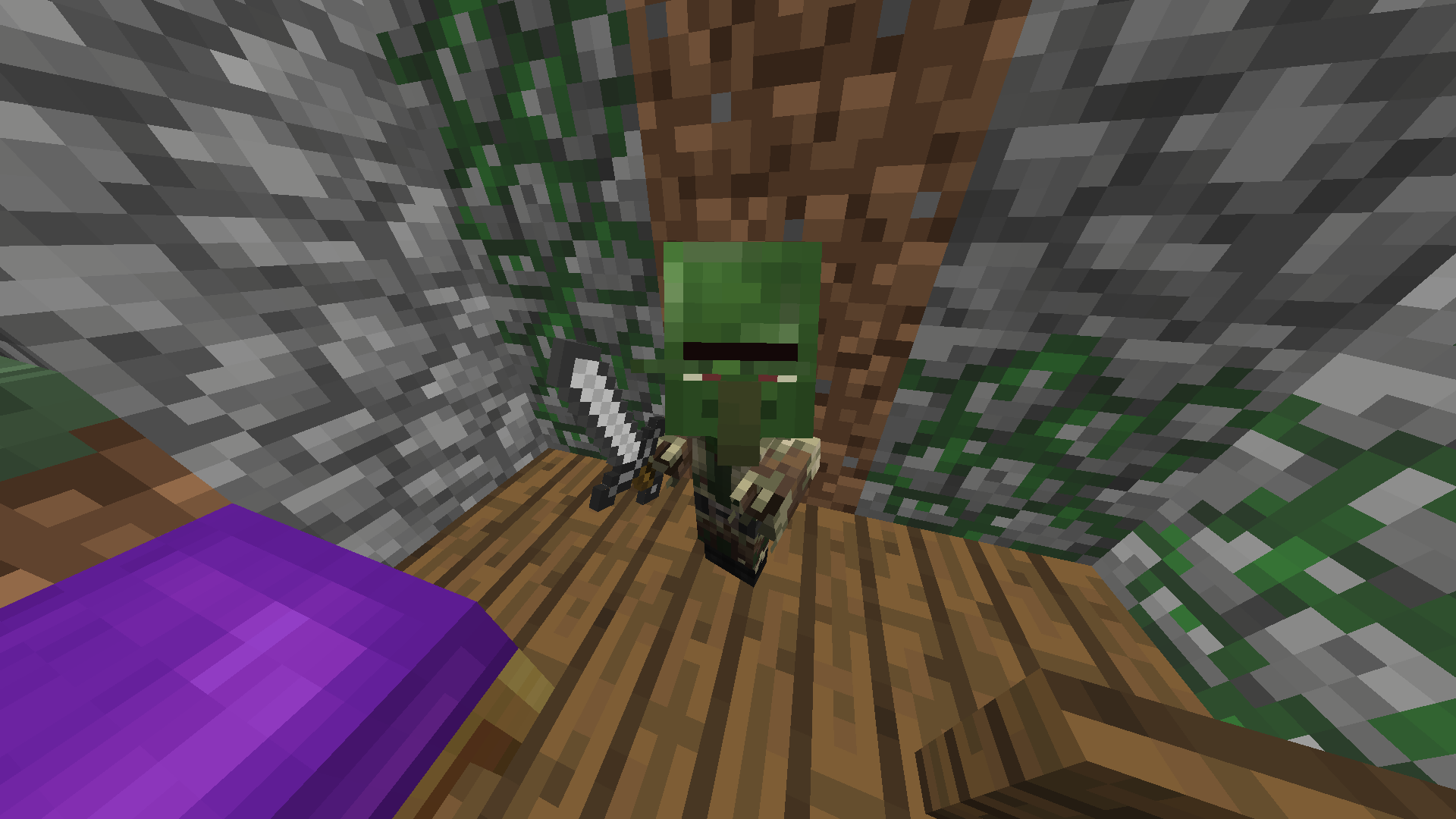
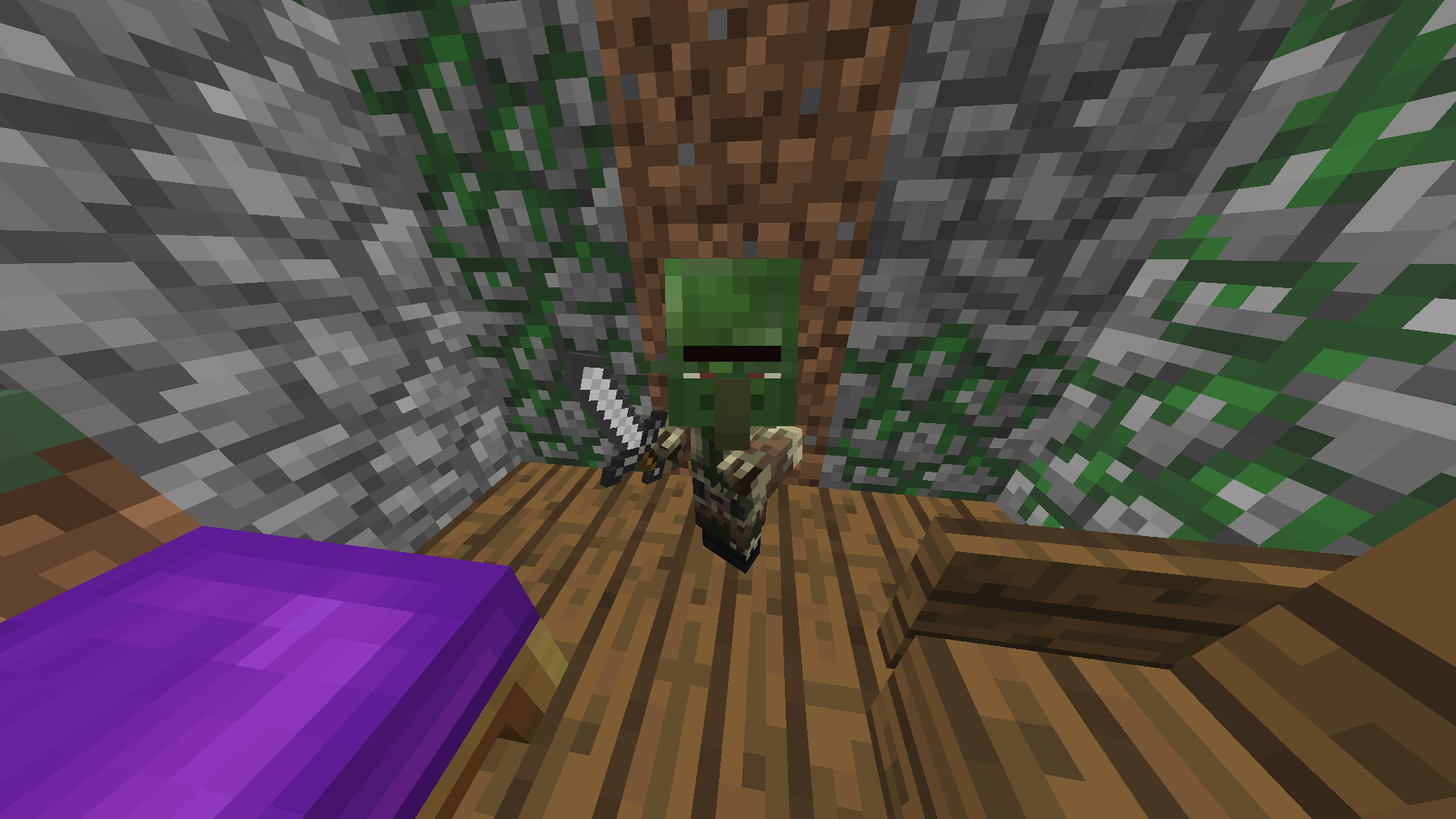
Texture of Baby Zombie Villagermessed upin Programmer ArtTexture of Baby Zombie Villager displayed incorrectly in Programmer Art
Position of objects & entitiesappear elsewherefor a split second when killing an entity or picking up an itemObjects & entities get relocated for a split second when killing an entity or picking up an item
Position of objects (shapes) such as the player's block selectionoutline appears elsewhere for a split second after picking up an itemfrom the ground; as well as random mobs appearing in the wrong location when you kill an entity.
Occurs inGraphics: Fast/Fancyonly.Additionally, my graphics drivers are up to date and my graphics card seems to be supported as no warnings appear.
The videos I've provided below give a clear demonstration:
Part 1
Part 2
Part 3Objects (shapes) such as the player's block selection and entities get relocated for a split second on Graphics: Fast/Fancy only.
Additionally, my graphics drivers are up to date and my graphics card seems to be supported as no warnings appear.
The videos I've provided below give a clear demonstration:
Part 1
Part 2
Part 3
Objects (shapes) such as the player's block selection outline and entities get relocated for a split second on Graphics: Fast/Fancy only.
Additionally, my graphics drivers are up to date and my graphics card seems to be supported as no warnings appear.
The videos I've provided below give a clear demonstration:
Part 1
Part 2
Part 3
Objects (shapes) such as the player's block selection outline and entities get relocated for a split second on Graphics: Fast/Fancy only.
Additionally, my graphics drivers are up to date and my graphics card seems to be supported as no warnings appear.
The videos I've provided below give a clear demonstration:
Part 1
Part 2
Part 3Objects (shapes) such as the player's block selection outline and entities get relocated for a split second on Graphics: Fast/Fancy only.
Additionally, my graphics drivers are up to date and my graphics card seems to be supported as no warnings appear.The videos I've provided below give a clear demonstration:
Part 1
Part 2
Part 3
Objects (shapes) such as the player's block selection outline and entities get relocated for a split second on Graphics: Fast/Fancy only.
Additionally, my graphics drivers are up to date and my graphics card seems to be supported as no warnings appear.The videos I've provided below give a clear demonstration:
Part 1
Part 2
Part 3Seed used for testing: -4953450594639857715 @ /tp @s 175 64 336
Objects (shapes) such as the player's block selection outline and entities get relocated for a split second on Graphics: Fast/Fancy only.
Additionally, my graphics drivers are up to date and my graphics card seems to be supported as no warnings appear.The videos I've provided below give a clear demonstration (YouTube):
Part 1
Part 2
Part 3Seed used for testing: -4953450594639857715 @ /tp @s 175 64 336
Objects (shapes) such as the player's block selection outline and entities get relocated for a split second on Graphics: Fast/Fancy only.
Additionally, my graphics drivers are up to date and my graphics card seems to be supported as no warnings appear.The videos I've provided below give a clear demonstration (YouTube):
Part 1
Part 2
Part 3Seed used for testing: -4953450594639857715 @ /tp @s 175 64 336
Objects (shapes) such as the player's block selection outline and entities get relocated for a split second on Graphics: Fast/Fancy only.
Additionally, my graphics drivers are up to date and my graphics card seems to be supported as no warnings appear.The videos I've provided below give a clear demonstration (YouTube):
Part 1
Part 2
Part 3Seed used for testing: -4953450594639857715 @ /tp @s 175 64 336
Speculation: These issue might've occurred due to the recent changes to rendering with the 1.16 update as well as the addition of Fabulous! graphics.
Objects & entities get relocated for a split second when killing an entityor picking up an itemEntities get relocated for a split second when killing an entity
Objects (shapes) such as the player's block selection outline and entities get relocated for a split second on Graphics: Fast/Fancy only.
Additionally, my graphics drivers are up to date and my graphics card seems to be supported as no warnings appear.The videos I've provided below give a clear demonstration (YouTube):
Part 1
Part 2
Part 3Seed used for testing: -4953450594639857715 @ /tp @s 175 64 336
Speculation: These issue might've occurred due to the recent changes to rendering with the 1.16 update as well as the addition of Fabulous! graphics.I've provided a video below giving a clear demonstration (YouTube):
P
I've provided a video below giving a clear demonstration (YouTube):
PI've provided a video below giving a clear demonstration (YouTube):
Entities getting relocated
I've provided a video below giving a clear demonstration (YouTube):
Entities getting relocatedI've provided a video below giving a clear demonstration (YouTube):
MC-194833
Entities in the distance get relocated for a split second when killing an entity
To reproduce, simply have another player crouch/sneak in front of you and you'll notice how the white letters in their name tag get grayed out.
This seems to be "crosshair-specific" where the two points of the name tag meet each other right at the crosshair/center while a player is facing another player where if they were to be on one side, it would only gray out that side being where the player is crouching.
Due to upload limitations, here's a demonstration (YouTube):
bugTo reproduce, simply have another player crouch/sneak in front of you and you'll notice how the white letters in their name tag get grayed out.
This seems to be "crosshair-specific" where the two points of the name tag meet each other right at the crosshair/center while a player is facing another player where if they were to be on one side, it would only gray out that side being where the player is crouching.
Due to upload limitations, here's a demonstration (YouTube): MC-195216
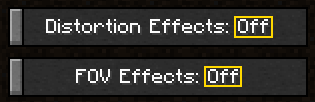
Distortion & FOV Effects options disabled state text is "Off" unlike the other options in the menu
The demonstration video where I test the following:
- hoverEvent &
- clickEvent
by using /tellraw on selector:@e
The positioning of the hoverEvent text on certain entity names was completely off from where it actually should be.
On players, for the most part, it works as intended with a minor issue or possibly intended from the size of chat (where on the edge of the screen, it doesn't register).
On entities, however, hoverEvent never works on the first one on the list but clickEvent does. Instead of having the hoverEvent text display right on the name of the entity you're hovering over, it starts from the comma and ends at the entity name and works regardless if you clicked the hovered space between the comma
andentity name or the actual entity name.As an alternative, have it display the hoverEvent text as well as entity information on the hover text box:
<hover text>
<entity name>
type: <type>
uuid: <uuid>The demonstration video where I test the following:
- hoverEvent &
- clickEvent
by using /tellraw on selector:@e
The positioning of the hoverEvent text on certain entity names was completely off from where it actually should be.
On players, for the most part, it works as intended with a minor issue or possibly intended from the size of chat (where on the edge of the screen, it doesn't register).
On entities, however, hoverEvent never works on the first one on the list but clickEvent does. Instead of having the hoverEvent text display right on the name of the entity you're hovering over, it starts from the comma and ends at the entity name and works regardless if you clicked the hovered space between the comma+entity name or the actual entity name.
As an alternative, have it display the hoverEvent text as well as entity information on the hover text box:
<hover text>
<entity name>
type: <type>
uuid: <uuid>
This occurs on both the new combat test and 1.14.3 with certain items such as the trident whilst crouching.
It is still an issue.
https://youtu.be/tvYFKVSd4ZY
NeunEinser, this disappears by setting Graphics to Fancy.
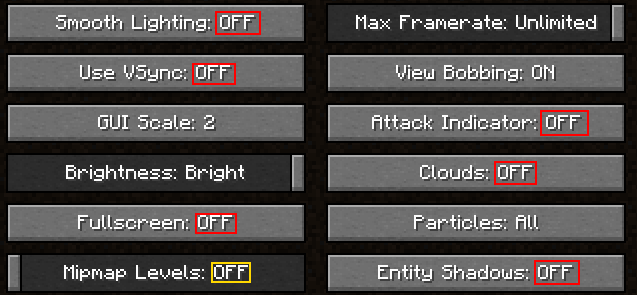
Other than that, the mipmap level is at its highest (4), and odd lighting lines appear on the tree leaves.
It was off in the video linked above.
There was no difference between off and 4. It was the same, odd leaf lighting.
A crash has been attached, this is still present in 1.15 pre2.
Can reproduce.
Pretty sure water renders over rain.
Present in 20w18a.
Still present in 20w22a.
Present in 1.16-pre2.
Affects 1.16-pre2.
Present in 1.16 pre-3.
Agreed with the above comment. It could at least be included with a certain graphics option.
Affects 1.16-pre8.
Before marking as Works as Intended, please do note that it requires extensive testing in order to reproduce this bug.
Present in the game since the changes in 1.15 regarding XP orbs dropping immediately as the mob dies instead of dropping when the particles appear.
Cause of issue & reproduction:
1. Start a fresh superflat world. (Generate structures has no effect.)
2. With my test Creepers work best, however, the reporter says it affects other types of mobs. When in the superflat world, get yourself a Creeper egg.
3. Spawn the said mob.
4. Let it be spawned in the world and do not kill it. Now, Save and Quit to Title the world.
5. Wait around 2s and rejoin the world.
6. Kill the said mob and you should see that particles fail to play. (The Particles: All/Decreased/Minimal setting has nothing to do with this as it doesn't stop the particles from playing anyway.)
You may need to retry several times to get it working but this should do the trick.
You may try Options -> Controls -> Mouse Settings -> Raw Input: ON and see if that'll do the trick.
This only seems to occur when using a key bound to Sprint in Options -> Controls to sprint and not double-tapping forwards.
I've provided a video.
Present in 20w28a.
I think this ticket should rather relate to the above mentioned ticket rather than being marked as duplicate.
You might've rushed through and compared both titles without watching the video for full context.
In comparison, both issues seem to relate to each other rather than this being an apparent duplicate.
Seems like the mentioned issue contains information related to transparency where this one contains other information nowhere to be found in the other ticket.
Thank you for understanding.
Present in 1.16.2-pre1.
Still present throughout 1.16.
Duplicate of
MC-125351It could be that the resistance of the flowing lava is pushing them back hence the slow movement but it might just be a bug as well.
Could also relate to
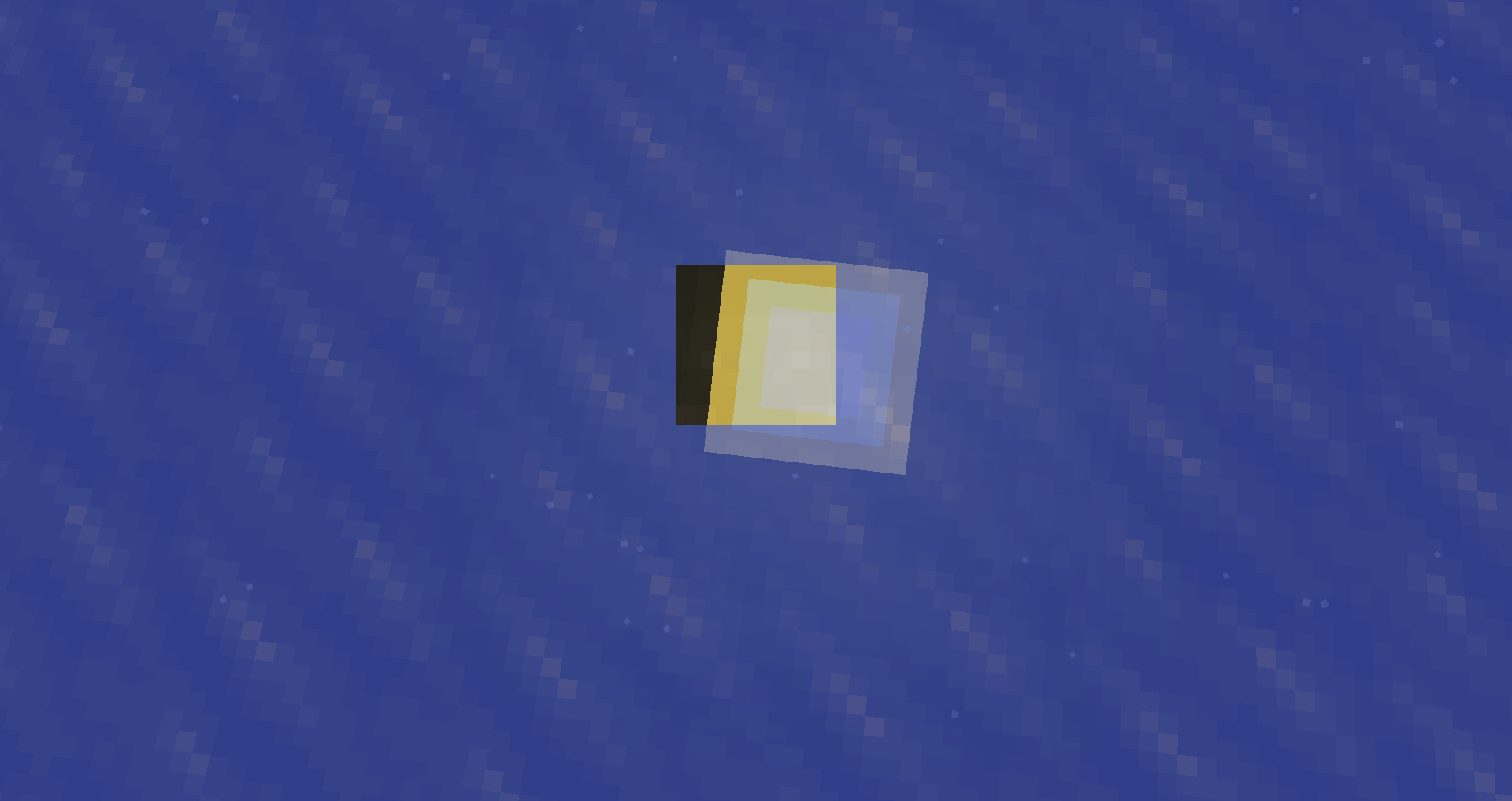
MC-124109Please bump the affected version to 1.16.2 so the developers know it's still an issue; it was used to create the preview - a comparison between the spectator widget texture and the Eye of Ender texture with a rather noticeable difference.
Present in 1.16.3-rc1.
Present in 1.16.3.