 Andrew Larson
- Alien_Drew
- alien_drew
- America/Los_Angeles
- Yes
- No
 MC-152461
 Low
Low MCPE-50658
 WEB-2578









This bug is currently for all versions of 1.14 and above.
Whenever trying to make any animation for paintings with a ratio that isn't '1:1', the animation either won't work or is stretched... the reason
thisis and that I found out isMinecraft still thinks the size of each frame needs to be in a '1:1' ratio. To see this bug in action, I've attached the world and resource pack that demonstrates this bug, and the files that I changed to show how it fails, and how to "fix" it. The file named "Animation Painting Bug Demonstration.zip" contains the resourcepack and and the world file.For a work around until this is fixed, let's say each image has a ratio 'a:b'...
When 'a' is smaller than 'b', you can do the following
So in order to get an image such as a '1:2' painting to animate properly in game, it needs to be resized as follows.
- Note how many frames you made for the painting, and note the size of the y-axis in pixels
- Take the size of the y-axis in pixels divided by the number of frames (this gives you the size you need to stretch the x-axis), let's call this NEW_X
- Stretch the x-axis of the animation image to the NEW_X size of pixels, keeping the y-axis the same
Now that image should animate and look right instead of stretched.
However... for images where 'a' is larger than 'b', things get tricky
So in order to get an image such as a '4:3' painting to animate properly in game, it needs to be first stretched then resized as follows.
- Note how many frames you made for the painting, and note the size of the y-axis in pixels
- Take the size of the y-axis in pixels divided by the number of frames (this gives you the size you need to shrink the x-axis), let's call this PROTO_X
- Since we are sizing down... quality would be lost, so we need to size up by 'a' first. So, stretch the entire animation image by multiplying 'a'.
- Now that the image is sized up, we need to get the size that we need to size down to, which is just PROTO_X multiplied by 'a', let's call this NEW_X
- Shrink the x-axis of the animation image to the NEW_X size of pixels, keeping the y-axis the same
Now that image should animate and look right instead of stretched.
Now, you may ask, why does this work?
What's going on is we are changing the ratio for each frame to be '1:1' instead of whatever 'a:b' ratio it was. The graphics engine still thinks all animations for paintings require a '1:1' ratio, which is why normal square paintings still work normal, but anything that isn't '1:1' doesn't work.Hopefully this bug gets patched in the next update.
This bug is currently for all versions of 1.14 and above.
Whenever trying to make any animation for paintings with a ratio that isn't '1:1', the animation either won't work or is stretched... I found out the reason is because Minecraft still thinks the size of each frame needs to be in a '1:1' ratio. To see this bug in action, I've attached the world and resource pack that demonstrates this bug, and the files that I changed to show how it fails, and how to "fix" it. The file named "Animation Painting Bug Demonstration.zip" contains the resourcepack and and the world file.
For a work around until this is fixed, let's say each image has a ratio 'a:b' where 'a' is width and 'b' is height...
When 'a' is smaller than 'b', you can do the following
So in order to get an image such as a '1:2' painting to animate properly in game, it needs to be resized as follows.
- Note how many frames you made for the painting, and note the size of the y-axis in pixels
- Take the size of the y-axis in pixels divided by the number of frames (this gives you the size you need to stretch the x-axis), let's call this NEW_X
- Stretch the x-axis of the animation image to the NEW_X size of pixels, keeping the y-axis the same
Now that image should animate and look right instead of stretched.
However... for images where 'a' is larger than 'b', things get tricky
So in order to get an image such as a '4:3' painting to animate properly in game, it needs to be first stretched then resized as follows.
- Note how many frames you made for the painting, and note the size of the y-axis in pixels
- Take the size of the y-axis in pixels divided by the number of frames (this gives you the size you need to shrink the x-axis), let's call this PROTO_X
- Since we are sizing down... quality would be lost, so we need to size up by 'a' first. So, stretch the entire animation image by multiplying 'a'.
- Now that the image is sized up, we need to get the size that we need to size down to, which is just PROTO_X multiplied by 'a', let's call this NEW_X
- Shrink the x-axis of the animation image to the NEW_X size of pixels, keeping the y-axis the same
Now that image should animate and look right instead of stretched.
Now, you may ask, why does this work?
What's going on is we are changing the ratio for each frame to be '1:1' instead of whatever 'a:b' ratio it was. The graphics engine still thinks all animations for paintings require a '1:1' ratio, which is why normal square paintings still work normal, but anything that isn't '1:1' doesn't work.Hopefully this bug gets patched in the next update.
This bug is currently for all versions of 1.14 and above.
Whenever trying to make any animation for paintings with a ratio that isn't '1:1', the animation either won't work or is stretched... I found out the reason is because Minecraft still thinks the size of each frame needs to be in a '1:1' ratio. To see this bug in action, I've attached the world and resource pack that demonstrates this bug, and the files that I changed to show how it fails, and how to "fix" it. The file named "Animation Painting Bug Demonstration.zip" contains the resourcepack and and the world file.
For a work around until this is fixed, let's say each image has a ratio 'a:b' where 'a' is width and 'b' is height...
When 'a' is smaller than 'b', you can do the following
So in order to get an image such as a '1:2' painting to animate properly in game, it needs to be resized as follows.
- Note how many frames you made for the painting, and note the size of the y-axis in pixels
- Take the size of the y-axis in pixels divided by the number of frames (this gives you the size you need to stretch the x-axis), let's call this NEW_X
- Stretch the x-axis of the animation image to the NEW_X size of pixels, keeping the y-axis the same
Now that image should animate and look right instead of stretched.
However... for images where 'a' is larger than 'b', things get tricky
So in order to get an image such as a '4:3' painting to animate properly in game, it needs to be first stretched then resized as follows.
- Note how many frames you made for the painting, and note the size of the y-axis in pixels
- Take the size of the y-axis in pixels divided by the number of frames (this gives you the size you need to shrink the x-axis), let's call this PROTO_X
- Since we are sizing down... quality would be lost, so we need to size up by 'a' first. So, stretch the entire animation image by multiplying 'a'.
- Now that the image is sized up, we need to get the size that we need to size down to, which is just PROTO_X multiplied by 'a', let's call this NEW_X
- Shrink the x-axis of the animation image to the NEW_X size of pixels, keeping the y-axis the same
Now that image should animate and look right instead of stretched.
Now, you may ask, why does this work?
What's going on is we are changing the ratio for each frame to be '1:1' instead of whatever 'a:b' ratio it was. The graphics engine still thinks all animations for paintings require a '1:1' ratio, which is why normal square paintings still worknormal, but anything that isn't '1:1' doesn't work.Hopefully this bug gets patched in the next update.
This bug is currently for all versions of 1.14 and above.
Whenever trying to make any animation for paintings with a ratio that isn't '1:1', the animation either won't work or is stretched... I found out the reason is because Minecraft still thinks the size of each frame needs to be in a '1:1' ratio. To see this bug in action, I've attached the world and resource pack that demonstrates this bug, and the files that I changed to show how it fails, and how to "fix" it. The file named "Animation Painting Bug Demonstration.zip" contains the resourcepack and and the world file.
For a work around until this is fixed, let's say each image has a ratio 'a:b' where 'a' is width and 'b' is height...
When 'a' is smaller than 'b', you can do the following
So in order to get an image such as a '1:2' painting to animate properly in game, it needs to be resized as follows.
- Note how many frames you made for the painting, and note the size of the y-axis in pixels
- Take the size of the y-axis in pixels divided by the number of frames (this gives you the size you need to stretch the x-axis), let's call this NEW_X
- Stretch the x-axis of the animation image to the NEW_X size of pixels, keeping the y-axis the same
Now that image should animate and look right instead of stretched.
However... for images where 'a' is larger than 'b', things get tricky
So in order to get an image such as a '4:3' painting to animate properly in game, it needs to be first stretched then resized as follows.
- Note how many frames you made for the painting, and note the size of the y-axis in pixels
- Take the size of the y-axis in pixels divided by the number of frames (this gives you the size you need to shrink the x-axis), let's call this PROTO_X
- Since we are sizing down... quality would be lost, so we need to size up by 'a' first. So, stretch the entire animation image by multiplying 'a'.
- Now that the image is sized up, we need to get the size that we need to size down to, which is just PROTO_X multiplied by 'a', let's call this NEW_X
- Shrink the x-axis of the animation image to the NEW_X size of pixels, keeping the y-axis the same
Now that image should animate and look right instead of stretched.
Now, you may ask, why does this work?
What's going on is we are changing the ratio for each frame to be '1:1' instead of whatever 'a:b' ratio it was. The graphics engine still thinks all animations for paintings require a '1:1' ratio, which is why normal square paintings still work, but anything that isn't '1:1' doesn't work with altering.Hopefully this bug gets patched in the next update.
This bug is currently for all versions of 1.14 and above.
Whenever trying to make any animation for paintings with a ratio that isn't '1:1', the animation either won't work or is stretched... I found out the reason is because Minecraft still thinks the size of each frame needs to be in a '1:1' ratio. To see this bug in action, I've attached the world and resource pack that demonstrates this bug, and the files that I changed to show how it fails, and how to "fix" it. The file named "Animation Painting Bug Demonstration.zip" contains the resourcepack and and the world file.
For a work around until this is fixed, let's say each image has a ratio 'a:b' where 'a' is width and 'b' is height...
When 'a' is smaller than 'b', you can do the following
So in order to get an image such as a '1:2' painting to animate properly in game, it needs to be resized as follows.
- Note how many frames you made for the painting, and note the size of the y-axis in pixels
- Take the size of the y-axis in pixels divided by the number of frames (this gives you the size you need to stretch the x-axis), let's call this NEW_X
- Stretch the x-axis of the animation image to the NEW_X size of pixels, keeping the y-axis the same
Now that image should animate and look right instead of stretched.
However... for images where 'a' is larger than 'b', things get tricky
So in order to get an image such as a '4:3' painting to animate properly in game, it needs to be first stretched then resized as follows.
- Note how many frames you made for the painting, and note the size of the y-axis in pixels
- Take the size of the y-axis in pixels divided by the number of frames (this gives you the size you need to shrink the x-axis), let's call this PROTO_X
- Since we are sizing down... quality would be lost, so we need to size up by 'a' first. So, stretch the entire animation image by multiplying 'a'.
- Now that the image is sized up, we need to get the size that we need to size down to, which is just PROTO_X multiplied by 'a', let's call this NEW_X
- Shrink the x-axis of the animation image to the NEW_X size of pixels, keeping the y-axis the same
Now that image should animate and look right instead of stretched.
Now, you may ask, why does this work?
What's going on is we are changing the ratio for each frame to be '1:1' instead of whatever 'a:b' ratio it was. The graphics engine still thinks all animations for paintings require a '1:1' ratio, which is why normal square paintings still work, but anything that isn't '1:1' doesn't work with altering.Hopefully this bug gets patched in the next update.
As for the map and images I've attached...
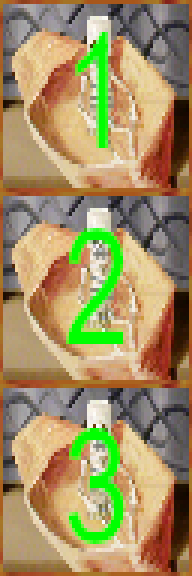
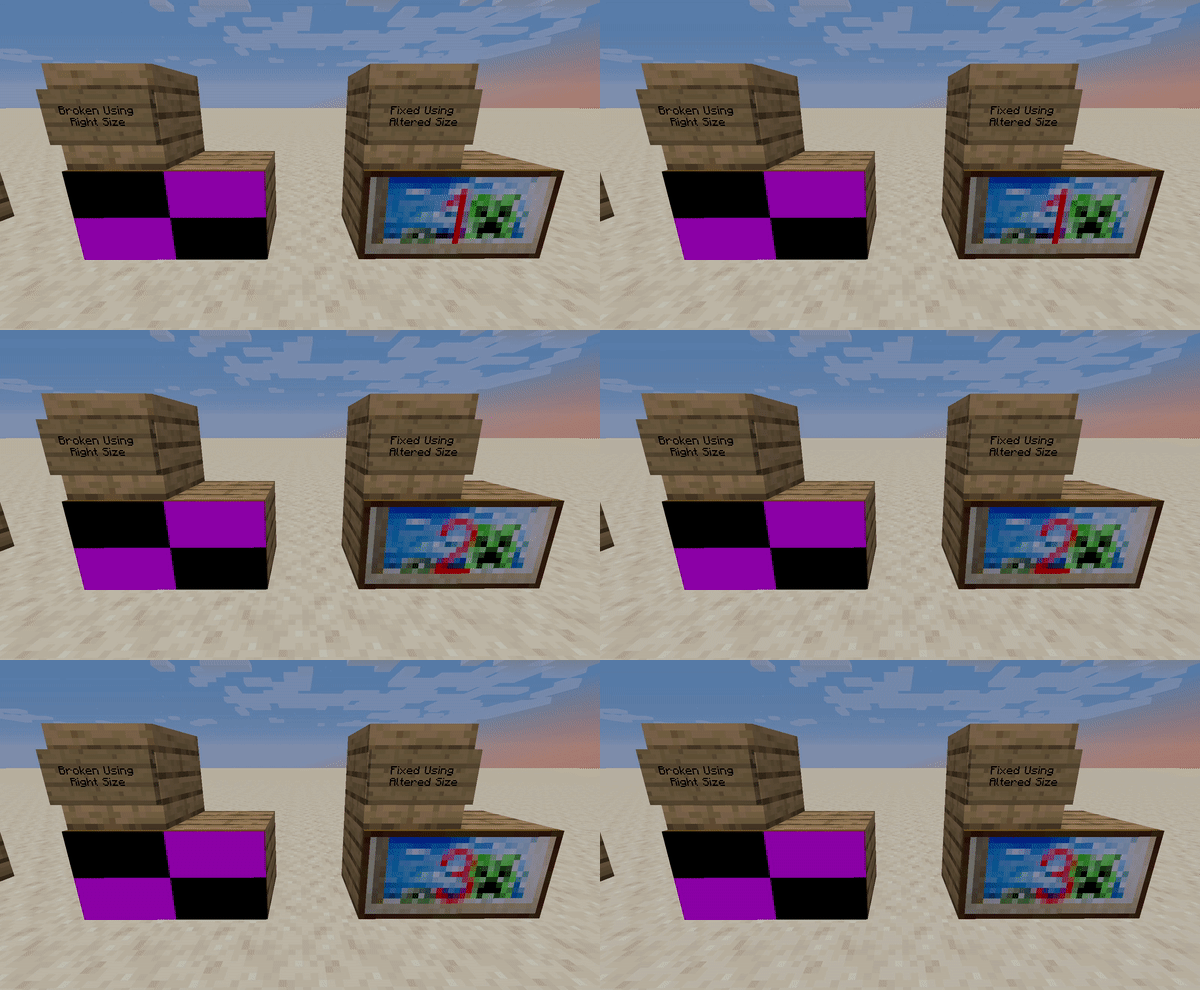
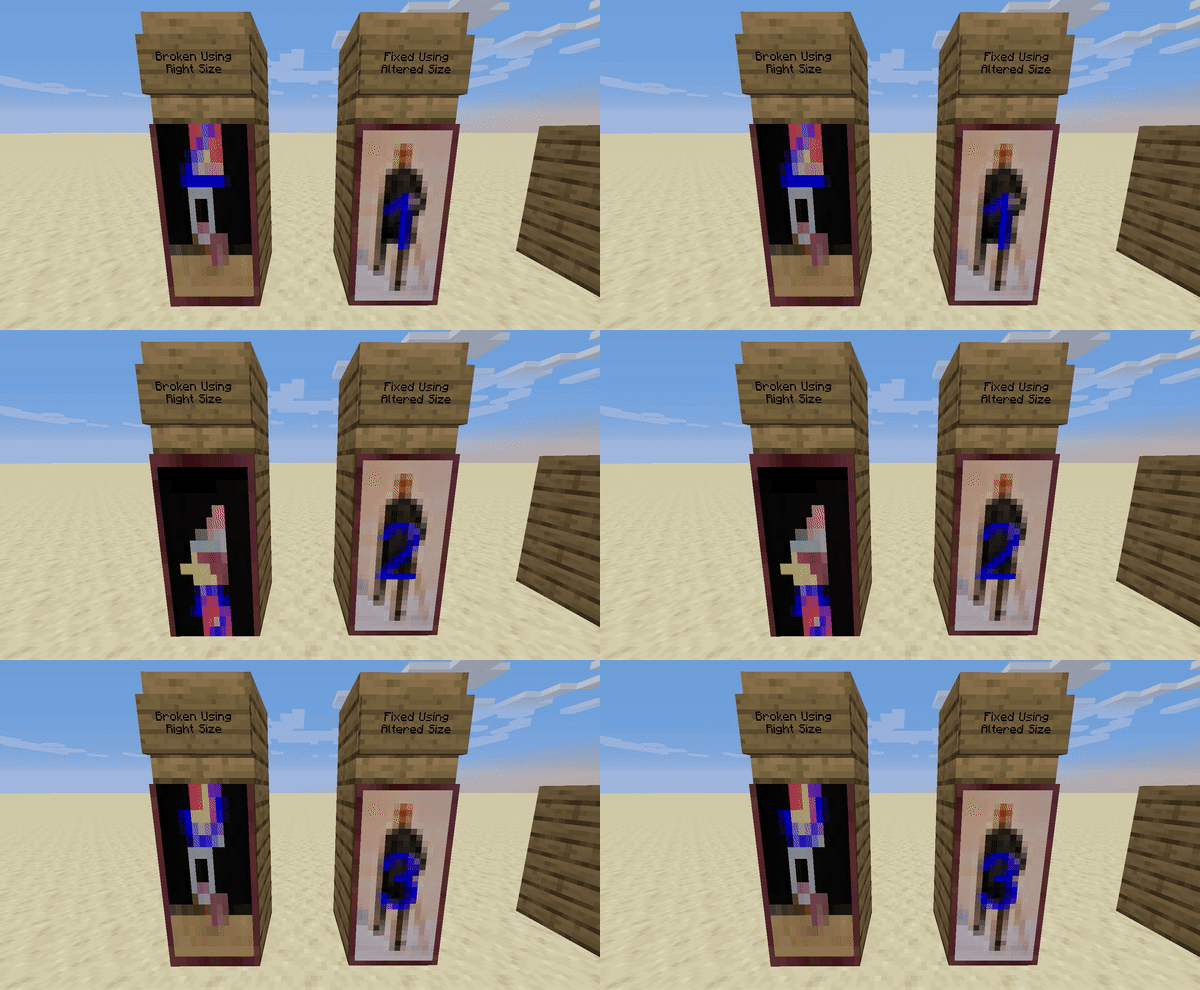
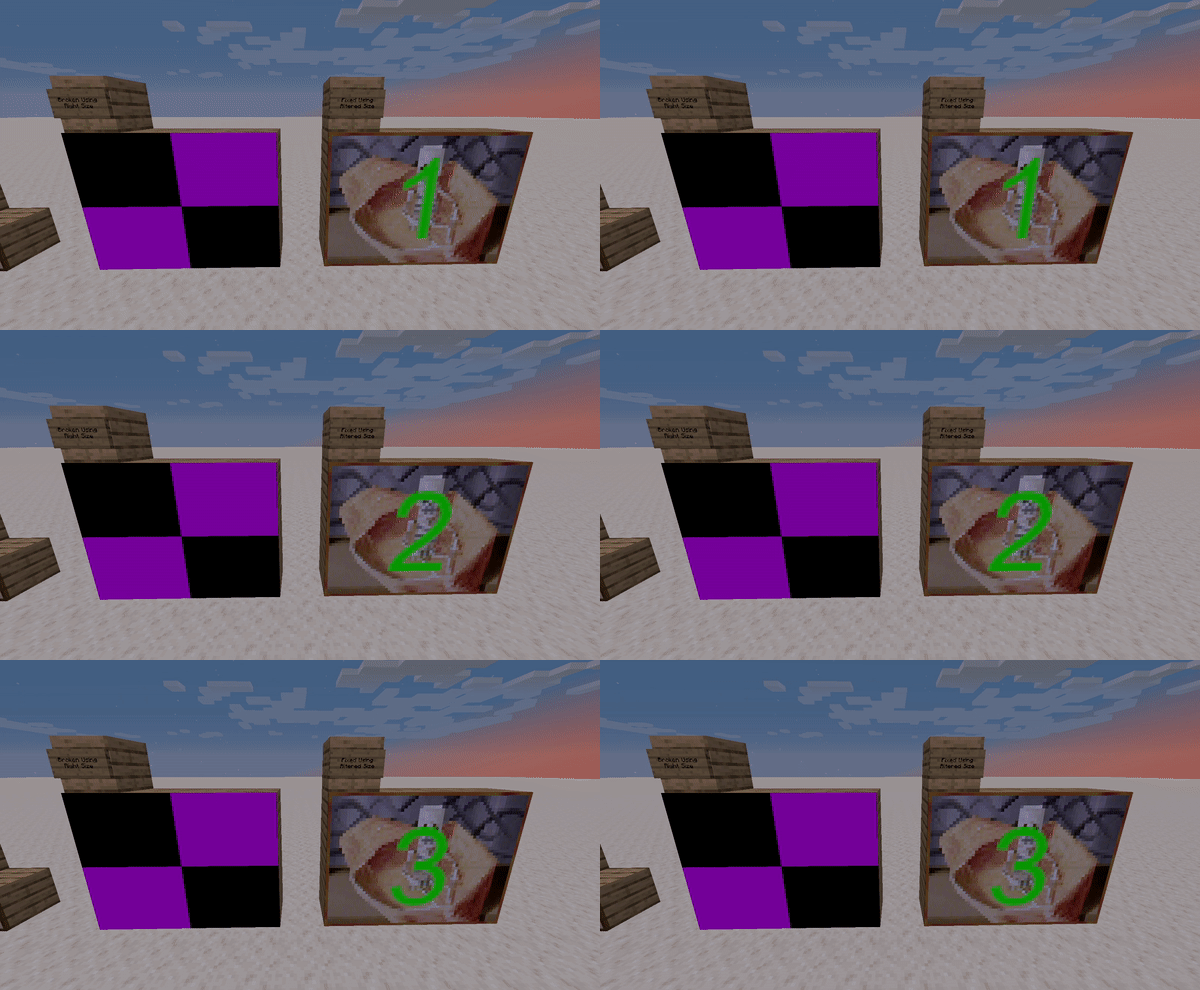
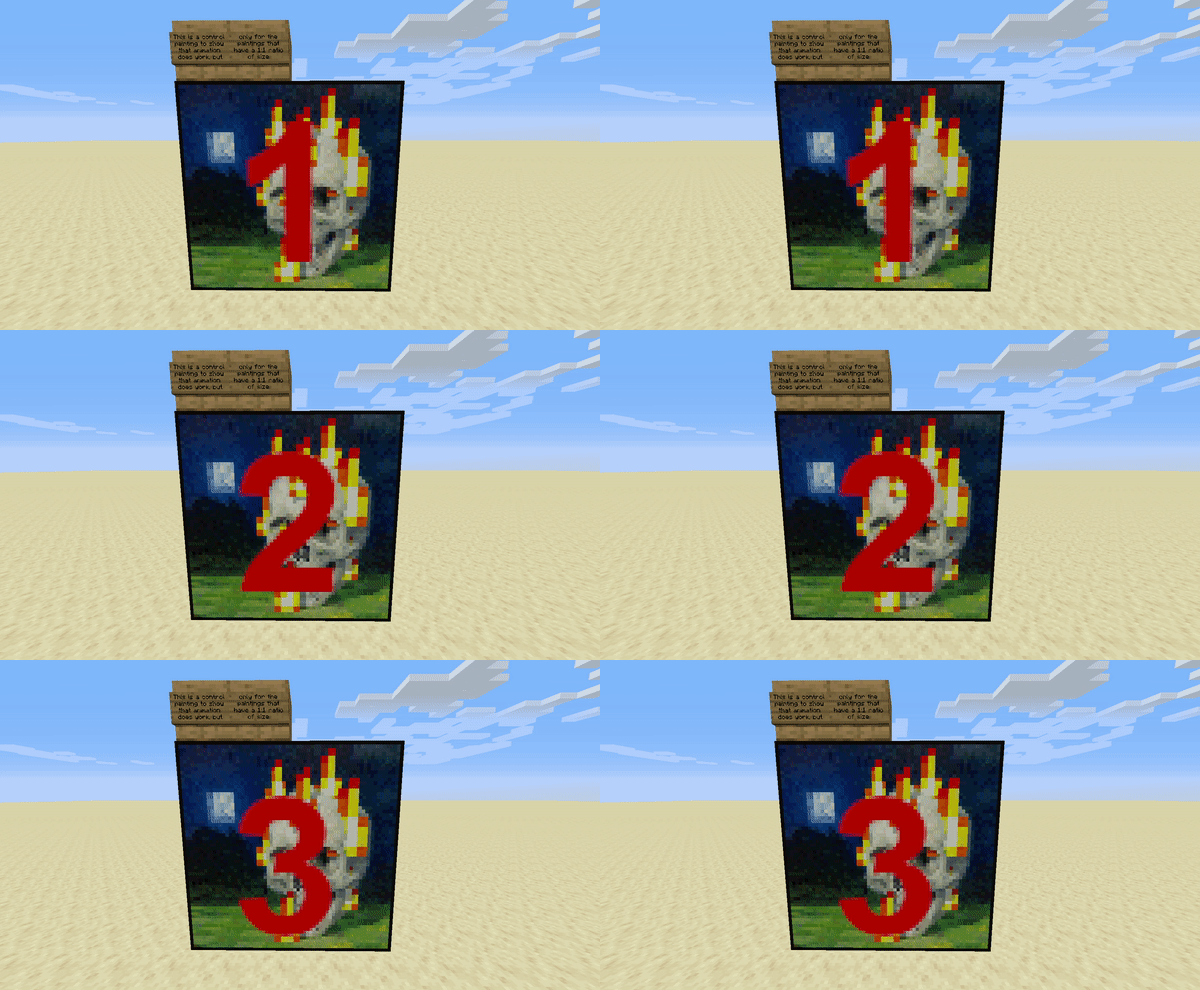
The 'burning_skull.png' is just a control image to show that animations work for 'a' = 'b' ratio ('1:1') paintings. First, 'graham.png' and 'wanderer.png' represent 'a' < 'b' ratio ('1:2') where 'graham.png' is the broken animation, while 'wanderer.png' is the 'fixed' file. Next, 'courbet.png' and 'creebet.png' represent 'a' > 'b' ratio ('2:1')** where 'courbet.png' is the broken animation, while 'creebet.png' is the 'fixed' file. Last, 'donkey_kong.png' and 'skeleton.png' represent another 'a' > 'b' ratio ('4:3')** where 'donkey_kong.png' is the broken animation, while 'skeleton.png' is the 'fixed' file.
This bug is currently for all versions of 1.14 and above.
Whenever trying to make any animation for paintings with a ratio that isn't '1:1', the animation either won't work or is stretched... I found out the reason is because Minecraft still thinks the size of each frame needs to be in a '1:1' ratio. To see this bug in action, I've attached the world and resource pack that demonstrates this bug, and the files that I changed to show how it fails, and how to "fix" it. The file named "Animation Painting Bug Demonstration.zip" contains the resourcepack and and the world file.
For a work around until this is fixed, let's say each image has a ratio 'a:b' where 'a' is width and 'b' is height...
When 'a' is smaller than 'b', you can do the following
So in order to get an image such as a '1:2' painting to animate properly in game, it needs to be resized as follows.
- Note how many frames you made for the painting, and note the size of the y-axis in pixels
- Take the size of the y-axis in pixels divided by the number of frames (this gives you the size you need to stretch the x-axis), let's call this NEW_X
- Stretch the x-axis of the animation image to the NEW_X size of pixels, keeping the y-axis the same
Now that image should animate and look right instead of stretched.
However... for images where 'a' is larger than 'b', things get tricky
So in order to get an image such as a '4:3' painting to animate properly in game, it needs to be first stretched then resized as follows.
- Note how many frames you made for the painting, and note the size of the y-axis in pixels
- Take the size of the y-axis in pixels divided by the number of frames (this gives you the size you need to shrink the x-axis), let's call this PROTO_X
- Since we are sizing down... quality would be lost, so we need to size up by 'a' first. So, stretch the entire animation image by multiplying 'a'.
- Now that the image is sized up, we need to get the size that we need to size down to, which is just PROTO_X multiplied by 'a', let's call this NEW_X
- Shrink the x-axis of the animation image to the NEW_X size of pixels, keeping the y-axis the same
Now that image should animate and look right instead of stretched.
Now, you may ask, why does this work?
What's going on is we are changing the ratio for each frame to be '1:1' instead of whatever 'a:b' ratio it was. The graphics engine still thinks all animations for paintings require a '1:1' ratio, which is why normal square paintings still work, but anything that isn't '1:1' doesn't work with altering.Hopefully this bug gets patched in the next update.
As for the map and images I've attached...
The 'burning_skull.png' is just a control image to show that animations work for 'a' = 'b' ratio ('1:1') paintings. First, 'graham.png' and 'wanderer.png' represent'a' < 'b' ratio ('1:2') where 'graham.png' is the broken animation, while 'wanderer.png' is the 'fixed' file. Next, 'courbet.png' and 'creebet.png' represent 'a' > 'b' ratio ('2:1')**where 'courbet.png' is the broken animation, while 'creebet.png' is the 'fixed' file. Last, 'donkey_kong.png' and 'skeleton.png' represent another 'a' > 'b' ratio ('4:3')**where 'donkey_kong.png' is the broken animation, while 'skeleton.png' is the 'fixed' file.This bug is currently for all versions of 1.14 and above.
Whenever trying to make any animation for paintings with a ratio that isn't '1:1', the animation either won't work or is stretched... I found out the reason is because Minecraft still thinks the size of each frame needs to be in a '1:1' ratio. To see this bug in action, I've attached the world and resource pack that demonstrates this bug, and the files that I changed to show how it fails, and how to "fix" it. The file named "Animation Painting Bug Demonstration.zip" contains the resourcepack and and the world file.
For a work around until this is fixed, let's say each image has a ratio 'a:b' where 'a' is width and 'b' is height...
When 'a' is smaller than 'b', you can do the following
So in order to get an image such as a '1:2' painting to animate properly in game, it needs to be resized as follows.
- Note how many frames you made for the painting, and note the size of the y-axis in pixels
- Take the size of the y-axis in pixels divided by the number of frames (this gives you the size you need to stretch the x-axis), let's call this NEW_X
- Stretch the x-axis of the animation image to the NEW_X size of pixels, keeping the y-axis the same
Now that image should animate and look right instead of stretched.
However... for images where 'a' is larger than 'b', things get tricky
So in order to get an image such as a '4:3' painting to animate properly in game, it needs to be first stretched then resized as follows.
- Note how many frames you made for the painting, and note the size of the y-axis in pixels
- Take the size of the y-axis in pixels divided by the number of frames (this gives you the size you need to shrink the x-axis), let's call this PROTO_X
- Since we are sizing down... quality would be lost, so we need to size up by 'a' first. So, stretch the entire animation image by multiplying 'a'.
- Now that the image is sized up, we need to get the size that we need to size down to, which is just PROTO_X multiplied by 'a', let's call this NEW_X
- Shrink the x-axis of the animation image to the NEW_X size of pixels, keeping the y-axis the same
Now that image should animate and look right instead of stretched.
Now, you may ask, why does this work?
What's going on is we are changing the ratio for each frame to be '1:1' instead of whatever 'a:b' ratio it was. The graphics engine still thinks all animations for paintings require a '1:1' ratio, which is why normal square paintings still work, but anything that isn't '1:1' doesn't work with altering.Hopefully this bug gets patched in the next update.
As for the map and images I've attached...
The 'burning_skull.png' is just a control image to show that animations work for an 'a' = 'b' ratio ('1:1') paintings. First, 'graham.png' and 'wanderer.png' represents an 'a' < 'b' ratio ('1:2') where 'graham.png' is the broken animation, while 'wanderer.png' is the 'fixed' file. Next, 'courbet.png' and 'creebet.png' represent an 'a' > 'b' ratio ('2:1') where 'courbet.png' is the broken animation, while 'creebet.png' is the 'fixed' file. Last, 'donkey_kong.png' and 'skeleton.png' represents another 'a' > 'b' ratio ('4:3') where 'donkey_kong.png' is the broken animation, while 'skeleton.png' is the 'fixed' file.
This bug is currently for all versions of 1.14 and above.
Whenever trying to make any animation for paintings with a ratio that isn't '1:1', the animation either won't work or is stretched... I found out the reason is because Minecraft still thinks the size of each frame needs to be in a '1:1' ratio. To see this bug in action, I've attached the world and resource pack that demonstrates this bug, and the files that I changed to show how it fails, and how to "fix" it. The file named "Animation Painting Bug Demonstration.zip" contains the resourcepack and and the world file.
For a work around until this is fixed, let's say each image has a ratio 'a:b' where 'a' is width and 'b' is height...
When 'a' is smaller than 'b', you can do the following
So in order to get an image such as a '1:2' painting to animate properly in game, it needs to be resized as follows.
- Note how many frames you made for the painting, and note the size of the y-axis in pixels
- Take the size of the y-axis in pixels divided by the number of frames (this gives you the size you need to stretch the x-axis), let's call this NEW_X
- Stretch the x-axis of the animation image to the NEW_X size of pixels, keeping the y-axis the same
Now that image should animate and look right instead of stretched.
However... for images where 'a' is larger than 'b', things get tricky
So in order to get an image such as a '4:3' painting to animate properly in game, it needs to be first stretched then resized as follows.
- Note how many frames you made for the painting, and note the size of the y-axis in pixels
- Take the size of the y-axis in pixels divided by the number of frames (this gives you the size you need to shrink the x-axis), let's call this PROTO_X
- Since we are sizing down... quality would be lost, so we need to size up by 'a' first. So, stretch the entire animation image by multiplying 'a'.
- Now that the image is sized up, we need to get the size that we need to size down to, which is just PROTO_X multiplied by 'a', let's call this NEW_X
- Shrink the x-axis of the animation image to the NEW_X size of pixels, keeping the y-axis the same
Now that image should animate and look right instead of stretched.
Now, you may ask, why does this work?
What's going on is we are changing the ratio for each frame to be '1:1' instead of whatever 'a:b' ratio it was. The graphics engine still thinks all animations for paintings require a '1:1' ratio, which is why normal square paintings still work, but anything that isn't '1:1' doesn't work with altering.Hopefully this bug gets patched in the next update.
As for the map and images I've attached...
The 'burning_skull.png' is just a control image to show that animations work for an 'a' = 'b' ratio ('1:1') paintings. First, 'graham.png' and 'wanderer.png' represents an 'a' < 'b' ratio ('1:2') where 'graham.png' is the broken animation, while 'wanderer.png' is the 'fixed' file. Next, 'courbet.png' and 'creebet.png' represent an 'a' > 'b' ratio ('2:1') where 'courbet.png' is the broken animation, while 'creebet.png' is the 'fixed' file. Last, 'donkey_kong.png' and 'skeleton.png' represents another 'a' > 'b' ratio ('4:3') where 'donkey_kong.png' is the broken animation, while 'skeleton.png' is the 'fixed' file.This bug is currently for all versions of 1.14 and above.
Whenever trying to make any animation for paintings with a ratio that isn't '1:1', the animation either won't work or is stretched... I found out the reason is because Minecraft still thinks the size of each frame needs to be in a '1:1' ratio. To see this bug in action, I've attached the world and resource pack that demonstrates this bug, and the files that I changed to show how it fails, and how to "fix" it. The file named "Animation Painting Bug Demonstration.zip" contains the resourcepack and and the world file.
For a work around until this is fixed, let's say each image has a ratio 'a:b' where 'a' is width and 'b' is height...
When 'a' is smaller than 'b', you can do the following
So in order to get an image such as a '1:2' painting to animate properly in game, it needs to be resized as follows.
- Note how many frames you made for the painting, and note the size of the y-axis in pixels
- Take the size of the y-axis in pixels divided by the number of frames (this gives you the size you need to stretch the x-axis), let's call this NEW_X
- Stretch the x-axis of the animation image to the NEW_X size of pixels, keeping the y-axis the same
Now that image should animate and look right instead of stretched.
However... for images where 'a' is larger than 'b', things get tricky
So in order to get an image such as a '4:3' painting to animate properly in game, it needs to be first stretched then resized as follows.
- Note how many frames you made for the painting, and note the size of the y-axis in pixels
- Take the size of the y-axis in pixels divided by the number of frames (this gives you the size you need to shrink the x-axis), let's call this PROTO_X
- Since we are sizing down... quality would be lost, so we need to size up by 'a' first. So, stretch the entire animation image by multiplying 'a'.
- Now that the image is sized up, we need to get the size that we need to size down to, which is just PROTO_X multiplied by 'a', let's call this NEW_X
- Shrink the x-axis of the animation image to the NEW_X size of pixels, keeping the y-axis the same
Now that image should animate and look right instead of stretched.
Now, you may ask, why does this work?
What's going on is we are changing the ratio for each frame to be '1:1' instead of whatever 'a:b' ratio it was. The graphics engine still thinks all animations for paintings require a '1:1' ratio, which is why normal square paintings still work, but anything that isn't '1:1' doesn't work with altering.Hopefully this bug gets patched in the next update.
As for the map and images I've attached...
The 'burning_skull.png' is just a control image to show that animations work for an 'a' = 'b' ratio ('1:1') paintings. First, 'graham.png' and 'wanderer.png' represents an 'a' < 'b' ratio ('1:2') where 'graham.png' is the broken animation, while 'wanderer.png' is the 'fixed' file. Next, 'courbet.png' and 'creebet.png' represent an 'a' > 'b' ratio ('2:1') where 'courbet.png' is the broken animation, while 'creebet.png' is the 'fixed' file. Last, 'donkey_kong.png' and 'skeleton.png' represents another 'a' > 'b' ratio ('4:3') where 'donkey_kong.png' is the broken animation, while 'skeleton.png' is the 'fixed' file.
This bug is currently for all versions of 1.14 and above.
Whenever trying to make any animation for paintings with a ratio that isn't '1:1', the animation either won't work or is stretched... I found out the reason is because Minecraft still thinks the size of each frame needs to be in a '1:1' ratio. To see this bug in action, I've attached the world and resource pack that demonstrates this bug, and the files that I changed to show how it fails, and how to "fix" it. The file named "Animation Painting Bug Demonstration.zip" contains the resourcepack and and the world file.
For a work around until this is fixed, let's say each image has a ratio 'a:b' where 'a' is width and 'b' is height...
When 'a' is smaller than 'b', you can do the following
So in order to get an image such as a '1:2' painting to animate properly in game, it needs to be resized as follows.
- Note how many frames you made for the painting, and note the size of the y-axis in pixels
- Take the size of the y-axis in pixels divided by the number of frames (this gives you the size you need to stretch the x-axis), let's call this NEW_X
- Stretch the x-axis of the animation image to the NEW_X size of pixels, keeping the y-axis the same
Now that image should animate and look right instead of stretched.
However... for images where 'a' is larger than 'b', things get tricky
So in order to get an image such as a '4:3' painting to animate properly in game, it needs to be first stretched then resized as follows.
- Note how many frames you made for the painting, and note the size of the y-axis in pixels
- Take the size of the y-axis in pixels divided by the number of frames (this gives you the size you need to shrink the x-axis), let's call this PROTO_X
- Since we are sizing down... quality would be lost, so we need to size up by 'a' first. So, stretch the entire animation image by multiplying 'a'.
- Now that the image is sized up, we need to get the size that we need to size down to, which is just PROTO_X multiplied by 'a', let's call this NEW_X
- Shrink the x-axis of the animation image to the NEW_X size of pixels, keeping the y-axis the same
Now that image should animate and look right instead of stretched.
Now, you may ask, why does this work?
What's going on is we are changing the ratio for each frame to be '1:1' instead of whatever 'a:b' ratio it was. The graphics engine still thinks all animations for paintings require a '1:1' ratio, which is why normal square paintings still work, but anything that isn't '1:1' doesn't work with altering.Hopefully this bug gets patched in the next update.
As for the map and images I've attached...
The 'burning_skull.png' is just a control image to show that animations work for an 'a' = 'b' ratio ('1:1') paintings. First, 'graham.png' and 'wanderer.png' represents an 'a' < 'b' ratio ('1:2') where 'graham.png' is the broken animation, while 'wanderer.png' is the 'fixed' file. Next, 'courbet.png' and 'creebet.png' represent an 'a' > 'b' ratio ('2:1') where 'courbet.png' is the broken animation, while 'creebet.png' is the 'fixed' file. Last, 'donkey_kong.png' and 'skeleton.png' represents another 'a' > 'b' ratio ('4:3') where 'donkey_kong.png' is the broken animation, while 'skeleton.png' is the 'fixed' file.This bug is currently for all versions of 1.14 and above.
Whenever trying to make any animation for paintings with a ratio that isn't '1:1', the animation either won't work or is stretched... I found out the reason is because Minecraft still thinks the size of each frame needs to be in a '1:1' ratio. To see this bug in action, I've attached the world and resource pack that demonstrates this bug, and the files that I changed to show how it fails, and how to "fix" it. The file named "Animation Painting Bug Demonstration.zip" contains the resourcepack and and the world file.
For a work around until this is fixed, let's say each image has a ratio 'a:b' where 'a' is width and 'b' is height...
When 'a' is smaller than 'b', you can do the following
So in order to get an image such as a '1:2' painting to animate properly in game, it needs to be resized as follows.
- Note how many frames you made for the painting, and note the size of the y-axis in pixels
- Take the size of the y-axis in pixels divided by the number of frames (this gives you the size you need to stretch the x-axis), let's call this NEW_X
- Stretch the x-axis of the animation image to the NEW_X size of pixels, keeping the y-axis the same
Now that image should animate and look right instead of stretched.
However... for images where 'a' is larger than 'b', things get tricky
So in order to get an image such as a '4:3' painting to animate properly in game, it needs to be first stretched then resized as follows.
- Note how many frames you made for the painting, and note the size of the y-axis in pixels
- Take the size of the y-axis in pixels divided by the number of frames (this gives you the size you need to shrink the x-axis), let's call this PROTO_X
- Since we are sizing down... quality would be lost, so we need to size up by 'a' first. So, stretch the entire animation image by multiplying 'a'.
- Now that the image is sized up, we need to get the size that we need to size down to, which is just PROTO_X multiplied by 'a', let's call this NEW_X
- Shrink the x-axis of the animation image to the NEW_X size of pixels, keeping the y-axis the same
Now that image should animate and look right instead of stretched.
Now, you may ask, why does this work?
What's going on is we are changing the ratio for each frame to be '1:1' instead of whatever 'a:b' ratio it was. The graphics engine still thinks all animations for paintings require a '1:1' ratio, which is why normal square paintings still work, but anything that isn't '1:1' doesn't work with altering.Hopefully this bug gets patched in the next update.
As for the map and images I've attached...
The 'burning_skull.png' is just a control image to show that animations work for an 'a' = 'b' ratio ('1:1') paintings. First, 'graham.png' and 'wanderer.png' represents an 'a' < 'b' ratio ('1:2') where 'graham.png' is the broken animation, while 'wanderer.png' is the 'fixed' file. Next, 'courbet.png' and 'creebet.png' represent an 'a' > 'b' ratio ('2:1') where 'courbet.png' is the broken animation, while 'creebet.png' is the 'fixed' file. Last, 'donkey_kong.png' and 'skeleton.png' represents another 'a' > 'b' ratio ('4:3') where 'donkey_kong.png' is the broken animation, while 'skeleton.png' is the 'fixed' file. (framespeed has been set as to 10 to show the effect)
This bug is currently for all versions of 1.14 and above.
Whenever trying to make any animation for paintings with a ratio that isn't '1:1', the animation either won't work or is stretched... I found out the reason is because Minecraft still thinks the size of each frame needs to be in a '1:1' ratio. To see this bug in action, I've attached the world and resource pack that demonstrates this bug, and the files that I changed to show how it fails, and how to "fix" it. The file named "Animation Painting Bug Demonstration.zip" contains the resourcepack and and the world file.
For a work around until this is fixed, let's say each image has a ratio 'a:b' where 'a' is width and 'b' is height...
When 'a' is smaller than 'b', you can do the following
So in order to get an image such as a '1:2' painting to animate properly in game, it needs to be resized as follows.
- Note how many frames you made for the painting, and note the size of the y-axis in pixels
- Take the size of the y-axis in pixels divided by the number of frames (this gives you the size you need to stretch the x-axis), let's call this NEW_X
- Stretch the x-axis of the animation image to the NEW_X size of pixels, keeping the y-axis the same
Now that image should animate and look right instead of stretched.
However... for images where 'a' is larger than 'b', things get tricky
So in order to get an image such as a '4:3' painting to animate properly in game, it needs to be first stretched then resized as follows.
- Note how many frames you made for the painting, and note the size of the y-axis in pixels
- Take the size of the y-axis in pixels divided by the number of frames (this gives you the size you need to shrink the x-axis), let's call this PROTO_X
- Since we are sizing down... quality would be lost, so we need to size up by 'a' first. So, stretch the entire animation image by multiplying 'a'.
- Now that the image is sized up, we need to get the size that we need to size down to, which is just PROTO_X multiplied by 'a', let's call this NEW_X
- Shrink the x-axis of the animation image to the NEW_X size of pixels, keeping the y-axis the same
Now that image should animate and look right instead of stretched.
Now, you may ask, why does this work?
What's going on is we are changing the ratio for each frame to be '1:1' instead of whatever 'a:b' ratio it was. The graphics engine still thinks all animations for paintings require a '1:1' ratio, which is why normal square paintings still work, but anything that isn't '1:1' doesn't work withaltering.Hopefully this bug gets patched in the next update.
As for the map and images I've attached...
The 'burning_skull.png' is just a control image to show that animations work for an 'a' = 'b' ratio ('1:1') paintings. First, 'graham.png' and 'wanderer.png' represents an 'a' < 'b' ratio ('1:2') where 'graham.png' is the broken animation, while 'wanderer.png' is the 'fixed' file. Next, 'courbet.png' and 'creebet.png' represent an 'a' > 'b' ratio ('2:1') where 'courbet.png' is the broken animation, while 'creebet.png' is the 'fixed' file. Last, 'donkey_kong.png' and 'skeleton.png' represents another 'a' > 'b' ratio ('4:3') where 'donkey_kong.png' is the broken animation, while 'skeleton.png' is the 'fixed' file. (framespeed has been set as to 10 to show the effect)This bug is currently for all versions of 1.14 and above.
Whenever trying to make any animation for paintings with a ratio that isn't '1:1', the animation either won't work or is stretched... I found out the reason is because Minecraft still thinks the size of each frame needs to be in a '1:1' ratio. To see this bug in action, I've attached the world and resource pack that demonstrates this bug, and the files that I changed to show how it fails, and how to "fix" it. The file named "Animation Painting Bug Demonstration.zip" contains the resourcepack and and the world file.
For a work around until this is fixed, let's say each image has a ratio 'a:b' where 'a' is width and 'b' is height...
When 'a' is smaller than 'b', you can do the following
So in order to get an image such as a '1:2' painting to animate properly in game, it needs to be resized as follows.
- Note how many frames you made for the painting, and note the size of the y-axis in pixels
- Take the size of the y-axis in pixels divided by the number of frames (this gives you the size you need to stretch the x-axis), let's call this NEW_X
- Stretch the x-axis of the animation image to the NEW_X size of pixels, keeping the y-axis the same
Now that image should animate and look right instead of stretched.
However... for images where 'a' is larger than 'b', things get tricky
So in order to get an image such as a '4:3' painting to animate properly in game, it needs to be first stretched then resized as follows.
- Note how many frames you made for the painting, and note the size of the y-axis in pixels
- Take the size of the y-axis in pixels divided by the number of frames (this gives you the size you need to shrink the x-axis), let's call this PROTO_X
- Since we are sizing down... quality would be lost, so we need to size up by 'a' first. So, stretch the entire animation image by multiplying 'a'.
- Now that the image is sized up, we need to get the size that we need to size down to, which is just PROTO_X multiplied by 'a', let's call this NEW_X
- Shrink the x-axis of the animation image to the NEW_X size of pixels, keeping the y-axis the same
Now that image should animate and look right instead of stretched.
Now, you may ask, why does this work?
What's going on is we are changing the ratio for each frame to be '1:1' instead of whatever 'a:b' ratio it was. The graphics engine still thinks all animations for paintings require a '1:1' ratio, which is why normal square paintings still work, but anything that isn't '1:1' doesn't work without some alterations.Hopefully this bug gets patched in the next update.
As for the map and images I've attached...
The 'burning_skull.png' is just a control image to show that animations work for an 'a' = 'b' ratio ('1:1') paintings. First, 'graham.png' and 'wanderer.png' represents an 'a' < 'b' ratio ('1:2') where 'graham.png' is the broken animation, while 'wanderer.png' is the 'fixed' file. Next, 'courbet.png' and 'creebet.png' represent an 'a' > 'b' ratio ('2:1') where 'courbet.png' is the broken animation, while 'creebet.png' is the 'fixed' file. Last, 'donkey_kong.png' and 'skeleton.png' represents another 'a' > 'b' ratio ('4:3') where 'donkey_kong.png' is the broken animation, while 'skeleton.png' is the 'fixed' file. (framespeed has been set as to 10 to show the effect)
This bug is currently for all versions of 1.14 and above.
Whenever trying to make any animation for paintings with a ratio that isn't '1:1', the animation either won't work or is stretched... I found out the reason is because Minecraft still thinks the size of each frame needs to be in a '1:1' ratio. To see this bug in action, I've attached the world and resource pack that demonstrates this bug, and the files that I changed to show how it fails, and how to "fix" it. The file named "Animation Painting Bug Demonstration.zip" contains the resourcepack and and the world file, otherwise, I've attached some GIF images that show the problem and the work around 'fix'.
For a work around until this is fixed, let's say each image has a ratio 'a:b' where 'a' is width and 'b' is height...
When 'a' is smaller than 'b', you can do the following
So in order to get an image such as a '1:2' painting to animate properly in game, it needs to be resized as follows.
- Note how many frames you made for the painting, and note the size of the y-axis in pixels
- Take the size of the y-axis in pixels divided by the number of frames (this gives you the size you need to stretch the x-axis), let's call this NEW_X
- Stretch the x-axis of the animation image to the NEW_X size of pixels, keeping the y-axis the same
Now that image should animate and look right instead of stretched.
However... for images where 'a' is larger than 'b', things get tricky
So in order to get an image such as a '4:3' painting to animate properly in game, it needs to be first stretched then resized as follows.
- Note how many frames you made for the painting, and note the size of the y-axis in pixels
- Take the size of the y-axis in pixels divided by the number of frames (this gives you the size you need to shrink the x-axis), let's call this PROTO_X
- Since we are sizing down... quality would be lost, so we need to size up by 'a' first. So, stretch the entire animation image by multiplying 'a'.
- Now that the image is sized up, we need to get the size that we need to size down to, which is just PROTO_X multiplied by 'a', let's call this NEW_X
- Shrink the x-axis of the animation image to the NEW_X size of pixels, keeping the y-axis the same
Now that image should animate and look right instead of stretched.
Now, you may ask, why does this work?
What's going on is we are changing the ratio for each frame to be '1:1' instead of whatever 'a:b' ratio it was. The graphics engine still thinks all animations for paintings require a '1:1' ratio, which is why normal square paintings still work, but anything that isn't '1:1' doesn't work without some alterations.Hopefully this bug gets patched in the next update.
As for the map and images I've attached...
The 'burning_skull.png' is just a control image to show that animations work for an 'a' = 'b' ratio ('1:1') paintings. First, 'graham.png' and 'wanderer.png' represents an 'a' < 'b' ratio ('1:2') where 'graham.png' is the broken animation, while 'wanderer.png' is the 'fixed' file. Next, 'courbet.png' and 'creebet.png' represent an 'a' > 'b' ratio ('2:1') where 'courbet.png' is the broken animation, while 'creebet.png' is the 'fixed' file. Last, 'donkey_kong.png' and 'skeleton.png' represents another 'a' > 'b' ratio ('4:3') where 'donkey_kong.png' is the broken animation, while 'skeleton.png' is the 'fixed' file. (framespeed has been set as to 10 to show the effect)
This bug
is currently for allversionsof1.14 and above.Whenever trying to make any animation for paintings with a ratio that isn't '1:1', the animation either won't work or is stretched... I found out the reason is because Minecraft still thinks the size of each frame needs to be in a '1:1' ratio. To see this bug in action, I've attached the world and resource pack that demonstrates this bug, and the files that I changed to show how it fails, and how to "fix" it. The file named "Animation Painting Bug Demonstration.zip" contains the resourcepack and and the world file, otherwise, I've attached some GIF images that show the problem and the work around 'fix'.
For a work around until this is fixed, let's say each image has a ratio 'a:b' where 'a' is width and 'b' is height...
When 'a' is smaller than 'b', you can do the following
So in order to get an image such as a '1:2' painting to animate properly in game, it needs to be resized as follows.
- Note how many frames you made for the painting, and note the size of the y-axis in pixels
- Take the size of the y-axis in pixels divided by the number of frames (this gives you the size you need to stretch the x-axis), let's call this NEW_X
- Stretch the x-axis of the animation image to the NEW_X size of pixels, keeping the y-axis the same
Now that image should animate and look right instead of stretched.
However... for images where 'a' is larger than 'b', things get tricky
So in order to get an image such as a '4:3' painting to animate properly in game, it needs to be first stretched then resized as follows.
- Note how many frames you made for the painting, and note the size of the y-axis in pixels
- Take the size of the y-axis in pixels divided by the number of frames (this gives you the size you need to shrink the x-axis), let's call this PROTO_X
- Since we are sizing down... quality would be lost, so we need to size up by 'a' first. So, stretch the entire animation image by multiplying 'a'.
- Now that the image is sized up, we need to get the size that we need to size down to, which is just PROTO_X multiplied by 'a', let's call this NEW_X
- Shrink the x-axis of the animation image to the NEW_X size of pixels, keeping the y-axis the same
Now that image should animate and look right instead of stretched.
Now, you may ask, why does this work?
What's going on is we are changing the ratio for each frame to be '1:1' instead of whatever 'a:b' ratio it was. The graphics engine still thinks all animations for paintings require a '1:1' ratio, which is why normal square paintings still work, but anything that isn't '1:1' doesn't work without some alterations.Hopefully this bug gets patched in the next update.
As for the map and images I've attached...
The 'burning_skull.png' is just a control image to show that animations work for an 'a' = 'b' ratio ('1:1') paintings. First, 'graham.png' and 'wanderer.png' represents an 'a' < 'b' ratio ('1:2') where 'graham.png' is the broken animation, while 'wanderer.png' is the 'fixed' file. Next, 'courbet.png' and 'creebet.png' represent an 'a' > 'b' ratio ('2:1') where 'courbet.png' is the broken animation, while 'creebet.png' is the 'fixed' file. Last, 'donkey_kong.png' and 'skeleton.png' represents another 'a' > 'b' ratio ('4:3') where 'donkey_kong.png' is the broken animation, while 'skeleton.png' is the 'fixed' file. (framespeed has been set as to 10 to show the effect)This bug affects versions 1.14 and above.
Whenever trying to make any animation for paintings with a ratio that isn't '1:1', the animation either won't work or is stretched... I found out the reason is because Minecraft still thinks the size of each frame needs to be in a '1:1' ratio. To see this bug in action, I've attached the world and resource pack that demonstrates this bug, and the files that I changed to show how it fails, and how to "fix" it. The file named "Animation Painting Bug Demonstration.zip" contains the resourcepack and and the world file, otherwise, I've attached some GIF images that show the problem and the work around 'fix'.
For a work around until this is fixed, let's say each image has a ratio 'a:b' where 'a' is width and 'b' is height...
When 'a' is smaller than 'b', you can do the following
So in order to get an image such as a '1:2' painting to animate properly in game, it needs to be resized as follows.
- Note how many frames you made for the painting, and note the size of the y-axis in pixels
- Take the size of the y-axis in pixels divided by the number of frames (this gives you the size you need to stretch the x-axis), let's call this NEW_X
- Stretch the x-axis of the animation image to the NEW_X size of pixels, keeping the y-axis the same
Now that image should animate and look right instead of stretched.
However... for images where 'a' is larger than 'b', things get tricky
So in order to get an image such as a '4:3' painting to animate properly in game, it needs to be first stretched then resized as follows.
- Note how many frames you made for the painting, and note the size of the y-axis in pixels
- Take the size of the y-axis in pixels divided by the number of frames (this gives you the size you need to shrink the x-axis), let's call this PROTO_X
- Since we are sizing down... quality would be lost, so we need to size up by 'a' first. So, stretch the entire animation image by multiplying 'a'.
- Now that the image is sized up, we need to get the size that we need to size down to, which is just PROTO_X multiplied by 'a', let's call this NEW_X
- Shrink the x-axis of the animation image to the NEW_X size of pixels, keeping the y-axis the same
Now that image should animate and look right instead of stretched.
Now, you may ask, why does this work?
What's going on is we are changing the ratio for each frame to be '1:1' instead of whatever 'a:b' ratio it was. The graphics engine still thinks all animations for paintings require a '1:1' ratio, which is why normal square paintings still work, but anything that isn't '1:1' doesn't work without some alterations.Hopefully this bug gets patched in the next update.
As for the map and images I've attached...
The 'burning_skull.png' is just a control image to show that animations work for an 'a' = 'b' ratio ('1:1') paintings. First, 'graham.png' and 'wanderer.png' represents an 'a' < 'b' ratio ('1:2') where 'graham.png' is the broken animation, while 'wanderer.png' is the 'fixed' file. Next, 'courbet.png' and 'creebet.png' represent an 'a' > 'b' ratio ('2:1') where 'courbet.png' is the broken animation, while 'creebet.png' is the 'fixed' file. Last, 'donkey_kong.png' and 'skeleton.png' represents another 'a' > 'b' ratio ('4:3') where 'donkey_kong.png' is the broken animation, while 'skeleton.png' is the 'fixed' file. (framespeed has been set as to 10 to show the effect)
Windows 10 (64 bit) using the internal Java 8
version "1.8.0_51".Windows 10 (64 bit) using the internal Java 8 (1.8.0_51)
Animated Painting Bug Demonstration.zip
@Celesian I was the one who actually made the texture comparison images for the GIF's and the 3x3 and the pixel comparison.
![[Mod] LateLag](../../../data/avatars/users/92884.png)
Some textures are outdated, here is a list (may be incomplete):
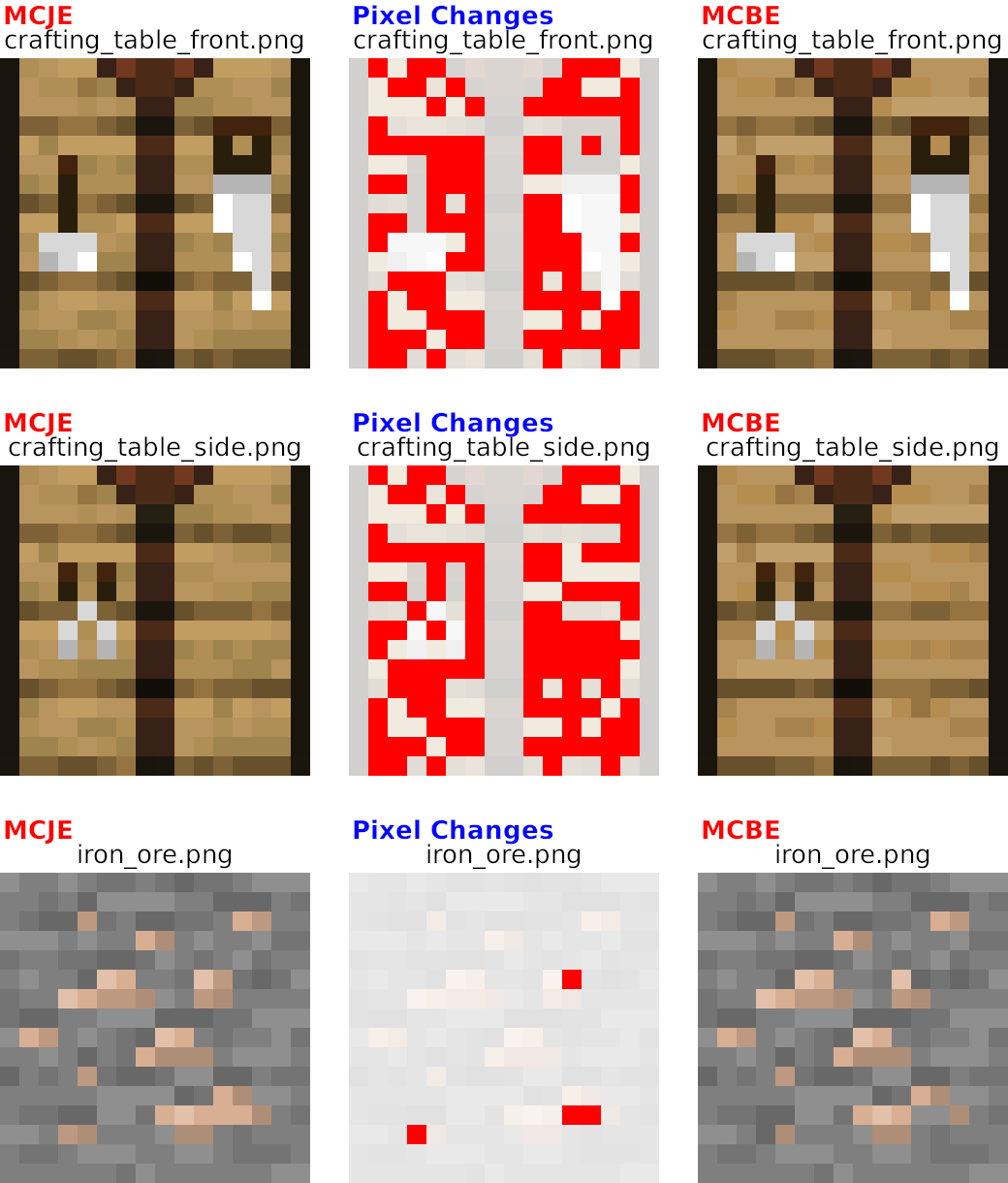
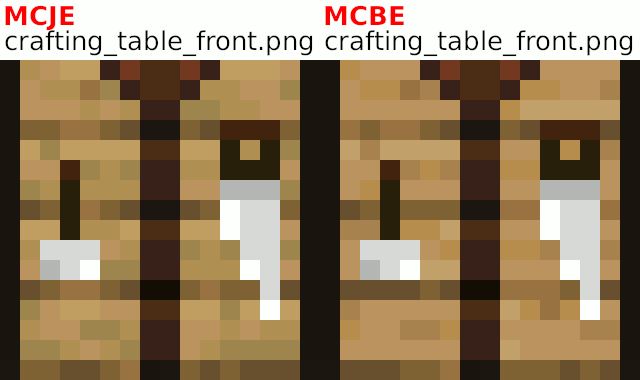
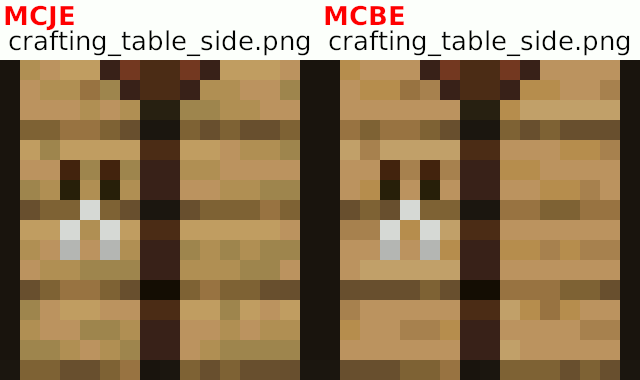
Block of QuartzFixed in 1.17.10 betaSmooth QuartzFixed in 1.16 betaIron OreFixed in 1.17Crafting TableFixed in 1.17.10 betaVindicator(MCPE-140420) Fixed in 1.18.10- Pillager (MCPE-48628)
Jigsaw BlockFixed in 1.16 betaHorse Armor OutlineFixed in 1.17 beta- Player Armor Outline (MCPE-44592 - The shapes don't match the new armor item icons)
- Armor Icon (MCPE-44592 - Can be seen in the inventory when using Pocket UI)
- Equipment Icon (MCPE-43954 - Can be seen in the creative inventory - uses old textures)
- Bottle Outline (MCPE-43953 - The shape doesn't match the new potion textures)
- Lapis Outline (MCPE-43953 - The inner texturing doesn't match the new lapis texture)
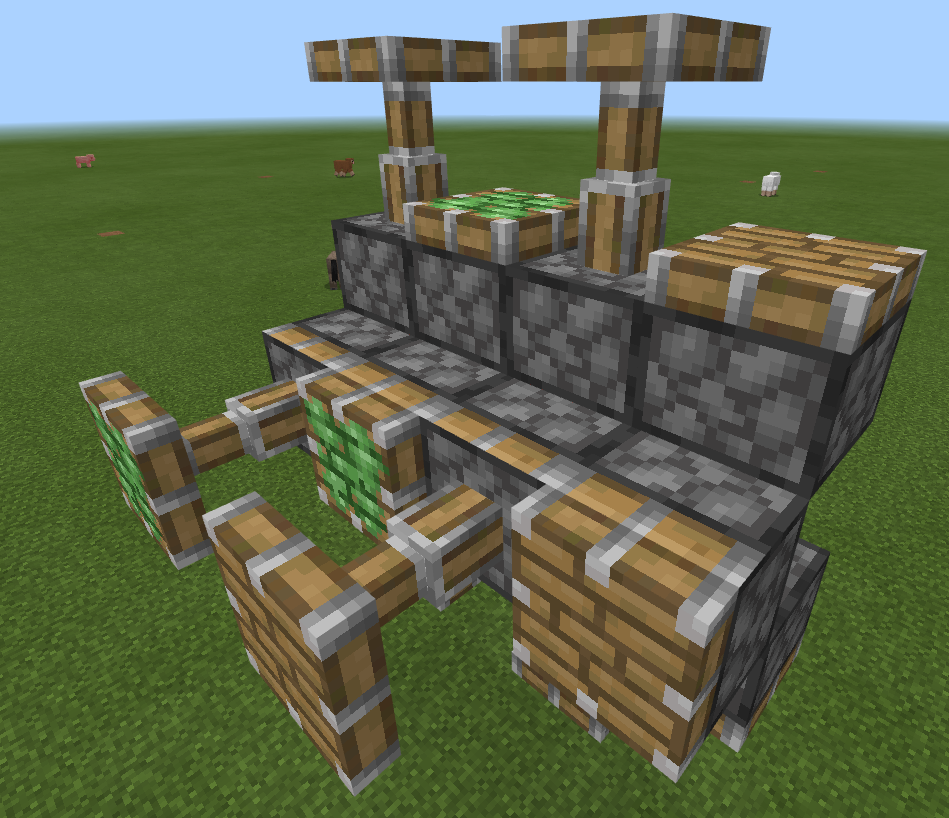
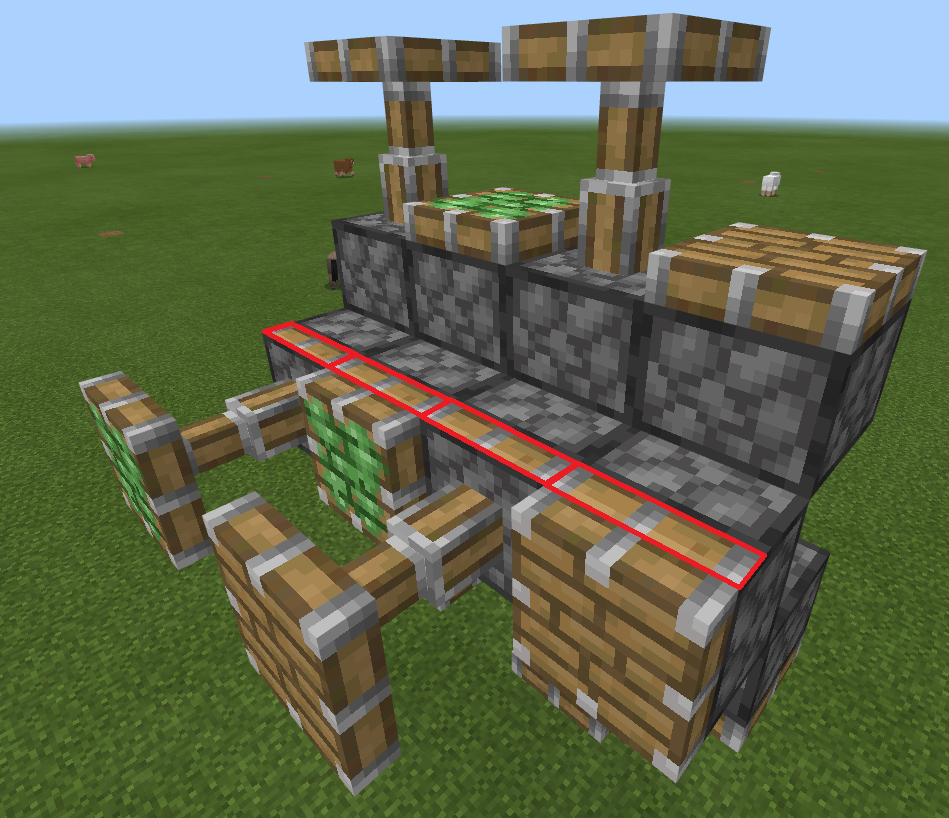
- Piston Arm Side Texture (MCPE-44209 - Uses old texture in the pistonArm texture, even though the piston_side texture is updated)
Oak SignFixed in 1.17 beta- Sheep (Uses old sheep texture on the non wooly regions)
- Observer lit texture (MCPE-174452)
- Several Nether Update Items (MCPE-66085)
- Some textures that changed in Caves & Cliffs (MCPE-122544)
- Z-fighting on horse reins (MCPE-163875)
- Outdated chest textures on some horses (MCPE-165390)
- Miscolored pixel in slowness effect icon (MCPE-169252)
- One of the camel's leg (MCPE-170480 - Has grayish pixels in the upper face not seen on any other leg)
- Dirt UI background (MCPE-170484 - Doesn't match dirt block)
- Purple Glazed Terracotta (MCPE-169398)
- Banner Shields (MCPE-174788)
Texture comparisons credit to Andrew Larson
Duplicate of this bug https://bugs.mojang.com/browse/MCPE-38053
Duplicate of https://bugs.mojang.com/browse/MCPE-38053
Doesn't just affect the top or side of the piston, as you can see with my 4 images, it also affects the bottom side too. And this textures glitch only happens when you place a piston down when you are facing North (piston head faces South).
I figured out part of the reason the bug exists. It seems as though that smooth quartz doesn't have it's dedicated texture files... So instead, it's using the normal quartz block texture files.
Karen Avyazyan didn't make the image comparision, it was I.
I can have him type his word.
I've been having like the exact same sort of bug, I think, except for the fact that I all of the unemployed villagers also won't breed anymore... I don't have a copy of the world, but it's the MCBE official Discord Realm that I'm experiencing the bug on. (survival world)
I have this EXACT same problem... and I killed all the Nitwits... so explain that.
Here's another good example... A white hole and a black hole should not need to be renamed, as they perfectly state what they are. One sucks things in preventing them ever reaching anything (like a blacklist), while the other lets everything go to wherever it wants (like a whitelist). There's no need to ban white black type terms when they are in relation to preventing and allowing things like how white and black holes disallow and allow particles to areas in space.
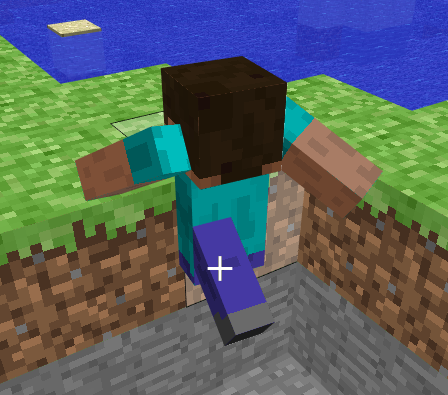
Noted something... they seemed to be aligned with the eyesight view of the player, so maybe something got mixed between the body height and eyesight levels.
Tried out 1.16.1, and the texture animation bug with paintings still exists.
And now tried the latest snapshot, but it too has the bug still.
Hear me out, but I think the issue is related to PS parties... The only time I've been trying to connect to my brother's world(s) is when he's been in a party with friends, even though the invites are set to Friends of Friends, so I should be able to get into the game. I play on Android or Windows 10, but can't join my brother when he's in a PS Party.