 Dahesor
- Dahesor
- JIRAUSER647454
- America/Toronto
- Yes
- No
 MC-226898
 Normal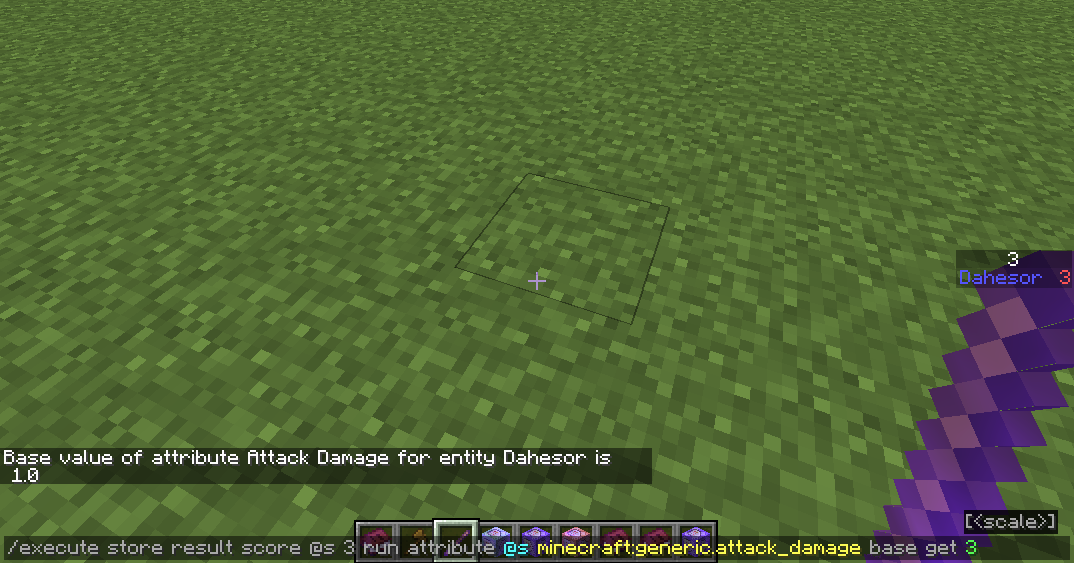

When using command /attribute ... get <scale> or /attribute ... base get <scale>, the output is wrong on screen when a scale is added. If you use execute store, a correct number can be stored in a scoreboard after scaled, but we cannot see the correct scaled value in chat box.
'
In the following example, the command executed is
/execute store result score @s 3 run attribute @s generic.attack_damage base get 3
My base attribute of damage is 1.
We can see a correct value is stored on the scoreboard, but in the chat it says "1".
Which is different when using the scale features of /data
When using command /attribute ... get <scale> or /attribute ... base get <scale>, the output is wrong on screen when a scale is added. If you use execute store, a correct number can be stored in a scoreboard after scaled, but we cannot see the correct scaled value in chat box.
In the following example, the command executed is
/execute store result score @s 3 run attribute @s generic.attack_damage base get 3
My base attribute of damage is 1.
We can see a correct value "3" is stored on the scoreboard, but in the chat it says "1".
Which is different when using the scale features of /data
When using command /attribute ... get <scale> or /attribute ... base get <scale>, the output is wrong on screen when a scale is added. If you use execute store, a correct number can be stored in a scoreboard after scaled, but we cannot see the correct scaled value in the chat box.
In the following example, the command executed is
/execute store result score @s 3 run attribute @s generic.attack_damage base get 3
My base attribute of damage is 1.
We can see a correct value "3" is stored on the scoreboard, but in the chat it says "1".
Which is different when using the scale features of /data
player-test.gif
When a custom overlay is present in resource pack and is referenced by the data pack, that texture is loaded into the RAM. However, it seems like the game never clears them out even quitting the world, nor does it appears in the memory counter in the F3 debug screen.
How to reproduce
1. Open up Task Manager to monitor the RAM used by Minecraft.
2. Prepare a lot of custom overlay textures, and display them one by one in game on screen.
3. Note that the RAM used by Minecraft, according to the Task Manage,butonly a little according to the debug screen.The attached recording.mp4 has this process recorded. In the video, I have a 1080p frame played on every game tick (20fps).
4. Now quit and save the world. Check the Task manager, and the RAM is still not cleared. (See Quitting the World.mp4 for this one)
Expected Result:
The game should clear the memory used by custom overlays out of the memory.
Additional Information:
- Exit the game will free the memory
- Unload the resource pack will free the memory
When a custom overlay is present in resource pack and is referenced by the data pack, that texture is loaded into the RAM. However, it seems like the game never clears them out even quitting the world, nor does it appears in the memory counter in the F3 debug screen.
How to reproduce
1. Open up Task Manager to monitor the RAM used by Minecraft.
2. Prepare a lot of custom overlay textures, and display them one by one in game on screen.
3. Note that the RAM used by Minecraft, according to the Task Manage, increases rapidly. However the value is only a little according to the debug screen.The attached recording.mp4 has this process recorded. In the video, I have a 1080p frame played on every game tick (20fps).
4. Now quit and save the world. Check the Task manager, and the RAM is still not cleared. (See Quitting the World.mp4 for this one)
Expected Result:
The game should clear the memory used by custom overlays out of the memory.
Additional Information:
- Exit the game will free the memory
- Unload the resource pack will free the memory
When a custom overlay is present in resource pack and is referenced by the data pack, that texture is loaded into the RAM. However, it seems like the game never clears them out even quitting the world, nor does it appears in the memory counter in the F3 debug screen.
How to reproduce
1. Open up Task Manager to monitor the RAM used by Minecraft.
2. Prepare a lot of custom overlay textures, and display them one by one in game on screen.
3. Note that the RAM used by Minecraft, according to the Task Manage, increases rapidly. However the value is only a little according to the debug screen.The attached recording.mp4 has this process recorded. In the video, I have a 1080p frame played on every game tick (20fps).
4. Now quit and save the world. Check the Task manager, and the RAM is still not cleared. (See Quitting the World.mp4 for this one)
Expected Result:
The game should clear the memory used by custom overlays out of the memory.
Additional Information:
- Exit the game will free the memory
- Unload the resource pack will free the memory
When a custom overlay is present in resource pack and is referenced by the data pack, that texture is loaded into the RAM. However, it seems like the game never clears them out even quitting the world, nor does it appears in the memory counter in the F3 debug screen.
How to reproduce
1. Open up Task Manager to monitor the RAM used by Minecraft.
2. Prepare a lot of custom overlay textures, and display them one by one in game on screen.
3. Note that the RAM used by Minecraft, according to the Task Manage, increases rapidly. However the value is only a little according to the debug screen.The attached recording.mp4 has this process recorded. In the video, I have a 1080p frame played on every game tick (20fps).
4. Now quit and save the world. Check the Task manager, and the RAM is still not cleared. (See Quitting the World.mp4 for this one)
Expected Result:
The game should clear the memory used by custom overlays out of the memory.
Additional Information:
- Exit the game will free the memory
- Unload the resource pack will free the memory
Example
An example resource pack and data pack is provided here: https://www.mediafire.com/folder/o8xf6r876p12n/Bug
This is the same pack in the video. To use it, install the resource pack and data pack. Execute
function do:getto obtain a special item, then equip this item on your head.
To stop, simply take it out of the player's head slot. Made for 1.21.3.


Characteristic: entity would not be teleported when it is riding.
can confirm in 1.21
@Jiingy
That has been done, thanks