 Liam
Liam
- HavingFunTimes
- havingfuntimes
- Europe/Stockholm
- Yes
- No
 MCPE-161517


 MCLG-34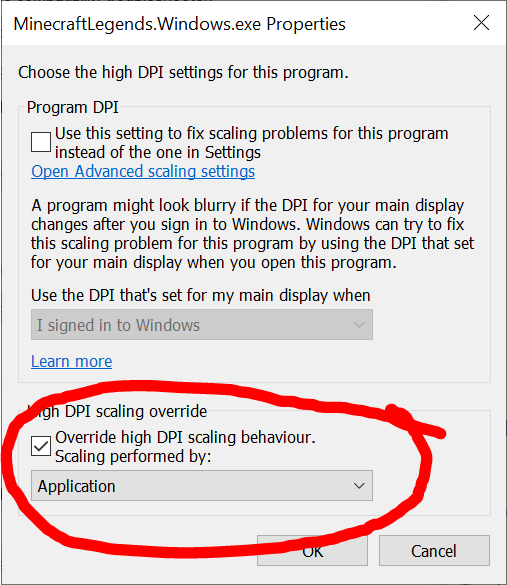


When Ray Tracing is supported by the GPU, the game runs with decreased performance even when Ray Tracing is not enabled in the settings.
From testing, an RTX 3080 Ti gets drastically lower framerates than a GTX 1060 does in the same world with the same settings. In situations that are known to cause frame drops (such as having a large number of entities, lots of item frames, or using a high-res resource pack), the performance hit is greatly exaggerated on RTX GPUs.
It can be proven that this is not an issue with the GPU itself by downgrading the Nvidia drivers to an older version (442.74) where Minecraft doesn't detect the GPU as Ray Tracing capable. The performance will be back to expected levels. Some Windows versions may also stop the game detecting RTX, fixing the performance. Versions without Render Dragon (meaning they don't have RTX support) also have correct performance.
It seems that when the game does not detect a Ray Tracing compatible GPU, it runs at the FPS it should.Minecraft Preview shows that RTX cards use "D3D12 RTX" and GTX ones just use "D3D12". The RTX version has a large FPS hit for players who aren't using Ray Tracing.
Steps to test the difference:
- While using a GTX GPU that has no ray tracing capability, get into a situation that will tax the system slightly. (for example place 100 filled item frames or spawn 50 mobs)
- Make sure VSync is disabled and note the average framerate.
- Swap the GTX GPU for a more powerful RTX one.
- Load the same world with the same graphics settings. (with Ray Tracing off in the settings)
- Experience a lower framerate than the less powerful GPU.
Expected Result:
The RTX graphics card is significantly more powerful than the GTX one, so it should have a higher FPS.Observed result:
The RTX graphics card performs much worse than the GTX one.Screenshots/Videos:
Performance comparison between GTX 1060 and RTX 3080 Ti, with all other hardware/settings/packs left the same.
Notes:
When Ray Tracing is disabled in the game settings, it is not fully disabled. Something seems to change when RTX is available for the GPU.
This bug looks to be the root cause ofMCPE-153297,MCPE-111547,MCPE-157142, and possibly MCPE-142934 for some users.
I think this bug is capping the performance of everyone playing using an RTX GPU, but goes unnoticed as people with frame drops aren’t comparing the performance to a lower-spec GPU without Ray Tracing support.Possible workaround:
Minecraft switches to D3D11 if the GPU recovers from a crash while RTX is enabled.We can test a "timeout detection and recovery" by running "dxcap -forcetdr" in an administrator command prompt. This may require "Graphics Tools" to be installed in the optional features page of the PC's settings. When I tried this the screen went black for a few seconds and then Minecraft Preview reported that it was using D3D11 instead of D3D12 RTX! There's a black screen in game until Ray Tracing is off again but after that it'll be on D3D11 until the game is restarted. FPS improved by a lot around item frames and 512x packs worked perfectly. Doing this can and did cause issues with other software/hardware. I'm not an expert, so if you use this it's at your own risk!
Please remember that this is not a support forum. If you want to discuss this among yourselves, there are plenty of places you can find and chat with other community members, such as the Discord or Reddit. If you want to discuss it with Mojang, you need to contact the Community Management team on Discord or their Twitter accounts. Comments here should provide new information for the developers, and we also welcome sharing workarounds with each other, but excess chatter will be removed.
When Ray Tracing is supported by the GPU, the game runs with decreased performance even when Ray Tracing is not enabled in the settings.
From testing, an RTX 3080 Ti gets drastically lower framerates than a GTX 1060 does in the same world with the same settings. In situations that are known to cause frame drops (such as having a large number of entities, lots of item frames, or using a high-res resource pack), the performance hit is greatly exaggerated on RTX GPUs.
It can be proven that this is not an issue with the GPU itself by downgrading the Nvidia drivers to an older version (442.74) where Minecraft doesn't detect the GPU as Ray Tracing capable. The performance will be back to expected levels. Some Windows versions may also stop the game detecting RTX, fixing the performance. Versions without Render Dragon (meaning they don't have RTX support) also have correct performance.
It seems that when the game does not detect a Ray Tracing compatible GPU, it runs at the FPS it should.Minecraft Preview shows that RTX cards use "D3D12 RTX" and GTX ones just use "D3D12". The RTX version has a large FPS hit for players who aren't using Ray Tracing.
Steps to test the difference:
- While using a GTX GPU that has no ray tracing capability, get into a situation that will tax the system slightly. (for example place 100 filled item frames or spawn 50 mobs)
- Make sure VSync is disabled and note the average framerate.
- Swap the GTX GPU for a more powerful RTX one.
- Load the same world with the same graphics settings. (with Ray Tracing off in the settings)
- Experience a lower framerate than the less powerful GPU.
Expected Result:
The RTX graphics card is significantly more powerful than the GTX one, so it should have a higher FPS.Observed result:
The RTX graphics card performs much worse than the GTX one.Screenshots/Videos:
Performance comparison between GTX 1060 and RTX 3080 Ti, with all other hardware/settings/packs left the same.

Notes:
When Ray Tracing is disabled in the game settings, it is not fully disabled. Something seems to change when RTX is available for the GPU.
This bug looks to be the root cause ofMCPE-153297,MCPE-111547,MCPE-157142, and possibly MCPE-142934 for some users.
I think this bug is capping the performance of everyone playing using an RTX GPU, but goes unnoticed as people with frame drops aren’t comparing the performance to a lower-spec GPU without Ray Tracing support.Possible workaround:
Minecraft switches to D3D11 if the GPU recovers from a crash while RTX is enabled.We can test a "timeout detection and recovery" by running "dxcap -forcetdr" in an administrator command prompt. This may require "Graphics Tools" to be installed in the optional features page of the PC's settings. When I tried this the screen went black for a few seconds and then Minecraft Preview reported that it was using D3D11 instead of D3D12 RTX! There's a black screen in game until Ray Tracing is off again but after that it'll be on D3D11 until the game is restarted. FPS improved by a lot around item frames and 512x packs worked perfectly. Doing this can and did cause issues with other software/hardware. I'm not an expert, so if you use this it's at your own risk!
Please remember that this is not a support forum. If you want to discuss this among yourselves, there are plenty of places you can find and chat with other community members, such as the Discord or Reddit. If you want to discuss it with Mojang, you need to contact the Community Management team on Discord or their Twitter accounts. Comments here should provide new information for the developers, and we also welcome sharing workarounds with each other, but excess chatter will be removed.
When Ray Tracing is supported by the GPU, the game runs with decreased performance even when Ray Tracing is not enabled in the settings.
From testing, an RTX 3080 Ti gets drastically lower framerates than a GTX 1060 does in the same world with the same settings. In situations that are known to cause frame drops (such as having a large number of entities, lots of item frames, or using a high-res resource pack), the performance hit is greatly exaggerated on RTX GPUs.
It can be proven that this is not an issue with the GPU itself by downgrading the Nvidia drivers to an older version (442.74) where Minecraft doesn't detect the GPU as Ray Tracing capable. The performance will be back to expected levels. Some Windows versions may also stop the game detecting RTX, fixing the performance. Versions without Render Dragon (meaning they don't have RTX support) also have correct performance.
It seems that when the game does not detect a Ray Tracing compatible GPU, it runs at the FPS it should.Minecraft Preview shows that RTX cards use "D3D12 RTX" and GTX ones just use "D3D12". The RTX version has a large FPS hit for players who aren't using Ray Tracing.
Steps to test the difference:
- While using a GTX GPU that has no ray tracing capability, get into a situation that will tax the system slightly. (for example place 100 filled item frames or spawn 50 mobs)
- Make sure VSync is disabled and note the average framerate.
- Swap the GTX GPU for a more powerful RTX one.
- Load the same world with the same graphics settings. (with Ray Tracing off in the settings)
- Experience a lower framerate than the less powerful GPU.
Expected Result:
The RTX graphics card is significantly more powerful than the GTX one, so it should have a higher FPS.Observed result:
The RTX graphics card performs much worse than the GTX one.Screenshots/Videos:
Performance comparison between GTX 1060 and RTX 3080 Ti, with all other hardware/settings/packs left the same.
Notes:
When Ray Tracing is disabled in the game settings, it is not fully disabled. Something seems to change when RTX is available for the GPU.
This bug looks to be the root cause ofMCPE-153297,MCPE-111547,MCPE-157142, and possibly MCPE-142934 for some users.
I think this bug is capping the performance of everyone playing using an RTX GPU, but goes unnoticed as people with frame drops aren’t comparing the performance to a lower-spec GPU without Ray Tracing support.Workaround:
Alternate workaround:
Minecraft switches to D3D11 if the GPU recovers from a crash while RTX is enabled.We can test a "timeout detection and recovery" by running "dxcap -forcetdr" in an administrator command prompt. This may require "Graphics Tools" to be installed in the optional features page of the PC's settings. When I tried this the screen went black for a few seconds and then Minecraft Preview reported that it was using D3D11 instead of D3D12 RTX! There's a black screen in game until Ray Tracing is off again but after that it'll be on D3D11 until the game is restarted. FPS improved by a lot around item frames and 512x packs worked perfectly. Doing this can and did cause issues with other software/hardware. I'm not an expert, so if you use this it's at your own risk!
Please remember that this is not a support forum. If you want to discuss this among yourselves, there are plenty of places you can find and chat with other community members, such as the Discord or Reddit. If you want to discuss it with Mojang, you need to contact the Community Management team on Discord or their Twitter accounts. Comments here should provide new information for the developers, and we also welcome sharing workarounds with each other, but excess chatter will be removed.
When Ray Tracing is supported by the GPU, the game runs with decreased performance even when Ray Tracing is not enabled in the settings.
From testing, an RTX 3080 Ti gets drastically lower framerates than a GTX 1060 does in the same world with the same settings. In situations that are known to cause frame drops (such as having a large number of entities, lots of item frames, or using a high-res resource pack), the performance hit is greatly exaggerated on RTX GPUs.
It can be proven that this is not an issue with the GPU itself by downgrading the Nvidia drivers to an older version (442.74) where Minecraft doesn't detect the GPU as Ray Tracing capable. The performance will be back to expected levels. Some Windows versions may also stop the game detecting RTX, fixing the performance. Versions without Render Dragon (meaning they don't have RTX support) also have correct performance.
It seems that when the game does not detect a Ray Tracing compatible GPU, it runs at the FPS it should.Minecraft Preview shows that RTX cards use "D3D12 RTX" and GTX ones just use "D3D12". The RTX version has a large FPS hit for players who aren't using Ray Tracing.
Steps to test the difference:
- While using a GTX GPU that has no ray tracing capability, get into a situation that will tax the system slightly. (for example place 100 filled item frames or spawn 50 mobs)
- Make sure VSync is disabled and note the average framerate.
- Swap the GTX GPU for a more powerful RTX one.
- Load the same world with the same graphics settings. (with Ray Tracing off in the settings)
- Experience a lower framerate than the less powerful GPU.
Expected Result:
The RTX graphics card is significantly more powerful than the GTX one, so it should have a higher FPS.Observed result:
The RTX graphics card performs much worse than the GTX one.Screenshots/Videos:
Performance comparison between GTX 1060 and RTX 3080 Ti, with all other hardware/settings/packs left the same.
Notes:
When Ray Tracing is disabled in the game settings, it is not fully disabled. Something seems to change when RTX is available for the GPU.
This bug looks to be the root cause ofMCPE-153297,MCPE-111547,MCPE-157142, and possibly MCPE-142934 for some users.
I think this bug is capping the performance of everyone playing using an RTX GPU, but goes unnoticed as people with frame drops aren’t comparing the performance to a lower-spec GPU without Ray Tracing support.Workaround:
Alternate workaround:
Minecraft switches to D3D11 if the GPU recovers from a crash while RTX is enabled.We can test a "timeout detection and recovery" by running "dxcap -forcetdr" in an administrator command prompt. This may require "Graphics Tools" to be installed in the optional features page of the PC's settings. When I tried this the screen went black for a few seconds and then Minecraft Preview reported that it was using D3D11 instead of D3D12 RTX! There's a black screen in game until Ray Tracing is off again but after that it'll be on D3D11 until the game is restarted. FPS improved by a lot around item frames and 512x packs worked perfectly. Doing this can and did cause issues with other software/hardware. I'm not an expert, so if you use this it's at your own risk!
Please remember that this is not a support forum. If you want to discuss this among yourselves, there are plenty of places you can find and chat with other community members, such as the Discord or Reddit. If you want to discuss it with Mojang, you need to contact the Community Management team on Discord or their Twitter accounts. Comments here should provide new information for the developers, and we also welcome sharing workarounds with each other, but excess chatter will be removed.
When Ray Tracing is supported by the GPU, the game runs with decreased performance even when Ray Tracing is not enabled in the settings.
From testing, an RTX 3080 Ti gets drastically lower framerates than a GTX 1060 does in the same world with the same settings. In situations that are known to cause frame drops (such as having a large number of entities, lots of item frames, or using a high-res resource pack), the performance hit is greatly exaggerated on RTX GPUs.
It can be proven that this is not an issue with the GPU itself by using the workaround listed below or downgrading the Nvidia drivers to an older version (442.74) where Minecraft doesn't detect the GPU as Ray Tracing capable. The performance will be back to expected levels. Some Windows versions may also stop the game detecting RTX, fixing the performance. Versions without Render Dragon (meaning they don't have RTX support) also have correct performance.
It seems that when the game does not detect a Ray Tracing compatible GPU, it runs at the FPS it should.Minecraft Preview shows that RTX cards use "D3D12 RTX" and GTX ones just use "D3D12". The RTX version has a large FPS hit for players who aren't using Ray Tracing.
Steps to test the difference:
- While using a GTX GPU that has no ray tracing capability, get into a situation that will tax the system slightly. (for example place 100 filled item frames or spawn 50 mobs)
- Make sure VSync is disabled and note the average framerate.
- Swap the GTX GPU for a more powerful RTX one. (or disable DXR Raytracing in NVIDIA Profile Inspector)
- Load the same world with the same graphics settings. (with Ray Tracing off in the settings)
- Experience a lower framerate than the less powerful GPU.
Expected Result:
The RTX graphics card is significantly more powerful than the GTX one, so it should have a higher FPS.Observed result:
The RTX graphics card performs much worse than the GTX one.Screenshots/Videos:
Performance comparison between GTX 1060 and RTX 3080 Ti, with all other hardware/settings/packs left the same.
Notes:
When Ray Tracing is disabled in the game settings, it is not fully disabled. Something seems to change when RTX is available for the GPU.
This bug looks to be the root cause ofMCPE-153297,MCPE-111547,MCPE-157142, and possibly MCPE-142934 for some users.
I think this bug is capping the performance of everyone playing using an RTX GPU, but goes unnoticed as people with frame drops aren’t comparing the performance to a lower-spec GPU without Ray Tracing support.Workaround:
With the latest version of NVIDIA Profile Inspector, you can now disable DXR Ray Tracing for only Minecraft, fixing performance! Select the Minecraft profile and set "Raytracing - (DXR) Enabled" to "RT Disabled".
The game will report that your device is incompatible with RTX, however you'll now have performance that matches a non-RTX GPU! If you ever want to use Ray Tracing, just change the setting back to "Default" and the in-game option will be unlocked.
Alternate workaround:
Minecraft switches to D3D11 if the GPU recovers from a crash while RTX is enabled.We can test a "timeout detection and recovery" by running "dxcap -forcetdr" in an administrator command prompt. This may require "Graphics Tools" to be installed in the optional features page of the PC's settings. When I tried this the screen went black for a few seconds and then Minecraft Preview reported that it was using D3D11 instead of D3D12 RTX! There's a black screen in game until Ray Tracing is off again but after that it'll be on D3D11 until the game is restarted. FPS improved by a lot around item frames and 512x packs worked perfectly. Doing this can and did cause issues with other software/hardware. I'm not an expert, so if you use this it's at your own risk!
Please remember that this is not a support forum. If you want to discuss this among yourselves, there are plenty of places you can find and chat with other community members, such as the Discord or Reddit. If you want to discuss it with Mojang, you need to contact the Community Management team on Discord or their Twitter accounts. Comments here should provide new information for the developers, and we also welcome sharing workarounds with each other, but excess chatter will be removed.
When Ray Tracing is supported by the GPU, the game runs with decreased performance even when Ray Tracing is not enabled in the settings.
From testing, an RTX 3080 Ti gets drastically lower framerates than a GTX 1060 does in the same world with the same settings. In situations that are known to cause frame drops (such as having a large number of entities, lots of item frames, or using a high-res resource pack), the performance hit is greatly exaggerated on RTX GPUs.
It can be proven that this is not an issue with the GPU itself by using the workaround listed below or downgrading the Nvidia drivers to an older version (442.74) where Minecraft doesn't detect the GPU as Ray Tracing capable. The performance will be back to expected levels. Some Windows versions may also stop the game detecting RTX, fixing the performance. Versions without Render Dragon (meaning they don't have RTX support) also have correct performance.
It seems that when the game does not detect a Ray Tracing compatible GPU, it runs at the FPS it should.Minecraft Preview shows that RTX cards use "D3D12 RTX" and GTX ones just use "D3D12". The RTX version has a large FPS hit for players who aren't using Ray Tracing.
Steps to test the difference:
- While using a GTX GPU that has no ray tracing capability, get into a situation that will tax the system slightly. (for example place 100 filled item frames or spawn 50 mobs)
- Make sure VSync is disabled and note the average framerate.
- Swap the GTX GPU for a more powerful RTX one. (or disable DXR Raytracing in NVIDIA Profile Inspector)
- Load the same world with the same graphics settings. (with Ray Tracing off in the settings)
- Experience a lower framerate than the less powerful GPU.
Expected Result:
The RTX graphics card is significantly more powerful than the GTX one, so it should have a higher FPS.Observed result:
The RTX graphics card performs much worse than the GTX one.Screenshots/Videos:
Performance comparison between GTX 1060 and RTX 3080 Ti, with all other hardware/settings/packs left the same.
Notes:
When Ray Tracing is disabled in the game settings, it is not fully disabled. Something seems to change when RTX is available for the GPU.
This bug looks to be the root cause ofMCPE-153297,MCPE-111547,MCPE-157142, and possibly MCPE-142934 for some users.
I think this bug is capping the performance of everyone playing using an RTX GPU, but goes unnoticed as people with frame drops aren’t comparing the performance to a lower-spec GPU without Ray Tracing support.Workaround:
With the latest version of NVIDIA Profile Inspector, you can now disable DXR Ray Tracing for only Minecraft, fixing performance! Select the Minecraft profile and set "Raytracing - (DXR) Enabled" to "RT Disabled".
The game will report that your device is incompatible with RTX, however you'll now have performance that matches a non-RTX GPU! If you ever want to use Ray Tracing, just change the setting back to "Default" and the in-game option will be unlocked.
Alternate workaround:
Minecraft switches to D3D11 if the GPU recovers from a crash while RTX is enabled.We can test a "timeout detection and recovery" by running "dxcap -forcetdr" in an administrator command prompt. This may require "Graphics Tools" to be installed in the optional features page of the PC's settings. When I tried this the screen went black for a few seconds and then Minecraft Preview reported that it was using D3D11 instead of D3D12 RTX! There's a black screen in game until Ray Tracing is off again but after that it'll be on D3D11 until the game is restarted. FPS improved by a lot around item frames and 512x packs worked perfectly. Doing this can and did cause issues with other software/hardware. I'm not an expert, so if you use this it's at your own risk!
Please remember that this is not a support forum. If you want to discuss this among yourselves, there are plenty of places you can find and chat with other community members, such as the Discord or Reddit. If you want to discuss it with Mojang, you need to contact the Community Management team on Discord or their Twitter accounts. Comments here should provide new information for the developers, and we also welcome sharing workarounds with each other, but excess chatter will be removed.
When Ray Tracing is supported by the GPU, the game runs with decreased performance even when Ray Tracing is not enabled in the settings.
From testing, an RTX 3080 Ti gets drastically lower framerates than a GTX 1060 does in the same world with the same settings. In situations that are known to cause frame drops (such as having a large number of entities, lots of item frames, or using a high-res resource pack), the performance hit is greatly exaggerated on RTX GPUs.
It can be proven that this is not an issue with the GPU itself by using the workaround listed below or downgrading the Nvidia drivers to an older version (442.74) where Minecraft doesn't detect the GPU as Ray Tracing capable. The performance will be back to expected levels. Some Windows versions may also stop the game detecting RTX, fixing the performance. Versions without Render Dragon (meaning they don't have RTX support) also have correct performance.
It seems that when the game does not detect a Ray Tracing compatible GPU, it runs at the FPS it should.Minecraft Preview shows that RTX cards use "D3D12 RTX" and GTX ones just use "D3D12". The RTX version has a large FPS hit for players who aren't using Ray Tracing.
Steps to test the difference:
- While using a GTX GPU that has no ray tracing capability, get into a situation that will tax the system slightly. (for example place 100 filled item frames or spawn 50 mobs)
- Make sure VSync is disabled and note the average framerate.
- Swap the GTX GPU for a more powerful RTX one. (or disable DXR Raytracing in NVIDIA Profile Inspector)
- Load the same world with the same graphics settings. (with Ray Tracing off in the settings)
- Experience a lower framerate than the less powerful GPU.
Expected Result:
The RTX graphics card is significantly more powerful than the GTX one, so it should have a higher FPS.Observed result:
The RTX graphics card performs much worse than the GTX one.Screenshots/Videos:
Performance comparison between GTX 1060 and RTX 3080 Ti, with all other hardware/settings/packs left the same.
Notes:
When Ray Tracing is disabled in the game settings, it is not fully disabled. Something seems to change when RTX is available for the GPU.
This bug looks to be the root cause ofMCPE-153297,MCPE-111547,MCPE-157142, and possibly MCPE-142934 for some users.
I think this bug is capping the performance of everyone playing using an RTX GPU, but goes unnoticed as people with frame drops aren’t comparing the performance to a lower-spec GPU without Ray Tracing support.Workaround:
With the latest version of NVIDIA Profile Inspector, you can now disable DXR Ray Tracing for only Minecraft, fixing performance! Select the Minecraft profile and set "Raytracing - (DXR) Enabled" to "RT Disabled".The game will report that your device is incompatible with RTX, however you'll now have performance that matches a non-RTX GPU! If you ever want to use Ray Tracing, just change the setting back to "Default" and the in-game option will be unlocked. For some reason the Minecraft profile in Nvidia Profile Inspector doesn't affect Minecraft Preview, so to test D3D12 on that version of the game you'll need to temporarily disable DXR on the global profile and re-enable it when you're done.
Alternate workaround:
Minecraft switches to D3D11 if the GPU recovers from a crash while RTX is enabled.We can test a "timeout detection and recovery" by running "dxcap -forcetdr" in an administrator command prompt. This may require "Graphics Tools" to be installed in the optional features page of the PC's settings. When I tried this the screen went black for a few seconds and then Minecraft Preview reported that it was using D3D11 instead of D3D12 RTX! There's a black screen in game until Ray Tracing is off again but after that it'll be on D3D11 until the game is restarted. FPS improved by a lot around item frames and 512x packs worked perfectly. Doing this can and did cause issues with other software/hardware. I'm not an expert, so if you use this it's at your own risk!
After deactivating PBR resource packs, animated blocks that previously had a MER texture will use that texture. These blocks will continue to use the MER texture until the game is restarted, even if you apply a different resource pack. If you apply a different PBR resource pack, the block will use the new MER texture.
Expected Result:
Textures will return to the default Minecraft ones.Observed Result:
Blocks that previously had a MER texture will use that one.Steps to Reproduce:
- Open a world w
itha PBR resource pack- Exit to the title screen
- Deactivate all resource packs
- Open a world
- Any blocks that had a PBR texture will have that texture override the main texture
Screenshots:


Notes:
Applying a different resource pack does not fix this, unless it is a PBR resource pack which has a MER texture for the affected block.After deactivating PBR resource packs, animated blocks that previously had a MER texture will use that texture. These blocks will continue to use the MER texture until the game is restarted, even if you apply a different resource pack. If you apply a different PBR resource pack, the block will use the new MER texture.
Expected Result:
Textures will return to the default Minecraft ones.Observed Result:
Blocks that previously had a MER texture will use that one.Steps to Reproduce:
- Open a world while using a PBR resource pack
- Exit to the title screen
- Deactivate all resource packs
- Open a world
- Any blocks that had a PBR texture will have that texture override the main texture
Screenshots:
Before, with no Resource Packs applied:
With a PBR Resource Pack applied:
After, with no Resource Packs applied:
Notes:
Applying a different resource pack does not fix this, unless it is a PBR resource pack which has a MER texture for the affected block.

After deactivating PBR resource packs, animated blocks that previously had a MER texture will use that texture. These blocks will continue to use the MER texture until the game is restarted, even if you apply a different resource pack. If you apply a different PBR resource pack, the block will use the new MER texture.
Expected Result:
Textures will return to the default Minecraft ones.Observed Result:
Blocks that previously had a MER texture will use that one.Steps to Reproduce:
- Open a world while using a PBR resource pack
- Exit to the title screen
- Deactivate all resource packs
- Open a world
- Any blocks that had a PBR texture will have that texture override the main texture
Screenshots:
Before, with no Resource Packs applied:
With a PBR Resource Pack applied:
After, with no Resource Packs applied:
Notes:
Applying a different resource pack does not fix this, unless it is a PBR resource pack which has a MER texture for the affected block.At certain angles/distances, the correct texture
After deactivating PBR resource packs, animated blocks that previously had a MER texture will use that texture. These blocks will continue to use the MER texture until the game is restarted, even if you apply a different resource pack. If you apply a different PBR resource pack, the block will use the new MER texture.
Expected Result:
Textures will return to the default Minecraft ones.Observed Result:
Blocks that previously had a MER texture will use that one.Steps to Reproduce:
- Open a world while using a PBR resource pack
- Exit to the title screen
- Deactivate all resource packs
- Open a world
- Any blocks that had a PBR texture will have that texture override the main texture
Screenshots:
Before, with no Resource Packs applied:
With a PBR Resource Pack applied:
After, with no Resource Packs applied:
Notes:
Applying a different resource pack does not fix this, unless it is a PBR resource pack which has a MER texture for the affected block.At certain angles/distances, the correct texture
After deactivating PBR resource packs, animated blocks that previously had a MER texture will use that texture. These blocks will continue to use the MER texture until the game is restarted, even if you apply a different resource pack. If you apply a different PBR resource pack, the block will use the new MER texture.
Expected Result:
Textures will return to the default Minecraft ones.Observed Result:
Blocks that previously had a MER texture will use that one.Steps to Reproduce:
- Open a world while using a PBR resource pack
- Exit to the title screen
- Deactivate all resource packs
- Open a world
- Any blocks that had a PBR texture will have that texture override the main texture
Screenshots:
Before, with no Resource Packs applied:
With a PBR Resource Pack applied: (left: Kelly's RTX, right: Defined PBR)

After, with no Resource Packs applied:

Notes:
Applying a different resource pack does not fix this, unless it is a PBR resource pack which has a MER texture for the affected block.At certain angles/distances, the correct texture will appear.
Kelly's RTX-1.png
Unlike Ray Tracing, the new Deferred Lighting Pipeline can be enabled while in VR. However, it doesn't correctly switch to the Deferred graphics mode.
Steps to Reproduce:
- Create a world with the "Render Dragon Features for Creators" experiment
- Equip a PBR or raytraced resource pack
- Open the world in VR
- Enable the "Deferred Technical Preview" graphics mode
Observed Results:
The game continues to use the normal lighting. Water becomes invisible and blocks are unaffected by light level, making them fully visible at night.
Expected Results:
The game should switch to the Deferred graphics mode and have shadows, like it does when not in VR.
Screenshots/Videos:
{*}Enabling Deferred.mp4
{}Deferred vs Fancy.mp4{*}
{}Notes:
Toggling between Deferred and Fancy decreases the resolution of the preview window, but the resolution displayed in the headset remains the same.
Unlike Ray Tracing, the new Deferred Lighting Pipeline can be enabled while in VR. However, it doesn't correctly switch to the Deferred graphics mode.
Steps to Reproduce:
- Create a world with the "Render Dragon Features for Creators" experiment
- Equip a PBR or raytraced resource pack
- Open the world in VR
- Enable the "Deferred Technical Preview" graphics mode
Observed Results:
The game continues to use the normal lighting. Water becomes invisible and blocks are unaffected by light level, making them fully visible at night.
Expected Results:
The game should switch to the Deferred graphics mode and have shadows, like it does when not in VR.
Screenshots/Videos:
Enabling Deferred.mp4
Deferred vs Fancy.mp4Notes:
Toggling between Deferred and Fancy decreases the resolution of the preview window, but the resolution displayed in the headset remains the same.
Unlike Ray Tracing, the new Deferred Lighting Pipeline can be enabled while in VR. However, it doesn't correctly switch to the Deferred graphics mode.
Steps to Reproduce:
- Create a world with the "Render Dragon Features for Creators" experiment
- Equip a PBR or raytraced resource pack
- Open the world in VR
- Enable the "Deferred Technical Preview" graphics mode
Observed Results:
The game continues to use the normal lighting. Water becomes invisible and blocks are unaffected by light level, making them fully visible at night.
Expected Results:
The game should switch to the Deferred graphics mode and have shadows, like it does when not in VR.
Screenshots/Videos:
Enabling Deferred.mp4
Deferred vs Fancy.mp4Notes:
Toggling between Deferred and Fancy decreases the resolution of the preview window, but the resolution displayed in the headset remains the same.
Unlike Ray Tracing, the new Deferred Lighting Pipeline can be enabled while in VR. However, it doesn't correctly switch to the Deferred graphics mode.
Steps to Reproduce:
- Create a world with the "Render Dragon Features for Creators" experiment
- Equip a PBR or raytraced resource pack
- Open the world in VR
- Enable the "Deferred Technical Preview" graphics mode
Observed Results:
The game continues to use the normal lighting. Water becomes invisible and blocks are unaffected by light level, making them fully visible at night.
Expected Results:
The game should switch to the Deferred graphics mode and have shadows, like it does when not in VR.
Screenshots/Videos:
Enabling Deferred.mp4
Deferred vs Fancy.mp4Notes:
Toggling between Deferred and Fancy decreases the resolution of the preview window, but the resolution displayed in the headset remains the same.
I would say this is not a duplicate of that issue, as this one does not include GTX graphics cards as being affected. However this bug is likely the cause of that one and I agree it should not have been marked as a feature request!
After hours of testing, I have figured out that this bug is caused by Minecraft using "D3D12 RTX", which is the version that only Ray Tracing compatible GPUs are allowed to use. The 1060 just uses "D3D12".
In 1.18.30, a version affected by
MCPE-152645, you can force "D3D11" (DirectX 11) and bring performance back to normal! There is less item frame lag than the 1060 and 512x packs work fine! However, DirectX 11 doesn't support RTX, meaning you get a black screen in-game while Ray Tracing is enabled in the settings.If anybody knows of a way to force D3D11 or D3D12 on the latest version, that would be a good workaround until Mojang can fix DirectX 12 RTX or make it optional.
Edit: Added more specific DirectX version names from Minecraft Preview
Possible workaround:
Minecraft seems to revert to D3D11 if the GPU recovers from a crash while RTX is enabled (which is what likely happens with
MCPE-152645and MCPE-104207).We can test a "timeout detection and recovery" by running "dxcap -forcetdr" in an administrator command prompt. This may require "Graphics Tools" to be installed in the optional features page of the PC's settings. When I tried this the screen went black for a few seconds and then Minecraft Preview reported that it was using D3D11 instead of D3D12 RTX! There's a black screen in game until Ray Tracing is off again but after that it'll be on D3D11 until the game is restarted. FPS improved by a lot.
Doing this can and did cause issues with other software/hardware. I'm not an expert. If you use this it's at your own risk!
Unfortunately not fixed in 1.19.50.23 or the latest Preview build. The recent change only improves performance for Intel graphics, not Nvidia.
"D3D12" gives higher FPS than "D3D11", but "D3D12 RTX" does not due to this bug. When testing, make sure to check the text at the top of the screen to see which GPU is being used and if it is using "D3D12" or "D3D12 RTX".
Using the new workaround, I managed to get a 4x FPS improvement in my test world!
I kept all resource packs, graphics settings, and other PC hardware the same. I only changed the DXR setting and the GPU. My CPU is an i7-8700k and I have 16GB of DDR4 RAM. As you can see the framerate is quadrupled on the RTX card when DXR is disabled. I love the Ray Tracing feature, but it has a lot of bloat that is impacting framerate for people that aren't using it.
Here are my results comparing the RTX 3080 Ti with no profile changes, GTX 1060 with no profile changes, RTX 3080 Ti with DXR disabled, and RTX 3080 Ti with the old TDR workaround:
For some reason the Minecraft profile in Nvidia Profile Inspector doesn't affect Minecraft Preview, so to test D3D12 on that version of the game you'll need to temporarily disable DXR on the global profile and re-enable it when you're done.
It's a shame this won't get fixed but luckily there's a workaround listed in
MCPE-161517which completely fixes this bug and many other performance issues for RTX GPUs!In short, use "Nvidia Profile Inspector" to disable DXR Ray Tracing for the Minecraft profile and the performance will be back to the levels of a non-RTX GPU while using a high-resolution resource pack. If you ever want to use the Ray Tracing feature, just re-enable it!
Very odd that Mojang won't fix this when the fix is as simple as fully disabling RTX when you've got RTX off. Maybe it's an issue with Nvidia's drivers?
The player will also render outside of the inventory UI.

The "Nathan" skin in the 3rd Birthday Skin Pack is unaffected and displays the upside-down player correctly as expected.

(Interestingly, if a player named Dinnerbone uses that skin, they will look like a normal player but their head's vertical rotation will appear inverted.)
This resource pack can be used to reproduce the bug:
https://bugs.mojang.com/secure/attachment/507792/Defined%20PBR%201.1.9.mcpack
I've only done a small amount of testing but it looks like this bug has finally been fixed!
The patch notes only mention that the debug HUD text was modified, but there have clearly been more changes under the hood.
"D3D12 RTX" has now been renamed to "D3D12+", and RTX features are now only enabled when Ray Tracing is enabled!
This update has given me a 400% FPS boost in my world's most taxing areas, and there is no longer any FPS drop when holding a 512x resolution item. Absolutely overjoyed that this is fixed.
This change also means that
MCPE-153297andMCPE-111547are both fixed, along with MCPE-142934 for some users.Fixed for me in 1.19.80.22 Preview!
In fact, I no longer get an FPS drop while holding a 512x item even with RTX enabled! However, the high-res textures display incorrectly with RTX on.
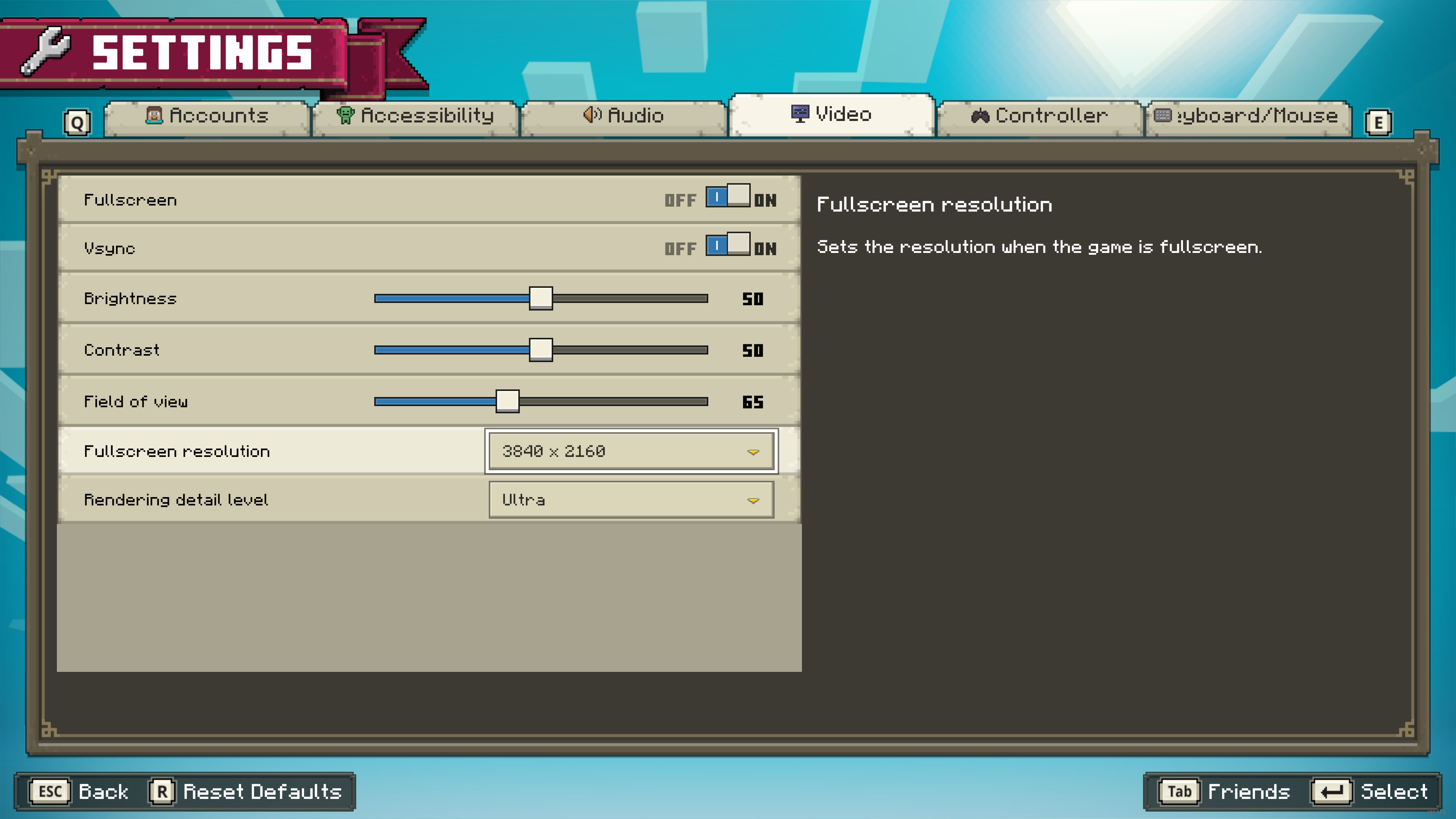
If your Windows display "scale and layout" settings are greater than 100%, the game will not run at the correct resolution.
The fullscreen resolution setting also seems to do nothing for me.
To fix this, right click the game's exe file and open the properties, then go to the compatibility tab and "Change high DPI settings". Then tick the override box at the bottom and set it to "Application". Now the game won't be blurry!


This is very easy to reproduce. Although there is a workaround, I believe this has been closed incorrectly as these steps should not be required and are not required for other games like Minecraft Bedrock and Minecraft Dungeons.
Steps to reproduce:
1. Open the Windows Settings app and click System
2. In the Display tab, find the "Scale and Layout" section and change the percentage value to one that is higher than 100%. (350% used in this example)
3. Open Minecraft Legends and set the resolution to your screen's resolution. (3840x2160 used in this example)
Expected result:

The game should run at 4K resolution. (Screenshot taken at 100% display scale)
Observed result:

The game is extremely blurry and is definitely not displaying at the selected resolution. (Screenshot taken at 350% display scale)
After testing, I can confirm this is fixed in 1.19.80! (again not mentioned in the changelog)
Compared to Preview 1.19.60.20, this update brings me a 4x FPS increase and I can now play on my world without needing any workarounds. Thank you for fixing this.
I saw the exact same thing happen but with cherry fences. Reloading the world made it go back to normal.
Will be fixed in March 2025 when VR support gets removed. 😭