 WinterMarmot243
- Hector4722
- JIRAUSER719598
- Europe/Stockholm
- Yes
- No
 MCPE-163218MCPE-164529
 MC-257892MCPE-164913MCPE-174885

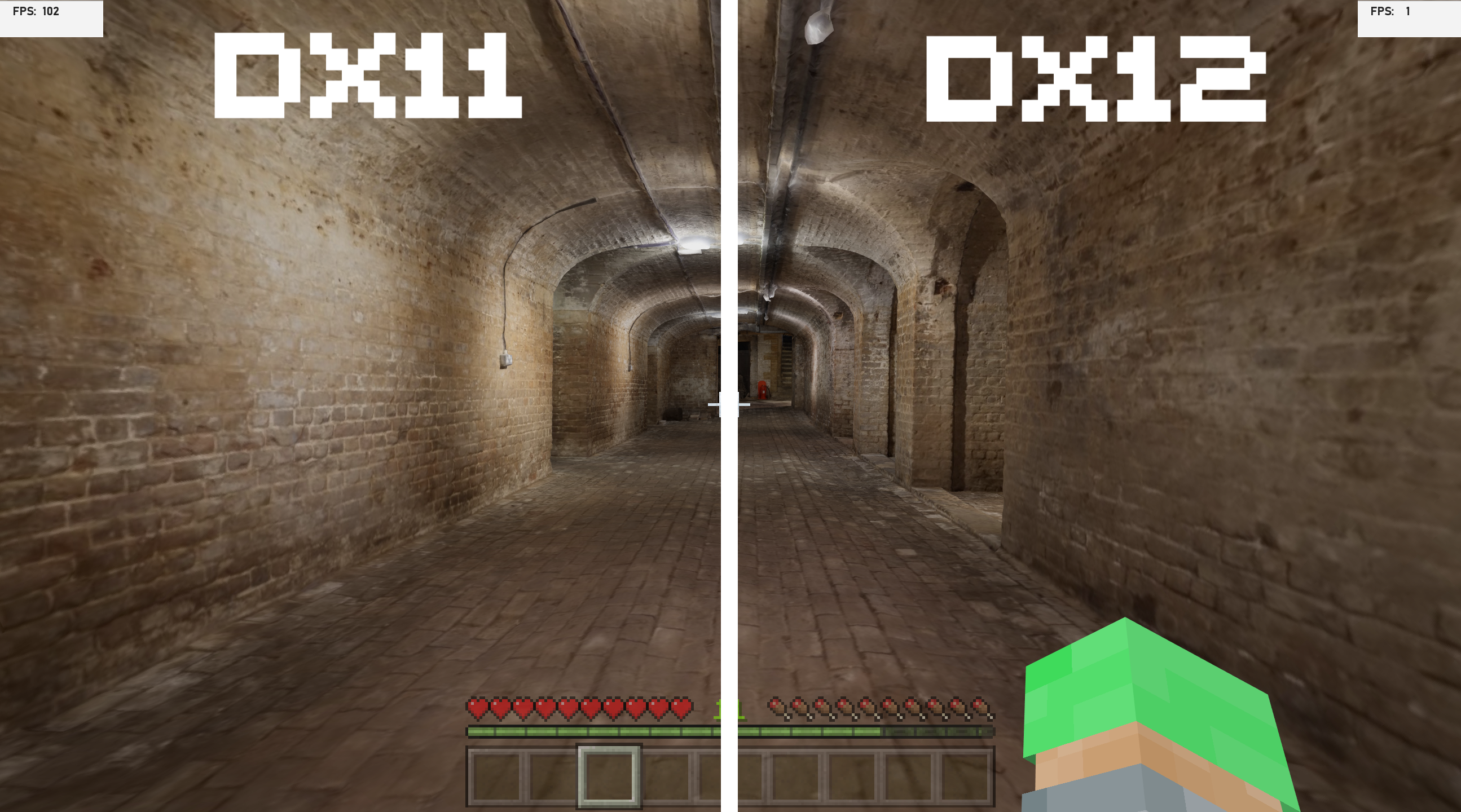
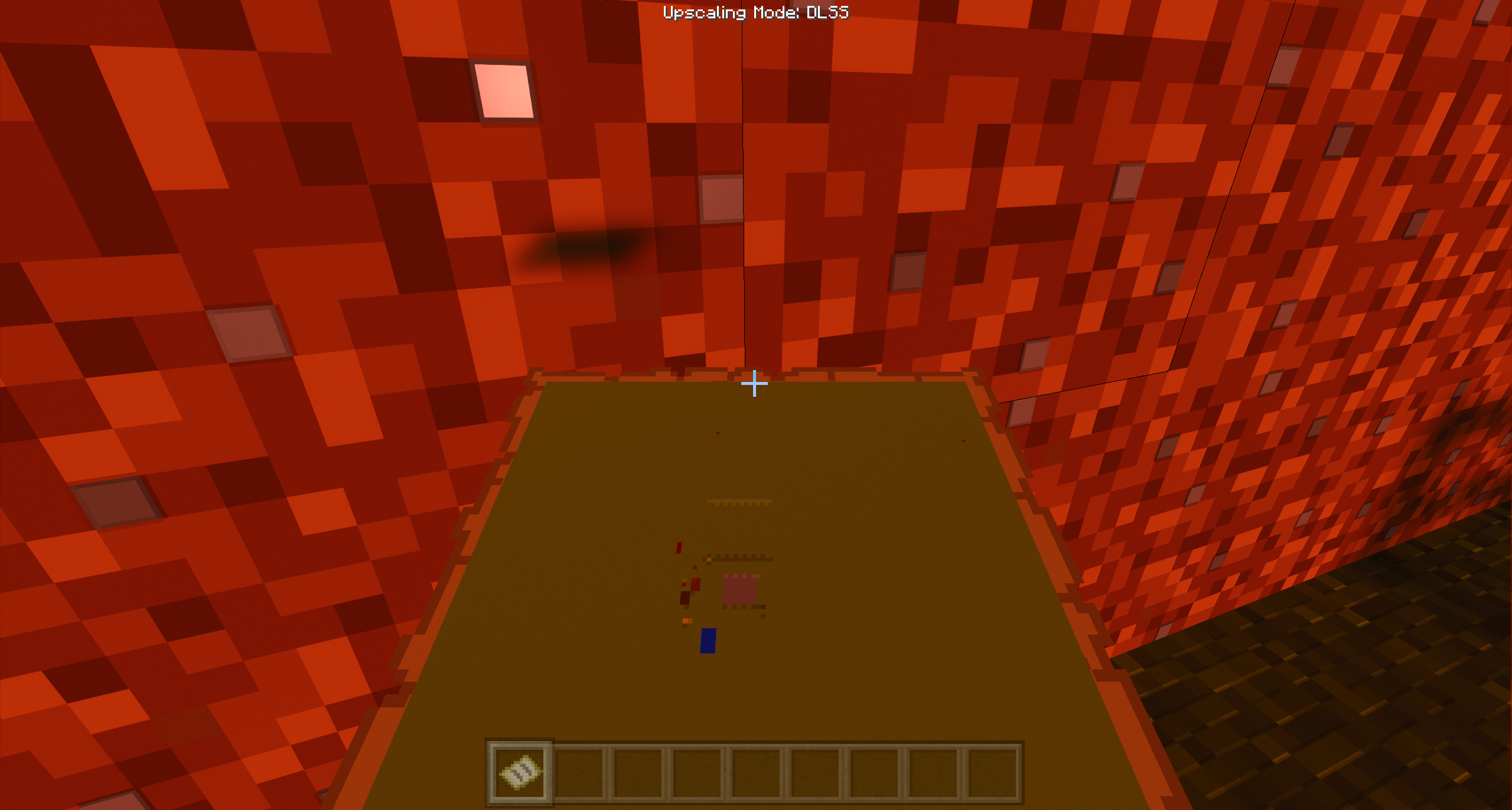

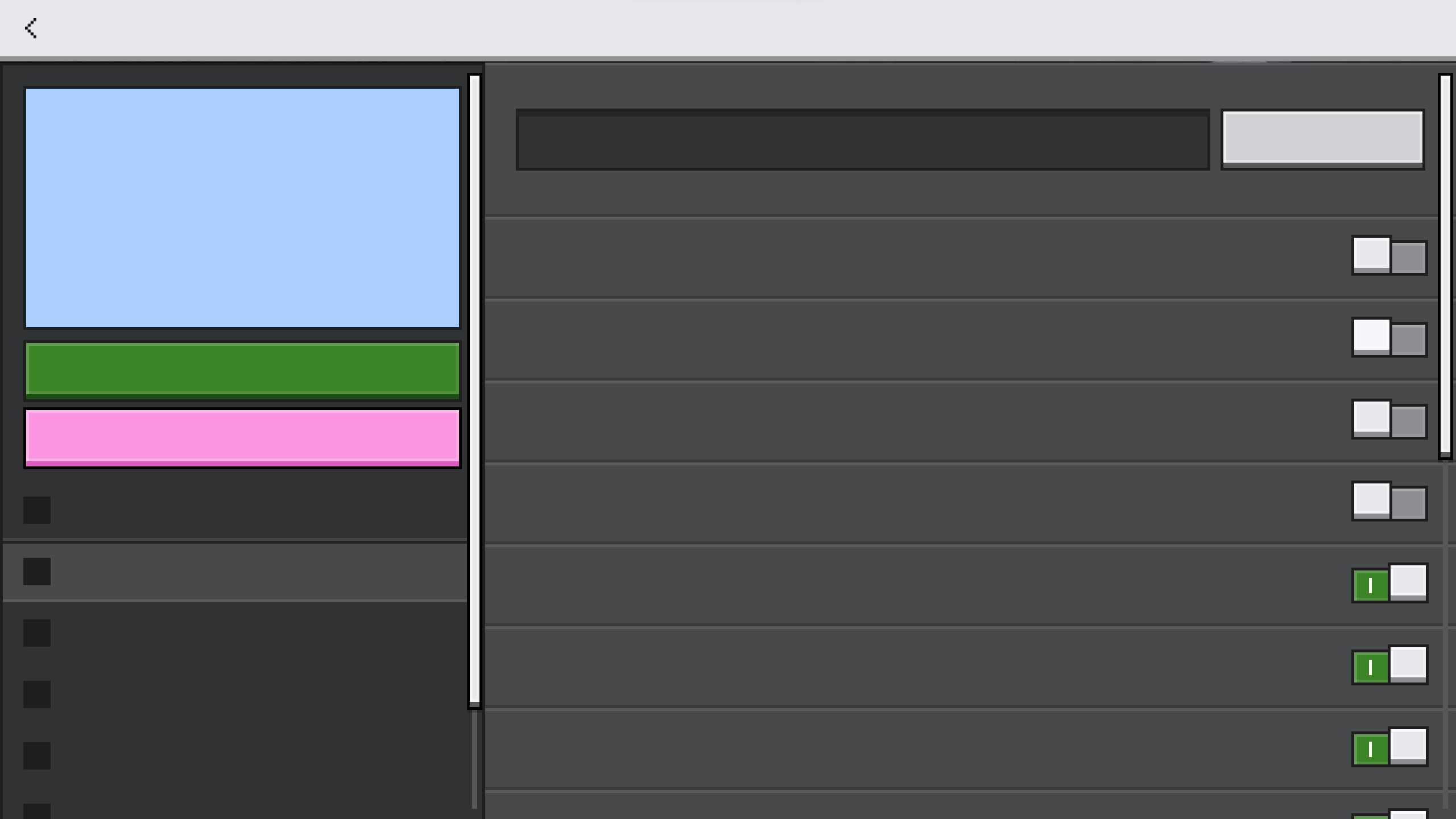
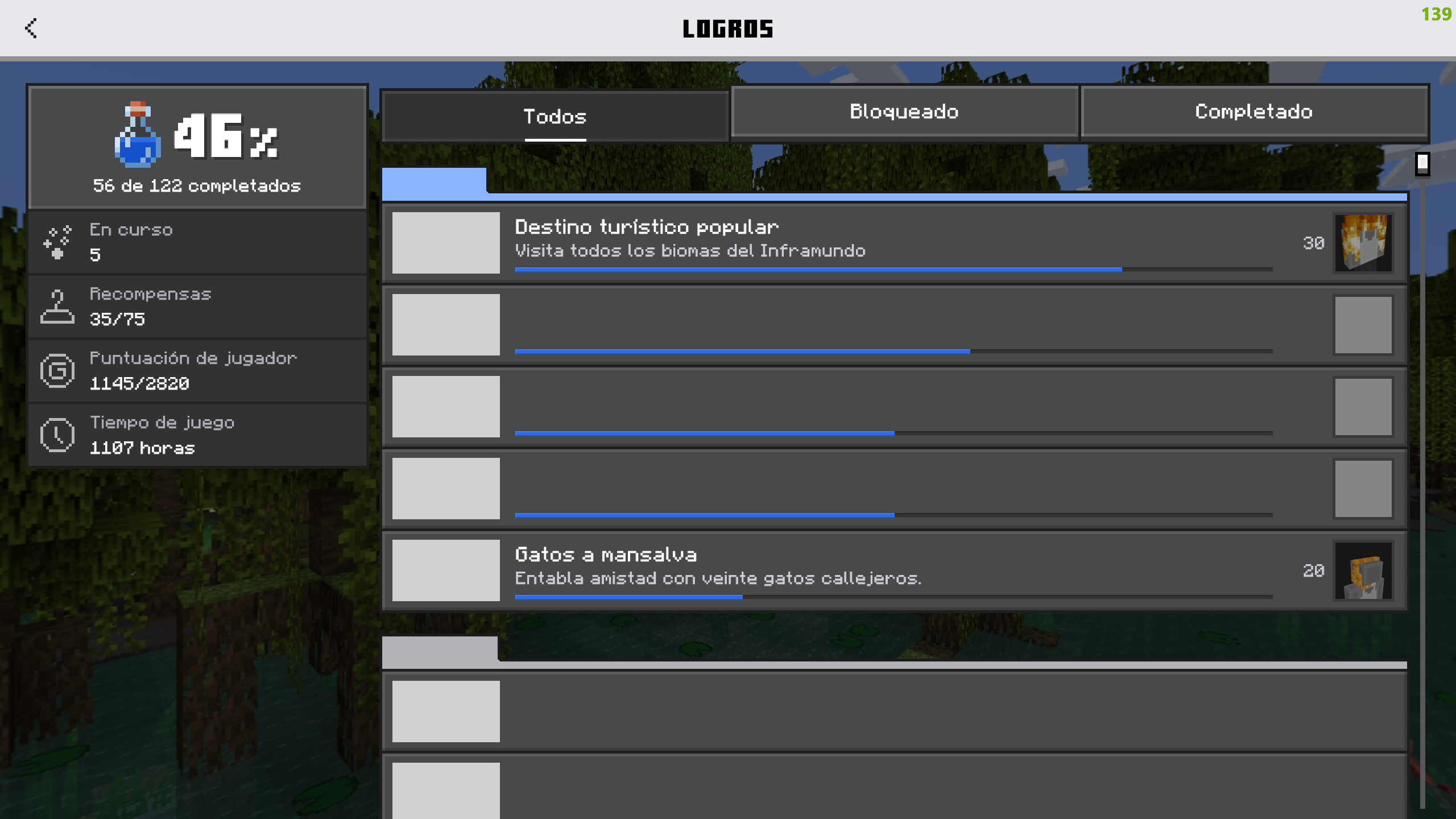







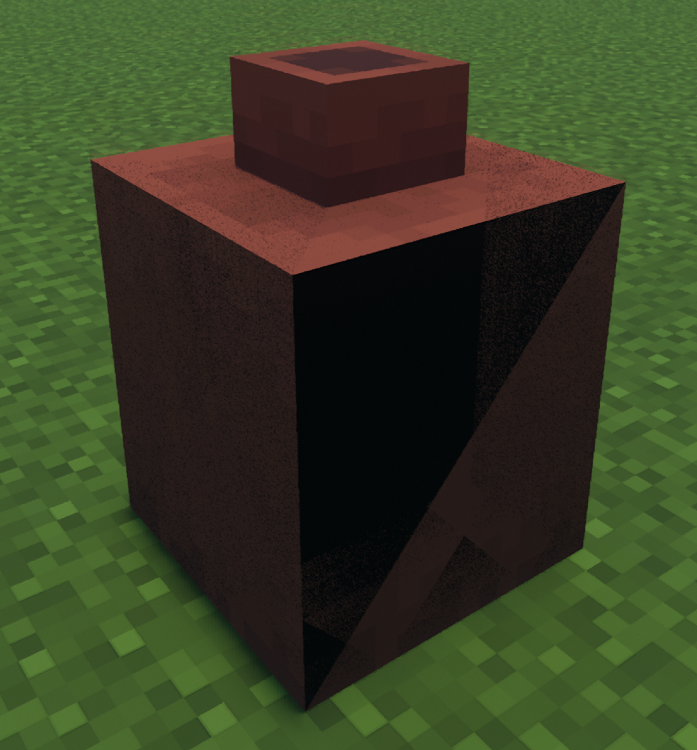
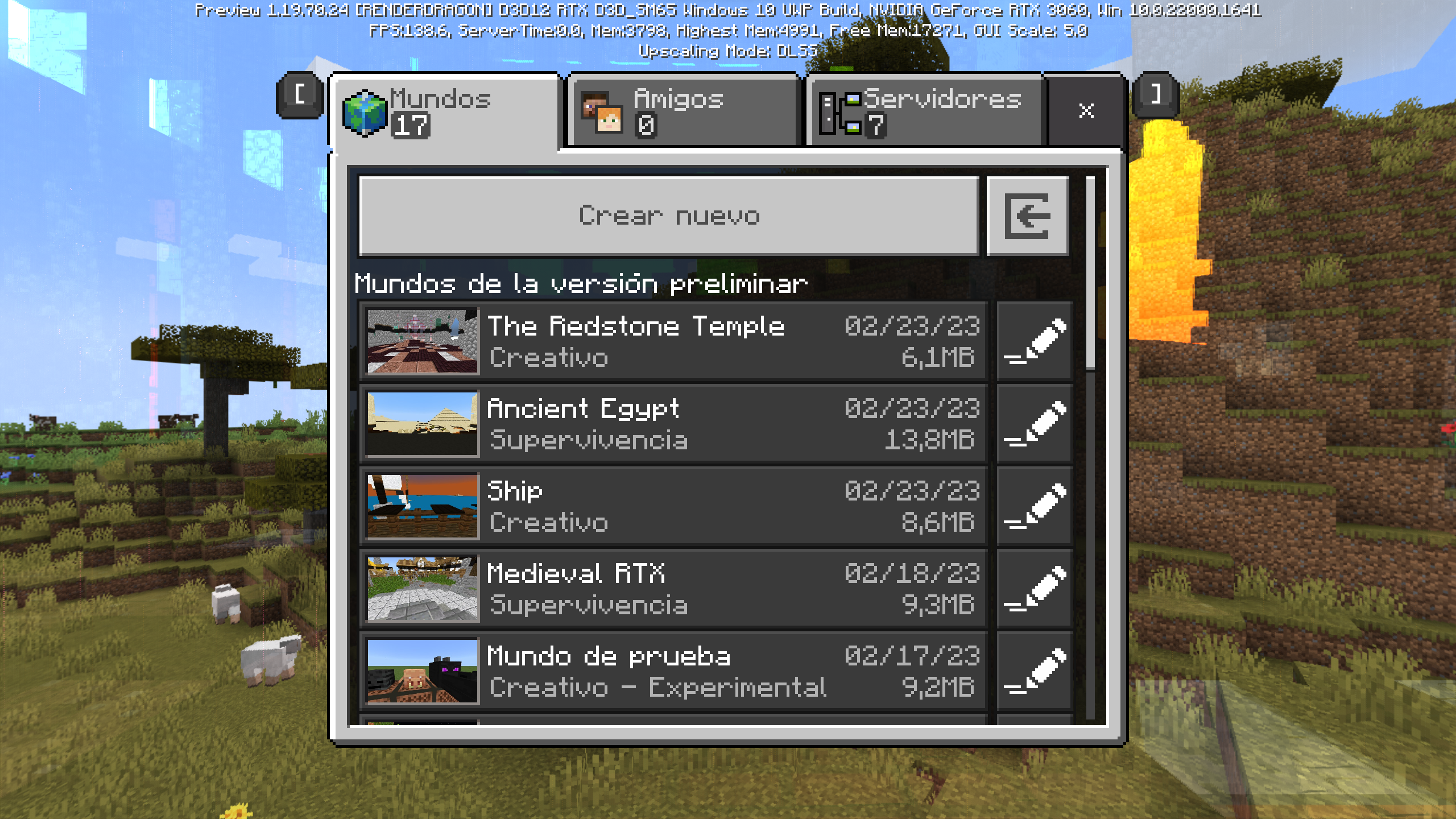

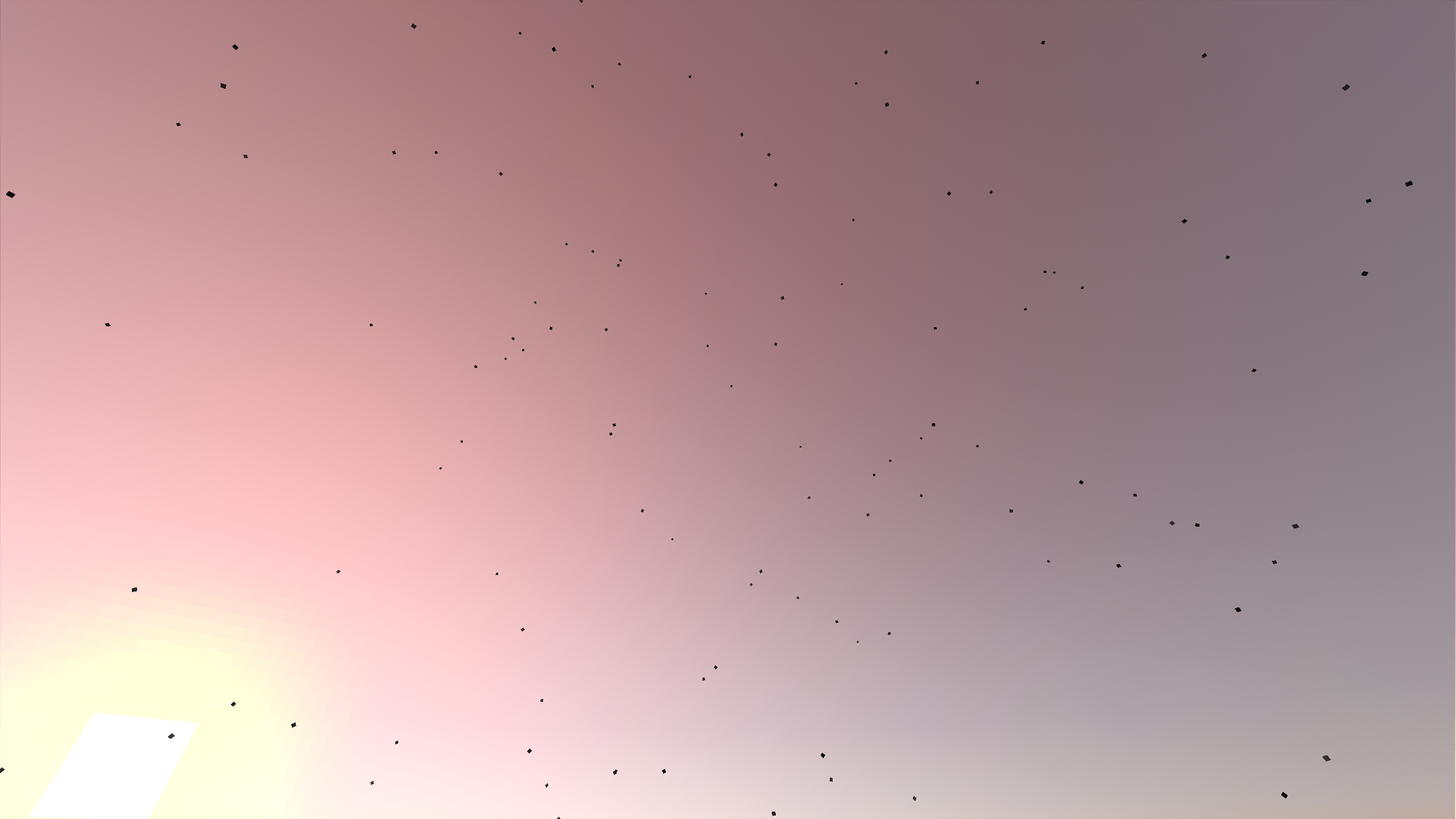
In the new 1.19.40.22 Preview version with Raytracing enabled the night looks like daytime but with stars.
Steps to Reproduce:
1. Do /time set midnight or to watch it slowly do /time add 200 on a command block with repeat.2. See how nighttime looks just like daytime after sunset.
Observed Results:
The night is really bright like if it were daytime.Expected Results:
Nighttime should be much darker than daytime.
I also left a video with the issue and the RTX texture pack. I tried two different RTX packs and it had the same effect.
In the new 1.19.40.22 Preview version with Raytracing enabled the night looks like daytime but with stars.
Steps to Reproduce:
1. Do /time set midnight or to watch it slowly do /time add 200 on a command block with repeat.2. See how nighttime looks just like daytime after sunset.
Observed Results:
The night is really bright like if it were daytime.Expected Results:
Nighttime should be much darker than daytime.
I also left a video with the issue and the RTX texture pack I used. I tried two different RTX packs and it had the same effect.
Description
Whenever I'm sprinting in creative mode while flying close to the floor, the sprinting particles appear as if I were running. This should not happen.
Steps to Reproduce:
1. Create a superflat world or go somewhere flat in creative mode.2. Jump twice to fly and then crouch until you touch the floor.
3. Start sprinting and notice how the sprinting particles show even when you're actually flying.
Observed Results:
The particles should not appear as you're flying and not sprinting on the floor.Expected Results:
The particles appear even when you're flying.
I also left a video with the issue to make it easier to reproduce.
Whenever I'm sprinting in creative mode while flying close to the floor, the sprinting particles appear as if I were running. This should not happen.
Steps to Reproduce:
1. Create a superflat world or go somewhere flat in creative mode.2. Jump twice to fly and then crouch until you touch the floor.
3. Start sprinting and notice how the sprinting particles show even when you're actually flying.
Observed Results:
The particles should not appear as you're flying and not sprinting on the floor.Expected Results:
The particles appear even when you're flying.
I also left a video with the issue to make it easier to reproduce.
Whenever I'm sprinting in creative mode while flying close to the floor, the sprinting particles appear as if I were running. This should not happen.
Steps to Reproduce:
1. Create a superflat world or go somewhere flat in creative mode.2. Jump twice to fly and then crouch until you touch the floor.
3. Start sprinting and notice how the sprinting particles show even when you're actually flying.
**Observed Results:
The particles should not appear as you're flying and not sprinting on the floor.Expected Results:
The particles appear even when you're flying.
I also left a video with the issue to make it easier to reproduce.
Whenever I'm sprinting in creative mode while flying close to the floor, the sprinting particles appear as if I were running. This should not happen.
Steps to Reproduce:
1. Create a superflat world or go somewhere flat in creative mode.2. Jump twice to fly and then crouch until you touch the floor.
3. Start sprinting and notice how the sprinting particles show even when you're actually flying.
**Observed Results:
The particles should not appear as you're flying and not sprinting on the floor.Expected Results:
The particles appear even when you're flying.
I also left a video with the issue to make it easier to reproduce.
Whenever I'm sprinting in creative mode while flying close to the floor, the sprinting particles appear as if I were running. This should not happen.
Steps to Reproduce:
1. Create a superflat world or go somewhere flat in creative mode.2. Jump twice to fly and then crouch until you touch the floor.
3. Start sprinting and notice how the sprinting particles show even when you're actually flying.
Observed Results:
The particles should not appear as you're flying and not sprinting on the floor.Expected Results:
The particles appear even when you're flying.
I also left a video with the issue to make it easier to reproduce.
Whenever I'm sprinting in creative mode while flying close to the floor, the sprinting particles appear as if I were running. This should not happen.
Steps to Reproduce:
1. Create a superflat world or go somewhere flat in creative mode.2. Jump twice to fly and then crouch until you touch the floor.
3. Start sprinting and notice how the sprinting particles show even when you're actually flying.
Observed Results:
The particlesshould not appear as you're flying and not sprinting on the floor.Expected Results:
The particlesappear even when you're flying.
I also left a video with the issue to make it easier to reproduce.
Whenever I'm sprinting in creative mode while flying close to the floor, the sprinting particles appear as if I were running. This should not happen.
Steps to Reproduce:
1. Create a superflat world or go somewhere flat in creative mode.2. Jump twice to fly and then crouch until you touch the floor.
3. Start sprinting and notice how the sprinting particles show even when you're actually flying.
Observed Results:
The particles appear even when you're flying.Expected Results:
The particles should not appear as you're flying and not sprinting on the floor.
I also left a video with the issue to make it easier to reproduce.
Objects' name in Character Creator don't appear after wearing a custom skin
When I open the Character Creator to customize my character, the names of the objects don't appear, making it difficult to identify them.
Steps to Reproduce:
1. Open the Character Creator.2.
Go to any section and select something.3.
Observe how its name doesn't appear.Observed Results:
The name of the objects don't appear.Expected Results:
The name of the objects appear above the creator.
I also left a video with the issue to make it easier to reproduce.
When I open the Character Creator to customize my character, the names of the objects don't appear if I had a custom skin equipped, making it difficult to identify them.
Steps to Reproduce:
1. Open the Character Creator.2. Equip a custom skin.
3. Go to any section and select something.
4. Observe how its name doesn't appear.
Observed Results:
The name of the objects don't appear.Expected Results:
The name of the objects appear above the creator.
I also left a video with the issue to make it easier to reproduce.
When I open the Character Creator to customize my character, the names of the objects don't appear if I had a custom skin equipped, making it difficult to identify them.
Steps to Reproduce:
- Open the Character Creator.
- Equip a custom skin.
- Go to any section and select something.
- Observe how its name doesn't appear.
Observed Results:
The name of the objects don't appear.Expected Results:
The name of the objects appear above the creator.I also left a video and a custom skin with the issue to make it easier to reproduce.
UPDATE: This was fixed (At least for me) in 1.19.60.24.
When I open the Character Creator to customize my character, the names of the objects don't appear if I had a custom skin equipped, making it difficult to identify them.
Steps to Reproduce:
- Open the Character Creator.
- Equip a custom skin.
- Go to any section and select something.
- Observe how its name doesn't appear.
Observed Results:
The name of the objects don't appear.Expected Results:
The name of the objects appear above the creator.I also left a video and a custom skin with the issue to make it easier to reproduce.
When you equip a map and open it with RTX on, the map renders on mirrors and shadows.
Steps to Reproduce:
- Go to the Color, Light and Shadow RTX map.
- Go to the room examples and go to the mirror room.
- Equip and open a map.
- See how even if your character is not rendering on the mirror, the map is (and for some reason it goes really fast when walking compared to your character).
Observed Results:
The map renders in the world even if the character is not.Expected Results:
The map doesn't render if the character isn't.I also left a video with the issue to make it easier to reproduce.
UPDATE: This was almost entirely fixed in 1.19.60.20. When placed, there are a few ticks in which you can see the empty texture, and then it restores. It only needs to render in the inventory now.
If you have a Chiseled Bookshelf and you fill it with books and then copy its data, it won't display all the books in it (also affects the block in the inventory).
Steps to Reproduce:
- Get a Chiseled Bookshelf in creative mode.
- Fill it with books. (Works with any quantity)
- Press Ctrl key and the pick block key to copy its data.
- Place the Chiseled Bookshelf with data stored and break it.
- Observe how its texture was the empty one when it was actually full.
Observed Results:
The Chiseled Bookshelf looks like it's empty when it's actually full.Expected Results:
The Chiseled Bookshelf shows how many books it has stored.I also left a video with the issue to make it easier to reproduce.
UPDATE: This was almost entirely fixed in 1.19.60.20. When placed, there are a few ticks in which you can see the empty texture, and then it restores. It
onlyneeds to render in the inventorynow.If you have a Chiseled Bookshelf and you fill it with books and then copy its data, it won't display all the books in it (also affects the block in the inventory).
Steps to Reproduce:
- Get a Chiseled Bookshelf in creative mode.
- Fill it with books. (Works with any quantity)
- Press Ctrl key and the pick block key to copy its data.
- Place the Chiseled Bookshelf with data stored and break it.
- Observe how its texture was the empty one when it was actually full.
Observed Results:
The Chiseled Bookshelf looks like it's empty when it's actually full.Expected Results:
The Chiseled Bookshelf shows how many books it has stored.I also left a video with the issue to make it easier to reproduce.
UPDATE: This was almost entirely fixed in 1.19.60.20. When placed, there are a few ticks in which you can see the empty texture, and then it restores. It also needs to render in the inventory.
If you have a Chiseled Bookshelf and you fill it with books and then copy its data, it won't display all the books in it (also affects the block in the inventory).
Steps to Reproduce:
- Get a Chiseled Bookshelf in creative mode.
- Fill it with books. (Works with any quantity)
- Press Ctrl key and the pick block key to copy its data.
- Place the Chiseled Bookshelf with data stored and break it.
- Observe how its texture was the empty one when it was actually full.
Observed Results:
The Chiseled Bookshelf looks like it's empty when it's actually full.Expected Results:
The Chiseled Bookshelf shows how many books it has stored.I also left a video with the issue to make it easier to reproduce.
The new Create New World screen sometimes glitches and the text and images flicker when interacting.
This glitch only happened to me 3 times, so it's hard to reproduce. I do think it has something to do with RTX texture packs, because it has only happened to me when I had an RTX texture pack and RTX on (Note: the texture pack I used doesn't change anything from the menu).
Steps to Reproduce:
- Use an RTX texture pack.
- Turn RTX on.
- Go to the new Create New World screen.
- Observe how everything flickers. / Restart Minecraft and try again until it happens.
Observed Results:
The new Create New World screen flickers, making it almost impossible to change any settings.Expected Results:
The new Create New World screen doesn't flicker, all the text is easily readable, and you can differentiate every menu.I also left a photo with the issue. Every time I try to record it, it goes back to normal.
Update: I managed to record it with the Xbox app.
The new Create New World screen sometimes glitches and the text and images flicker when interacting.
This glitch only happened to me 3 times, so it's hard to reproduce. I do think it has something to do with RTX texture packs, because it has only happened to me when I had an RTX texture pack and RTX on (Note: the texture pack I used doesn't change anything from the menu).
Steps to Reproduce:
Use an RTXtexture pack.- Turn
RTXon.- Go to the new Create New World screen.
- Observe how everything flickers. / Restart Minecraft and try again until it happens.
Observed Results:
The new Create New World screen flickers, making it almost impossible to change any settings.Expected Results:
The new Create New World screen doesn't flicker, all the text is easily readable, and you can differentiate every menu.I also left a photo with the issue. Every time I try to record it, it goes back to normal.
Update: I managed to record it with the Xbox app.
The new Create New World screen sometimes glitches and the text and images flicker when interacting.
This glitch only happened to me 3 times, so it's hard to reproduce. I do think it has something to do with RTX texture packs, because it has only happened to me when I had an RTX texture pack and RTX on (Note: the texture pack I used doesn't change anything from the menu). Looks like the bug only happens on Fullscreen mode.
Steps to Reproduce:
- Use an RTX texture pack.
- Turn RTX on.
- Turn Fullscreen mode on.
- Go to the new Create New World screen.
- Observe how everything flickers. / Restart Minecraft and try again until it happens.
Observed Results:
The new Create New World screen flickers, making it almost impossible to change any settings.Expected Results:
The new Create New World screen doesn't flicker, all the text is easily readable, and you can differentiate every menu.I also left a photo with the issue. Every time I try to record it, it goes back to normal.
Update: I managed to record it with the Xbox app.
The new Create New World screen sometimes glitches and the text and images flicker when interacting.
This glitch only happened to me 3 times, so it's hard to reproduce. I do think it has something to do with RTX texture packs, because it has only happened to me when I had an RTX texture pack and RTX on (Note: the texture pack I used doesn't change anything from the menu). Looks like the bug only happens on Fullscreen mode.
Steps to Reproduce:
- Use an RTX texture pack.
- Turn RTX on.
- Turn Fullscreen mode on.
- Go to the new Create New World screen.
- Observe how everything flickers. / Restart Minecraft and try again until it happens.
Observed Results:
The new Create New World screen flickers, making it almost impossible to change any settings.Expected Results:
The new Create New World screen doesn't flicker, all the text is easily readable, and you can differentiate every menu.I also left a photo, a video and the texture pack I used with the issue. Every time I try to record it, it goes back to normal.
Update: I managed to record it with the Xbox app.
Create New Worldscreen sometimes glitchesNew UI screens sometimes glitch
New UI screens sometimes glitches
New UI screens sometimes glitches
The new Create New World screen sometimes glitch
esand the text and images flicker when interacting.This glitch only happened to me 3 times, so it's hard to reproduce. I do think it has something to do with RTX texture packs, because it has only happened to me when I had an RTX texture pack and RTX on (Note: the texture pack I used doesn't change anything from the menu). Looks like the bug only happens on Fullscreen mode.
Steps to Reproduce:
- Use an RTX texture pack.
- Turn RTX on.
- Turn Fullscreen mode on.
- Go to the new Create New World screen.
- Observe how everything flickers. / Restart Minecraft and try again until it happens.
Observed Results:
The new Create New World screen flickers, making it almost impossible to change any settings.Expected Results:
The new Create New World screen doesn't flicker, all the text is easily readable, and you can differentiate every menu.I also left a photo, a video and the texture pack I used with the issue. Every time I try to record it, it goes back to normal.
Update: I managed to record it with the Xbox app.
The new Create New World and Achievements screens sometimes glitch and the text and images flicker when interacting.
This glitch only happened to me 3 times, so it's hard to reproduce. I do think it has something to do with RTX, because it has only happened to me with RTX on. Looks like the bug only happens on Fullscreen mode.
Steps to Reproduce:
- Use an RTX texture pack.
- Turn RTX on.
- Turn Fullscreen mode on.
- Go to the new Create New World or Achievements screens.
- Observe how everything flickers. / Restart Minecraft and try again until it happens.
Observed Results:
The new Create New World and Achievements screens flicker, making it almost impossible to change any settings.Expected Results:
The new Create New World and Achievements screens don't flicker, all the text is easily readable, and you can differentiate every menu.I also left a photo, a video and the texture pack I used with the issue. Every time I try to record it, it goes back to normal.
Update: I managed to record it with the Xbox app.
Update: This was fixed for me in 1.19.80.
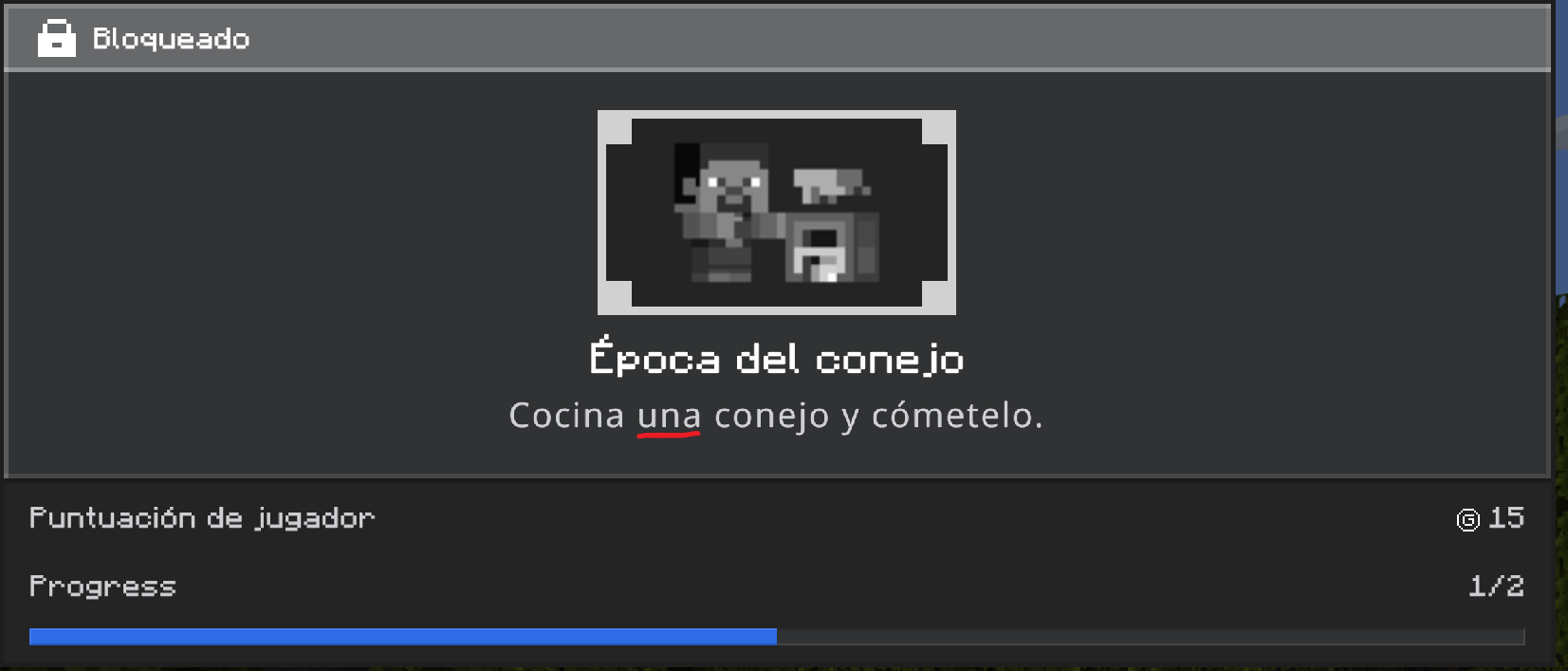
I recently noticed a typo in the Rabbit Season achievement in the Spanish language.
The description says: "Cocina una conejo y cómetelo."
It should say: "Cocina un conejo y cómetelo."
Steps to Reproduce:
- Set your language in Spanish (Spain) / Español (España).
- Go to the achievements screen and search the Rabbit Season achievement. (It's called "Época del conejo" in Spanish).
- See how "una" has the wrong genre, the right one being "un".
Observed Results:
The description says: "Cocina una conejo y cómetelo.", having the wrong genre in "una".Expected Results:
The description says: "Cocina un conejo y cómetelo.", using the right genre in "un".
I recently noticed an untranslated word in the achievement details in the Spanish language.
It says "Progress" (Same as English), while in Spanish it would be "Progreso".
Steps to Reproduce:
- Set your language in Spanish (Spain) / Español (España).
- Go to the achievements screen and click on any achievement to enter the achievement details screen.
- See how "Progress" is untranslated.
Observed Results:
The achievement details screen says "Progress" while being in Spanish.
Expected Results:
The achievement details screen says "Progreso" because it's in Spanish.I recently noticed an untranslated word in the achievement details in the Spanish language.
It says "Progress" (Same as English), while in Spanish it would be "Progreso".
Steps to Reproduce:
- Set your language in Spanish (Spain) / Español (España).
- Go to the achievements screen and click on any achievement to enter the achievement details screen.
- See how "Progress" is untranslated.
Observed Results:
The achievement details screen says "Progress" while being in Spanish.Expected Results:
The achievement details screen says "Progreso" because it's in Spanish.
UPDATE: This was fixed in 1.19.50.
I recently noticed an untranslated word in the achievement details in the Spanish language.
It says "Progress" (Same as English), while in Spanish it would be "Progreso".
Steps to Reproduce:
- Set your language in Spanish (Spain) / Español (España).
- Go to the achievements screen and click on any achievement to enter the achievement details screen.
- See how "Progress" is untranslated.
Observed Results:
The achievement details screen says "Progress" while being in Spanish.Expected Results:
The achievement details screen says "Progreso" because it's in Spanish.
I recently noticed while riding a boat that it saves momentum when you dismount it.
This doesn't save when you reload the world.
Steps to Reproduce:
- Get a boat on ice and mount it.
- Press and hold the right/left key until you go fast enough to notice the bug.
- Dismount the boat right when you stop holding the right/left key.
- Mount it again.
Observed Results:
The boat keeps spinning. (Only when you mount it)
Expected Results:
The boat loses all momentum. / Continues spinning whilst you're not riding it.
Dragonhead in inventory movesalong with other ones activated by redstone.Animated heads in inventory move along with other ones activated by redstone.
I recently noticed while using a dragon head on the latest preview version that when activated by redstone to move
its mouth, the head in the inventory movesas well.Steps to Reproduce:
- Create a new world in creative mode.
- Get a dragon head, redstone and a redstone torch/redstone block from the inventory.
- Activate the
dragonhead with redstone to make it moveits mouth.- Watch the one from your inventory.
Observed Results:
Thedragonhead in the inventory moves with the one you have placed.Expected Results:
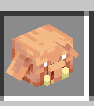
Thedragonhead in the inventory doesn't move with the one you have placed since they are two separatedragonheads.I recently noticed while using a dragon head and a Piglin head on the latest preview version that when activated by redstone to move, the heads in the inventory move as well.
Steps to Reproduce:
- Create a new world in creative mode.
- Get a dragon head/Piglin head, redstone and a redstone torch/redstone block from the inventory.
- Activate the head with redstone to make it move.
- Watch the one from your inventory.
Observed Results:
The head in the inventory moves with the one you have placed.Expected Results:
The head in the inventory doesn't move with the one you have placed since they are two separate heads.
I've noticed that the Piglin head's ear overlaps in the inventory.
Steps to Reproduce:
- Go to creative mode and get a Piglin head.
- Watch its
left ear.Observed Results:
Theleft ear overlaps in the inventory.Expected Results:
Theleft ear doesn't overlap in the inventory since it's behind the head.I've noticed that the Piglin head's ear overlaps in the inventory.
Steps to Reproduce:
- Go to creative mode and get a Piglin head.
- Watch its right ear.
Observed Results:
The right ear overlaps in the inventory.Expected Results:
The right ear doesn't overlap in the inventory since it's behind the head.
Text backgrounds overlap with eachother in chat
Some time ago, I noticed how the text background in a chat message overlaps a bit with the other ones.
Steps to Reproduce:
- Set your chat opacity to something a little bit transparent (like 50% or 35%)
- Send at least 5 messages in chat so you can notice.
Observed Results:
The text backgrounds overlap and you can see where it starts and where it ends.Expected Results:
The text backgrounds don't overlap and you can't see the connection point.
Chatopacity2.png
Some time ago, I noticed how with HUD opacity being low some 3D objects that have separate polygons are rendered incorrectly.
Steps to Reproduce:
- Set your HUD opacity to something a little bit transparent (like 50% or 35%)
- Get stairs, a dragon head or something with extra polygons. / Do "/title @s
§ltitle Test 1234".Observed Results:
You can see some normally invisible parts of the object/text.Expected Results:
You can only see the usually visible parts of the object/text.Some time ago, I noticed how with HUD opacity being low some 3D objects that have separate polygons are rendered incorrectly.
Steps to Reproduce:
- Set your HUD opacity to something a little bit transparent (like 50% or 35%)
- Get stairs, a dragon head or something with extra polygons. / Do "/title @s title §lTest 1234".
Observed Results:
You can see some normally invisible parts of the object/text.Expected Results:
You can only see the usually visible parts of the object/text.
Some time ago, I noticed how with HUD opacity being low some 3D objects that have separate polygons are rendered incorrectly. (Also happens with bold text and XP bar borders and numbers)
Steps to Reproduce:
- Set your HUD opacity to something a little bit transparent (like 50% or 35%)
- Get stairs, a dragon head or something with extra polygons. / Do "/title @s title §lTest 1234".
Observed Results:
You can see some normally invisible parts of the object/text.Expected Results:
You can only see the usually visible parts of the object/text.
Some time ago, I noticed how with HUD opacity being low some 3D objects that have separate polygons are rendered incorrectly. (Also happens with bold text
andXP bar borders and numbers)Steps to Reproduce:
- Set your HUD opacity to something a little bit transparent (like 50% or 35%)
- Get stairs, a dragon head or something with extra polygons. / Do "/title @s title §lTest 1234".
Observed Results:
You can see some normally invisible parts of the object/text.Expected Results:
You can only see the usually visible parts of the object/text.Some time ago, I noticed how with HUD opacity being low some 3D objects that have separate polygons are rendered incorrectly. (Also happens with bold text, XP bar borders and numbers and heart icons)
Steps to Reproduce:
- Set your HUD opacity to something a little bit transparent (like 50% or 35%)
- Get stairs, a dragon head or something with extra polygons. / Do "/title @s title §lTest 1234".
Observed Results:
You can see some normally invisible parts of the object/text.Expected Results:
You can only see the usually visible parts of the object/text.
Some time ago, I noticed how with HUD opacity being low some 3D objects that have separate polygons are rendered incorrectly. (Also happens with bold text, XP bar borders and numbers
andheart icons)Steps to Reproduce:
- Set your HUD opacity to something a little bit transparent (like 50% or 35%)
- Get stairs, a dragon head or something with extra polygons. / Do "/title @s title §lTest 1234".
Observed Results:
You can see some normally invisible parts of the object/text.Expected Results:
You can only see the usually visible parts of the object/text.Some time ago, I noticed how with HUD opacity being low some 3D objects that have separate polygons are rendered incorrectly. (Also happens with bold text, XP bar borders and numbers, heart icons and selected hotbar slots)
Steps to Reproduce:
- Set your HUD opacity to something a little bit transparent (like 50% or 35%)
- Get stairs, a dragon head or something with extra polygons. / Do "/title @s title §lTest 1234".
Observed Results:
You can see some normally invisible parts of the object/text.Expected Results:
You can only see the usually visible parts of the object/text.
This issue can be reproduced with any custom skin, but I'll leave a Steve skin anyway.
I think it isn't a shadow, but the roofed forest biome. In 1.19.40 there was a new fix bringing the correct colors to roofed forest biomes. (
MCPE-34936)In 1.19.50 it was almost fixed, since the dark line can be seen in every two messages, instead of every message.
Alright.
Here's the video: rtxpanoramavideo.mp4
All the packs and worlds are affected, even servers.
There's already a pack uploaded, so I won't upload mine.