 MC-26151
Minecraft has advice on an error report that should be deleted.
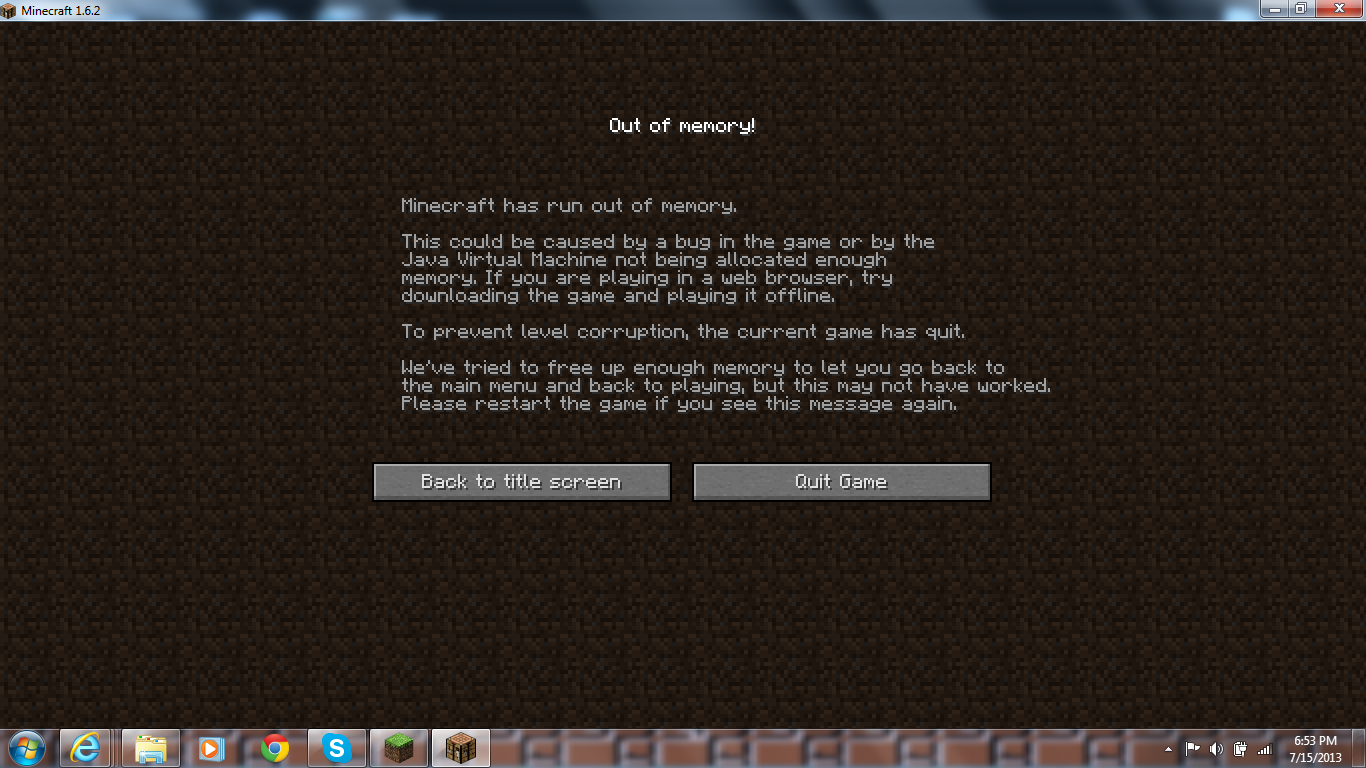
While I was allocating different memory amounts using the launcher, I ran across an out of memory report that has information for users who play the browser. Since Minecraft 1.6 can't be played on a browser, the information is irrelevant.
What I expected to happen was...:
The out of memory error report shouldn't have information for users who play in the browser.
What actually happened was...:
The Error Report said that if the user was playing on a browser, then they should download the game.
If you are playing in a web browser, try downloading the game and playing it offline.
Steps to Reproduce:
1. In the launcher click Edit Profile.
2. Under the Java Settings (Advanced) Group, make sure the JVM Arguments Check Box is Checked.
3 . In the textbox next to the JVM Arguments Check Box, replace the amount of memory to be allocated to 100M (The memory to be allocated is right of the first part of the command, -Xmx).
4. Click Save Profile and Start Minecraft.
5. Open any world.
Note: If a world opens normally, return to the title screen and try again with a different world.
Environment
Java 7u17
Windows 7

Created Issue:
Minecraft still has advice for players who have been playing Minecraft on the browser.
While I was allocating different memory amounts using the launcher, I ran across an out of memory report that has information for users who play the browser. Since Minecraft 1.6 can't be played on a browser, the information is irrelevant.
What I expected to happen was...:
The out of memory error report shouldn't have information for users who play in the browser.What actually happened was...:
The Error Report said that if the user was playing on a browser, then they should download the game.Steps to Reproduce:
1. In the launcher click Edit Profile.2. Under the Java Settings (Advanced) Group, make sure the JVM Arguments Check Box is Checked.
3 . In the textbox next to the JVM Arguments Check Box, replace the amount of memory to be allocated to 100M (The memory to be allocated is right of the first part of the command, -Xmx).
4. Click Save Profile and Start Minecraft.
5. Open any world.
Note: If a world opens normally, return to the title screen and try again.
Environment
Java 7u7
Windows 7
Attachments1
- Unresolved
- Open
- Unconfirmed
- 1.6.2 Bug Error Glitch Message OutofMemory
- 1.6.2
Minecraft still has advicefor players who have been playing Minecraft on the browser.Minecraft still has advice which shouldn't be there.
Minecraftstillhas advice which shouldn'tbethere.Minecraft has advice which should be deleted.
Minecraft has advicewhichshould be deleted.Minecraft has advice that should be deleted.
Minecraft has advice on an error report that should be deleted.
While I was allocating different memory amounts using the launcher, I ran across an out of memory report that has information for users who play the browser. Since Minecraft 1.6 can't be played on a browser, the information is irrelevant.
What I expected to happen was...:
The out of memory error report shouldn't have information for users who play in the browser.What actually happened was...:
The Error Report said that if the user was playing on a browser, then they should download the game.Steps to Reproduce:
1. In the launcher click Edit Profile.2. Under the Java Settings (Advanced) Group, make sure the JVM Arguments Check Box is Checked.
3 . In the textbox next to the JVM Arguments Check Box, replace the amount of memory to be allocated to 100M (The memory to be allocated is right of the first part of the command, -Xmx).
4. Click Save Profile and Start Minecraft.
5. Open any world.
Note: If a world opens normally, return to the title screen and try again with a different world.

While I was allocating different memory amounts using the launcher, I ran across an out of memory report that has information for users who play the browser. Since Minecraft 1.6 can't be played on a browser, the information is irrelevant.
If your are playing in a web browser, try downloading the game an playing it online.
What I expected to happen was...:
The out of memory error report shouldn't have information for users who play in the browser.What actually happened was...:
The Error Report said that if the user was playing on a browser, then they should download the game.Steps to Reproduce:
1. In the launcher click Edit Profile.2. Under the Java Settings (Advanced) Group, make sure the JVM Arguments Check Box is Checked.
3 . In the textbox next to the JVM Arguments Check Box, replace the amount of memory to be allocated to 100M (The memory to be allocated is right of the first part of the command, -Xmx).
4. Click Save Profile and Start Minecraft.
5. Open any world.
Note: If a world opens normally, return to the title screen and try again with a different world.
While I was allocating different memory amounts using the launcher, I ran across an out of memory report that has information for users who play the browser. Since Minecraft 1.6 can't be played on a browser, the information is irrelevant.
If your are playing in a web browser, try downloading the game an playing it online.
What I expected to happen was...:
The out of memory error report shouldn't have information for users who play in the browser.What actually happened was...:
The Error Report said that if the user was playing on a browser, then they should download the game.Steps to Reproduce:
1. In the launcher click Edit Profile.2. Under the Java Settings (Advanced) Group, make sure the JVM Arguments Check Box is Checked.
3 . In the textbox next to the JVM Arguments Check Box, replace the amount of memory to be allocated to 100M (The memory to be allocated is right of the first part of the command, -Xmx).
4. Click Save Profile and Start Minecraft.
5. Open any world.
Note: If a world opens normally, return to the title screen and try again with a different world.
While I was allocating different memory amounts using the launcher, I ran across an out of memory report that has information for users who play the browser. Since Minecraft 1.6 can't be played on a browser, the information is irrelevant.
What I expected to happen was...:
The out of memory error report shouldn't have information for users who play in the browser.What actually happened was...:
The Error Report said that if the user was playing on a browser, then they should download the game.If your are playing in a web browser, try downloading the game an playing it online.
Steps to Reproduce:
1. In the launcher click Edit Profile.2. Under the Java Settings (Advanced) Group, make sure the JVM Arguments Check Box is Checked.
3 . In the textbox next to the JVM Arguments Check Box, replace the amount of memory to be allocated to 100M (The memory to be allocated is right of the first part of the command, -Xmx).
4. Click Save Profile and Start Minecraft.
5. Open any world.
Note: If a world opens normally, return to the title screen and try again with a different world.
While I was allocating different memory amounts using the launcher, I ran across an out of memory report that has information for users who play the browser. Since Minecraft 1.6 can't be played on a browser, the information is irrelevant.
What I expected to happen was...:
The out of memory error report shouldn't have information for users who play in the browser.What actually happened was...:
The Error Report said that if the user was playing on a browser, then they should download the game.If you
rare playing in a web browser, try downloading the game an playing it online.Steps to Reproduce:
1. In the launcher click Edit Profile.2. Under the Java Settings (Advanced) Group, make sure the JVM Arguments Check Box is Checked.
3 . In the textbox next to the JVM Arguments Check Box, replace the amount of memory to be allocated to 100M (The memory to be allocated is right of the first part of the command, -Xmx).
4. Click Save Profile and Start Minecraft.
5. Open any world.
Note: If a world opens normally, return to the title screen and try again with a different world.
Java 7u17
Windows 7
"Recommended Requirements:
CPU : Intel Pentium D or AMD Athlon 64 (K8) 2.6 GHz
RAM : 4GB
GPU : GeForce 6xxx or ATI Radeon 9xxx and up with OpenGL 2 Support (Excluding Integrated Chipsets)
HDD : 150MB"As you can see, its recommended allocating at least 150MB.
Source: help.mojang.com

While I was allocating different memory amounts using the launcher, I ran across an out of memory report that has information for users who play the browser. Since Minecraft 1.6 can't be played on a browser, the information is irrelevant.
What I expected to happen was...:
The out of memory error report shouldn't have information for users who play in the browser.What actually happened was...:
The Error Report said that if the user was playing on a browser, then they should download the game.If you are playing in a web browser, try downloading the game an playing it o
nline.Steps to Reproduce:
1. In the launcher click Edit Profile.2. Under the Java Settings (Advanced) Group, make sure the JVM Arguments Check Box is Checked.
3 . In the textbox next to the JVM Arguments Check Box, replace the amount of memory to be allocated to 100M (The memory to be allocated is right of the first part of the command, -Xmx).
4. Click Save Profile and Start Minecraft.
5. Open any world.
Note: If a world opens normally, return to the title screen and try again with a different world.
While I was allocating different memory amounts using the launcher, I ran across an out of memory report that has information for users who play the browser. Since Minecraft 1.6 can't be played on a browser, the information is irrelevant.
What I expected to happen was...:
The out of memory error report shouldn't have information for users who play in the browser.What actually happened was...:
The Error Report said that if the user was playing on a browser, then they should download the game.If you are playing in a web browser, try downloading the game an playing it offline.
Steps to Reproduce:
1. In the launcher click Edit Profile.2. Under the Java Settings (Advanced) Group, make sure the JVM Arguments Check Box is Checked.
3 . In the textbox next to the JVM Arguments Check Box, replace the amount of memory to be allocated to 100M (The memory to be allocated is right of the first part of the command, -Xmx).
4. Click Save Profile and Start Minecraft.
5. Open any world.
Note: If a world opens normally, return to the title screen and try again with a different world.
While I was allocating different memory amounts using the launcher, I ran across an out of memory report that has information for users who play the browser. Since Minecraft 1.6 can't be played on a browser, the information is irrelevant.
What I expected to happen was...:
The out of memory error report shouldn't have information for users who play in the browser.What actually happened was...:
The Error Report said that if the user was playing on a browser, then they should download the game.If you are playing in a web browser, try downloading the game and playing it offline.
Steps to Reproduce:
1. In the launcher click Edit Profile.2. Under the Java Settings (Advanced) Group, make sure the JVM Arguments Check Box is Checked.
3 . In the textbox next to the JVM Arguments Check Box, replace the amount of memory to be allocated to 100M (The memory to be allocated is right of the first part of the command, -Xmx).
4. Click Save Profile and Start Minecraft.
5. Open any world.
Note: If a world opens normally, return to the title screen and try again with a different world.
![[Mojang] Nathan Adams](../../../data/assets/gravatar/dinnerbone.png) [Mojang] Nathan Adams
[Mojang] Nathan Adams
![[Mod] Ezekiel (ezfe)](../../../data/assets/gravatar/ezekielelin.jpeg)
![[Mod] Torabi](../../../data/assets/gravatar/torabi.png)
Unable to reproduce. The game never shows an out of memory screen.
Did you try reallocating the memory to 100 Megabytes?
Yes, I did set it to 100MB. The launcher showed a bunch of out of memory comments, but the game stayed on the loading screen.
My sister's unmodded game gives out of memory screens like the one showed, I believe. Just this morning I caused it (with optifine installed) by inputting 1300 instead of 1300M for the memory amount.
Set my Minecraft to use 180MB of RAM, (which is the lowest I could get it to go, 100MB didn't work), then loaded a world. It shows the same screen, just with a different way to reproduce.