Skin/Head Textures, server/world icon, and chat colors don't refresh when first loaded in anaglyph 3D
To work around this issue in-game, turn off anaglyph 3D (selecting "done" on the settings menu) and then save and quit.
The bug
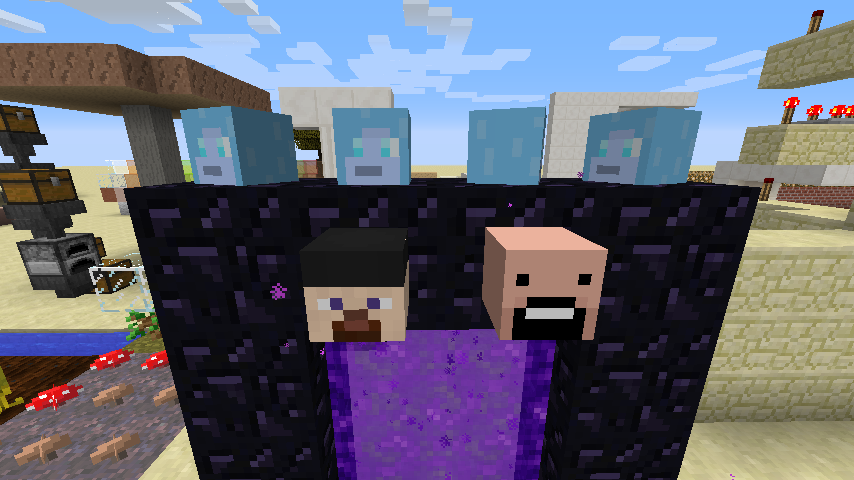
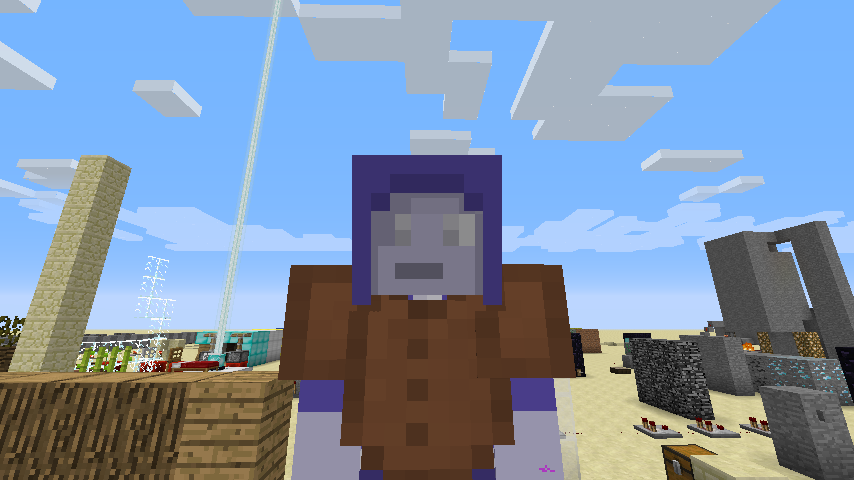
Skin/head textures don't refresh their color when they were first loaded while 3D-anaglyph was turned on and is afterwards turned off.
How To Reproduce (skins)
- Launch Minecraft
- Turn on 3D-Anaglyph
- Enter a world
- Place a player head
- Turn off 3D-Anaglyph
- Your skin and the player head are discolored
- Place a different player's head
- Their head is colored correctly
Note that it significantly easier to verify this bug by starting with anaglyph on and turning it off than the other way around, as it is easier to see the broken skin texture in non-anaglyph mode.
How to reproduce (chat colors)
This also affects chat colors, but since those textures are finished after the game starts, a different process is needed.
- Start the game
- Enable anaglyph 3D, and then click "done" and then "quit" (do not close the game directly).
- Start the game again. The game should start with anaglyph 3D enabled.
- Enter a world.
- Run the command /give with no parameters. This will cause a red error message to be output (as expected for anaglyph).
- Turn off anaglyph 3D.
- Run the command /give again. Note that the color is still displayed as gray, even though it shouldn't be.
Note: If anaglyph 3D mode was not active before starting the game, red text will render as red in anaglyph 3D mode as well, which might be a different bug.
Linked Issues
is duplicated by11
 MC-56212Skin appears gray after turning 3D Anaglyph offDuplicateMC-56466When Turning 3D back off, The player becomes black and white.DuplicateMC-59948What happened to my Skin?DuplicateMC-68493Turning 3D anaglyph off can cause color corruptionDuplicateMC-736893d Anaglyph bugDuplicateMC-76893Player skin has yellowish, ugly tintDuplicateMC-106787When switching 3D mode off, your skin remain in 3D color schemeDuplicateMC-107085When 3D anaglyph is turned on, then off: skins, colored text in chat, tab names, and player names stay 3d in colorDuplicateMC-109437Some colors remain discolored after 3D Anaglyph is turned off.DuplicateMC-1212173D Anaglyph alters colors in main menuDuplicateMC-123485Skin color turned inverted!Duplicate


- Invalid
 Christie N
- 8
- 6
- Confirmed
- 3d anaglyph head player skin texture
1.7.4 - 1.12.2
1.7.4 14w02b 14w03b 14w04a 14w04b 14w05a 1.7.5 1.7.8 14w19a 14w21b 14w26c 1.7.10 14w31a 1.8-pre1 1.8-pre3 1.8.1-pre3 1.8.1 1.8.2-pre4 1.8.3 15w33c 1.10.2 16w33a 1.11.2 17w06a 17w13a 17w13b 17w14a 17w15a 17w16a 17w16b 17w17b 17w18a 17w18b 1.12-pre1 1.12-pre2 1.12-pre3 1.12-pre4 1.12-pre5 1.12-pre6 1.12-pre7 1.12 17w31a 1.12.1-pre1 1.12.1 1.12.2-pre1 1.12.2-pre2 1.12.2
Created Issue:
Skin and Head Textures Do Not Refresh With 3D Anaglyph
Skin/head textures don't refresh their color when 3D-anaglyph is turned on and off.
To Reproduce:
1) Launch Minecraft
2) Turn on 3D-Anaglyph
3) Enter a world
4) Place a player head
5) Turn off 3D-Anaglyph
6) Your skin and the player head are discolored
7) Place a different player's head
8) Their head is colored correctly
Attachments4

Skin andHeadTexturesDoNotRefreshWith3D AnaglyphSkin and head textures do not refresh after turning off 3D Anaglyph

is duplicated by
is duplicated by
Skin and head textures do not refresh after turning off 3D AnaglyphSkin/Head Textures
Skin/Head Textures Don't Refresh When 3D is Toggled
is duplicated by
Skin/head textures don't refresh their color when 3D-anaglyph is turned on and off.
To Reproduce:
1) Launch Minecraft
2) Turn on 3D-Anaglyph
3) Enter a world
4) Place a player head
5) Turn off 3D-Anaglyph
6) Your skin and the player head are discolored
7) Place a different player's head
8) Their head is colored correctlyNote that in 14w31a this also applies to head items.
is duplicated by
is duplicated by

is duplicated by

is duplicated by
Skin/Head Textures and server/world icon Don't Refresh When 3D is Toggled
is duplicated by
![[Mod] Neko](../../../data/avatars/users/92901.png)
![[Mod] Pokechu22](../../../data/avatars/users/92931.png)
Skin/head textures don't refresh their color when 3D-anaglyph is turned on and off.
To Reproduce:
1) Launch Minecraft
2) Turn on 3D-Anaglyph
3) Enter a world
4) Place a player head
5) Turn off 3D-Anaglyph
6) Your skin and the player head are discolored
7) Place a different player's head
8) Their head is colored correctlyNote that in 14w31a this also applies to head items.
Skin/head textures don't refresh their color when 3D-anaglyph is turned on and off.
To Reproduce:
1) Launch Minecraft
2) Turn on 3D-Anaglyph
3) Enter a world
4) Place a player head
5) Turn off 3D-Anaglyph
6) Your skin and the player head are discolored
7) Place a different player's head
8) Their head is colored correctlyNote that in 14w31a this also applies to head items. Also, note that it significantly easier to verify this bug by starting with anaglyph on and turning it off than the other way around, as it is easier to see the broken skin texture in non-anaglyph mode.
![[Bot] Arisa](../../../data/assets/gravatar/mustek2.png)
Skin/head textures don't refresh their color when 3D-anaglyph is turned on and off.
To Reproduce:
1) Launch Minecraft
2) Turn on 3D-Anaglyph
3) Enter a world
4) Place a player head
5) Turn off 3D-Anaglyph
6) Your skin and the player head are discolored
7) Place a different player's head
8) Their head is colored correctlyNote that in 14w31a this also applies to head items. Also, note that it significantly easier to verify this bug by starting with anaglyph on and turning it off than the other way around, as it is easier to see the broken skin texture in non-anaglyph mode.
Skin/head textures don't refresh their color when 3D-anaglyph is turned on and off.
To Reproduce:
- Launch Minecraft
- Turn on 3D-Anaglyph
- Enter a world
- Place a player head
- Turn off 3D-Anaglyph
- Your skin and the player head are discolored
- Place a different player's head
- Their head is colored correctly
Note that it significantly easier to verify this bug by starting with anaglyph on and turning it off than the other way around, as it is easier to see the broken skin texture in non-anaglyph mode.
This also affects chat colors, but since those textures are finished after the game starts, a different process is needed.
- Start the game
- Enable anaglyph 3D, and then click "done" and then "quit" (do not close the game directly).
- Start the game again. The game should start with anaglyph 3D enabled.
- Enter a world.
- Run the command /give with no parameters. This will cause a red error message to be output (as expected for anaglyph).
- Turn off anaglyph 3D.
- Run the command /give again. Note that the color is still displayed as gray, even though it shouldn't be.
Skin/Head Texturesandserver/world iconDon'tRefreshWhen 3D isToggledSkin/Head Textures, server/world icon, and chat colors don't refresh when anaglyph 3D is toggled

is duplicated by

Skin/head textures don't refresh their color when 3D-anaglyph
is turned on and off.To Reproduce:
- Launch Minecraft
- Turn on 3D-Anaglyph
- Enter a world
- Place a player head
- Turn off 3D-Anaglyph
- Your skin and the player head are discolored
- Place a different player's head
- Their head is colored correctly
Note that it significantly easier to verify this bug by starting with anaglyph on and turning it off than the other way around, as it is easier to see the broken skin texture in non-anaglyph mode.
This also affects chat colors, but since those textures are finished after the game starts, a different process is needed.
- Start the game
- Enable anaglyph 3D, and then click "done" and then "quit" (do not close the game directly).
- Start the game again. The game should start with anaglyph 3D enabled.
- Enter a world.
- Run the command /give with no parameters. This will cause a red error message to be output (as expected for anaglyph).
- Turn off anaglyph 3D.
- Run the command /give again. Note that the color is still displayed as gray, even though it shouldn't be.
The bug
Skin/head textures don't refresh their color when they were first loaded while 3D-anaglyph was turned on and is afterwards turned off.
How To Reproduce (skins)
- Launch Minecraft
- Turn on 3D-Anaglyph
- Enter a world
- Place a player head
- Turn off 3D-Anaglyph
- Your skin and the player head are discolored
- Place a different player's head
- Their head is colored correctly
Note that it significantly easier to verify this bug by starting with anaglyph on and turning it off than the other way around, as it is easier to see the broken skin texture in non-anaglyph mode.
How to reproduce (chat colors)
This also affects chat colors, but since those textures are finished after the game starts, a different process is needed.
- Start the game
- Enable anaglyph 3D, and then click "done" and then "quit" (do not close the game directly).
- Start the game again. The game should start with anaglyph 3D enabled.
- Enter a world.
- Run the command /give with no parameters. This will cause a red error message to be output (as expected for anaglyph).
- Turn off anaglyph 3D.
- Run the command /give again. Note that the color is still displayed as gray, even though it shouldn't be.
Skin/Head Textures, server/world icon, and chat colors don't refresh when anaglyph 3Dis toggledSkin/Head Textures, server/world icon, and chat colors don't refresh when first loaded in anaglyph 3D
The bug
Skin/head textures don't refresh their color when they were first loaded while 3D-anaglyph was turned on and is afterwards turned off.
How To Reproduce (skins)
- Launch Minecraft
- Turn on 3D-Anaglyph
- Enter a world
- Place a player head
- Turn off 3D-Anaglyph
- Your skin and the player head are discolored
- Place a different player's head
- Their head is colored correctly
Note that it significantly easier to verify this bug by starting with anaglyph on and turning it off than the other way around, as it is easier to see the broken skin texture in non-anaglyph mode.
How to reproduce (chat colors)
This also affects chat colors, but since those textures are finished after the game starts, a different process is needed.
- Start the game
- Enable anaglyph 3D, and then click "done" and then "quit" (do not close the game directly).
- Start the game again. The game should start with anaglyph 3D enabled.
- Enter a world.
- Run the command /give with no parameters. This will cause a red error message to be output (as expected for anaglyph).
- Turn off anaglyph 3D.
- Run the command /give again. Note that the color is still displayed as gray, even though it shouldn't be.
*Note: * If anaglyph 3D mode was not active before starting the game, red text will render as red in anaglyph 3D mode as well, which might be a different bug.
The bug
Skin/head textures don't refresh their color when they were first loaded while 3D-anaglyph was turned on and is afterwards turned off.
How To Reproduce (skins)
- Launch Minecraft
- Turn on 3D-Anaglyph
- Enter a world
- Place a player head
- Turn off 3D-Anaglyph
- Your skin and the player head are discolored
- Place a different player's head
- Their head is colored correctly
Note that it significantly easier to verify this bug by starting with anaglyph on and turning it off than the other way around, as it is easier to see the broken skin texture in non-anaglyph mode.
How to reproduce (chat colors)
This also affects chat colors, but since those textures are finished after the game starts, a different process is needed.
- Start the game
- Enable anaglyph 3D, and then click "done" and then "quit" (do not close the game directly).
- Start the game again. The game should start with anaglyph 3D enabled.
- Enter a world.
- Run the command /give with no parameters. This will cause a red error message to be output (as expected for anaglyph).
- Turn off anaglyph 3D.
- Run the command /give again. Note that the color is still displayed as gray, even though it shouldn't be.
*Note: * If anaglyph 3D mode was not active before starting the game, red text will render as red in anaglyph 3D mode as well, which might be a different bug.
The bug
Skin/head textures don't refresh their color when they were first loaded while 3D-anaglyph was turned on and is afterwards turned off.
How To Reproduce (skins)
- Launch Minecraft
- Turn on 3D-Anaglyph
- Enter a world
- Place a player head
- Turn off 3D-Anaglyph
- Your skin and the player head are discolored
- Place a different player's head
- Their head is colored correctly
Note that it significantly easier to verify this bug by starting with anaglyph on and turning it off than the other way around, as it is easier to see the broken skin texture in non-anaglyph mode.
How to reproduce (chat colors)
This also affects chat colors, but since those textures are finished after the game starts, a different process is needed.
- Start the game
- Enable anaglyph 3D, and then click "done" and then "quit" (do not close the game directly).
- Start the game again. The game should start with anaglyph 3D enabled.
- Enter a world.
- Run the command /give with no parameters. This will cause a red error message to be output (as expected for anaglyph).
- Turn off anaglyph 3D.
- Run the command /give again. Note that the color is still displayed as gray, even though it shouldn't be.
Note: If anaglyph 3D mode was not active before starting the game, red text will render as red in anaglyph 3D mode as well, which might be a different bug.
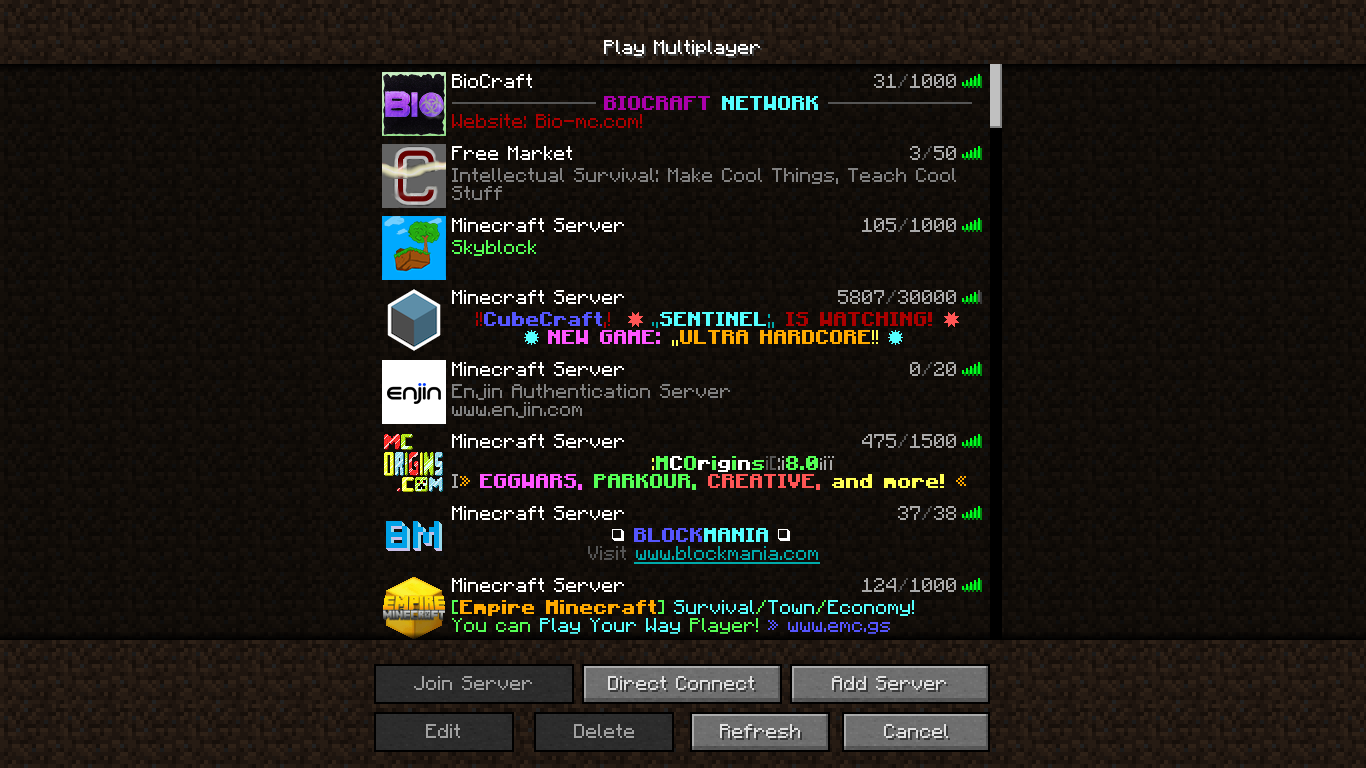
It made all the text colors dull on the multiplayer screen.
NoteTo work around this issue in-game, turn off anaglyph 3D (selecting "done" on the settings menu) and then save and quit.
The bug
Skin/head textures don't refresh their color when they were first loaded while 3D-anaglyph was turned on and is afterwards turned off.
How To Reproduce (skins)
- Launch Minecraft
- Turn on 3D-Anaglyph
- Enter a world
- Place a player head
- Turn off 3D-Anaglyph
- Your skin and the player head are discolored
- Place a different player's head
- Their head is colored correctly
Note that it significantly easier to verify this bug by starting with anaglyph on and turning it off than the other way around, as it is easier to see the broken skin texture in non-anaglyph mode.
How to reproduce (chat colors)
This also affects chat colors, but since those textures are finished after the game starts, a different process is needed.
- Start the game
- Enable anaglyph 3D, and then click "done" and then "quit" (do not close the game directly).
- Start the game again. The game should start with anaglyph 3D enabled.
- Enter a world.
- Run the command /give with no parameters. This will cause a red error message to be output (as expected for anaglyph).
- Turn off anaglyph 3D.
- Run the command /give again. Note that the color is still displayed as gray, even though it shouldn't be.
Note: If anaglyph 3D mode was not active before starting the game, red text will render as red in anaglyph 3D mode as well, which might be a different bug.
is duplicated by
is duplicated by
Duplicate of MC-43991
Dupe of MC-43991
But MC-43991 that is not even remotely related to this issue!
^. Minecraft actually has an option for using Red/Blue 3D glasses, which you probably turned on accidentally.
Note that after changing this you may need to restart the game for some visual changes to completely reset. See MC-43991 for more information.
The change of colors is intended (as otherwise, pure-red chat wouldn't be readable on one eye). But it doesn't actually work that well, as it doesn't trigger until a restart, in either direction (which is why I can say for sure that pure-red chat doesn't work well without changed colors; it's unreadable through my 3D glasses).
Since you're most likely encountering this through the freeze you're experiencing (MC-121216), which forces you to restart the game once, the color change already happens one way for you.
MC-43991.describes the need to restart the game for the colors to change.
You've turned on the anaglyph 3D mode. Go get your 3D glasses if you have them. Otherwise, you can turn this off in options → video settings.
Note that due to MC-43991, you may need to restart the game for the effect to fully go away. 1.13 removed 3D anaglyph ( D: ) so this will no longer be an issue in that version.
Known issue with anaglyph 3D; see MC-43991.
Anaglyph recolors most textures so that you can actually see them (mostly by greatly reducing the amount of blue). Unfortunately, for some textures (mainly skins) it only does this once, and doesn't change them again when anaglyph is toggled. So if you start the game with anaglyph enabled and then turn it off, things will look weird; you need to restart the game again to fix it.
Anaglyph was removed in 1.13, so this issue no longer applies there.
You've activated the "Anaglyph 3D" mode – i.e. the mode where you can use 3D glasses to get a fairly decent 3D image. Turn it off in video settings to return to normal (or go find some 3D glasses).
Note that due to MC-43991 you may need to restart your game to return completely to normal. Also note that anaglyph 3D will be removed in 1.13.
Please force a crash by pressing F3 + C for 10 seconds while in-game and attach the crash report (minecraft/crash-reports/crash-<DATE>-client.txt) here.
Cannot reproduce in 14w17a
Still effects 14w19a
I found a different way to reproduce it.
See Steps To Reproduce: in
MC-56466(Yes it has been fixed. But the steps work )
)
Is this still a concern in the current Minecraft version 14w25a/b / Launcher version 1.4.5 or later? If so, please update the affected versions in order to best aid Mojang ensuring bugs are still valid in the latest releases / pre-releases.
This bug is still present in the latest version 1.8.2-pre4
Cannot reproduce in 1.11.2.
Is this still an issue in the most recent versions (currently that is 1.11.2) of Minecraft? If so, please update the affected versions and help us keeping this ticket updated from time to time. If you are the owner/reporter of this ticket, you can modify the affected version(s) yourself.
It made text on the multiplayer screen more green and yellow
Original:
3D anaglyph is gone in 1.13.