Cannot launch directory junction profiles
Linked Issues
is duplicated by5
 MC-144010Minecraft stays in background and don't start if Junction Point is used for C:\UsersDuplicate
 MCL-5596Game does not create custom directory.DuplicateMCL-5832Game directory not saved in the new Windows LauncherDuplicateMCL-5908Can't save path to game directoryDuplicateMCL-6421launcher wont recognize file typeDuplicate
Attachments1


Created Issue:
Cannot launch with directory junction profiles
Affected version: 2.0.757 (Windows)
Relates toMCL-5294The bug
The launcher is unable to use a profile directory which is a directory junction.
The following is translated
Error-details: The system cannot find the file specified.
File name: ###
Path: E:\...\###
Exists: directory
Linked Issues
Cannot launchwithdirectory junction profiles
![[Mod] Neko](../../../data/avatars/users/92901.png)
relates to
Affected version: 2.0.757 (Windows)
Relates toMCL-5294The bug
The launcher is unable to use a profile directory which is a directory junction.
The following is translated
Error-details: The system cannot find the file specified.
File name: ###
Path: E:\...\###
Exists: directory

is duplicated by

is duplicated by
is duplicated by
is duplicated by

is duplicated by
![[Mojang] slicedlime](../../../data/assets/gravatar/slicedlime.jpeg)
This is the wrong project, MCL (Minecraft Launcher) would have been correct.
Duplicate of MCL-5436

MCL-5436 --workDir solved the problem.
Minecraft Launcher now starts as a single process in foreground.
Thx for the help.
With MCL-5436 fixed I thought junctions would now work properly, but there seems to be an issue still when trying to update the launcher itself.
Upon launching the old version of the launcher, it automatically proceeds to download the new version and produces the following updateLog.txt:
23-02-2019 17:38:40 - going to update MinecraftLauncher.exe using D:/Games/.minecraft/tmp/tmpLauncher.tmp
Launcher is definitely closed.
Backing up previous version of the launcher...
Previous version has been backed up as MinecraftLauncher.exe.backup.
Installing new version of the launcher...
Moved D:/Games/.minecraft/tmp/tmpLauncher.tmp to MinecraftLauncher.exe successfully.
Removing backup file MinecraftLauncher.exe.backup
Error 5, going for attempt 2...
Removed backup MinecraftLauncher.exe.backup successfully.
Update succeeded!
Unfortunately after that the new MinecraftLauncher.exe will do exactly nothing. It fails to execute completely, not even spawning a visible process in the Task Manager / Process explorer. It does not produce any error message, any window, any log or anything at all. Even if run as administrator.
Work-around:
A work-around is deleting the NTFS junction on %APPDATA%\.minecraft with the command
fsutil reparsepoint delete %APPDATA%\.minecraft
Then the new MinecraftLauncher.exe will actually execute and load/update completely (with default settings and no profiles, since the %APPDATA%\.minecraft directory is empty now.
The junction can then be reinstated {{}}and the updated launcher will continue to work and load the existing profiles again.
I assume that this behavior can be reproduced by launching an older version of the launcher with the active junction, but I can't do it because I do not keep backups of the launcher.
are there any known fixes yet? this issue removes my ability to play minecraft unmodded.
Dont have it on a directory that is a junction. Change the directory of the profile(Inside launch options) to somewhere else
It doesn't work either. (My linked dir points to a drive that is mounted as a directory to the ntfs, but you can't select a sub-dir in that either.) Thanks for the suggestion anyway.
Same issue, I've had to move my Minecraft saves to a folder on my root C:/ drive. I use an mklink junction to my user profile and cannot keep my saves in the %appdata&/.minecraft folder anymore.
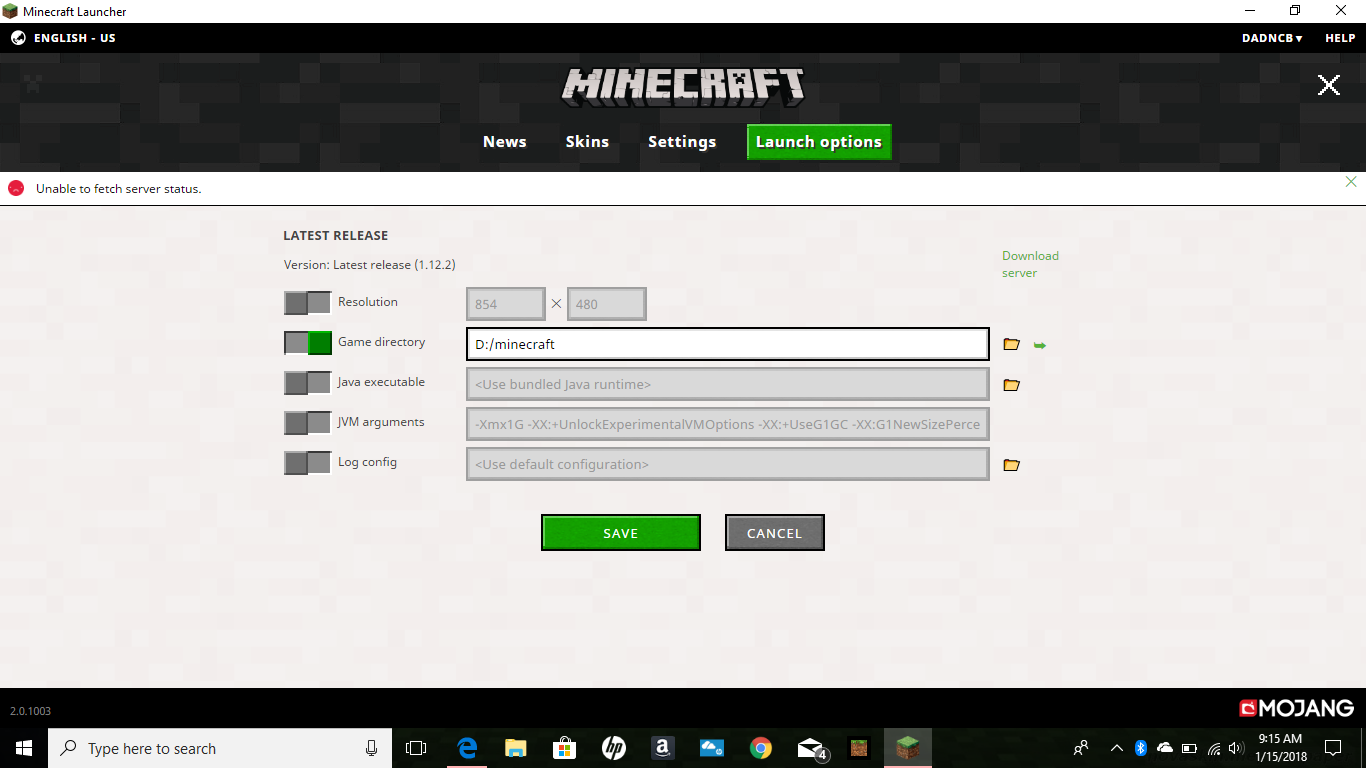
I've come up with a workaround. Go into the properties of the Minecraft shortcut and change the target to add the "--workDir" argument (without quotes) and add the full path to the .minecraft directory using the actual drive letter, not the junction to C:
For example: If the .minecraft folder is located in the default location in the Users folder, and if the Users folder was moved to the D: drive, change the shortcut target to: "C:\Program Files (x86)\Minecraft\MinecraftLauncher.exe" --workDir D:\Users*****\AppData\Roaming\.minecraft
Substitute the asterisks with your user folder name and the launcher should open properly despite the junction. If your .minecraft folder is on another drive or folder, just change the path to match your installation.
Then go into the launcher and change the launch options to use the same full path and drive letter the .minecraft folder is located in.
similar issue I used a folder on a usb drive and outside a folder on the same drive it did not even use the drive I will attach a screenshot of the directory settings btw where it says it is being used the only app open is the launcher although I do have windows 10 edition also installed and where there are 2 slashes in a row is where my computer username goes
Unable to save download. lwjgl-2.9.4-nightly-20150209.jar
Name: lwjgl-2.9.4-nightly-20150209.jar
URL: https://libraries.minecraft.net/org/lwjgl/lwjgl/lwjgl/2.9.4-nightly-20150209/lwjgl-2.9.4-nightly-20150209.jar
Error details: Attempting to move successful download to C:/Users\\AppData\Roaming\.minecraft\libraries\org/lwjgl/lwjgl/lwjgl/2.9.4-nightly-20150209/lwjgl-2.9.4-nightly-20150209.jar
The process cannot access the file because it is being used by another process
Filename on disk: 7aa4-6f6f-5a1c-44c1
Path: C:\Users\\AppData\Local\Temp\7aa4-6f6f-5a1c-44c1
Exists: file
EDIT:fixed, but it now crashes after about 30 seconds