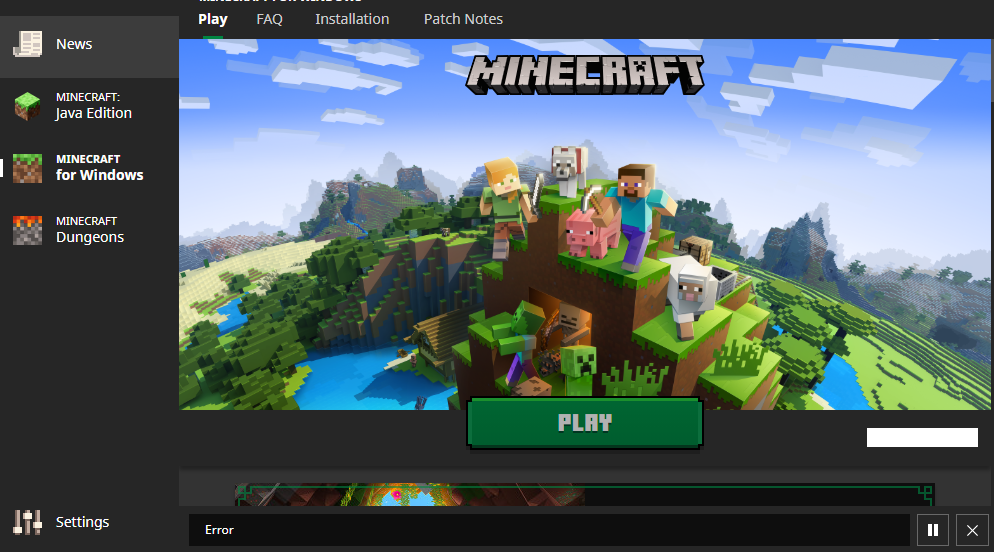
Cannot install Minecraft for Windows. "Error" in progress bar.
This issue is likely as a result of trying to install and launch the game on different drives.
As a workaround,
1) you might like to try installing the game on the C: drive or :
2) follow the instruction from [Troubleshoot game installations on a Windows device | Xbox Support|https://support.xbox.com/en-US/help/games-apps/troubleshooting/troubleshoot-games-windows-10]
When installing a game from the Xbox app for Windows, you have the option to select the hard drive in which the content will be stored. If you see the “Selected drive is not set up to install games” message, it means your hard drive is not provisioned and installation access is denied. To fix this:
- Open Settings on your device using one of the following options:
- Select the link in the “Selected drive is not set up to install games” message
- Select the Search icon on the taskbar, type settings, and then select it from the list
- Select System > Storage, and then select Change where new content is saved under More storage settings (Windows 10) or Advanced storage settings (Windows 11).
- Under New apps will be saved to, choose the drive to which you want to save the game content.
When attempting to install Minecraft for Windows (Bedrock) in the Minecraft launcher, after selecting the installation location, it immediately displays "Error" in the download progress bar and then nothing else happens. No additional error information is provided. Cannot pause or cancel the installation.
Linked Issues
is duplicated by8
 MCL-20058Can't Install Minecraft Dungeons Ultimate and Minecraft BedrockDuplicateMCL-20294Minecraft Problem DownloadDuplicateMCL-20652Error installing minecraft win 10 ed.DuplicateMCL-20880Error when installing Minecraft Bedrock in Minecraft LauncherDuplicateMCL-21028Cannot Install the Windows Version from the Launcher DuplicateMCL-21918launcher install bugDuplicateMCL-22831Can't install Minecraft Bedrock on second driveDuplicateMCL-23769Install utterly broken for no discernible reasonDuplicate


Created Issue:
Cannot install Minecraft for Windows. "Error" in progress bar.
When attempting to install Minecraft for Windows (Bedrock) in the Minecraft launcher, after selecting the installation location, it immediately displays "Error" in the download progress bar and then nothing else happens. No additional error information is provided. Cannot pause or cancel the installation.
Attachments2
![[Bot] Arisa](../../../data/avatars/users/43007.png)
When attempting to install Minecraft for Windows (Bedrock) in the Minecraft launcher, after selecting the installation location, it immediately displays "Error" in the download progress bar and then nothing else happens. No additional error information is provided. Cannot pause or cancel the installation.
When attempting to install Minecraft for Windows (Bedrock) in the Minecraft launcher, after selecting the installation location, it immediately displays "Error" in the download progress bar and then nothing else happens. No additional error information is provided. Cannot pause or cancel the installation.

![[Mojang] Mega_Spud (Jay Wells)](../../../data/avatars/users/92696.png)
Update on this issue:This issue is likely as a result of trying to install and launch the game on different drives.
As a workaround, you might like to try installing the game on the C: drive.
When attempting to install Minecraft for Windows (Bedrock) in the Minecraft launcher, after selecting the installation location, it immediately displays "Error" in the download progress bar and then nothing else happens. No additional error information is provided. Cannot pause or cancel the installation.
![[MCQA] Iwcies](../../../data/avatars/users/18941.svg)
Update on this issue:This issue is likely as a result of trying to install and launch the game on different drives.
As a workaround, you might like to try installing the game on the C: drive.
When attempting to install Minecraft for Windows (Bedrock) in the Minecraft launcher, after selecting the installation location, it immediately displays "Error" in the download progress bar and then nothing else happens. No additional error information is provided. Cannot pause or cancel the installation.
Update on this issue:This issue is likely as a result of trying to install and launch the game on different drives.
As a workaround,
1) you might like to try installing the game on the C: drive or :
2) follow the instruction from [Troubleshoot game installations on a Windows device | Xbox Support|https://support.xbox.com/en-US/help/games-apps/troubleshooting/troubleshoot-games-windows-10]When installing a game from the Xbox app for Windows, you have the option to select the hard drive in which the content will be stored. If you see the “Selected drive is not set up to install games” message, it means your hard drive is not provisioned and installation access is denied. To fix this:
- Open Settings on your device using one of the following options:
- Select the link in the “Selected drive is not set up to install games” message
- Select the Search icon on the taskbar, type settings, and then select it from the list
- Select System > Storage, and then select Change where new content is saved under More storage settings (Windows 10) or Advanced storage settings (Windows 11).
- Under New apps will be saved to, choose the drive to which you want to save the game content.
When attempting to install Minecraft for Windows (Bedrock) in the Minecraft launcher, after selecting the installation location, it immediately displays "Error" in the download progress bar and then nothing else happens. No additional error information is provided. Cannot pause or cancel the installation.
![[Mojang] Donuts1000](../../../data/avatars/users/18949.svg)
![[Mod] markderickson](../../../data/avatars/users/18946.svg)
![[MCQA] Zgajak](../../../data/avatars/users/10122.svg)
is duplicated by
is duplicated by
is duplicated by
is duplicated by
I believe your image is cut. Do the suggestions in the highlighted note of MCL-20795 help solve your issue? (blue text is a link!)
Does the highlighted note in MCL-20795 help solve your issue?
Hi once again!
Please check for your graphic card drivers update (search for them regardless and reinstall them).
Do you use Java version of Minecraft? Do you have Optifine mods on it?
Could you please look into your Dungeons directory and see if the game is installed there?
Also, please check your Xbox app if the installation process stared there when you began installation in Launcher.
Also, log file is definitely way too large, delete it, and run the installation again, and see the launcher_log.txt
And see if the solution in MCL-20795 might help you.
This ticket will automatically reopen when you reply.
Does the highlighted note in MCL-20795 solve it? Otherwise please attach the error message and the launcher_log.txt.
Does MCL-20795 help solve your issue?
Thank you for your report!
We're tracking this issue in MCL-20795, so this ticket is being resolved and linked as a duplicate.
That ticket has already been resolved as Fixed. Please check the Fix Version/s field in that ticket to see in which version this behavior was or will be fixed.
If you haven't already, you might like to make use of the search feature to see if the issue has already been mentioned.
Quick Links:
📓 Bug Tracker Guidelines – 💬 Community Support – 📧 Mojang Support
📓 Project Summary – ✍️ Feedback and Suggestions – 📖 Game Wiki
– I am a bot. This action was performed automatically! The ticket was resolved by one of our moderators, and I left this message to give more information to you.
Hi there!
Please see MCL-20795 issue for resolution regarding drive location change.
Thank you for your report!
We're tracking this issue in MCL-20795, so this ticket is being resolved and linked as a duplicate.
If you would like to add a vote and any extra information to the main ticket it would be appreciated.
If you haven't already, you might like to make use of the search feature to see if the issue has already been mentioned.
Quick Links:
📓 Bug Tracker Guidelines – 💬 Community Support – 📧 Mojang Support
📓 Project Summary – ✍️ Feedback and Suggestions – 📖 Game Wiki
– I am a bot. This action was performed automatically! The ticket was resolved by one of our moderators, and I left this message to give more information to you.
Thanks for reporting this a while ago 
An update on the issue – this has been tracked as MCL-20795, which should be fixed for the current version of the Minecraft Launcher. Best of luck and have fun, if you haven't already been able to install the games!
Thanks all for your comments!
This was fixed a few months ago (MCL-20795), but I'm glad you were able to work it out on your own.
The note in the report, MCL-20795 might help you.
Hi there!
Please see highlighted note in MCL-20795
This ticket will automatically reopen when you reply.
![[Mod] turbo](../../../data/avatars/users/92867.png)
Hi, the instructions provided in the note in MCL-20795 work perfectly. As a result, I cannot reproduce the reporter's issue; the install location can be selected as you like.
Artem Myagkov Did MCL-20795 ticket help you?
Thank you for your report!
We're tracking this issue in MCL-20795, so this ticket is being resolved and linked as a duplicate.
If you would like to add a vote and any extra information to the main ticket it would be appreciated.
If you haven't already, you might like to make use of the search feature to see if the issue has already been mentioned.
Quick Links:
📓 Bug Tracker Guidelines – 💬 Community Support – 📧 Mojang Support
📓 Project Summary – ✍️ Feedback and Suggestions – 📖 Game Wiki
– I am a bot. This action was performed automatically! The ticket was resolved by one of our moderators, and I left this message to give more information to you.
Follow the instructions on [Troubleshoot game installations on a Windows device | Xbox Support|https://support.xbox.com/en-US/help/games-apps/troubleshooting/troubleshoot-games-windows-10] under section "Still having problems?" appears to have resolved the issue for me.
That solution did not fix it for me unfortunately. Microsoft pls fix ;_;
I also have this problem since yesterday. The version didn't want to update in the new launcher so I uninstalled it and tried to install it again but no luck so far. after the error the launcher seems to still work besides the pause or stop button. but when I close it down it is still active in the background and cant be reopend until it is shutdown via taskmanager.
I have tried to install it on different drives as suggested, but it does not seem te make a differents. I still get the same thing whether or not I pick drive C:
I have tried the storage settings work around.
The first thing that happend is dat I could not chose the drive that I had selected in de storage settings.
after another restart I could again chose between my two drives. but I still got the error in the loading bar.
it doesn't work, only preview works