![[MCQA] Iwcies](../../../data/avatars/users/18941.svg) [MCQA] Iwcies
[MCQA] Iwcies
- Iwcies
- JIRAUSER706428
- Europe/Stockholm
- Yes
- No
 MCD-6833 →
  MCL-20580
I am having the bug where the game thinks I don't own it, very disappointing, main reason I got Gamepass. Now I want to uninstall to free up space and all it does is remove the 220kb "app" instead of removing all 4.8 gb.
I've tried Windows Store, XBOX app, Minecraft Launcher and add or remove programs, none of which actually remove the files.
I've tried manually locating the files to delete them but it requires SYSTEM permissions to delete and even if I try to assign myself permission to delete it it says that the permissions are corrupted.It was fun playing this game ONCE before it decided that I couldn't play anymore. please stop holding my harddrive space hostage.
I have a feeling this has something to do with the game being installed on a drive that is not the C Drive, as when I tried to "Install" it through the Minecraft Launcher It thought my E drive was my C Drive.
Occurs in Windows.
Update on this issue:This issue is likely as a result of trying to install and launch the game on different drives.
As a workaround, you might like to try installing the game on the C: drive.
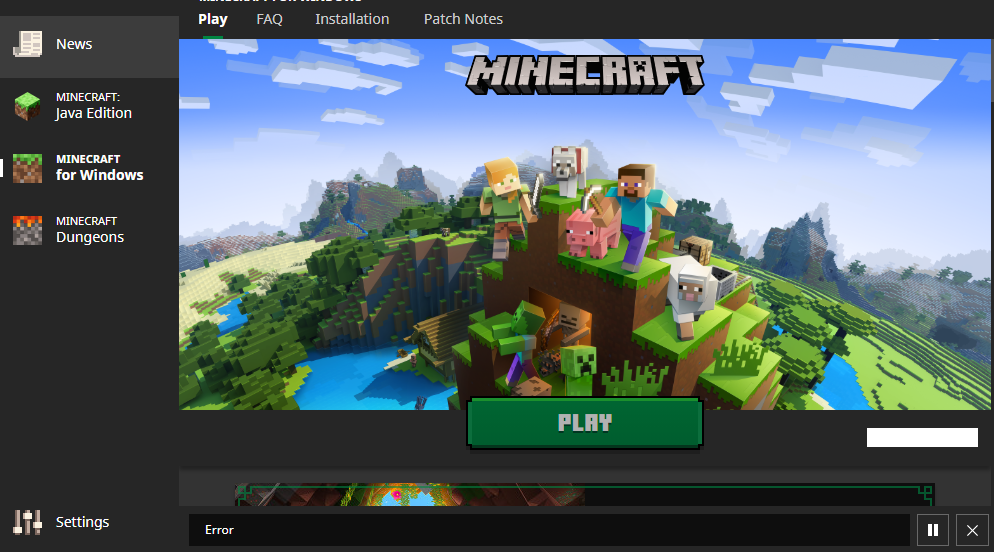
When attempting to install Minecraft for Windows (Bedrock) in the Minecraft launcher, after selecting the installation location, it immediately displays "Error" in the download progress bar and then nothing else happens. No additional error information is provided. Cannot pause or cancel the installation.
Update on this issue:This issue is likely as a result of trying to install and launch the game on different drives.
As a workaround,
1) you might like to try installing the game on the C: drive or :
2) follow the instruction from [Troubleshoot game installations on a Windows device | Xbox Support|https://support.xbox.com/en-US/help/games-apps/troubleshooting/troubleshoot-games-windows-10]When installing a game from the Xbox app for Windows, you have the option to select the hard drive in which the content will be stored. If you see the “Selected drive is not set up to install games” message, it means your hard drive is not provisioned and installation access is denied. To fix this:
- Open Settings on your device using one of the following options:
- Select the link in the “Selected drive is not set up to install games” message
- Select the Search icon on the taskbar, type settings, and then select it from the list
- Select System > Storage, and then select Change where new content is saved under More storage settings (Windows 10) or Advanced storage settings (Windows 11).
- Under New apps will be saved to, choose the drive to which you want to save the game content.
When attempting to install Minecraft for Windows (Bedrock) in the Minecraft launcher, after selecting the installation location, it immediately displays "Error" in the download progress bar and then nothing else happens. No additional error information is provided. Cannot pause or cancel the installation.
![[Mod] ManosSef](../../../data/avatars/users/61702.png)
All accounts belonging to Mojang employees, and employees who are part of the quality assurance team (MCQA) don't have consistent name colors. Mojang accounts most often have red names and MCQA accounts most often have yellow names, but this does not apply to all of them.
Expected result:
All Mojang accounts would have a red name and all MCQA accounts would have a yellow name.
Observed result:
These Mojang accounts have a yellow name (as opposed to red, but writing all of the red ones here would take forever):
These MCQA accounts have a yellow name (as expected):
- [MCQA] bardam
- [MCQA] Bartłomiej Słodkowski
- [MCQA] Iwcies
- [MCQA] kapla
- [MCQA] v-magwar
- [MCQA] Mateusz Świecki
- [MCQA] Migruz
- [MCQA] MiPaw
- [MCQA] Nikoo
- [MCQA] Bartłomiej Dziurżyński
- [MCQA] v-weszaj
These MCQA accounts have a red name:
Thank you for your report!
However, this issue is being resolved as a Working as Intended, which means this is not considered a bug and won't be fixed.