 EpicGamerX125
- EpicGamerX125
- JIRAUSER639241
- America/New_York
- Yes
- No
 MC-224445
![[Mojang] Felix Jones](../../../data/avatars/users/40484.png)
![[Mojang] Gnembon](../../../data/avatars/users/93709.png)
![[Mojang] Maxime Lebrot](../../../data/avatars/users/18941.svg)
![[Mojang] slicedlime](../../../data/assets/gravatar/slicedlime.jpeg)
![[Mojang] Brandon Pearce](../../../data/avatars/users/40932.png)
 Low
Low![[Mojang] Gegy](../../../data/avatars/users/10122.svg)
 Normal

 MCPE-150783
















hs_err_pid10624-1.log
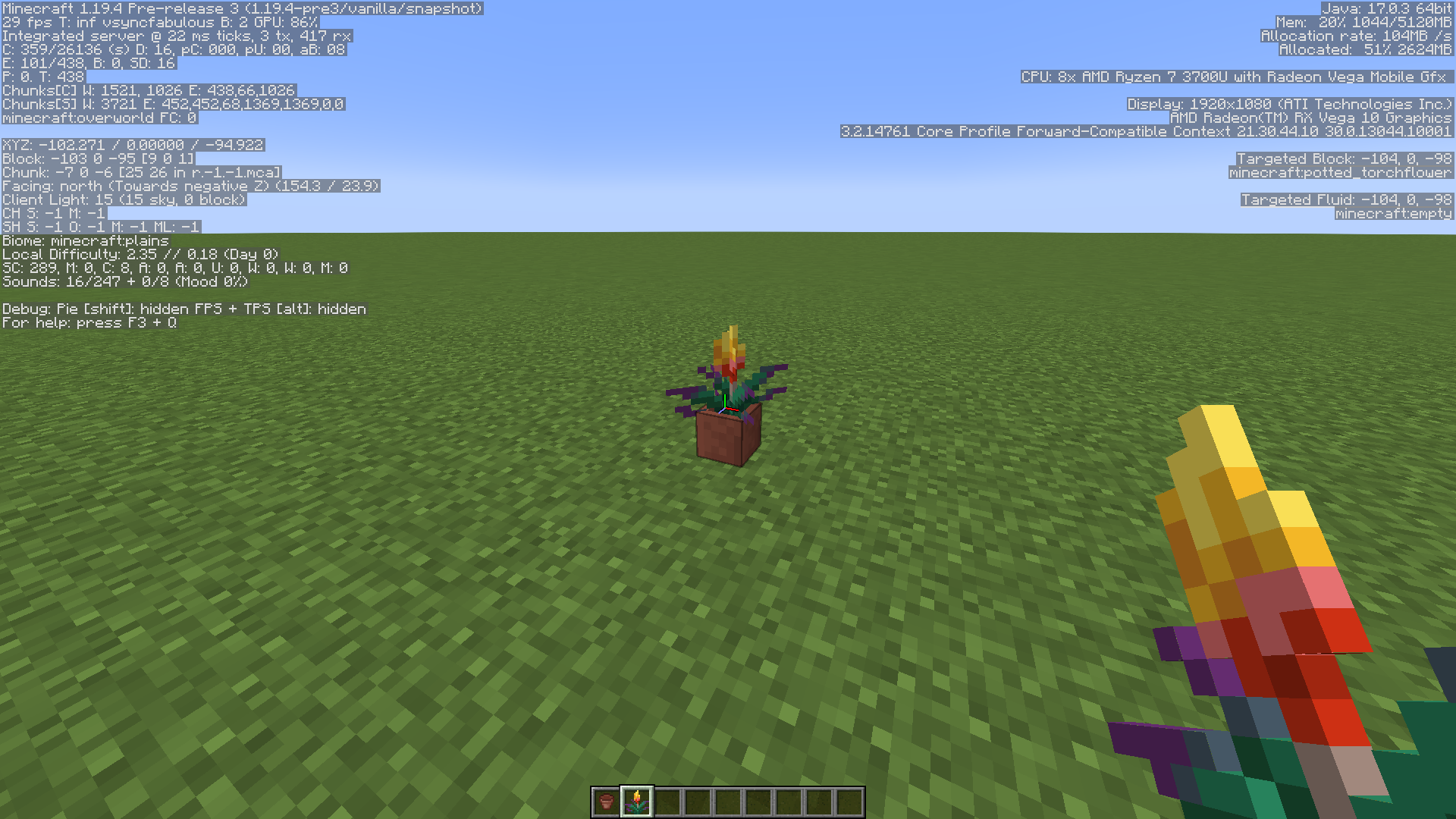
Reloading resource packs causes screen to become black, after a few times causes crash
Reloading resource packs with fabulous graphics causes screen to become black, after a few times causes crash for AMD drivers
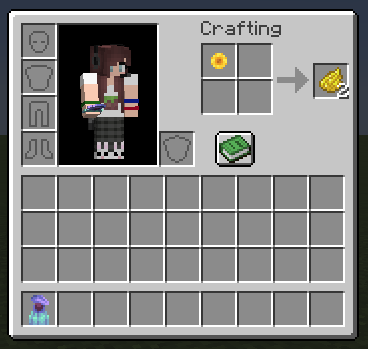
The rooted dirt dropped item is large compared to other dropped items
Edit: I searched the wrong item name on
Rooted dirtdropped item is large compared to other itemsHanging roots dropped item is large compared to other items
The rooted dirt dropped item is large compared to other dropped items
Edit: I searched the wrong item nameonThe
rooted dirthanging roots dropped item is large compared to other dropped itemsOther edit: I searched the wrong item name and didn't find bug report so I reported with wrong item name
A camel will attempt to stand up while blocks are over top of them, causing them to take suffocation damage if blocks are at eye level.
Steps to reproduce:
- Summon a camel with
/summon minecraft:camel ~ ~ ~ {IsSitting:1b}
- Place blocks two blocks above the ground above the camel (where the camel's eye level is)
- Wait for camel to attempt to stand
Notice how camel stands up and starts suffocating
The following video was made by someone else, but summarizes the issue.
A camel will attempt to stand up while blocks are over top of them, causing them to take suffocation damage if blocks are at eye level.
Steps to reproduce:
- Place a block two blocks above the ground (where the camel's eye level is when standing)
- Summon a camel directly underneath it with
/summon minecraft:camel ~ ~ ~ {IsSitting:1b}
- Wait for camel to attempt to stand
The following video was made by someone else, but summarizes the issue.
A camel will attempt to stand up while blocks are over top of them, causing them to take suffocation damage if blocks are at eye level.
Steps to reproduce:
- Place a block two blocks above the ground (where the camel's eye level is when standing)
- Summon a camel directly underneath it with
/summon minecraft:camel ~ ~ ~ {IsSitting:1b}
- Wait for camel to attempt to stand
The following video was made by someone else, but summarizes the issue.
I also added an attachment directly below following steps to reproduce.
Camels attempt to stand up when blocks are placed over them, causing them to take suffocation damage if blocks are at eye level
A camel will attempt to stand up while blocks are over top of them, causing them to take suffocation damage if blocks are at eye level.
Steps to reproduce:
- Place a block two blocks above the ground (where the camel's eye level is when standing)
- Summon a camel directly underneath it with
/summon minecraft:camel ~ ~ ~ {IsSitting:1b}
- Wait for camel to attempt to stand
The following video was made by someone else, but summarizes the issue.
I also added an attachment directly below following steps to reproduce.
A camel will attempt to stand up while blocks are over top of them, causing them to take suffocation damage if blocks are at eye level.
Steps to reproduce:
- Place a block two blocks above the ground (where the camel's eye level is when standing)
- Summon a camel directly underneath it with
/summon minecraft:camel ~ ~ ~ {IsSitting:1b}
- Wait for camel to attempt to stand
The following video was made by someone else, but summarizes the issue.
I also added an attachment directly below following steps to reproduce.
A camel will attempt to stand up while blocks are over top of them, causing them to take suffocation damage if blocks are at eye level.
Steps to reproduce:
- Place a block two blocks above the ground (where the camel's eye level is when standing)
- Summon a camel directly underneath it with
/summon minecraft:camel ~ ~ ~ {IsSitting:1b}
- Wait for camel to attempt to stand
The following video was made by someone else, but summarizes the issue.
I also added an attachment directly below following steps to reproduce.
A camel will attempt to stand up while blocks are over top of them, causing them to take suffocation damage if blocks are at eye level.
Steps to reproduce:
- Place a block two blocks above the ground (where the camel's eye level is when standing)
- Summon a camel directly underneath it with
/summon minecraft:camel ~ ~ ~ {IsSitting:1b}
- Wait for camel to attempt to stand
The following video was made by someone else, but summarizes the issue.
I also added an attachment directly below following steps to reproduce and also with the block directly over the camel.
A camel will attempt to stand up while blocks are over top of them, causing them to take suffocation damage if blocks are at eye level.
Steps to reproduce:
- Place a block two blocks above the ground (where the camel's eye level is when standing)
- Summon a camel directly underneath it with
/summon minecraft:camel ~ ~ ~ {IsSitting:1b}
- Wait for camel to attempt to stand
The following video was made by someone else, but summarizes the issue.
I also added
anattachment directly below following steps to reproduce and also with the block directly over the camel.A camel will attempt to stand up while blocks are over top of them, causing them to take suffocation damage if blocks are at eye level.
Steps to reproduce:
- Place a block two blocks above the ground (where the camel's eye level is when standing)
- Summon a camel directly underneath it with
/summon minecraft:camel ~ ~ ~ {IsSitting:1b}
- Wait for camel to attempt to stand
The following video was made by someone else, but summarizes the issue.
I also added attachments directly below following steps to reproduce and also with the block directly over the camel.
A camel will attempt to stand up while blocks are over top of them, causing them to take suffocation damage if blocks are at eye level.
Steps to reproduce:
- Place a block two blocks above the ground (where the camel's eye level is when standing)
- Summon a camel directly underneath it with
/summon minecraft:camel ~ ~ ~ {IsSitting:1b}
- Wait for camel to attempt to stand
The following video was made by someone else, but summarizes the issue.
I also added attachments directly below following steps to reproduce and also with the block directly over the camel.
A camel will attempt to stand up while blocks are over top of them, causing them to take suffocation damage if blocks are at eye level.
Steps to reproduce:
- Place a block two blocks above the ground (where the camel's eye level is when standing)
- Summon a camel directly underneath it with
/summon minecraft:camel ~ ~ ~ {LastPoseTick:-1L}
- Wait for camel to attempt to stand
The following video was made by someone else, but summarizes the issue.
I also added attachments directly below following steps to reproduce and also with the block directly over the camel.
Note: in order to reproduce this issue in 23w03a, you have to wait for an existing camel to sit down and then place a block above it, since a change to camel data means the command above will not work. I've yet to work out how sitting is stored in the current snapshot, but means that the "IsSitting" field is not present to commands
A camel will attempt to stand up while blocks are over top of them, causing them to take suffocation damage if blocks are at eye level.
Steps to reproduce:
Place a block two blocks above the ground (where the camel's eye level is when standing)- Summon a camel directly underneath it with
/summon minecraft:camel ~ ~ ~ {LastPoseTick:-1L}
- Wait for camel to attempt to stand
The following video was made by someone else, but summarizes the issue.
I also added attachments directly below following steps to reproduce and also with the block directly over the camel.
A camel will attempt to stand up while blocks are over top of them, causing them to take suffocation damage if blocks are at eye level.
Steps to reproduce:
- Open a world with 1.20 experiments enabled
- Place a block two blocks above the ground (where the camel's eye level is when standing)
- Summon a camel directly underneath it with the following command:
/summon minecraft:camel ~ ~ ~ {LastPoseTick:-1L}
- Wait for camel to attempt to stand
The following video was made by someone else, but summarizes the issue.
I also added attachments directly below following steps to reproduce and also with the block directly over the camel.
Death message from explosions by TNTcaused by redstone and end crystalshas changedDeath message from explosions by TNT and TNT minecarts that are not the cause of the player has changed
The death message caused by getting exploded by TNT via redstone and end crystals has changed from "<Player> blew up" to "<Player> was blown up by Primed TNT"
From what I've been told in the Mojira discord there has been refactoring of damage sources and that could possibly be the cause of this change if it's true. I'm writing this report in case this behavior is not intentional.
Steps to Reproduce:
- Place down TNT
- Place a lever (or end crystal) next to the TNT and toggle the lever (or stand on the opposite side of the end crystal and punch the end crystal)
- Wait for the TNT to explode and take note of the death message
The death message caused by getting exploded by TNT and TNT minecarts via a non-player cause has changed from "<Player> blew up" to "<Player> was blown up by [Primed TNT/Minecart with TNT]"
From what I've been told in the Mojira discord there has been refactoring of damage sources and that could possibly be the cause of this change if it's true. I'm writing this report in case this behavior is not intentional.
Steps to Reproduce:
- Place down TNT
- Place a lever (or end crystal) next to the TNT and toggle the lever (or stand on the opposite side of the end crystal and punch the end crystal)
- Wait for the TNT to explode and take note of the death message
The death message caused by getting exploded by TNT and TNT minecarts via a non-player cause has changed from "<Player> blew up" to "<Player> was blown up by [Primed TNT/Minecart with TNT]"
From what I've been told in the Mojira discord there has been refactoring of damage sources and that could possibly be the cause of this change if it's true. I'm writing this report in case this behavior is not intentional.
Steps to Reproduce:
- Place down TNT
- Place a lever (or end crystal) next to the TNT and toggle the lever (or stand on the opposite side of the end crystal and punch the end crystal)
- Wait for
the TNT toexplodeand take note of the death messageThe death message caused by getting exploded by TNT and TNT minecarts via a non-player cause has changed from "<Player> blew up" to "<Player> was blown up by [Primed TNT/Minecart with TNT]"
From what I've been told in the Mojira discord there has been refactoring of damage sources and that could possibly be the cause of this change if it's true. I'm writing this report in case this behavior is not intentional.
Steps to Reproduce:
- Run command ```/summon ~ ~ ~ minecraft:tnt``` or ```/summon ~ ~5 ~ minecraft:tnt_minecart```
- Wait for explosion and take note of the death message
The death message caused by getting exploded by TNT and TNT minecarts via a non-player cause has changed from "<Player> blew up" to "<Player> was blown up by [Primed TNT/Minecart with TNT]"
From what I've been told in the Mojira discord there has been refactoring of damage sources and that could possibly be the cause of this change if it's true. I'm writing this report in case this behavior is not intentional.
Steps to Reproduce:
- Run command ```/summon ~ ~ ~ minecraft:tnt``` or ```/summon ~ ~5 ~ minecraft:tnt_minecart```
- Wait for explosion and take note of the death message
The death message caused by getting exploded by TNT and TNT minecarts via a non-player cause has changed from "<Player> blew up" to "<Player> was blown up by [Primed TNT/Minecart with TNT]"
From what I've been told in the Mojira discord there has been refactoring of damage sources and that could possibly be the cause of this change if it's true. I'm writing this report in case this behavior is not intentional.
Steps to Reproduce:
- Run one of the following commands:
/summon ~ ~ ~ minecraft:tnt
/summon ~ ~5 ~ minecraft:tnt_minecart
- Wait for explosion and take note of the death message
Death message from explosions by TNT and TNT minecarts that are not the cause of the player or another mob has changed
Death message from explosions by TNT and TNT minecarts that are not the cause oftheplayer or another mob has changedDeath message from explosions by TNT and TNT minecarts that are not the cause of a player or another mob has changed
The death message caused by getting exploded by TNT and TNT minecarts via a non-player cause has changed from "<Player> blew up" to "<Player> was blown up by [Primed TNT/Minecart with TNT]"
From what I've been told in the Mojira discord there has been refactoring of damage sources and that could possibly be the cause of this change if it's true. I'm writing this report in case this behavior is not intentional.
Steps to Reproduce:
- Run one of the following commands:
/summon~ ~ ~minecraft:tnt /summon~ ~5 ~minecraft:tnt_minecart
- Wait for explosion and take note of the death message
The death message caused by getting exploded by TNT and TNT minecarts via a non-player cause has changed from "<Player> blew up" to "<Player> was blown up by [Primed TNT/Minecart with TNT]"
From what I've been told in the Mojira discord there has been refactoring of damage sources and that could possibly be the cause of this change if it's true. I'm writing this report in case this behavior is not intentional.
Steps to Reproduce:
- Run one of the following commands:
/summon minecraft:tnt
/summon minecraft:tnt_minecart ~ ~5 ~
- Wait for explosion and take note of the death message
All goat horns in the creative inventory are Ponder goat horns.
Steps to reproduce:
- Open inventory
- Click on the Tools and Utilities tab
Scroll down to the goat horns
All goat horns arepondergoat horns
All goat horns in the creative inventory are Ponder goat horns.
Steps to reproduce:
- Open inventory
- Click on the Tools and Utilities tab
- Scroll down to the goat horns
- All goat horns are ponder goat horns
- If you take any goat horn and play it, it plays the Ponder instrument
All goat horns in the creative inventory are Ponder goat horns.
Steps to reproduce:
- Open inventory
- Click on the Tools and Utilities tab
- Scroll down to the goat horns
- All goat horns are ponder goat horns
- If you take any goat horn and play it, it plays the Ponder instrument
Note: if you get the data of a goat horn by holding it and running /data get entity @s SelectedItem, the original instrument data is still present
All goat horns in the creative inventory are Ponder goat horns.
Steps to reproduce:
- Open inventory
- Click on the Tools and Utilities tab
- Scroll down to the goat horns
- All goat horns are ponder goat horns
- If you take any goat horn and play it, it plays the Ponder instrument
Note: if you get the data of a goat horn by holding it and running /data get entity @s SelectedItem, the original instrument data is still present
All goat horns in the creative inventory are Ponder goat horns.
Steps to reproduce:
- Open inventory
- Click on the Tools and Utilities tab
- Scroll down to the goat horns
- All goat horns are ponder goat horns
- If you take any goat horn and play it, it plays the Ponder instrument
Note: if you get the data of a goat horn by holding it and running /data get entity @s SelectedItem, the original instrument data is still present
All goat horns in the creative inventory are Ponder goat horns.
Steps to reproduce:
- Open inventory
- Click on the Tools and Utilities tab
- Scroll down to the goat horns
- All goat horns
are ponder goat horns- If you take any goat horn and play it, it plays the Ponder instrument
Note: if you get the data of a goat horn by holding it and run
ning/data get entity @s SelectedItem, the original instrument data is still presentAll goat horns in the creative inventory are Ponder goat horns.
Steps to reproduce:
- Open inventory
- Click on the Tools and Utilities tab
- Scroll down to the goat horns
- All goat horns display as Ponder goat horns
- If you take any goat horn and play it, it plays the Ponder instrument
Note: if you get the data of a goat horn by holding it and run the command [{{{}/data get entity @s SelectedItem{}}}], the original instrument data is still present
All goat horns in the creative inventory are Ponder goat horns.
Steps to reproduce:
- Open inventory
- Click on the Tools and Utilities tab
- Scroll down to the goat horns
- All goat horns display as Ponder goat horns
- If you take any goat horn and play it, it plays the Ponder instrument
Note: if you get the data of a goat horn by holding it and run the command [
{{{}/data get entity @s SelectedItem{}}}], the original instrument data is still presentAll goat horns in the creative inventory are Ponder goat horns.
Steps to reproduce:
- Open inventory
- Click on the Tools and Utilities tab
- Scroll down to the goat horns
- All goat horns display as Ponder goat horns
- If you take any goat horn and play it, it plays the Ponder instrument
Note: if you get the data of a goat horn by holding it and run the command [\{{/data get entity @s SelectedItem}}], the original instrument data is still present
All goat horns in the creative inventory are Ponder goat horns.
Steps to reproduce:
- Open inventory
- Click on the Tools and Utilities tab
- Scroll down to the goat horns
- All goat horns display as Ponder goat horns
- If you take any goat horn and play it, it plays the Ponder instrument
Note: if you get the data of a goat horn by holding it and run the command
[\{{/data get entity @s SelectedItem}}], the original instrument data is still presentAll goat horns in the creative inventory are Ponder goat horns.
Steps to reproduce:
- Open inventory
- Click on the Tools and Utilities tab
- Scroll down to the goat horns
- All goat horns display as Ponder goat horns
- If you take any goat horn and play it, it plays the Ponder instrument
Note: if you get the data of a goat horn by holding it and run the command [ data get entity @s SelectedItem ], the original instrument data is still present
All goat horns in the creative inventory are Ponder goat horns.
Steps to reproduce:
- Open inventory
- Click on the Tools and Utilities tab
- Scroll down to the goat horns
- All goat horns display as Ponder goat horns
- If you take any goat horn and play it, it plays the Ponder instrument
Note: if you get the data of a goat horn by holding it and run the command [ /data get entity @s SelectedItem ], the original instrument data is still present
All goat hornsin the Creative Inventory arePonder goat hornsAll goat horns display as Ponder goat horns and play the Ponder instrument
All goat horns in the creative inventory are Ponder goat horns.
Steps to reproduce:
- Open inventory
- Click on the Tools and Utilities tab
- Scroll down to the goat horns
- All goat horns display as Ponder goat horns
- If you take any goat horn and play it, it plays the Ponder instrument
Note: if you get the data of a goat horn by holding it and run the command [ /data get entity @s SelectedItem ], the original instrument data is still present
All goat horns display as Ponder goat horns and play the Ponder instrument. This may possibly be caused by goat horns ignoring the instrument data since a blank goat horn also plays Ponder and
MC-252773was recently fixed.Steps to reproduce:
Method 1:
- Take a goat horn from the creative inventory besides the first one (Ponder)
- Observe the display data and use data
- displays as Ponder and plays the Ponder instrument
- Run the command [ /data get entity @s SelectedItem ] while holding the goat horn
- returned information displays the correct instrument data
Method 2:
- Obtain the Sing goat horn by running [ /give @s minecraft:goat_horn{instrument:"minecraft:sing_goat_horn"} ]
- Observe the display tooltip and instrument sound
- Displays and Ponder and plays the Ponder instrument
- Since the goat horn shows "Tools and Utilities" in it's tooltip it's the corresponding Sing goat horn in the inventory
All goat horns display as Ponder goat horns and play the Ponder instrument. This may possibly be caused by goat horns ignoring the instrument data since a blank goat horn a
lso plays Ponder andMC-252773was recently fixed.Steps to reproduce:
Method 1:
- Take a goat horn from the creative inventory besides the first one (Ponder)
- Observe the display
data and use data
- displays as Ponder and plays the Ponder instrument
- Run the command [ /data get entity @s SelectedItem ] while holding the goat horn
- returned information displays the correct instrument data
Method 2:
- Obtain the Sing goat horn by running [ /give @s minecraft:goat_horn{instrument:"minecraft:sing_goat_horn"} ]
- Observe the display tooltip and instrument sound
- Displays and Ponder and plays the Ponder instrument
- Since the goat horn shows "Tools and Utilities" in it's tooltip it's the corresponding Sing goat horn in the inventory
All goat horns display as Ponder goat horns and play the Ponder instrument. This may possibly be caused by goat horns ignoring the instrument data since a blank goat horn and goat horns with an invalid instrument also play Ponder and display as Ponder and
MC-252773was recently fixed.Steps to reproduce:
Method 1:
- Take a goat horn from the creative inventory besides the first one (Ponder)
- Observe the display tooltip and instrument sound
- displays as Ponder and plays the Ponder instrument
- Run the command [ /data get entity @s SelectedItem ] while holding the goat horn
- returned information displays the correct instrument data
Method 2:
- Obtain the Sing goat horn by running [ /give @s minecraft:goat_horn{instrument:"minecraft:sing_goat_horn"} ]
- Observe the display tooltip and instrument sound
- Displays and Ponder and plays the Ponder instrument
- Since the goat horn shows "Tools and Utilities" in it's tooltip it's the corresponding Sing goat horn in the inventory
All goat horns display as Ponder goat horns and play the Ponder instrument. This may possibly be caused by goat horns ignoring the instrument data since a blank goat horn and goat horns with an invalid instrument also play Ponder and display as Ponder and
MC-252773was recently fixed.Steps to reproduce:
Method 1:
- Take a goat horn from the creative inventory besides the first one (the real Ponder)
- Observe the display tooltip and instrument sound
- displays as Ponder and plays the Ponder instrument
- Run the command [ /data get entity @s SelectedItem ] while holding the goat horn
- returned information displays the correct instrument data
Method 2:
- Obtain the Sing goat horn by running [ /give @s minecraft:goat_horn{instrument:"minecraft:sing_goat_horn"} ]
- Observe the display tooltip and instrument sound
- Displays and Ponder and plays the Ponder instrument
- Since the goat horn shows "Tools and Utilities" in it's tooltip, it's the corresponding Sing goat horn in the creative inventory
All goat horns display as Ponder goat horns and play the Ponder instrument. This may possibly be caused by goat horns ignoring the instrument data since a blank goat horn and goat horns with an invalid instrument also play Ponder and display as Ponder and
MC-252773was recently fixed.Steps to reproduce:
Method 1:
- Take a goat horn from the creative inventory besides the first one (the real Ponder)
- Observe the display tooltip and instrument sound
- displays as Ponder and plays the Ponder instrument
- Run the command [ /data get entity @s SelectedItem
] while holding the goat horn
- returned information displays the correct instrument data
Method 2:
- Obtain the Sing goat horn by running [ /give @s minecraft:goat_horn{instrument:"minecraft:sing_goat_horn"} ]
- Observe the display tooltip and instrument sound
- Displays and Ponder and plays the Ponder instrument
- Since the goat horn shows "Tools and Utilities" in it's tooltip, it's the corresponding Sing goat horn in the creative inventory
All goat horns display as Ponder goat horns and play the Ponder instrument. This may possibly be caused by goat horns ignoring the instrument data since a blank goat horn and goat horns with an invalid instrument also play Ponder and display as Ponder and
MC-252773was recently fixed.Steps to reproduce:
Method 1:
- Take a goat horn from the creative inventory besides the first one (the real Ponder)
- Observe the display tooltip and instrument sound
- displays as Ponder and plays the Ponder instrument
- Run the command [ /data get entity @s SelectedItem.tag.instrument ] while holding the goat horn
- returned information displays the correct instrument data
Method 2:
- Obtain the Sing goat horn by running [ /give @s minecraft:goat_horn{instrument:"minecraft:sing_goat_horn"} ]
- Observe the display tooltip and instrument sound
- Displays and Ponder and plays the Ponder instrument
- Since the goat horn shows "Tools and Utilities" in it's tooltip, it's the corresponding Sing goat horn in the creative inventory
All goat horns display as Ponder goat horns and play the Ponder instrument. This may possibly be caused by goat horns ignoring the instrument data since a blank goat horn and goat horns with an invalid instrument also play Ponder and display as Ponder and
MC-252773was recently fixed.Steps to reproduce:
Method 1:
- Take a goat horn from the creative inventory besides the first one (the real Ponder)
- Observe the display tooltip and instrument sound
- displays as Ponder and plays the Ponder instrument
- Run the command [ /data get entity @s SelectedItem.tag.instrument ] while holding the goat horn
- returned information displays the correct instrument data
Method 2:
- Obtain the Sing goat horn by running [ /give @s minecraft:goat_horn{instrument:"minecraft:sing_goat_horn"} ]
- Observe the display tooltip and instrument sound
- Displays a
ndPonder and plays the Ponder instrument- Since the goat horn shows "Tools and Utilities" in it's tooltip, it's the corresponding Sing goat horn in the creative inventory
All goat horns display as Ponder goat horns and play the Ponder instrument. This may possibly be caused by goat horns ignoring the instrument data since a blank goat horn and goat horns with an invalid instrument also play Ponder and display as Ponder and
MC-252773was recently fixed.Steps to reproduce:
Method 1:
- Take a goat horn from the creative inventory besides the first one (the real Ponder)
- Observe the display tooltip and instrument sound
- displays as Ponder and plays the Ponder instrument
- Run the command [ /data get entity @s SelectedItem.tag.instrument ] while holding the goat horn
- returned information displays the correct instrument data
Method 2:
- Obtain the Sing goat horn by running [ /give @s minecraft:goat_horn{instrument:"minecraft:sing_goat_horn"} ]
- Observe the display tooltip and instrument sound
- Displays as Ponder and plays the Ponder instrument
- Since the goat horn shows "Tools and Utilities" in it's tooltip, it's the corresponding Sing goat horn in the creative inventory
All goat horns display as Ponder goat horns and play the Ponder instrument. This may possibly be caused by goat horns ignoring the instrument data since a blank goat horn and goat horns with an invalid instrument also play Ponder and display as Ponder and
MC-252773was recently fixed.Steps to reproduce:
Method 1:
- Take a goat horn from the creative inventory besides the first one (the real Ponder)
- Observe the display tooltip and instrument sound
displays as Ponder and plays the Ponder instrument- Run the command [ /data get entity @s SelectedItem.tag.instrument ] while holding the goat horn
returned information displays the correct instrument dataMethod 2:
- Obtain the Sing goat horn by running [ /give @s minecraft:goat_horn{instrument:"minecraft:sing_goat_horn"} ]
- Observe the display tooltip and instrument sound
- Displays as Ponder and plays the Ponder instrument
- Since the goat horn shows "Tools and Utilities" in it's tooltip, it's the corresponding Sing goat horn in the creative inventory
All goat horns display as Ponder goat horns and play the Ponder instrument. This may possibly be caused by goat horns ignoring the instrument data since a blank goat horn and goat horns with an invalid instrument also play Ponder and display as Ponder and
MC-252773was recently fixed.Steps to reproduce:
Method 1:
- Take a goat horn from the creative inventory besides the first one (the real Ponder)
- Observe the display tooltip and instrument sound
- Displays as Ponder and plays the Ponder instrument
- Run the command [ /data get entity @s SelectedItem.tag.instrument ] while holding the goat horn
- Returned information displays the correct instrument data
Method 2:
- Obtain the Sing goat horn by running [ /give @s minecraft:goat_horn{instrument:"minecraft:sing_goat_horn"} ]
- Observe the display tooltip and instrument sound
- Displays as Ponder and plays the Ponder instrument
- Since the goat horn shows "Tools and Utilities" in it's tooltip, it's the corresponding Sing goat horn in the creative inventory
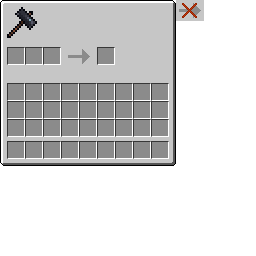
When you attempt to upgrade a piece of equipment through the smithing table that is an incompatible set the arrow overlay is placed in the position of the legacy smithing GUI.
Steps to Reproduce:
- Open a world with 1.20 experiments enabled
- Grab a smithing table, a trim smithing template, an armor piece that is not leather, chainmail, or turtle, and a material of the same armor type
- Place down the smithing table, click on it, and attempt to combine them in the smithing table
- Arrow overlay
is in the wrongpositionWhen you attempt to upgrade a piece of equipment through the smithing table that is an incompatible set, the arrow overlay is placed in the position of the legacy smithing GUI.
Steps to Reproduce:
- Open a world with 1.20 experiments enabled
- Grab a smithing table, a trim smithing template, an armor piece that is not leather, chainmail, or turtle, and a material of the same armor type
- Place down the smithing table, click on it, and attempt to combine them in the smithing table
- Arrow overlay uses the legacy smithing GUI postion
When you attempt to upgrade a piece of equipment through the smithing table that is an incompatible set, the arrow overlay is placed in the position of the legacy smithing GUI.
Steps to Reproduce:
- Open a world with 1.20 experiments enabled
- Grab a smithing table, a trim smithing template, an armor piece that is not leather, chainmail, or turtle, and a material of the same armor type
- Place down the smithing table, click on it, and attempt to combine them in the smithing table
- Arrow overlay uses the legacy smithing GUI postion
When you attempt to upgrade a piece of equipment through the smithing table that is an incompatible set, the arrow overlay is placed in the position of the legacy smithing GUI.
Steps to Reproduce:
- Open a world with 1.20 experiments enabled
- Grab a smithing table, a trim smithing template, an armor piece that is not leather, chainmail, or turtle, and a material of the same armor type
- Place down the smithing table, click on it, and attempt to combine them in the smithing table
- Arrow overlay uses the legacy smithing GUI postion
When you attempt to upgrade a piece of equipment through the smithing table that is an incompatible set, the arrow overlay is placed in the position of the legacy smithing GUI.
Steps to Reproduce:
- Open a world with 1.20 experiments enabled
- Grab a smithing table, a trim smithing template, an armor piece that is not leather, chainmail, or turtle, and a material of the same armor type
- Place down the smithing table, click on it, and attempt to combine them in the smithing table
- Arrow overlay uses the legacy smithing GUI postion
The two GUI screenshots attached are just to show the arrow positions compared to each other.
When you attempt to upgrade a piece of equipment through the smithing table that is an incompatible set, the arrow overlay is placed in the position of the legacy smithing GUI.
Steps to Reproduce:
- Open a world with 1.20 experiments enabled
- Grab a smithing table, a trim smithing template, an armor piece that is not leather, chainmail, or turtle, and a material of the same armor type
- Place down the smithing table, click on it, and attempt to combine them in the smithing table
- Arrow overlay uses the legacy smithing GUI postion
The two GUI s
creenshots attached are just to show the arrow positions compared to each other.When you attempt to upgrade a piece of equipment through the smithing table that is an incompatible set, the arrow overlay is placed in the position of the legacy smithing GUI.
Steps to Reproduce:
- Open a world with 1.20 experiments enabled
- Grab a smithing table, a trim smithing template, an armor piece that is not leather, chainmail, or turtle, and a material of the same armor type
- Place down the smithing table, click on it, and attempt to combine them in the smithing table
- Arrow overlay uses the legacy smithing GUI postion
The two GUI sprites attached are just to show the arrow positions compared to each other.
Invalid crafting arrow overlay in the new smithing GUI uses the position of the legacy smithing GUI
Invalidcrafting arrow overlay in the new smithing GUI uses the position of the legacy smithing GUIIncompatible crafting arrow overlay in the new smithing GUI uses the position of the legacy smithing GUI
The color palettes for iron and iron_darker appear to be switched around.
Steps to Reproduce:
- On a world with 1.20 experiments enabled, put iron trims on iron armor and another armor material (e.g. diamond)
- Observe the colors of the trims
- Iron armor has lighter trims than the others
If you look in the game files you can see that the palette for iron has darker pixels than that for iron_darker. Upscaled versions of the palettes have been attached to the ticket.
While the lightest three colors in both palettes appear identical, that is being tracked in
MC-259640.
The color palettes for iron and iron_darker appear to be switched around.
Steps to Reproduce:
- On a world with 1.20 experiments enabled, put iron trims on iron armor and another armor material (e.g. diamond)
- Observe the colors of the trims
- Iron armor has lighter trims than the others
If you look in the game files you can see that the palette for iron has darker pixels than that for iron
_darker. Upscaled versions of the palettes have been attached to the ticket.While the lightest three colors in both palettes appear identical, that is being tracked in
MC-259640.The color palettes for iron and iron_darker appear to be switched around.
Steps to Reproduce:
- On a world with 1.20 experiments enabled, put iron trims on iron armor and another armor material (e.g. diamond)
- Observe the colors of the trims
- Iron armor has lighter trims than the others
Locating the image files:
- If using a Windows system, type [ %appdata%\.minecraft\versions\23w05a ] in the Run window (Win + R) to navigate to the snapshot jar file (I don't know how to do this on Mac or Linux but I would presume most users use Windows anyway)
- Open the jar file (archive software such as WinRar or extract to a file location)
- Navigate to [ assets\minecraft\textures\trims\color_palletes ]
- Look at the iron.png and iron_darker.png image files
If you observe the two image files, you can see that the palette for iron has darker pixels than that for iron_darker.
Upscaled versions of the palettes have been attached to the ticket.
While the lightest three colors in both palettes appear identical, that is being tracked in
MC-259640.
The color palettes for iron and iron_darker appear to be switched around.
Steps to Reproduce:
- On a world with 1.20 experiments enabled, put iron trims on iron armor and another armor material (e.g. diamond)
- Observe the colors of the trims
- Iron armor has lighter trims than the others
Locating the image files:
- If using a Windows system, type [ %appdata%\.minecraft\versions\23w05a ] in the Run window (Win + R) to navigate to the snapshot jar file (I don't know how to do this on Mac or Linux but I would presume most users use Windows anyway)
- Open the jar file (archive software such as WinRar or extract to a file location)
- Navigate to [ assets\minecraft\textures\trims\color_palletes ]
- Look at the iron.png and iron_darker.png image files
If you observe the two image files, you can see that the palette for iron has darker pixels than that for iron_darker.
Upscaled versions of the palettes have been attached to the ticket.
While the lightest three colors in both palettes appear identical, that is being tracked in
MC-259640.The color palettes for iron and iron_darker appear to be switched around.
Steps to Reproduce:
- On a world with 1.20 experiments enabled, put iron trims on iron armor and another armor material (e.g. diamond)
- Preferably use trims that contain darker colors such as Ward or Rib because of another palette issue described at the bottom of the ticket
- Observe the colors of the trims
- Iron armor has lighter trims than the others
Locating the image files:
- If using a Windows system, type [ %appdata%\.minecraft\versions\23w05a ] in the Run window (Win + R) to navigate to the snapshot jar file (I don't know how to do this on Mac or Linux but I would presume most users use Windows anyway)
- Open the jar file (archive software such as WinRar or extract to a file location)
- Navigate to [ assets\minecraft\textures\trims\color_palletes ]
- Look at the iron.png and iron_darker.png image files
If you observe the two image files, you can see that the palette for iron has darker pixels than that for iron_darker.
Upscaled versions of the palettes have been attached to the ticket.
While the lightest three colors in both palettes appear identical, that is being tracked in
MC-259640.
The color palettes for iron and iron_darker appear to be switched around.
Steps to Reproduce:
- On a world with 1.20 experiments enabled, put iron trims on iron armor and another armor material (e.g. diamond)
- Preferably use trims that contain darker colors such as Ward or Rib because of another palette issue described at the bottom of the ticket
Observe the colors of the trims
- Iron armor has lighter trims than the others
Locating the image files:
- If using a Windows system, type [ %appdata%\.minecraft\versions\23w05a ] in the Run window (Win + R) to navigate to the snapshot jar file (I don't know how to do this on Mac or Linux but I would presume most users use Windows anyway)
- Open the jar file (archive software such as WinRar or extract to a file location)
- Navigate to [ assets\minecraft\textures\trims\color_palletes ]
- Look at the iron.png and iron_darker.png image files
If you observe the two image files, you can see that the palette for iron has darker pixels than that for iron_darker.
Upscaled versions of the palettes have been attached to the ticket.
While the lightest three colors in both palettes appear identical, that is being tracked in
MC-259640.The color palettes for iron and iron_darker appear to be switched around.
Steps to Reproduce:
- On a world with 1.20 experiments enabled, put iron trims on iron armor and another armor material (e.g. diamond)
- Preferably use trims that contain darker colors such as Ward or Rib because of another palette issue described at the bottom of the ticket
- Put the armor pieces on armor stands and observe the colors of the trims
- Iron armor has lighter trims than the others
Locating the image files:
- If using a Windows system, type [ %appdata%\.minecraft\versions\23w05a ] in the Run window (Win + R) to navigate to the snapshot jar file (I don't know how to do this on Mac or Linux but I would presume most users use Windows anyway)
- Open the jar file (archive software such as WinRar or extract to a file location)
- Navigate to [ assets\minecraft\textures\trims\color_palletes ]
- Look at the iron.png and iron_darker.png image files
If you observe the two image files, you can see that the palette for iron has darker pixels than that for iron_darker.
Upscaled versions of the palettes have been attached to the ticket.
While the lightest three colors in both palettes appear identical, that is being tracked in
MC-259640.
The color palettes for iron and iron_darker appear to be switched around.
Steps to Reproduce:
- On a world with 1.20 experiments enabled, put iron trims on iron armor and another armor material (e.g. diamond)
- Preferably use trims that contain darker colors such as Ward or Rib because of another palette issue described at the bottom of the ticket
- Put the armor pieces on armor stands and observe the colors of the trims
- Iron armor has lighter trims than the others
Locating the image files:
- If using a Windows system, type [ %appdata%\.minecraft\versions\23w05a ] in the Run window (Win + R) to navigate to the snapshot jar file (I don't know how to do this on Mac or Linux but
I would presume most users use Windows anyway)- Open the jar file (archive software such as WinRar or extract to a file location)
- Navigate to [ assets\minecraft\textures\trims\color_palletes ]
- Look at the iron.png and iron_darker.png image files
If you observe the two image files, you can see that the palette for iron has darker pixels than that for iron_darker.
Upscaled versions of the palettes have been attached to the ticket.
While the lightest three colors in both palettes appear identical, that is being tracked in
MC-259640.The color palettes for iron and iron_darker appear to be switched around.
Steps to Reproduce:
- On a world with 1.20 experiments enabled, put iron trims on iron armor and another armor material (e.g. diamond)
- Preferably use trims that contain darker colors such as Ward or Rib because of another palette issue described at the bottom of the ticket
- Put the armor pieces on armor stands and observe the colors of the trims
- Iron armor has lighter trims than the others
Locating the image files:
- If using a Windows system, type [ %appdata%\.minecraft\versions\23w05a ] in the Run window (Win + R) to navigate to the snapshot jar file (I don't know how to do this quick navigation on Mac or Linux but just navigate to the snapshot version folder containing the version jar file)
- Open the jar file (archive software such as WinRar or extract to a file location)
- Navigate to [ assets\minecraft\textures\trims\color_palletes ]
- Look at the iron.png and iron_darker.png image files
If you observe the two image files, you can see that the palette for iron has darker pixels than that for iron_darker.
Upscaled versions of the palettes have been attached to the ticket.
While the lightest three colors in both palettes appear identical, that is being tracked in
MC-259640.
The color palettes for iron and iron_darker appear to be switched around.
Steps to Reproduce:
- On a world with 1.20 experiments enabled, put iron trims on iron armor and another armor material (e.g. diamond)
- Preferably use trims that contain darker colors such as Ward or Rib because of another palette issue described at the bottom of the ticket
- Put the armor pieces on armor stands and observe the colors of the trims
- Iron armor has lighter trims than the others
Locating the image files:
- If using a Windows system, type [ %appdata%\.minecraft\versions\23w05a ] in the Run window (Win + R) to navigate to the snapshot jar file (I don't know how to do this quick navigation on Mac or Linux but just navigate to the snapshot version folder containing the version jar file)
- Open the jar file (archive software such as WinRar or extract to a file location)
- Navigate to
[assets\minecraft\textures\trims\color_palletes ]- Look at the iron.png and iron_darker.png image files
If you observe the two image files, you can see that the palette for iron has darker pixels than that for iron_darker.
Upscaled versions of the palettes have been attached to the ticket.
While the lightest three colors in both palettes appear identical, that is being tracked in
MC-259640.The color palettes for iron and iron_darker appear to be switched around.
Steps to Reproduce:
- On a world with 1.20 experiments enabled, put iron trims on iron armor and another armor material (e.g. diamond)
- Preferably use trims that contain darker colors such as Ward or Rib because of another palette issue described at the bottom of the ticket
- Put the armor pieces on armor stands and observe the colors of the trims
- Iron armor has lighter trims than the others
Locating the image files:
- Navigate to the version jar (.minecraft\versions\23w05a)
- If on a Windows system, you can type %appdata%\.minecraft\versions\23w05a in the Run window (Win + R) for quick navigation
- Open the jar file with an archive software such as WinRar (or make a copy of the jar file somewhere and add .zip to the end of the file name past the file extension and open it)
- Navigate to assets\minecraft\textures\trims\color_palletes
- Look at the iron.png and iron_darker.png image files
If you observe the two image files, you can see that the palette for iron has darker pixels than that for iron_darker.
Upscaled versions of the palettes have been attached to the ticket.
While the lightest three colors in both palettes appear identical, that is being tracked in
MC-259640.
The color palettes for iron and iron_darker appear to be switched around.
Steps to Reproduce:
- On a world with 1.20 experiments enabled, put iron trims on iron armor and another armor material (e.g. diamond)
- Preferably use trims that contain darker colors such as Ward or Rib because of another palette issue described at the bottom of th
eticket- Put the armor pieces on armor stands and observe the colors of the trims
- Iron armor has lighter trims than the others
Locating the image files:
- Navigate to the version jar (.minecraft\versions\23w05a)
- If on a Windows system, you can type %appdata%\.minecraft\versions\23w05a in the Run window (Win + R) for quick navigation
- Open the jar file with an archive software such as WinRar (or make a copy of the jar file somewhere and add .zip to the end of the file name past the file extension and open it)
- Navigate to assets\minecraft\textures\trims\color_palletes
- Look at the iron.png and iron_darker.png image files
If you observe the two image files, you can see that the palette for iron has darker pixels than that for iron_darker.
Upscaled versions of the palettes have been attached to the ticket.
While the lightest three colors in both palettes appear identical, that is being tracked in
MC-259640.The color palettes for iron and iron_darker appear to be switched around.
Steps to Reproduce:
- On a world with 1.20 experiments enabled, put iron trims on iron armor and another armor material (e.g. diamond)
- Preferably use trims that contain darker colors such as Ward or Rib because of another palette issue described at the bottom of this ticket
- Put the armor pieces on armor stands and observe the colors of the trims
- Iron armor has lighter trims than the others
Locating the image files:
- Navigate to the version jar (.minecraft\versions\23w05a)
- If on a Windows system, you can type %appdata%\.minecraft\versions\23w05a in the Run window (Win + R) for quick navigation
- Open the jar file with an archive software such as WinRar (or make a copy of the jar file somewhere and add .zip to the end of the file name past the file extension and open it)
- Navigate to assets\minecraft\textures\trims\color_palletes
- Look at the iron.png and iron_darker.png image files
If you observe the two image files, you can see that the palette for iron has darker pixels than that for iron_darker.
Upscaled versions of the palettes have been attached to the ticket.
While the lightest three colors in both palettes appear identical, that is being tracked in
MC-259640.
The color palettes for iron and iron_darker appear to be switched around.
Steps to Reproduce:
- On a world with 1.20 experiments enabled, put iron trims on iron armor and another armor material (e.g. diamond)
- Preferably use trims that contain darker colors such as Ward or Rib because of another palette issue described at the bottom of this ticket
- Place down two armor stands next to each other and put the armor pieces on the armor stands and observe the colors of the trims and observe the colors
- Iron armor has lighter trims than the others
Locating the image files:
- Navigate to the version jar (.minecraft\versions\23w05a)
- If on a Windows system, you can type %appdata%\.minecraft\versions\23w05a in the Run window (Win + R) for quick navigation
- Open the jar file with an archive software such as WinRar (or make a copy of the jar file somewhere and add .zip to the end of the file name past the file extension and open it)
- Navigate to assets\minecraft\textures\trims\color_palletes
- Look at the iron.png and iron_darker.png image files
If you observe the two image files, you can see that the palette for iron has darker pixels than that for iron_darker.
Upscaled versions of the palettes have been attached to the ticket.
While the lightest three colors in both palettes appear identical, that is being tracked in
MC-259640.
The color palettes for iron and iron_darker appear to be switched around.
Steps to Reproduce:
- On a world with 1.20 experiments enabled, put iron trims on iron armor and another armor material (e.g. diamond)
- Preferably use trims that contain darker colors such as Ward or Rib because of another palette issue described at the bottom of this ticket
- Place down two armor stands next to each other and put the armor pieces on the armor stands and observe the colors of the trims and observe the colors
- Iron armor has lighter trims than the others
Locating the image files:
- Navigate to the version jar
(.minecraft\versions\23w05a)
- If on a Windows system, you can type %appdata%\.minecraft\versions\23w05a in the Run window (Win + R) for quick navigation
- Open the jar file with an archive software such as WinRar (or make a copy of the jar file somewhere and add .zip to the end of the file name past the file extension and open it)
- Navigate to assets\minecraft\textures\trims\color_palletes
- Look at the iron.png and iron_darker.png image files
If you observe the two image files, you can see that the palette for iron has darker pixels than that for iron_darker.
Upscaled versions of the palettes have been attached to the ticket.
While the lightest three colors in both palettes appear identical, that is being tracked in
MC-259640.The color palettes for iron and iron_darker appear to be switched around.
Steps to Reproduce:
- On a world with 1.20 experiments enabled, put iron trims on iron armor and another armor material (e.g. diamond)
- Preferably use trims that contain darker colors such as Ward or Rib because of another palette issue described at the bottom of this ticket
- Place down two armor stands next to each other and put the armor pieces on the armor stands and observe the colors of the trims and observe the colors
- Iron armor has lighter trims than the others
Locating the image files:
- Navigate to the version jar under .minecraft\versions\23w05a
- If on a Windows system, you can type %appdata%\.minecraft\versions\23w05a in the Run window (Win + R) for quick navigation
- Open the jar file with an archive software such as WinRar (or make a copy of the jar file somewhere and add .zip to the end of the file name past the file extension and open it)
- Navigate to assets\minecraft\textures\trims\color_palletes
- Look at the iron.png and iron_darker.png image files
If you observe the two image files, you can see that the palette for iron has darker pixels than that for iron_darker.
Upscaled versions of the palettes have been attached to the ticket.
While the lightest three colors in both palettes appear identical, that is being tracked in
MC-259640.
The color palettes for iron and iron_darker appear to be switched around.
Steps to Reproduce:
- On a world with 1.20 experiments enabled, put iron trims on iron armor and another armor material (e.g. diamond)
- Preferably use trims that contain darker colors such as Ward or Rib because of another palette issue described at the bottom of this ticket
- Place down two armor stands next to each other and put the armor pieces on the armor stands and observe the colors of the trims and observe the colors
- Iron armor has lighter trims than the others
Locating the image files:
- Navigate to the version jar under .minecraft\versions\23w05a
- If on a Windows system, you can type %appdata%\.minecraft\versions\23w05a in the Run window (Win + R) for quick navigation
- Open the jar file with an archive software such as WinR
ar(or make a copy of the jar file somewhere and add .zip to the end of the file name past the file extension and open it)- Navigate to assets\minecraft\textures\trims\color_palletes
- Look at the iron.png and iron_darker.png image files
If you observe the two image files, you can see that the palette for iron has darker pixels than that for iron_darker.
Upscaled versions of the palettes have been attached to the ticket.
While the lightest three colors in both palettes appear identical, that is being tracked in
MC-259640.The color palettes for iron and iron_darker appear to be switched around.
Steps to Reproduce:
- On a world with 1.20 experiments enabled, put iron trims on iron armor and another armor material (e.g. diamond)
- Preferably use trims that contain darker colors such as Ward or Rib because of another palette issue described at the bottom of this ticket
- Place down two armor stands next to each other and put the armor pieces on the armor stands and observe the colors of the trims and observe the colors
- Iron armor has lighter trims than the others
Locating the image files:
- Navigate to the version jar under .minecraft\versions\23w05a
- If on a Windows system, you can type %appdata%\.minecraft\versions\23w05a in the Run window (Win + R) for quick navigation
- Open the jar file with an archive software such as WinRAR (or make a copy of the jar file somewhere and add .zip to the end of the file name past the file extension and open it)
- Navigate to assets\minecraft\textures\trims\color_palletes
- Look at the iron.png and iron_darker.png image files
If you observe the two image files, you can see that the palette for iron has darker pixels than that for iron_darker.
Upscaled versions of the palettes have been attached to the ticket.
While the lightest three colors in both palettes appear identical, that is being tracked in
MC-259640.
The color palettes for iron and iron_darker appear to be switched around.
Steps to Reproduce:
- On a world with 1.20 experiments enabled, put iron trims on iron armor and another armor material (e.g. diamond)
- Preferably use trims that contain darker colors such as Ward or Rib because of another palette issue described at the bottom of this ticket
- Place down two armor stands next to each other and put the armor pieces on the armor stands and observe the colors of the trims and observe the colors
- Iron armor has lighter trims than the others
Locating the image files:
- Navigate to the version jar under .minecraft\versions\23w05a
- If on a Windows system, you can type %appdata%\.minecraft\versions\23w05a in the Run window (Win + R) for quick navigation
- Open the jar file with an archive software such as WinRAR (or make a copy of the jar file somewhere and add .zip to the end of the file name past the file extension and open it)
- Navigate to assets\minecraft\textures\trims\color_palletes
- Lo
okat the iron.png and iron_darker.png image filesIf you observe the two image files, you can see that the palette for iron has darker pixels than that for iron_darker.
Upscaled versions of the palettes have been attached to the ticket.
While the lightest three colors in both palettes appear identical, that is being tracked in
MC-259640.The color palettes for iron and iron_darker appear to be switched around.
Steps to Reproduce:
- On a world with 1.20 experiments enabled, put iron trims on iron armor and another armor material (e.g. diamond)
- Preferably use trims that contain darker colors such as Ward or Rib because of another palette issue described at the bottom of this ticket
- Place down two armor stands next to each other and put the armor pieces on the armor stands and observe the colors of the trims and observe the colors
- Iron armor has lighter trims than the others
Locating the image files:
- Navigate to the version jar under .minecraft\versions\23w05a
- If on a Windows system, you can type %appdata%\.minecraft\versions\23w05a in the Run window (Win + R) for quick navigation
- Open the jar file with an archive software such as WinRAR (or make a copy of the jar file somewhere and add .zip to the end of the file name past the file extension and open it)
- Navigate to assets\minecraft\textures\trims\color_palletes
- Locate the iron.png and iron_darker.png image files in the directory
If you observe the two image files, you can see that the palette for iron has darker pixels than that for iron_darker.
Upscaled versions of the palettes have been attached to the ticket.
While the lightest three colors in both palettes appear identical, that is being tracked in
MC-259640.
Despite the names of the palettes iron and iron_darker, the lightest three colors in both palettes are identical.
This makes it somewhat difficult to see lighter tones on iron armor.Upscaled versions of the palette files are attached as well as a file with both palettes on top of each other to present the identical colors.
While the rest of the colors appear to be flipped between the palettes, that is being tracked inMC-259635.Despite the names of the palettes iron and iron_darker, the lightest three colors in both palettes are identical.
Upscaled versions of the palette files are attached as well as a file with both palettes on top of each other to present the identical colors.
While the rest of the colors appear to be flipped between the palettes, that is being tracked in
MC-259635.
Despite the names of the palettes iron and iron_darker, the lightest three colors in both palettes are identical.
Upscaled versions of the palette files are attached as well as a file with both palettes on top of each other to present the identical colors.
While the rest of the colors appear to be flipped between the palettes, that is being tracked in
MC-259635.
Despite the names of the palettes iron and iron_darker, the lightest three colors in both palettes are identical.
Upscaled versions of the palette files are attached as well as a file with both palettes on top of each other to present the identical colors.
While the rest of the colors appear to be flipped between the palettes, that is being tracked in
MC-259635.Despite the names of the palettes iron and iron_darker, the lightest three colors in both palettes are identical.
Locating the image files:
- On Windows,
Upscaled versions of the palette files are attached as well as a file with both palettes on top of each other to present the identical colors.
While the rest of the colors appear to be flipped between the palettes, that is being tracked in
MC-259635.
Despite the names of the palettes iron and iron_darker, the lightest three colors in both palettes are identical.
Locating the image files:
- On Windows,
Upscaled versions of the palette files are attached as well as a file with both palettes on top of each other to present the identical colors.
While the rest of the colors appear to be flipped between the palettes, that is being tracked in
MC-259635.Despite the names of the palettes iron and iron_darker, the lightest three colors in both palettes are identical.
Steps to Reproduce:
- On a word with 1.20 experiments enabled, obtain a trim that contains the three lightest colors of a palette (such as Sentry or Coast)
- Apply iron trims to iron and diamond chestplate
- Put armor on an armor stand and hold the armor items
- Notice the identical light colors
Locating the image files:
- Type [ %appdata%\.minecraft\versions\23w05a ] in the Windows Run window (Win + R) to navigate to the snapshot jar file
- Open the jar file (archive software such as WinRar or extract to a file location)
- Navigate to [ assets\minecraft\textures\trims\color_palletes ]
- Look at the iron.png and iron_darker.png files
Upscaled versions of the palette files are attached as well as a file with both palettes on top of each other to present the identical colors.
While the rest of the colors appear to be flipped between the palettes, that is being tracked in
MC-259635.
Despite the names of the palettes iron and iron_darker, the lightest three colors in both palettes are identical.
Steps to Reproduce:
- On a word with 1.20 experiments enabled, obtain a trim that contains the three lightest colors of a palette (such as Sentry or Coast)
- Apply iron trims to iron and diamond chestplate
- Put armor on an armor stand and hold the armor items
- Notice the identical light colors
Locating the image files:
- Type [ %appdata%\.minecraft\versions\23w05a ] in the
WindowsRun window (Win + R) to navigate to the snapshot jar file- Open the jar file (archive software such as WinRar or extract to a file location)
- Navigate to [ assets\minecraft\textures\trims\color_palletes ]
- Look at the iron.png and iron_darker.png files
Upscaled versions of the palette files are attached as well as a file with both palettes on top of each other to present the identical colors.
While the rest of the colors appear to be flipped between the palettes, that is being tracked in
MC-259635.Despite the names of the palettes iron and iron_darker, the lightest three colors in both palettes are identical.
Steps to Reproduce:
- On a word with 1.20 experiments enabled, obtain a trim that contains the three lightest colors of a palette (such as Sentry or Coast)
- Apply iron trims to iron and diamond chestplate
- Put armor on an armor stand and hold the armor items
- Notice the identical light colors
Locating the image files:
- If using a Windows system, type [ %appdata%\.minecraft\versions\23w05a ] in the Run window (Win + R) to navigate to the snapshot jar file (I don't know how to do this on Mac or Linux but I would presume most users use Windows anyway)
- Open the jar file (archive software such as WinRar or extract to a file location)
- Navigate to [ assets\minecraft\textures\trims\color_palletes ]
- Look at the iron.png and iron_darker.png image files
Upscaled versions of the palette files are attached as well as a file with both palettes on top of each other to present the identical colors.
While the rest of the colors appear to be flipped between the palettes, that is being tracked in
MC-259635.
Despite the names of the palettes iron and iron_darker, the lightest three colors in both palettes are identical.
Steps to Reproduce:
- On a word with 1.20 experiments enabled, obtain a trim that contains the three lightest colors of a palette (such as Sentry or Coast)
- Apply iron trims
to iron and diamond chestplate- P
ut armor on an armor stand and hold the armoritems
- Notice the identical light colors
Locating the image files:
- If using a Windows system, type [ %appdata%\.minecraft\versions\23w05a ] in the Run window (Win + R) to navigate to the snapshot jar file (I don't know how to do this on Mac or Linux but I would presume most users use Windows anyway)
- Open the jar file (archive software such as WinRar or extract to a file location)
- Navigate to [ assets\minecraft\textures\trims\color_palletes ]
- Look at the iron.png and iron_darker.png image files
Upscaled versions of the palette files are attached as well as a file with both palettes on top of each other to present the identical colors.
While the rest of the colors appear to be flipped between the palettes, that is being tracked in
MC-259635.Despite the names of the palettes iron and iron_darker, the lightest three colors in both palettes are identical.
Steps to Reproduce:
- On a word with 1.20 experiments enabled, obtain a trim that contains the three lightest colors of a palette (such as Sentry or Coast)
- Apply iron trims of the chosen pattern to an iron and diamond chestplate
- Place down two armor stands next to each other and place each chestplate on one armor stand
- Notice the identical light colors
Locating the image files:
- If using a Windows system, type [ %appdata%\.minecraft\versions\23w05a ] in the Run window (Win + R) to navigate to the snapshot jar file (I don't know how to do this on Mac or Linux but I would presume most users use Windows anyway)
- Open the jar file (archive software such as WinRar or extract to a file location)
- Navigate to [ assets\minecraft\textures\trims\color_palletes ]
- Look at the iron.png and iron_darker.png image files
Upscaled versions of the palette files are attached as well as a file with both palettes on top of each other to present the identical colors.
While the rest of the colors appear to be flipped between the palettes, that is being tracked in
MC-259635.
Despite the names of the palettes iron and iron_darker, the lightest three colors in both palettes are identical.
Steps to Reproduce:
- On a word with 1.20 experiments enabled, obtain a trim that contains the three lightest colors of a palette (such as Sentry or Coast)
- Apply iron trims of the chosen pattern to an iron and diamond chestplate
- Place down two armor stands next to each other and place each chestplate on one armor stand
- Notice the identical light colors
Locating the image files:
- If using a Windows system, type [ %appdata%\.minecraft\versions\23w05a ] in the Run window (Win + R) to navigate to the snapshot jar file (I don't know how to do this on Mac or Linux but I would presume most users use Windows anyway)
- Open the jar file (archive software such as WinRar or extract to a file location)
- Navigate to [ assets\minecraft\textures\trims\color_palletes ]
- Look at the iron.png and iron_darker.png image files
Upscaled versions of the palette files are attached as well as a file with both palettes
on top ofeach other to present the identical colors.While the rest of the colors appear to be flipped between the palettes, that is being tracked in
MC-259635.Despite the names of the palettes iron and iron_darker, the lightest three colors in both palettes are identical.
Steps to Reproduce:
- On a word with 1.20 experiments enabled, obtain a trim that contains the three lightest colors of a palette (such as Sentry or Coast)
- Apply iron trims of the chosen pattern to an iron and diamond chestplate
- Place down two armor stands next to each other and place each chestplate on one armor stand
- Notice the identical light colors
Locating the image files:
- If using a Windows system, type [ %appdata%\.minecraft\versions\23w05a ] in the Run window (Win + R) to navigate to the snapshot jar file (I don't know how to do this on Mac or Linux but I would presume most users use Windows anyway)
- Open the jar file (archive software such as WinRar or extract to a file location)
- Navigate to [ assets\minecraft\textures\trims\color_palletes ]
- Look at the iron.png and iron_darker.png image files
Upscaled versions of the palette files are attached as well as a file with both palettes adjacent to each other to present the identical colors.
While the rest of the colors appear to be flipped between the palettes, that is being tracked in
MC-259635.
Despite the names of the palettes iron and iron_darker, the lightest three colors in both palettes are identical.
Steps to Reproduce:
- On a word with 1.20 experiments enabled, obtain a trim that contains the three lightest colors of a palette (such as Sentry or Coast)
- Apply iron trims of the chosen pattern to an iron and diamond chestplate
- Place down two armor stands next to each other and place each chestplate on one armor stand
- Notice the identical light colors
Locating the image files:
- If using a Windows system, type [ %appdata%\.minecraft\versions\23w05a ] in the Run window (Win + R) to navigate to the snapshot jar file (I don't know how to do this on Mac or Linux but
I would presume most users use Windows anyway)- Open the jar file (archive software such as WinRar or extract to a file location)
- Navigate to [ assets\minecraft\textures\trims\color_palletes ]
- Look at the iron.png and iron_darker.png image files
Upscaled versions of the palette files are attached as well as a file with both palettes adjacent to each other to present the identical colors.
While the rest of the colors appear to be flipped between the palettes, that is being tracked in
MC-259635.Despite the names of the palettes iron and iron_darker, the lightest three colors in both palettes are identical.
Steps to Reproduce:
- On a word with 1.20 experiments enabled, obtain a trim that contains the three lightest colors of a palette (such as Sentry or Coast)
- Apply iron trims of the chosen pattern to an iron and diamond chestplate
- Place down two armor stands next to each other and place each chestplate on one armor stand
- Notice the identical light colors
Locating the image files:
- If using a Windows system, type [ %appdata%\.minecraft\versions\23w05a ] in the Run window (Win + R) to navigate to the snapshot jar file (I don't know how to do this quick navigation on Mac or Linux but just navigate to the snapshot version folder containing the version jar file)
- Open the jar file (archive software such as WinRar or extract to a file location)
- Navigate to [ assets\minecraft\textures\trims\color_palletes ]
- Look at the iron.png and iron_darker.png image files
Upscaled versions of the palette files are attached as well as a file with both palettes adjacent to each other to present the identical colors.
While the rest of the colors appear to be flipped between the palettes, that is being tracked in
MC-259635.
Despite the names of the palettes iron and iron_darker, the lightest three colors in both palettes are identical.
Steps to Reproduce:
- On a word with 1.20 experiments enabled, obtain a trim that contains the three lightest colors of a palette (such as Sentry or Coast)
- Apply iron trims of the chosen pattern to an iron and diamond chestplate
- Place down two armor stands next to each other and place each chestplate on one armor stand
- Notice the identical light colors
Locating the image files:
- If using a Windows system, type [ %appdata%\.minecraft\versions\23w05a ] in the Run window (Win + R) to navigate to the snapshot jar file (I don't know how to do this quick navigation on Mac or Linux but just navigate to the snapshot version folder containing the version jar file)
- Open the jar file (archive software such as WinRar or extract to a file location)
- Navigate to
[assets\minecraft\textures\trims\color_palletes ]- Look at the iron.png and iron_darker.png image files
Upscaled versions of the palette files are attached as well as a file with both palettes adjacent to each other to present the identical colors.
While the rest of the colors appear to be flipped between the palettes, that is being tracked in
MC-259635.Despite the names of the palettes iron and iron_darker, the lightest three colors in both palettes are identical.
Steps to Reproduce:
- On a word with 1.20 experiments enabled, obtain a trim that contains the three lightest colors of a palette (such as Sentry or Coast)
- Apply iron trims of the chosen pattern to an iron and diamond chestplate
- Place down two armor stands next to each other and place each chestplate on one armor stand
- Notice the identical light colors
Locating the image files:
- Navigate to the version jar (.minecraft\versions\23w05a)
- If on a Windows system, you can type %appdata%\.minecraft\versions\23w05a in the Run window (Win + R) for quick navigation
- Open the jar file with an archive software such as WinRar (or make a copy of the jar file somewhere and add .zip to the end of the file name past the file extension and open it)
- Navigate to assets\minecraft\textures\trims\color_palletes
- Look at the iron.png and iron_darker.png image files
Upscaled versions of the palette files are attached as well as a file with both palettes adjacent to each other to present the identical colors.
While the rest of the colors appear to be flipped between the palettes, that is being tracked in
MC-259635.
Despite the names of the palettes iron and iron_darker, the lightest three colors in both palettes are identical.
Steps to Reproduce:
- On a word with 1.20 experiments enabled, obtain a trim that contains the three lightest colors of a palette (such as Sentry or Coast)
- Apply iron trims of the chosen pattern to an iron and diamond chestplate
- Place down two armor stands next to each other and place each chestplate on one armor stand
- Notice the identical light colors
Locating the image files:
- Navigate to the version jar (.minecraft\versions\23w05a)
- If on a Windows system, you can type %appdata%\.minecraft\versions\23w05a in the Run window (Win + R) for quick navigation
- Open the jar file with an archive software such as WinRar (or make a copy of the jar file somewhere and add .zip to the end of the file name past the file extension and open it)
- Navigate to assets\minecraft\textures\trims\color_palletes
- Look at the iron.png and iron_darker.png image files
Upscaled versions of the palette files are attached as well as a file with both palettes adjacent to each other to present the identical colors.
While the rest of the colors appear to be flipped between the palettes, that is being tracked in
MC-259635.Despite the names of the palettes iron and iron_darker, the lightest three colors in both palettes are identical.
Steps to Reproduce:
- On a word with 1.20 experiments enabled, apply Coast iron trims to an iron and diamond chestplate
- Coast contains the three lightest colors of the palette which is why I chose this one
- Place down two armor stands next to each other and place each chestplate on one armor stand
- Notice the identical light colors
Locating the image files:
- Navigate to the version jar (.minecraft\versions\23w05a)
- If on a Windows system, you can type %appdata%\.minecraft\versions\23w05a in the Run window (Win + R) for quick navigation
- Open the jar file with an archive software such as WinRar (or make a copy of the jar file somewhere and add .zip to the end of the file name past the file extension and open it)
- Navigate to assets\minecraft\textures\trims\color_palletes
- Look at the iron.png and iron_darker.png image files
Upscaled versions of the palette files are attached as well as a file with both palettes adjacent to each other to present the identical colors.
While the rest of the colors appear to be flipped between the palettes, that is being tracked in
MC-259635.
Despite the names of the palettes iron and iron_darker, the lightest three colors in both palettes are identical.
Steps to Reproduce:
- On a word with 1.20 experiments enabled, apply Coast iron trims to an iron and diamond chestplate
- Coast contains the three lightest colors of the palette which is why I chose this one
- Place down two armor stands next to each other and place each chestplate on one armor stand
- Notice the identical light colors
Locating the image files:
- Navigate to the version jar
(.minecraft\versions\23w05a)
- If on a Windows system, you can type %appdata%\.minecraft\versions\23w05a in the Run window (Win + R) for quick navigation
- Open the jar file with an archive software such as WinRar (or make a copy of the jar file somewhere and add .zip to the end of the file name past the file extension and open it)
- Navigate to assets\minecraft\textures\trims\color_palletes
- Look at the iron.png and iron_darker.png image files
Upscaled versions of the palette files are attached as well as a file with both palettes adjacent to each other to present the identical colors.
While the rest of the colors appear to be flipped between the palettes, that is being tracked in
MC-259635.Despite the names of the palettes iron and iron_darker, the lightest three colors in both palettes are identical.
Steps to Reproduce:
- On a word with 1.20 experiments enabled, apply Coast iron trims to an iron and diamond chestplate
- Coast contains the three lightest colors of the palette which is why I chose this one
- Place down two armor stands next to each other and place each chestplate on one armor stand
- Notice the identical light colors
Locating the image files:
- Navigate to the version jar under .minecraft\versions\23w05a
- If on a Windows system, you can type %appdata%\.minecraft\versions\23w05a in the Run window (Win + R) for quick navigation
- Open the jar file with an archive software such as WinRar (or make a copy of the jar file somewhere and add .zip to the end of the file name past the file extension and open it)
- Navigate to assets\minecraft\textures\trims\color_palletes
- Look at the iron.png and iron_darker.png image files
Upscaled versions of the palette files are attached as well as a file with both palettes adjacent to each other to present the identical colors.
While the rest of the colors appear to be flipped between the palettes, that is being tracked in
MC-259635.
Despite the names of the palettes iron and iron_darker, the lightest three colors in both palettes are identical.
Steps to Reproduce:
- On a word with 1.20 experiments enabled, apply Coast iron trims to an iron and diamond chestplate
- Coast contains the three lightest colors of the palette which is why I chose this one
- Place down two armor stands next to each other and place each chestplate on one armor stand
- Notice the identical light colors
Locating the image files:
- Navigate to the version jar under .minecraft\versions\23w05a
- If on a Windows system, you can type %appdata%\.minecraft\versions\23w05a in the Run window (Win + R) for quick navigation
- Open the jar file with an archive software such as WinR
ar(or make a copy of the jar file somewhere and add .zip to the end of the file name past the file extension and open it)- Navigate to assets\minecraft\textures\trims\color_palletes
- Look at the iron.png and iron_darker.png image files
Upscaled versions of the palette files are attached as well as a file with both palettes adjacent to each other to present the identical colors.
While the rest of the colors appear to be flipped between the palettes, that is being tracked in
MC-259635.Despite the names of the palettes iron and iron_darker, the lightest three colors in both palettes are identical.
Steps to Reproduce:
- On a word with 1.20 experiments enabled, apply Coast iron trims to an iron and diamond chestplate
- Coast contains the three lightest colors of the palette which is why I chose this one
- Place down two armor stands next to each other and place each chestplate on one armor stand
- Notice the identical light colors
Locating the image files:
- Navigate to the version jar under .minecraft\versions\23w05a
- If on a Windows system, you can type %appdata%\.minecraft\versions\23w05a in the Run window (Win + R) for quick navigation
- Open the jar file with an archive software such as WinRAR (or make a copy of the jar file somewhere and add .zip to the end of the file name past the file extension and open it)
- Navigate to assets\minecraft\textures\trims\color_palletes
- Look at the iron.png and iron_darker.png image files
Upscaled versions of the palette files are attached as well as a file with both palettes adjacent to each other to present the identical colors.
While the rest of the colors appear to be flipped between the palettes, that is being tracked in
MC-259635.
Despite the names of the palettes iron and iron_darker, the lightest three colors in both palettes are identical.
Steps to Reproduce:
- On a word with 1.20 experiments enabled, apply Coast iron trims to an iron and diamond chestplate
- Coast contains the three lightest colors of the palette which is why I chose this one
- Place down two armor stands next to each other and place each chestplate on one armor stand
- Notice the identical light colors
Locating the image files:
- Navigate to the version jar under .minecraft\versions\23w05a
- If on a Windows system, you can type %appdata%\.minecraft\versions\23w05a in the Run window (Win + R) for quick navigation
- Open the jar file with an archive software such as WinRAR (or make a copy of the jar file somewhere and add .zip to the end of the file name past the file extension and open it)
- Navigate to assets\minecraft\textures\trims\color_palletes
- Lo
okat the iron.png and iron_darker.png image filesUpscaled versions of the palette files are attached as well as a file with both palettes adjacent to each other to present the identical colors.
While the rest of the colors appear to be flipped between the palettes, that is being tracked in
MC-259635.Despite the names of the palettes iron and iron_darker, the lightest three colors in both palettes are identical.
Steps to Reproduce:
- On a word with 1.20 experiments enabled, apply Coast iron trims to an iron and diamond chestplate
- Coast contains the three lightest colors of the palette which is why I chose this one
- Place down two armor stands next to each other and place each chestplate on one armor stand
- Notice the identical light colors
Locating the image files:
- Navigate to the version jar under .minecraft\versions\23w05a
- If on a Windows system, you can type %appdata%\.minecraft\versions\23w05a in the Run window (Win + R) for quick navigation
- Open the jar file with an archive software such as WinRAR (or make a copy of the jar file somewhere and add .zip to the end of the file name past the file extension and open it)
- Navigate to assets\minecraft\textures\trims\color_palletes
- Locate the iron.png and iron_darker.png image files in the directory
Upscaled versions of the palette files are attached as well as a file with both palettes adjacent to each other to present the identical colors.
While the rest of the colors appear to be flipped between the palettes, that is being tracked in
MC-259635.
While
MC-260277was resolved as fixed, potted_torchflower,while mentioned in (only) the title of the report, is still not included in the #flower_pots block tag.Steps to Reproduce:{}
In game:
- Open a world with 1.20 experiments
- Place down a flower pot and put a torchflower inside of it
- Open the debug screen (F3) while aiming at the potted torchflower
- no block tags are visible
In the game files:
- Navigate to version jar (\.minecraft\versions\<version>\<version>.jar)
- Replace version with latest snapshot/pre-release/release candidate/release
- Open the jar file with an archive software such as WinRAR (or make a copy of the jar file and add .zip to the end of the file name past the file extension and open the zip)
- navigate to data\minecraft\tags\blocks and data\minecraft\datapacks\update_1_20\data\minecraft\tags\blocks
- Open flower_pots.json
- minecraft:potted_torchflower is not found in either file
While
MC-260277was resolved as fixed, potted_torchflower,while mentioned in (only) the title of the report, is still not included in the #flower_pots block tag. Again, this affects commands, advancements, and predicates.Steps to Reproduce:
In game:
- Open a world with 1.20 experiments
- Place down a flower pot and put a torchflower inside of it
- Open the debug screen (F3) while aiming at the potted torchflower
- no block tags are visible
In the game files:
- Navigate to version jar (\.minecraft\versions\<version>\<version>.jar)
- Replace version with latest snapshot/pre-release/release candidate/release
- Open the jar file with an archive software such as WinRAR (or make a copy of the jar file and add .zip to the end of the file name past the file extension and open the zip)
- navigate to data\minecraft\tags\blocks and data\minecraft\datapacks\update_1_20\data\minecraft\tags\blocks
- Open flower_pots.json
- minecraft:potted_torchflower is not found in either file
While
MC-260277was resolved as fixed, potted_torchflower,while mentioned in (only) the title of the report, is still not included in the #flower_pots block tag. Again, this affects commands, advancements, and predicates.Steps to Reproduce:
In game:
- Open a world with 1.20 experiments
- Place down a flower pot and put a torchflower inside of it
- Open the debug screen (F3) while aiming at the potted torchflower
- no block tags are visible
In the game files:
- Navigate to version jar (\.minecraft\versions\<version>\<version>.jar)
- Replace <version> with latest snapshot/pre-release/release candidate/release
- Open the jar file with an archive software such as WinRAR (or make a copy of the jar file and add .zip to the end of the file name past the file extension and open the zip)
- navigate to data\minecraft\tags\blocks and data\minecraft\datapacks\update_1_20\data\minecraft\tags\blocks
- Open flower_pots.json
- minecraft:potted_torchflower is not found in either file
While
MC-260277was resolved as fixed, potted_torchflower,while mentioned in (only) the title of the report, is still not included in the #flower_pots block tag. Again, this affects commands, advancements, and predicates.Steps to Reproduce:
In game:
- Open a world with 1.20 experiments
- Place down a flower pot and put a torchflower inside of it
- Open the debug screen (F3) while aiming at the potted torchflower
- no block tags are visible
In the game files:
- Navigate to version jar (\.minecraft\versions\<version>\<version>.jar)
- Replace <version> with latest snapshot/pre-release/release candidate/release
- Version must be launched at least once through the official launcher to generate the jar file
- Open the jar file with an archive software such as WinRAR (or make a copy of the jar file and add .zip to the end of the file name past the file extension and open the zip)
- navigate to data\minecraft\tags\blocks and data\minecraft\datapacks\update_1_20\data\minecraft\tags\blocks
- Open flower_pots.json
- minecraft:potted_torchflower is not found in either file
While
MC-260277was resolved as fixed, potted_torchflower,while mentioned in (only) the title of the report, is still not included in the #flower_pots block tag. Again, this affects commands, advancements, and predicates.Steps to Reproduce:
In game:
- Open a world with 1.20 experiments
- Place down a flower pot and put a torchflower inside of it
- Open the debug screen (F3) while aiming at the potted torchflower
- no block tags are visible
In the game files:
- Navigate to version jar (\.minecraft\versions\<version>\<version>.jar)
- Replace <version> with latest snapshot/pre-release/release candidate/release
- Version must be launched at least once through the official launcher to generate the jar file
- Alternatively, you can navigate to https://piston-meta.mojang.com/mc/game/version_manifest_v2.json, follow the URL to the affected version (will typically be the first one in the list "versions"), and follow the URL on that page to client.jar (you can just search "client.jar" and there should be one result)
- Open the jar file with an archive software such as WinRAR (or make a copy of the jar file and add .zip to the end of the file name past the file extension and open the zip)
- navigate to data\minecraft\tags\blocks and data\minecraft\datapacks\update_1_20\data\minecraft\tags\blocks
- Open flower_pots.json
- minecraft:potted_torchflower is not found in either file
While
MC-260277was resolved as fixed, potted_torchflower, while mentioned in (only) the title of the report, is still not included in the #flower_pots block tag. Again, this affects commands, advancements, and predicates.Steps to Reproduce:
In game:
- Open a world with 1.20 experiments
- Place down a flower pot and put a torchflower inside of it
- Open the debug screen (F3) while aiming at the potted torchflower
- no block tags are visible
In the game files:
- Navigate to version jar (\.minecraft\versions\<version>\<version>.jar)
- Replace <version> with latest snapshot/pre-release/release candidate/release
- Version must be launched at least once through the official launcher to generate the jar file
- Alternatively, you can navigate to https://piston-meta.mojang.com/mc/game/version_manifest_v2.json, follow the URL to the affected version (will typically be the first one in the list "versions"), and follow the URL on that page to client.jar (you can just search "client.jar" and there should be one result)
- Open the jar file with an archive software such as WinRAR (or make a copy of the jar file and add .zip to the end of the file name past the file extension and open the zip)
- navigate to data\minecraft\tags\blocks and data\minecraft\datapacks\update_1_20\data\minecraft\tags\blocks
- Open flower_pots.json
- minecraft:potted_torchflower is not found in either file
While
MC-260277was resolved as fixed, potted_torchflower, while mentioned in (only) the title of the report, is still not included in the #flower_pots block tag. Again, this affects commands, advancements, and predicates.Steps to Reproduce:
In game:
- Open a world with 1.20 experiments
- Place down a flower pot and put a torchflower inside of it
- Open the debug screen (F3) while aiming at the potted torchflower
- no block tags are visible
In the game files:
- Navigate to version jar (\.minecraft\versions\<version>\<version>.jar)
- On windows, this can be easily accessed by running %appdata%\.minecraft\versions\<version> in Run window (Win+R)
- Replace <version> with latest snapshot/pre-release/release candidate/release
- Version must be launched at least once through the official launcher to generate the jar file
- Alternatively, you can navigate to https://piston-meta.mojang.com/mc/game/version_manifest_v2.json, follow the URL to the affected version (will typically be the first one in the list "versions"), and follow the URL on that page to client.jar (you can just search "client.jar" and there should be one result)
- Open the jar file with an archive software such as WinRAR (or make a copy of the jar file and add .zip to the end of the file name past the file extension and open the zip)
- navigate to data\minecraft\tags\blocks and data\minecraft\datapacks\update_1_20\data\minecraft\tags\blocks
- Open flower_pots.json
- minecraft:potted_torchflower is not found in either file
While
MC-260277was resolved as fixed, potted_torchflower, while mentioned in (only) the title of the report, is still not included in the #flower_pots block tag. Again, this affects commands, advancements, and predicates.Steps to Reproduce:
In game:
- Open a world with 1.20 experiments
- Place down a flower pot and put a torchflower inside of it
- Open the debug screen (F3) while aiming at the potted torchflower
- no block tags are visible
In the game files:
- Navigate to version jar (\.minecraft\versions\<version>\<version>.jar)
- On windows, this can be easily accessed by running %appdata%\.minecraft\versions\<version> in Run window (Win+R)
- Replace <version> with latest snapshot/pre-release/release candidate/release
- Version must be launched at least once through the official launcher to generate the jar file
- Alternatively, you can navigate to https://piston-meta.mojang.com/mc/game/version_manifest_v2.json, follow the URL to the affected version (will typically be the first one in the list "versions"), and follow the URL on that page to client.jar (you can just search "client.jar" and there should be one result)
- Following the jar link should download the jar file
- Open the jar file with an archive software such as WinRAR (or make a copy of the jar file and add .zip to the end of the file name past the file extension and open the zip)
- navigate to data\minecraft\tags\blocks and data\minecraft\datapacks\update_1_20\data\minecraft\tags\blocks
- Open flower_pots.json
- minecraft:potted_torchflower is not found in either file
While
MC-260277was resolved as fixed, potted_torchflower, while mentioned in (only) the title of the report, is still not included in the #flower_pots block tag. Again, this affects commands, advancements, and predicates.Steps to Reproduce:
In game:
- Open a world with 1.20 experiments
- Place down a flower pot and put a torchflower inside of it
- Open the debug screen (F3) while aiming at the potted torchflower
- no block tags are visible
In the game files:
- Navigate to version jar (\.minecraft\versions\<version>\<version>.jar)
- On windows, this can be easily accessed by running %appdata%\.minecraft\versions\<version> in Run window (Win+R)
- Replace <version> with latest snapshot/pre-release/release candidate/release
- Version must be launched at least once through the official launcher to generate the jar file
- Alternatively, you can navigate to https://piston-meta.mojang.com/mc/game/version_manifest_v2.json, follow the URL to the affected version (will typically be the first one in the list "versions"), and follow the URL on that page to client.jar (you can just search "client.jar" and there should be one result)
- Following the jar link should download the jar file
- Open the jar file with an archive software such as WinRAR (or make a copy of the jar file and add .zip to the end of the file name past the file extension and open the zip)
- navigate to data\minecraft\tags\blocks and data\minecraft\datapacks\update_1_20\data\minecraft\tags\blocks
- Open flower_pots.json
- minecraft:potted_torchflower is not found in either file
While
MC-260277was resolved as fixed, potted_torchflower, while mentioned in (only) the title of the report, is still not included in the #flower_pots block tag. Again, this affects commands, advancements, and predicates.Steps to Reproduce:
In game:
- Open a world with 1.20 experiments
- Place down a flower pot and put a torchflower inside of it
- Open the debug screen (F3) while aiming at the potted torchflower
- no block tags are visible
In the game files:
- Navigate to version jar (\.minecraft\versions\<version>\<version>.jar)
- On windows, this can be easily accessed by running %appdata%\.minecraft\versions\<version> in Run window (Win+R)
- Replace <version> with latest snapshot/pre-release/release candidate/release
- Version must be launched at least once through the official launcher to generate the jar file
- Alternatively, you can navigate to https://piston-meta.mojang.com/mc/game/version_manifest_v2.json, follow the URL to the affected version (will typically be the first one in the list "versions"), and follow the URL on that page to client.jar (you can just search "client.jar" and there should be one result)
- Following the jar link should download the jar file
- Open the jar file with an archive software such as WinRAR (or make a copy of the jar file and add .zip to the end of the file name past the file extension and open the zip)
- navigate to data\minecraft\tags\blocks and data\minecraft\datapacks\update_1_20\data\minecraft\tags\blocks
- Open flower_pots.json
- minecraft:potted_torchflower is not found in either file
While
MC-260277was resolved as fixed, potted_torchflower, while mentioned in (only) the title of the report, is still not included in the #flower_pots block tag. Again, this affects commands, advancements, and predicates.Steps to Reproduce:
In game:
- Open a world with 1.20 experiments
- Place down a flower pot and put a torchflower inside of it
- Open the debug screen (F3) while aiming at the potted torchflower
- no block tags are visible
In the game files:
- Navigate to version jar (\.minecraft\versions\<version>\<version>.jar)
- On windows, this can be easily accessed by running %appdata%\.minecraft\versions\<version> in Run window (Win+R)
- Replace <version> with latest snapshot/pre-release/release candidate/release
- Version must be launched at least once through theofficial launcher to generate the jar file
- Alternatively, you can navigate to https://piston-meta.mojang.com/mc/game/version_manifest_v2.json, follow the URL to the affected version (will typically be the first one in the list "versions"), and follow the URL on that page to client.jar (you can just search "client.jar" and there should be one result)
- Following the jar link should download the jar file
- Open the jar file with an archive software such as WinRAR (or make a copy of the jar file and add .zip to the end of the file name past the file extension and open the zip)
- navigate to data\minecraft\tags\blocks and data\minecraft\datapacks\update_1_20\data\minecraft\tags\blocks
- Open flower_pots.json
- minecraft:potted_torchflower is not found in either file
While
MC-260277was resolved as fixed, potted_torchflower, while mentioned in (only) the title of the report, is still not included in the #flower_pots block tag. Again, this affects commands, advancements, and predicates.Steps to Reproduce:
In game:
- Open a world with 1.20 experiments
- Place down a flower pot and put a torchflower inside of it
- Open the debug screen (F3) while aiming at the potted torchflower
- no block tags are visible
In the game files:
- Navigate to version jar (\.minecraft\versions\<version>\<version>.jar)
- On windows, this can be easily accessed by running %appdata%\.minecraft\versions\<version> in Run window (Win+R)
- Replace <version> with latest snapshot/pre-release/release candidate/release
- Version must be launched at least once through theofficial launcher to generate the jar file
- Alternatively, you can navigate to https://piston-meta.mojang.com/mc/game/version_manifest_v2.json, follow the URL to the affected version (will typically be the first one in the list "versions"), and follow the URL on that page to client.jar (you can just search "client.jar" and there should be one result)
- Following the jar link should download the jar file
- Open the jar file with an archive software such as WinRAR (or make a copy of the jar file and add .zip to the end of the file name past the file extension and open the zip)
- navigate to data\minecraft\tags\blocks and data\minecraft\datapacks\update_1_20\data\minecraft\tags\blocks
- Open flower_pots.json
- minecraft:potted_torchflower is not found in either file
While
MC-260277was resolved as fixed, potted_torchflower, while mentioned in (only) the title of the report, is still not included in the #flower_pots block tag. Again, this affects commands, advancements, and predicates.Steps to Reproduce:
In game:
- Open a world with 1.20 experiments
- Place down a flower pot and put a torchflower inside of it
- Open the debug screen (F3) while aiming at the potted torchflower
- no block tags are visible
In the game files:
- Navigate to version jar (\.minecraft\versions\<version>\<version>.jar)
- On windows, this can be easily accessed by running %appdata%\.minecraft\versions\<version> in Run window (Win+R)
- Replace <version> with latest snapshot/pre-release/release candidate/release
- For example, for Pre-release 4, go to \.minecraft\versions\<version>\<version>.jar
- Version must be launched at least once through the official launcher to generate the jar file
- Alternatively, you can navigate to https://piston-meta.mojang.com/mc/game/version_manifest_v2.json, follow the URL to the affected version (will typically be the first one in the list "versions"), and follow the URL on that page to client.jar (you can just search "client.jar" and there should be one result)
- Following the jar link should download the jar file
- Open the jar file with an archive software such as WinRAR (or make a copy of the jar file and add .zip to the end of the file name past the file extension and open the zip)
- navigate to data\minecraft\tags\blocks and data\minecraft\datapacks\update_1_20\data\minecraft\tags\blocks
- Open flower_pots.json
- minecraft:potted_torchflower is not found in either file
While
MC-260277was resolved as fixed, potted_torchflower, while mentioned in (only) the title of the report, is still not included in the #flower_pots block tag. Again, this affects commands, advancements, and predicates.Steps to Reproduce:
In game:
- Open a world with 1.20 experiments
- Place down a flower pot and put a torchflower inside of it
- Open the debug screen (F3) while aiming at the potted torchflower
- no block tags are visible
In the game files:
- Navigate to version jar (\.minecraft\versions\<version>\<version>.jar)
- On windows, this can be easily accessed by running %appdata%\.minecraft\versions\<version> in Run window (Win+R)
- Replace <version> with latest snapshot/pre-release/release candidate/release
- For example, for Pre-release 4, go to \.minecraft\versions\
<version>\<version>.jar- Version must be launched at least once through the official launcher to generate the jar file
- Alternatively, you can navigate to https://piston-meta.mojang.com/mc/game/version_manifest_v2.json, follow the URL to the affected version (will typically be the first one in the list "versions"), and follow the URL on that page to client.jar (you can just search "client.jar" and there should be one result)
- Following the jar link should download the jar file
- Open the jar file with an archive software such as WinRAR (or make a copy of the jar file and add .zip to the end of the file name past the file extension and open the zip)
- navigate to data\minecraft\tags\blocks and data\minecraft\datapacks\update_1_20\data\minecraft\tags\blocks
- Open flower_pots.json
- minecraft:potted_torchflower is not found in either file
While
MC-260277was resolved as fixed, potted_torchflower, while mentioned in (only) the title of the report, is still not included in the #flower_pots block tag. Again, this affects commands, advancements, and predicates.Steps to Reproduce:
In game:
- Open a world with 1.20 experiments
- Place down a flower pot and put a torchflower inside of it
- Open the debug screen (F3) while aiming at the potted torchflower
- no block tags are visible
In the game files:
- Navigate to version jar (\.minecraft\versions\<version>\<version>.jar)
- On windows, this can be easily accessed by running %appdata%\.minecraft\versions\<version> in Run window (Win+R)
- Replace <version> with latest snapshot/pre-release/release candidate/release
- For example, for Pre-release 4, go to \.minecraft\versions\1.19.4-pre31.19.4-pre3.jar
- Version must be launched at least once through the official launcher to generate the jar file
- Alternatively, you can navigate to https://piston-meta.mojang.com/mc/game/version_manifest_v2.json, follow the URL to the affected version (will typically be the first one in the list "versions"), and follow the URL on that page to client.jar (you can just search "client.jar" and there should be one result)
- Following the jar link should download the jar file
- Open the jar file with an archive software such as WinRAR (or make a copy of the jar file and add .zip to the end of the file name past the file extension and open the zip)
- navigate to data\minecraft\tags\blocks and data\minecraft\datapacks\update_1_20\data\minecraft\tags\blocks
- Open flower_pots.json
- minecraft:potted_torchflower is not found in either file
While
MC-260277was resolved as fixed, potted_torchflower, while mentioned in (only) the title of the report, is still not included in the #flower_pots block tag. Again, this affects commands, advancements, and predicates.Steps to Reproduce:
In game:
- Open a world with 1.20 experiments
- Place down a flower pot and put a torchflower inside of it
- Open the debug screen (F3) while aiming at the potted torchflower
- no block tags are visible
In the game files:
- Navigate to version jar (\.minecraft\versions\<version>\<version>.jar)
- On windows, this can be easily accessed by running %appdata%\.minecraft\versions\<version> in Run window (Win+R)
- Replace <version> with latest snapshot/pre-release/release candidate/release
- For example, for Pre-release
4, go to \.minecraft\versions\1.19.4-pre31.19.4-pre3.jar- Version must be launched at least once through the official launcher to generate the jar file
- Alternatively, you can navigate to https://piston-meta.mojang.com/mc/game/version_manifest_v2.json, follow the URL to the affected version (will typically be the first one in the list "versions"), and follow the URL on that page to client.jar (you can just search "client.jar" and there should be one result)
- Following the jar link should download the jar file
- Open the jar file with an archive software such as WinRAR (or make a copy of the jar file and add .zip to the end of the file name past the file extension and open the zip)
- navigate to data\minecraft\tags\blocks and data\minecraft\datapacks\update_1_20\data\minecraft\tags\blocks
- Open flower_pots.json
- minecraft:potted_torchflower is not found in either file
While
MC-260277was resolved as fixed, potted_torchflower, while mentioned in (only) the title of the report, is still not included in the #flower_pots block tag. Again, this affects commands, advancements, and predicates.Steps to Reproduce:
In game:
- Open a world with 1.20 experiments
- Place down a flower pot and put a torchflower inside of it
- Open the debug screen (F3) while aiming at the potted torchflower
- no block tags are visible
In the game files:
- Navigate to version jar (\.minecraft\versions\<version>\<version>.jar)
- On windows, this can be easily accessed by running %appdata%\.minecraft\versions\<version> in Run window (Win+R)
- Replace <version> with latest snapshot/pre-release/release candidate/release
- For example, for 1.19.4 Pre-release 3, go to \.minecraft\versions\1.19.4-pre31.19.4-pre3.jar
- Version must be launched at least once through the official launcher to generate the jar file
- Alternatively, you can navigate to https://piston-meta.mojang.com/mc/game/version_manifest_v2.json, follow the URL to the affected version (will typically be the first one in the list "versions"), and follow the URL on that page to client.jar (you can just search "client.jar" and there should be one result)
- Following the jar link should download the jar file
- Open the jar file with an archive software such as WinRAR (or make a copy of the jar file and add .zip to the end of the file name past the file extension and open the zip)
- navigate to data\minecraft\tags\blocks and data\minecraft\datapacks\update_1_20\data\minecraft\tags\blocks
- Open flower_pots.json
- minecraft:potted_torchflower is not found in either file
While
MC-260277was resolved as fixed, potted_torchflower, while mentioned in (only) the title of the report, is still not included in the #flower_pots block tag. Again, this affects commands, advancements, and predicates.Steps to Reproduce:
In game:
- Open a world with 1.20 experiments
- Place down a flower pot and put a torchflower inside of it
- Open the debug screen (F3) while aiming at the potted torchflower
- no block tags are visible
In the game files:
- Navigate to version jar (\.minecraft\versions\<version>\<version>.jar)
- On windows, this can be easily accessed by running %appdata%\.minecraft\versions\<version> in Run window (Win+R)
- Replace <version> with latest snapshot/pre-release/release candidate/release
- For example, for 1.19.4 Pre-release 3, go to \.minecraft\versions\1.19.4-pre31.19.4-pre3.jar
- Version must be launched at least once through the official launcher to generate the jar file
- Alternatively, you can navigate to https://piston-meta.mojang.com/mc/game/version_manifest_v2.json, follow the URL to the affected version (will typically be the first one in the list "versions"), and follow the URL on that page to client.jar (you can just search "client.jar" and there should be one result)
- Following the jar link should download the jar file
- Open the jar file with an archive software such as WinRAR (or make a copy of the jar file and add .zip to the end of the file name past the file extension and open the zip)
- navigate to data\minecraft\tags\blocks and data\minecraft\datapacks\update_1_20\data\minecraft\tags\blocks
- Open flower_pots.json
- minecraft:potted_torchflower is not found in either file
While
MC-260277was resolved as fixed, potted_torchflower, while mentioned in (only) the title of the report, is still not included in the #flower_pots block tag. Again, this affects commands, advancements, and predicates.Steps to Reproduce:
In game:
- Open a world with 1.20 experiments
- Place down a flower pot and put a torchflower inside of it
- Open the debug screen (F3) while aiming at the potted torchflower
- no block tags are visible
In the game files:
- Navigate to version jar (\.minecraft\versions\<version>\<version>.jar)
- On windows, this can be easily accessed by running %appdata%\.minecraft\versions\<version> in Run window (Win+R)
- Replace <version> with latest snapshot/pre-release/release candidate/release
- For example, for 1.19.4 Pre-release 3, go to \.minecraft\versions\1.19.4-pre31.19.4-pre3.jar
- Version must be launched at least once through the official launcher to generate the jar file
- Alternatively, you can navigate to https://piston-meta.mojang.com/mc/game/version_manifest_v2.json, follow the URL to the affected version (will typically be the first one in the list "versions"), and follow the URL on that page to client.jar (you can just search "client.jar" and there should be one result)
- Following the jar link should download the jar file
- Open the jar file with an archive software such as WinRAR (or make a copy of the jar file and add .zip to the end of the file name past the file extension and open the zip)
- navigate to data\minecraft\tags\blocks and data\minecraft\datapacks\update_1_20\data\minecraft\tags\blocks
- Open flower_pots.json
- minecraft:potted_torchflower is not found in either file
While
MC-260277was resolved as fixed, potted_torchflower, while mentioned in (only) the title of the report, is still not included in the #flower_pots block tag. Again, this affects commands, advancements, and predicates.Steps to Reproduce:
In game:
- Open a world with 1.20 experiments
- Place down a flower pot and put a torchflower inside of it
- Open the debug screen (F3) while aiming at the potted torchflower
- no block tags are visible
In the game files:
- Navigate to version jar (\.minecraft\versions\<version>\<version>.jar)
- On windows, this can be easily accessed by running %appdata%\.minecraft\versions\<version> in Run window (Win+R)
- Replace <version> with latest snapshot/pre-release/release candidate/release
- For example, for 1.19.4 Pre-release 3, go to \.minecraft\versions\1.19.4-pre31.19.4-pre3.jar
- Version must be launched at least once through the official launcher to generate the jar file
- Alternatively, you can navigate to https://piston-meta.mojang.com/mc/game/version_manifest_v2.json, follow the URL to the affected version (will typically be the first one in the list "versions"), and follow the URL on that page to client.jar (you can just search "client.jar" and there should be one result)
- Following the jar link should download the jar file
- Open the jar file with an archive software such as WinRAR (or make a copy of the jar file and add .zip to the end of the file name past the file extension and open the zip)
- navigate to data\minecraft\tags\blocks and data\minecraft\datapacks\update_1_20\data\minecraft\tags\blocks
- Open flower_pots.json
- minecraft:potted_torchflower is not found in either file
While
MC-260277was resolved as fixed, potted_torchflower, while mentioned in (only) the title of the report, is still not included in the #flower_pots block tag. Again, this affects commands, advancements, and predicates.Steps to Reproduce:
In game:
- Open a world with 1.20 experiments
- Place down a flower pot and put a torchflower inside of it
- Open the debug screen (F3) while aiming at the potted torchflower
- no block tags are visible
In the game files:
- Navigate to version jar (\.minecraft\versions\<version>\<version>.jar)
- On windows, this can be easily accessed by running %appdata%\.minecraft\versions\<version> in Run window (Win+R)
- Replace <version> with latest snapshot/pre-release/release candidate/release
- For example, for 1.19.4 Pre-release 3, go to \.minecraft\versions\1.19.4-pre3\1.19.4-pre3.jar
- Version must be launched at least once through the official launcher to generate the jar file
- Alternatively, you can navigate to https://piston-meta.mojang.com/mc/game/version_manifest_v2.json, follow the URL to the affected version (will typically be the first one in the list "versions"), and follow the URL on that page to client.jar (you can just search "client.jar" and there should be one result)
- Following the jar link should download the jar file
- Open the jar file with an archive software such as WinRAR (or make a copy of the jar file and add .zip to the end of the file name past the file extension and open the zip)
- navigate to data\minecraft\tags\blocks and data\minecraft\datapacks\update_1_20\data\minecraft\tags\blocks
- Open flower_pots.json
- minecraft:potted_torchflower is not found in either file
While
MC-260277was resolved as fixed, potted_torchflower, while mentioned in (only) the title of the report, is still not included in the #flower_pots block tag. Again, this affects commands, advancements, and predicates.Steps to Reproduce:
In game:
- Open a world with 1.20 experiments
- Place down a flower pot and put a torchflower inside of it
- Open the debug screen (F3) while aiming at the potted torchflower
- no block tags are visible
In the game files:
- Navigate to version jar (\.minecraft\versions\<version>\<version>.jar)
- On windows, this can be easily accessed by running %appdata%\.minecraft\versions\<version> in Run window (Win+R)
- Replace <version> with latest snapshot/pre-release/release candidate/release
- For example, for 1.19.4 Pre-release 3, go to \.minecraft\versions\1.19.4-pre3\1.19.4-pre3.jar
- Version must be launched at least once through the official launcher to generate the jar file
- Alternatively, you can navigate to https://piston-meta.mojang.com/mc/game/version_manifest_v2.json, follow the URL to the affected version (will typically be the first one in the list "versions"), and follow the URL on that page to client.jar (you can just search "client.jar" and there should be one result)
- Following the jar link should download the jar file
- Open the jar file with an archive software such as WinRAR (or make a copy of the jar file and add .zip to the end of the file name past the file extension and open the zip)
- navigate to data\minecraft\tags\blocks and data\minecraft\datapacks\update_1_20\data\minecraft\tags\blocks
- Open flower_pots.json
- minecraft:potted_torchflower is not found in either file
While
MC-260277was resolved as fixed, potted_torchflower, while mentioned in (only) the title of the report, is still not included in the #flower_pots block tag. Again, this affects commands, advancements, and predicates.Steps to Reproduce:
In game:
- Open a world with 1.20 experiments
- Place down a flower pot and put a torchflower inside of it
- Open the debug screen (F3) while aiming at the potted torchflower
- no block tags are visible
In the game files:
- Navigate to version jar (\.minecraft\versions\<version>\<version>.jar)
- On windows, this can be easily accessed by running %appdata%\.minecraft\versions\<version> in Run window (Win+R)
- Replace <version> with latest snapshot/pre-release/release candidate/release
- For example, for 1.19.4 Pre-release 3, go to \.minecraft\versions\1.19.4-pre3\1.19.4-pre3.jar
- Version must be launched at least once through the official launcher to generate the jar file
- Alternatively, you can navigate to https://piston-meta.mojang.com/mc/game/version_manifest_v2.json, follow the URL to the affected version (will typically be the first one in the list "versions"), and follow the URL on that page to client.jar (you can just search "client.jar" and there should be one result)
- Following the jar link should download the jar file
- Open the jar file with an archive software such as WinRAR (or make a copy of the jar file and add .zip to the end of the file name past the file extension and open the zip)
- navigate to data\minecraft\tags\blocks and data\minecraft\datapacks\update_1_20\data\minecraft\tags\blocks
- Open flower_pots.json
- minecraft:potted_torchflower is not found in either file
While
MC-260277was resolved as fixed, potted_torchflower, while mentioned in (only) the title of the report, is still not included in the #flower_pots block tag. Again, this affects commands, advancements, and predicates.Steps to Reproduce:
In game:
- Open a world with 1.20 experiments
- Place down a flower pot and put a torchflower inside of it
- Open the debug screen (F3) while aiming at the potted torchflower
- no block tags are visible
In the game files:
- Navigate to version jar (\.minecraft\versions\<version>\<version>.jar)
- On windows, this can be easily accessed by running %appdata%\.minecraft\versions\<version> in Run window (Win+R)
- Replace <version> with latest snapshot/pre-release/release candidate/release
- For example, for 1.19.4 Pre-release 3, go to \.minecraft\versions\1.19.4-pre3\1.19.4-pre3.jar
- Version must be launched at least once through the official launcher to generate the jar file
- Alternatively, you can navigate to https://piston-meta.mojang.com/mc/game/version_manifest_v2.json, follow the URL to the affected version (will typically be the first one in the list "versions"), and follow the URL on that page to client.jar (you can just search "client.jar" and there should be one result)
- Following the jar link should download the jar file
- Open the jar file with an archive software such as WinRAR (or make a copy of the jar file and add .zip to the end of the file name past the file extension and open the zip)
- navigate to data\minecraft\tags\blocks and data\minecraft\datapacks\update_1_20\data\minecraft\tags\blocks
- Open flower_pots.json
- minecraft:potted_torchflower is not found in either file
While
MC-260277was resolved as fixed, potted_torchflower, while mentioned in (only) the title of the report, is still not included in the #flower_pots block tag. Again, this affects commands, advancements, and predicates.Steps to Reproduce:
In game:
- Open a world with 1.20 experiments
- Place down a flower pot and put a torchflower inside of it
- Open the debug screen (F3) while aiming at the potted torchflower
Expected: the tag #flower_pots is present
In the game files:
- Navigate to version jar (\.minecraft\versions\<version>\<version>.jar)
- On windows, this can be easily accessed by running %appdata%\.minecraft\versions\<version> in Run window (Win+R)
- Replace <version> with latest snapshot/pre-release/release candidate/release
- For example, for 1.19.4 Pre-release 3, go to \.minecraft\versions\1.19.4-pre3\1.19.4-pre3.jar
- Version must be launched at least once through the official launcher to generate the jar file
- Alternatively, you can navigate to https://piston-meta.mojang.com/mc/game/version_manifest_v2.json, follow the URL to the affected version (will typically be the first one in the list "versions"), and follow the URL on that page to client.jar (you can just search "client.jar" and there should be one result)
- Following the jar link should download the jar file
- Open the jar file with an archive software such as WinRAR (or make a copy of the jar file and add .zip to the end of the file name past the file extension and open the zip)
- navigate to data\minecraft\tags\blocks and data\minecraft\datapacks\update_1_20\data\minecraft\tags\blocks
- Open flower_pots.json
While
MC-260277was resolved as fixed, potted_torchflower, while mentioned in (only) the title of the report, is still not included in the #flower_pots block tag. Again, this affects commands, advancements, and predicates.Steps to Reproduce:
In game:
- Open a world with 1.20 experiments
- Place down a flower pot and put a torchflower inside of it
- Open the debug screen (F3) while aiming at the potted torchflower
In the game files:
- Navigate to version jar (\.minecraft\versions\<version>\<version>.jar)
- On windows, this can be easily accessed by running %appdata%\.minecraft\versions\<version> in Run window (Win+R)
- Replace <version> with latest snapshot/pre-release/release candidate/release
- For example, for 1.19.4 Pre-release 3, go to \.minecraft\versions\1.19.4-pre3\1.19.4-pre3.jar
- Version must be launched at least once through the official launcher to generate the jar file
- Alternatively, you can navigate to https://piston-meta.mojang.com/mc/game/version_manifest_v2.json, follow the URL to the affected version (will typically be the first one in the list "versions"), and follow the URL on that page to client.jar (you can just search "client.jar" and there should be one result)
- Following the jar link should download the jar file
- Open the jar file with an archive software such as WinRAR (or make a copy of the jar file and add .zip to the end of the file name past the file extension and open the zip)
- navigate to data\minecraft\tags\blocks and data\minecraft\datapacks\update_1_20\data\minecraft\tags\blocks
- Open flower_pots.json
datapack along withpotted_cherry_sapling)While
MC-260277was resolved as fixed, potted_torchflower, while mentioned in (only) the title of the report, is still not included in the #flower_pots block tag. Again, this affects commands, advancements, and predicates.Steps to Reproduce:
In game:
- Open a world with 1.20 experiments
- Place down a flower pot and put a torchflower inside of it
- Open the debug screen (F3) while aiming at the potted torchflower
In the game files:
- Navigate to version jar (\.minecraft\versions\<version>\<version>.jar)
- On windows, this can be easily accessed by running %appdata%\.minecraft\versions\<version> in Run window (Win+R)
- Replace <version> with latest snapshot/pre-release/release candidate/release
- For example, for 1.19.4 Pre-release 3, go to \.minecraft\versions\1.19.4-pre3\1.19.4-pre3.jar
- Version must be launched at least once through the official launcher to generate the jar file
- Alternatively, you can navigate to https://piston-meta.mojang.com/mc/game/version_manifest_v2.json, follow the URL to the affected version (will typically be the first one in the list "versions"), and follow the URL on that page to client.jar (you can just search "client.jar" and there should be one result)
- Following the jar link should download the jar file
- Open the jar file with an archive software such as WinRAR (or make a copy of the jar file and add .zip to the end of the file name past the file extension and open the zip)
- navigate to data\minecraft\tags\blocks and data\minecraft\datapacks\update_1_20\data\minecraft\tags\blocks
- Open flower_pots.json
While
MC-260277was resolved as fixed, potted_torchflower, while mentioned in (only) the title of the report, is still not included in the #flower_pots block tag. Again, this affects commands, advancements, and predicates.Steps to Reproduce:
In game:
- Open a world with 1.20 experiments
- Place down a flower pot and put a torchflower inside of it
- Open the debug screen (F3) while aiming at the potted torchflower
In the game files:
- Navigate to version jar (\.minecraft\versions\<version>\<version>.jar)
- On windows, this can be easily accessed by running %appdata%\.minecraft\versions\<version> in Run window (Win+R)
- Replace <version> with latest snapshot/pre-release/release candidate/release
- For example, for 1.19.4 Pre-release 3, go to \.minecraft\versions\1.19.4-pre3\1.19.4-pre3.jar
- Version must be launched at least once through the official launcher to generate the jar file
- Alternatively, you can navigate to https://piston-meta.mojang.com/mc/game/version_manifest_v2.json, follow the URL to the affected version (will typically be the first one in the list "versions"), and follow the URL on that page to client.jar (you can just search "client.jar" and there should be one result)
- Following the jar link should download the jar file
- Open the jar file with an archive software such as WinRAR (or make a copy of the jar file and add .zip to the end of the file name past the file extension and open the zip)
- navigate to data\minecraft\tags\blocks and data\minecraft\datapacks\update_1_20\data\minecraft\tags\blocks
- Open flower_pots.json
found in either fileWhile
MC-260277was resolved as fixed, potted_torchflower, while mentioned in (only) the title of the report, is still not included in the #flower_pots block tag. Again, this affects commands, advancements, and predicates.Steps to Reproduce:
In game:
- Open a world with 1.20 experiments
- Place down a flower pot and put a torchflower inside of it
- Open the debug screen (F3) while aiming at the potted torchflower
In the game files:
- Navigate to version jar (\.minecraft\versions\<version>\<version>.jar)
- On windows, this can be easily accessed by running %appdata%\.minecraft\versions\<version> in Run window (Win+R)
- Replace <version> with latest snapshot/pre-release/release candidate/release
- For example, for 1.19.4 Pre-release 3, go to \.minecraft\versions\1.19.4-pre3\1.19.4-pre3.jar
- Version must be launched at least once through the official launcher to generate the jar file
- Alternatively, you can navigate to https://piston-meta.mojang.com/mc/game/version_manifest_v2.json, follow the URL to the affected version (will typically be the first one in the list "versions"), and follow the URL on that page to client.jar (you can just search "client.jar" and there should be one result)
- Following the jar link should download the jar file
- Open the jar file with an archive software such as WinRAR (or make a copy of the jar file and add .zip to the end of the file name past the file extension and open the zip)
- navigate to data\minecraft\tags\blocks
and data\minecraft\datapacks\update_1_20\data\minecraft\tags\blocksOpen flower_pots.json
in either filein update_1_20 experimental pack
While
MC-260277was resolved as fixed, potted_torchflower, while mentioned in (only) the title of the report, is still not included in the #flower_pots block tag. Again, this affects commands, advancements, and predicates.Steps to Reproduce:
In game:
- Open a world with 1.20 experiments
- Place down a flower pot and put a torchflower inside of it
- Open the debug screen (F3) while aiming at the potted torchflower
In the game files:
- Navigate to version jar (\.minecraft\versions\<version>\<version>.jar)
- On windows, this can be easily accessed by running %appdata%\.minecraft\versions\<version> in Run window (Win+R)
- Replace <version> with latest snapshot/pre-release/release candidate/release
- For example, for 1.19.4 Pre-release 3, go to \.minecraft\versions\1.19.4-pre3\1.19.4-pre3.jar
- Version must be launched at least once through the official launcher to generate the jar file
- Alternatively, you can navigate to https://piston-meta.mojang.com/mc/game/version_manifest_v2.json, follow the URL to the affected version (will typically be the first one in the list "versions"), and follow the URL on that page to client.jar (you can just search "client.jar" and there should be one result)
- Following the jar link should download the jar file
- Open the jar file with an archive software such as WinRAR (or make a copy of the jar file and add .zip to the end of the file name past the file extension and open the zip)
- navigate to data\minecraft\tags\blocks
and data\minecraft\datapacks\update_1_20\data\minecraft\tags\blocksOpen flower_pots.json
in either filein update_1_20 experimental packWhile
MC-260277was resolved as fixed, potted_torchflower, while mentioned in (only) the title of the report, is still not included in the #flower_pots block tag. Again, this affects commands, advancements, and predicates.Steps to Reproduce:
In game:
- Open a world with 1.20 experiments
- Place down a flower pot and put a torchflower inside of it
- Open the debug screen (F3) while aiming at the potted torchflower
In the game files:
- Navigate to version jar (\.minecraft\versions\<version>\<version>.jar)
- On windows, this can be easily accessed by running %appdata%\.minecraft\versions\<version> in Run window (Win+R)
- Replace <version> with latest snapshot/pre-release/release candidate/release
- For example, for 1.19.4 Pre-release 3, go to \.minecraft\versions\1.19.4-pre3\1.19.4-pre3.jar
- Version must be launched at least once through the official launcher to generate the jar file
- Alternatively, you can navigate to https://piston-meta.mojang.com/mc/game/version_manifest_v2.json, follow the URL to the affected version (will typically be the first one in the list "versions"), and follow the URL on that page to client.jar (you can just search "client.jar" and there should be one result)
- Following the jar link should download the jar file
- Open the jar file with an archive software such as WinRAR (or make a copy of the jar file and add .zip to the end of the file name past the file extension and open the zip)
- navigate to data\minecraft\tags\blocks
and data\minecraft\datapacks\update_1_20\data\minecraft\tags\blocks- Open flower_pots.json
in either filein update_1_20 experimental pack
Unlike in previous versions, editing a sign doesn't pause the game in the background in single player.
Steps to Reproduce:
- Open (or create) a single player world
- Make the setup as shown in the video attachments
- Press escape
- Game should pause
- Press escape again or click Back to Game button to return to game
- Place a sign
Observed: game resumes in backgroundExpected: game would pause in backgroundUnlike in previous versions, editing a sign doesn't pause the game in the background in single player.
Steps to Reproduce:
- Open (or create) a single player world
- Make the setup as shown in the video attachments
- Press escape
- Game should pause
- Press escape again or click Back to Game button to return to game
- Place a sign
Unlike in previous versions, editing a sign doesn't pause the game in the background in single player.
Steps to Reproduce:
- Open (or create) a single player world
- Make the setup as shown in the video attachments
Press escape
Gameshould pause- Press escape again or click Back to Game button to return to game
- Place a sign
Unlike in previous versions, editing a sign doesn't pause the game in the background in single player.
Steps to Reproduce:
- Open (or create) a single player world
- Make the setup as shown in the video attachments
- While facing the setup, press escape
- Piston should freeze, indicating the game has paused
- Press escape again or click "Back to Game" button to return to game
- While still facing the setup, place a sign
- Take note as to whether the piston freezes, indicating if the game paused or not
Pitcher plant doesn't craft into two dyes, which is inconsistent with other two block tall flowersflowers
A row of pixels in the Smithing GUI hammer is streched vertically.
This wasn't an issue with the Legacy Smithing GUI.
Steps to Reproduce:
- Place down a smithing table
- Click on it to open the GUI
- Observe the hammer in the top left
A row of pixels in the new Smithing GUI hammer is streched vertically.
This wasn't an issue with the Legacy Smithing GUI.
Steps to Reproduce:
- Place down a smithing table
- Click on it to open the GUI
- Observe the hammer in the top left
A row of pixels in the
new Smithing GUI hammer is streched vertically.This wasn't an issue with the
LegacySmithing GUI.Steps to Reproduce:
- Place down a smithing table
- Click on it to open the GUI
- Observe the hammer in the top left
A row of pixels in the smithing GUI hammer is stretched vertically.
This wasn't an issue with the legacy smithing GUI.
Steps to Reproduce:
- Place down a smithing table
- Click on it to open the GUI
- Observe the hammer in the top left
A row of pixels on theSmithing GUI hammer is stretched verticallyA row of pixels on the smithing GUI hammer is stretched vertically
A row of pixels in the smithing GUI hammer is stretched vertically.
This wasn't an issue with the legacy smithing GUI from before the start of the 1.20 snapshot cycle.
Steps to Reproduce:
- Place down a smithing table
- Click on it to open the GUI
- Observe the hammer in the top left
In the new spritesdirectory, there is a folder called bundle which only has background.png.mcmeta in it. An additional folder under sprites/container/bundle houses all the bundle texture files, including one titled background.png, which I believe is the file of interest for that mcmeta file.In a discussion in Slicedlime's discord server, Gegy stated this may be a bug.
Steps to Reproduce:
Open the game jarfile
- On windows, run Win + R and enter %appdata%\.minecraft\versions\<version> into the text box
- Replace <version> with the affected version in question
- Navigate to assets/minecraft/textures/gui/sprites
- Look for a bundle folder
In the new sprites directory, there is a folder called bundle which only has background.png.mcmeta in it. An additional folder under sprites/container/bundle houses all the bundle texture files, including one titled background.png, which I believe is the file of interest for that mcmeta file.
In a discussion in Slicedlime's discord server, Gegy stated this may be a bug.
Steps to Reproduce:
- Open the game jar file with an archive software (or copy the jar and add .zip after the file extension and open like a zip file)
- On windows, run Win + R and enter %appdata%\.minecraft\versions\<version> into the text box to navigate to the game jar
- Replace <version> with the affected version in question
- Navigate to assets/minecraft/textures/gui/sprites
- Look for a bundle folder
In the new sprites directory, there is a folder called bundle which only has background.png.mcmeta in it. An additional folder under sprites/container/bundle houses all the bundle texture files, including one titled background.png, which I believe is the file of interest for that mcmeta file.
In a discussion in Slicedlime's discord server, Gegy stated this may be a bug.
Steps to Reproduce:
- Open the game jar file with an archive software (or copy the jar and add .zip after the file extension and open like a zip file)
- On windows, run Win + R and enter %appdata%\.minecraft\versions\<version> into the text box to navigate to the game jar
- Replace <version> with the affected version in question
- Navigate to assets/minecraft/textures/gui/sprites
- Look for a bundle folder
In the new sprites directory, there is a folder called bundle which only has background.png.mcmeta in it. An additional folder under sprites/container/bundle houses all the bundle texture files, including one titled background.png, which I believe is the file of interest for that mcmeta file.
In a discussion in Slicedlime's discord server, Gegy stated this
may be a bug.Steps to Reproduce:
- Open the game jar file with an archive software (or copy the jar and add .zip after the file extension and open like a zip file)
- On windows, run Win + R and enter %appdata%\.minecraft\versions\<version> into the text box to navigate to the game jar
- Replace <version> with the affected version in question
- Navigate to assets/minecraft/textures/gui/sprites
- Look for a bundle folder
In the new sprites directory, there is a folder called bundle which only has background.png.mcmeta in it. An additional folder under sprites/container/bundle houses all the bundle texture files, including one titled background.png, which I believe is the file of interest for that mcmeta file.
In a discussion in Slicedlime's discord server, Gegy stated this looks like a bug.
Steps to Reproduce:
- Open the game jar file with an archive software (or copy the jar and add .zip after the file extension and open like a zip file)
- On windows, run Win + R and enter %appdata%\.minecraft\versions\<version> into the text box to navigate to the game jar
- Replace <version> with the affected version in question
- Navigate to assets/minecraft/textures/gui/sprites
- Look for a bundle folder
In the new sprites directory, there is a folder called bundle which only has background.png.mcmeta in it. An additional folder under sprites/container/bundle houses all the bundle texture files, including one titled background.png, which I believe is the file of interest for that mcmeta file.
In a discussion in Slicedlime's discord server, Gegy stated this looks like a bug.
(link to discussion message for those in the server: https://discord.com/channels/173877869640941568/381490427255324672/1136361154214625330)
Steps to Reproduce:
- Open the game jar file with an archive software (or copy the jar and add .zip after the file extension and open like a zip file)
- On windows, run Win + R and enter %appdata%\.minecraft\versions\<version> into the text box to navigate to the game jar
- Replace <version> with the affected version in question
- Navigate to assets/minecraft/textures/gui/sprites
- Look for a bundle folder
In the new sprites directory, there is a folder called bundle which only has background.png.mcmeta in it. An additional folder under sprites/container/bundle houses all the bundle texture files, including one titled background.png, which I believe is the file of interest for that mcmeta file.
In a discussion in Slicedlime's discord server, Gegy stated this looks like a bug.
(link to discussion message for those in the server: https://discord.com/channels/173877869640941568/381490427255324672/1136361154214625330)
Steps to Reproduce:
- Open the game jar file with an archive software (or copy the jar and add .zip after the file extension and open like a zip file)
- On windows, run Win + R and enter %appdata%\.minecraft\versions\<version> into the text box to navigate to the game jar
- Replace <version> with the affected version in question
- Navigate to assets/minecraft/textures/gui/sprites
- Look for a bundle folder
Observed:such folder exists and houses the mcmeta fileExpected:such folder would not exist, only sprites/container/bundle and the mcmeta file would be there in itIn the new sprites directory, there is a folder called bundle which only has background.png.mcmeta in it. An additional folder under sprites/container/bundle houses all the bundle texture files, including one titled background.png, which I believe is the file of interest for that mcmeta file.
In a discussion in Slicedlime's discord server, Gegy stated this looks like a bug.
(link to discussion message for those in the server: https://discord.com/channels/173877869640941568/381490427255324672/1136361154214625330)
Steps to Reproduce:
- Open the game jar file with an archive software (or copy the jar and add .zip after the file extension and open like a zip file)
- On windows, run Win + R and enter %appdata%\.minecraft\versions\<version> into the text box to navigate to the game jar
- Replace <version> with the affected version in question
- Navigate to assets/minecraft/textures/gui/sprites
- Look for a bundle folder
"bundle" folder in the sprites directory with only an mcmeta file
In the new sprites directory, there is a folder called bundle which only has background.png.mcmeta in it. An additional folder under sprites/container/bundle houses all the bundle texture files, including one titled background.png, which I believe is the file of interest for that mcmeta file.
In a discussion in Slicedlime's discord server, Gegy stated this looks like a bug.
(link to discussion message for
those in the server: https://discord.com/channels/173877869640941568/381490427255324672/1136361154214625330)Steps to Reproduce:
- Open the game jar file with an archive software (or copy the jar and add .zip after the file extension and open like a zip file)
- On windows, run Win + R and enter %appdata%\.minecraft\versions\<version> into the text box to navigate to the game jar
- Replace <version> with the affected version in question
- Navigate to assets/minecraft/textures/gui/sprites
- Look for a bundle folder
In the new sprites directory, there is a folder called bundle which only has background.png.mcmeta in it. An additional folder under sprites/container/bundle houses all the bundle texture files, including one titled background.png, which I believe is the file of interest for that mcmeta file.
In a discussion in Slicedlime's discord server, Gegy stated this looks like a bug.
(link to discussion message for reference: https://discord.com/channels/173877869640941568/381490427255324672/1136361154214625330)
Steps to Reproduce:
- Open the game jar file with an archive software (or copy the jar and add .zip after the file extension and open like a zip file)
- On windows, run Win + R and enter %appdata%\.minecraft\versions\<version> into the text box to navigate to the game jar
- Replace <version> with the affected version in question
- Navigate to assets/minecraft/textures/gui/sprites
- Look for a bundle folder
The file names for the food full and half sprites for both normal and hunger are backwards.
Steps to Reproduce:
- Open the version jar
- On windows, run Win + R and enter %appdata%\.minecraft\versions\<version>
- replace <version> with the affected version in question
- Navigate to assets/minecraft/textures/gui/sprites/hud
- Look for the sprites food_full.png through food_half_hunger.png
The file names for the food full and half sprites for both normal and hunger are backwards.
Steps to Reproduce:
- Open the version jar
- On windows, run Win + R and enter %appdata%\.minecraft\versions\<version> into the text box to navigate to the game jar
- replace <version> with the affected version in question
- Navigate to assets/minecraft/textures/gui/sprites/hud
- Look for the sprites food_full.png through food_half_hunger.png
The file names for the food full and half sprites for both normal and hunger are backwards.
Steps to Reproduce:
- Open the version jar
- On windows, run Win + R and enter %appdata%\.minecraft\versions\<version> into the text box to navigate to the game jar
- replace <version> with the affected version in question
- Navigate to assets/minecraft/textures/gui/sprites/hud
- Look for the sprites food_full.png through food_half_hunger.png
Observed:full and half names for both sets of sprites are backwardsExpected:full and half names for both sets of sprites would be correctThe file names for the food full and half sprites for both normal and hunger are backwards.
Steps to Reproduce:
- Open the version jar
- On windows, run Win + R and enter %appdata%\.minecraft\versions\<version> into the text box to navigate to the game jar
- replace <version> with the affected version in question
- Navigate to assets/minecraft/textures/gui/sprites/hud
- Look for the sprites food_full.png through food_half_hunger.png
The file names for the food full and half sprites for both normal and hunger are backwards.
Steps to Reproduce:
- Open the version jar
- On windows, run Win + R and enter %appdata%\.minecraft\versions\<version> into the text box to navigate to the game jar
- replace <version> with the affected version in question
- Navigate to assets/minecraft/textures/gui/sprites/hud
- Look for the sprites food_full.png through food_half_hunger.png
The file names for the food full and half sprites for both normal and hunger are backwards.
Steps to Reproduce:
- Open the game jar file with an archive software (or copy the jar and add .zip after the file extension and open like a zip file)
- On windows, run Win + R and enter %appdata%\.minecraft\versions\<version> into the text box to navigate to the game jar
- replace <version> with the affected version in question
- Navigate to assets/minecraft/textures/gui/sprites/hud
- Look for the sprites food_full.png through food_half_hunger.png
The file names for the food full and half sprites for both normal and hunger are backwards.
Steps to Reproduce:
- Open the game jar file with an archive software (or copy the jar and add .zip after the file extension and open like a zip file)
- On windows, run Win + R and enter %appdata%\.minecraft\versions\<version> into the text box to navigate to the game jar
- replace <version> with the affected version in question
- Navigate to assets/minecraft/textures/gui/sprites/hud
- Look for the sprites food_full.png through food_half_hunger.png
The file names for the food full and half sprites for both normal and hunger are backwards.
Steps to Reproduce:
- Open the game jar file with an archive software (or copy the jar and add .zip after the file extension and open like a zip file)
- On windows, run Win + R and enter %appdata%\.minecraft\versions\<version> into the text box to navigate to the game jar
- replace <version> with the affected version in question
- Navigate to assets/minecraft/textures/gui/sprites/hud
- Look for the sprites food_full.png through food_half_hunger.png
The file names for the food full and half sprites for both normal and hunger are backwards.
Steps to Reproduce:
- Open the game jar file with an archive software (or copy the jar and add .zip after the file extension and open like a zip file)
- On windows, run Win + R and enter %appdata%\.minecraft\versions\<version> into the text box to navigate to the game jar
- replace <version> with the affected version in question
- Navigate to assets/minecraft/textures/gui/sprites/hud
- Look for the sprites food_full.png through food_half_hunger.png
The file names for the food full and half sprites for both normal and hunger are backwards.
Steps to Reproduce:
- Open the game jar file with an archive software (or copy the jar and add .zip after the file extension and open like a zip file)
- On windows, run Win + R and enter %appdata%\.minecraft\versions\<version> into the text box to navigate to the game jar
- replace <version> with the affected version in question
- Navigate to assets/minecraft/textures/gui/sprites/hud
- Look for the sprites food_full.png through food_half_hunger.png
The recipes for copper doors and trapdoors are not grouped with each other.
This causes bloat in the recipe book with recipes for all the copper doors and trapdoors filling the area.
Steps to Reproduce:
- Open a world with experiments enabled
- Unlock all recipes (/recipe give @s *)
- Place
ddown a crafting table and click on it to open the GUI- Open the recipe book (if not open already) and type "door" in the search box to search all doors and trapdoors
The recipes for copper doors and trapdoors are not grouped with each other.
This causes bloat in the recipe book with recipes for all the copper doors and trapdoors filling the area.
Steps to Reproduce:
- Open a world with experiments enabled
- Unlock all recipes (/recipe give @s *)
- Place down a crafting table and click on it to open the GUI
- Open the recipe book (if not open already) and type "door" in the search box to search all doors and trapdoors
The recipes for copper doors and trapdoors are not grouped with each other.
This causes bloat in the recipe book with recipes for all the copper doors and trapdoors filling the area.
Steps to Reproduce:
- Open a world with update_1_21 experiment enabled
- Unlock all recipes (/recipe give @s *)
- Place down a crafting table and click on it to open the GUI
- Open the recipe book (if not open already) and type "door" in the search box to search all doors and trapdoors
The recipes for copper doors and trapdoors are not grouped with each other.
This causes bloat in the recipe book with recipes for all the copper doors and trapdoors filling the area.
Steps to Reproduce:
- Open a world with update_1_21 experiment enabled
- Unlock all recipes (/recipe give @s *)
- Place down a crafting table and click on it to open the GUI
- Open the recipe book (if not open already) and type "door" in the search box to search all doors and trapdoors
sand trapdoors are separated
The recipes for copper doors and trapdoors are not grouped with each other.
This causes bloat in the recipe book with recipes for all the copper doors and trapdoors filling the area.
Steps to Reproduce:
- Open a world with update_1_21 experiment enabled
- Unlock all recipes (/recipe give @s *)
- Place down a crafting table and click on it to open the GUI
- Open the recipe book (if not open already) and type "door" in the search box to search all doors and trapdoors
Copper door and trapdoor recipes are not groupedRecipes for new waxed copper blocks are not grouped
The recipes for
copper doors and trapdoors are not grouped with each other.This causes bloat in the recipe book with recipes for all the copper doors and trapdoors filling the area.
Steps to Reproduce:
- Open a world with update_1_21 experiment enabled
- Unlock all recipes (/recipe give @s *)
- Place down a crafting table and click on it to open the GUI
- Open the recipe book (if not open already) and type "
door" in the search box to search all doors and trapdoors
copper door and trapdoorrecipes are separatedAll copper door recipes would be grouped together and all copper trapdoor recipeswould be groupedtogether
The recipes for the new waxed copper blocks are not grouped with each other.
Steps to Reproduce:
- Open a world with update_1_21 experiment enabled
- Unlock all recipes (/recipe give @s *)
- Place down a crafting table and click on it to open the GUI
- Open the recipe book (if not open already) and type "waxed" in the search box to search all doors and trapdoors
The recipes for the new waxed copper blocks are not grouped
with each other.Steps to Reproduce:
- Open a world with update_1_21 experiment enabled
- Unlock all recipes (/recipe give @s *)
- Place down a crafting table and click on it to open the GUI
- Open the recipe book (if not open already) and type "waxed" in the search box to search all
doors and trapdoors
The recipes for the new waxed copper blocks are not grouped together.
Steps to Reproduce:
- Open a world with update_1_21 experiment enabled
- Unlock all recipes (/recipe give @s *)
- Place down a crafting table and click on it to open the GUI
- Open the recipe book (if not open already) and type "waxed" in the search box to search all waxed copper blocks
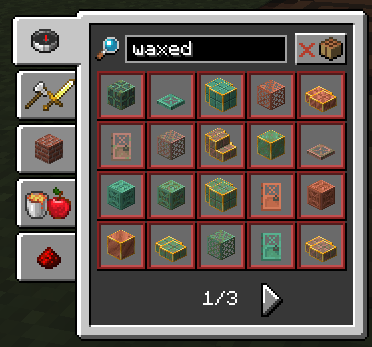


The recipes for the new waxed copper blocks are not grouped together.
Steps to Reproduce:
- Open a world with update_1_21 experiment enabled
- Unlock all recipes (/recipe give @s *)
- Place down a crafting table and click on it to open the GUI
- Open the recipe book (if not open already) and type "waxed" in the search box to search all waxed copper blocks (add " c", " e", " w", or " o" to the search to isolate regular, exposed, weathered, and oxidized variants respectively)
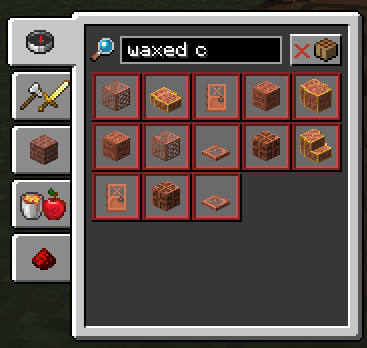

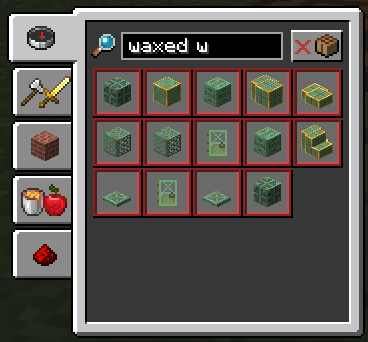

The recipes for the new waxed copper blocks are not grouped together.
Steps to Reproduce:
- Open a world with update_1_21 experiment enabled
- Unlock all recipes (/recipe give @s *)
- Place down a crafting table and click on it to open the GUI
- Open the recipe book (if not open already) and type "waxed" in the search box to search all waxed copper blocks (add " c", " e", " w", or " o" to the search to isolate regular, exposed, weathered, and oxidized variants respectively)
The recipes for the new waxed copper blocks are not grouped together. For example, Waxed Copper Door appears twice in the recipe book: one recipe for crafting with six Copper Blocks, and one for crafting a Copper Door with a Honey Comb. For existing recipes, the two recipes are grouped together. In the case of Waxed Weathered Cut Copper Stairs, one recipe for crafting with six Waxed Cut Copper and one with a Weathered Cut Copper Stair and Honey Comb.
Steps to Reproduce:
- Open a world with update_1_21 experiment enabled
- Unlock all recipes (/recipe give @s *)
- Place down a crafting table and click on it to open the GUI
- Open the recipe book (if not open already) and type "waxed" in the search box to search all waxed copper blocks (add " c", " e", " w", or " o" to the search to isolate regular, exposed, weathered, and oxidized variants respectively)
The recipes for the new waxed copper blocks are not grouped together. For example, Waxed Copper Door appears twice in the recipe book: one recipe for crafting with six Copper Blocks, and one for crafting a Copper Door with a Honey Comb. For existing
recipes, the two recipes are grouped together.In the case of Waxed Weathered Cut Copper Stairs, one recipe for crafting with six Waxed Cut Copper and one with a Weathered Cut Copper Stair and Honey Comb.Steps to Reproduce:
- Open a world with update_1_21 experiment enabled
- Unlock all recipes (/recipe give @s *)
- Place down a crafting table and click on it to open the GUI
- Open the recipe book (if not open already) and type "waxed" in the search box to search all waxed copper blocks (add " c", " e", " w", or " o" to the search to isolate regular, exposed, weathered, and oxidized variants respectively)
The recipes for the new waxed copper blocks are not grouped together. For example, Waxed Copper Door appears twice in the recipe book: one recipe for crafting with six Copper Blocks, and one for crafting a Copper Door with a Honey Comb. For existing waxed copper blocks, the two recipes are grouped together.
Steps to Reproduce:
- Open a world with update_1_21 experiment enabled
- Unlock all recipes (/recipe give @s *)
- Place down a crafting table and click on it to open the GUI
- Open the recipe book (if not open already) and type "waxed" in the search box to search all waxed copper blocks (add " c", " e", " w", or " o" to the search to isolate regular, exposed, weathered, and oxidized variants respectively)
The recipes for the new waxed copper blocks are not grouped together. For example, Waxed Copper Door appears twice in the recipe book: one recipe for crafting with six Copper Blocks, and one for crafting a Copper Door with a Honey Comb. For existing waxed copper blocks, such as Waxed Weathered Cut Copper Stairs, the two recipes are grouped together.
Steps to Reproduce:
- Open a world with update_1_21 experiment enabled
- Unlock all recipes (/recipe give @s *)
- Place down a crafting table and click on it to open the GUI
- Open the recipe book (if not open already) and type "waxed" in the search box to search all waxed copper blocks (add " c", " e", " w", or " o" to the search to isolate regular, exposed, weathered, and oxidized variants respectively)
The recipes for each variant of the new waxed copper blocks are not grouped together. For example, Waxed Copper Door appears twice in the recipe book: one recipe for crafting with six Copper Blocks, and one for crafting a Copper Door with a Honey Comb. For existing waxed copper blocks, such as Waxed Weathered Cut Copper Stairs, the two recipes are grouped together.
Steps to Reproduce:
- Open a world with update_1_21 experiment enabled
- Unlock all recipes (/recipe give @s *)
- Place down a crafting table and click on it to open the GUI
- Open the recipe book (if not open already) and type "waxed" in the search box to search all waxed copper blocks (add " c", " e", " w", or " o" to the search to isolate regular, exposed, weathered, and oxidized variants respectively)
The recipes for each variant of the new waxed copper blocks are not grouped together. For example, Waxed Copper Door appears twice in the recipe book: one recipe for crafting with six Copper Blocks, and one for crafting a Copper Door with a Honey Comb. For existing waxed copper blocks, such as Waxed Weathered Cut Copper Stairs, the two recipes are grouped together.
Steps to Reproduce:
- Open a world with update_1_21 experiment enabled
- Unlock all recipes (/recipe give @s *)
- Place down a crafting table and click on it to open the GUI
- Open the recipe book (if not open already) and type "waxed" in the search box to search all waxed copper blocks (add " c", " e", " w", or " o" to the search to isolate regular, exposed, weathered, and oxidized variants respectively)
The recipes for each variant of the new waxed copper blocks are not grouped together. For example, Waxed Copper Door appears twice in the recipe book: one recipe for crafting with six Copper Blocks, and one for crafting a Copper Door with a Honey Comb. For existing waxed copper blocks, such as Waxed Weathered Cut Copper Stairs, the two recipes are grouped together.
Steps to Reproduce:
- Open a world with update_1_21 experiment enabled
- Unlock all recipes (/recipe give @s *)
- Place down a crafting table and click on it to open the GUI
- Open the recipe book (if not open already) and type "waxed" in the search box to search all waxed copper blocks (add " c", " e", " w", or " o" to the search to isolate regular, exposed, weathered, and oxidized variants respectively)
File Analysis:
When looking in the game files, I have observed that the corresponding recipes have different groups and categories, where the crafting from copper blocks has an extra "cut" in the group name, and the crafting with honeycomb is categorized under "building". Under some testing, when I removed cut from the group name and recategorized to "redstone", this fixed the issue.
The recipes for each variant of the new waxed copper blocks are not grouped together. For example, Waxed Copper Door appears twice in the recipe book: one recipe for crafting with six Copper Blocks, and one for crafting a Copper Door with a Honey Comb. For existing waxed copper blocks, such as Waxed Weathered Cut Copper Stairs, the two recipes are grouped together.
Steps to Reproduce:
- Open a world with update_1_21 experiment enabled
- Unlock all recipes (/recipe give @s *)
- Place down a crafting table and click on it to open the GUI
- Open the recipe book (if not open already) and type "waxed" in the search box to search all waxed copper blocks (add " c", " e", " w", or " o" to the search to isolate regular, exposed, weathered, and oxidized variants respectively)
File Analysis:
When looking in the game files, I have observed that the corresponding recipes have different groups and categories, where the crafting from copper
blocks has an extra "cut" in the group name, and the crafting with honeycomb is categorized under "building". Under some testing, when I removed cut from the group name and recategorized to "redstone", this fixed the issue.
The recipes for each variant of the new waxed copper blocks are not grouped together. For example, Waxed Copper Door appears twice in the recipe book: one recipe for crafting with six Copper Blocks, and one for crafting a Copper Door with a Honey Comb. For existing waxed copper blocks, such as Waxed Weathered Cut Copper Stairs, the two recipes are grouped together.
Steps to Reproduce:
- Open a world with update_1_21 experiment enabled
- Unlock all recipes (/recipe give @s *)
- Place down a crafting table and click on it to open the GUI
- Open the recipe book (if not open already) and type "waxed" in the search box to search all waxed copper blocks (add " c", " e", " w", or " o" to the search to isolate regular, exposed, weathered, and oxidized variants respectively)
File Analysis:
When looking in the game files, I have observed that the corresponding recipes have different groups and categories, where the crafting from copper blocks has an extra "cut" in the group name, and the crafting with honeycomb is categorized under "building". Under some testing, when I removed cut from the group name and recategorized to "redstone", this fixed the issue.
The recipes for each variant of the new waxed copper blocks are not grouped together. For example, Waxed Copper Door appears twice in the recipe book: one recipe for crafting with six Copper Blocks, and one for crafting a Copper Door with a Honey Comb. For existing waxed copper blocks, such as Waxed Weathered Cut Copper Stairs, the two recipes are grouped together.
Steps to Reproduce:
Open a world with update_1_21 experiment enabled- Unlock all recipes (/recipe give @s *)
- Place down a crafting table and click on it to open the GUI
- Open the recipe book (if not open already) and type "waxed" in the search box to search all waxed copper blocks (add " c", " e", " w", or " o" to the search to isolate regular, exposed, weathered, and oxidized variants respectively)
File Analysis:
When looking in the game files, I have observed that the corresponding recipes have different groups and categories, where the crafting from copper blocks has an extra "cut" in the group name, and the crafting with honeycomb is categorized under "building". Under some testing, when I removed cut from the group name and recategorized to "redstone", this fixed the issue.
As per the 23w45a changelog, it states:
An item that can only be obtained from Trial Spawners
However, trial keys are also included in the loot tables for trial chamber entrance chests and corridor pots, making it possible to find in those containers.
Steps to Reproduce:
In game:
- Open a world with experiments enabled
- Place down a repeating command block
- Enter loot spawn ~ ~1 ~ loot minecraft:chests/trial_chambers/entrance or loot spawn ~ ~1 ~ loot minecraft:pots/trial_chambers/corridor
- Observe loot drops
Files:
- Navigate to the version jar
- On windows, you can open the run window and enter %appdata%\.minecraft\versions\<version> into the text box
- replace <version> with the affected version in question
- Open the jar with an archive software such as WinRAR (or make a copy of the jar and add .zip after the file extension and open it like a regular zip file)
- Navigate to data\minecraft\datapacks\update_1_21\loot_tables
- Open chests\trial_chambers\entrance.json and pots\trial_chambers\corridor.json
As per the 23w45a changelog, it states:
An item that can only be obtained from Trial Spawners
However, trial keys are also included in the loot tables for trial chamber entrance chests and corridor pots, making it possible to find in those containers.
Steps to Reproduce:
In game:
- Open a world with experiments enabled
- Place down a repeating command block
- Enter loot spawn ~ ~1 ~ loot minecraft:chests/trial_chambers/entrance or loot spawn ~ ~1 ~ loot minecraft:pots/trial_chambers/corridor
- Observe loot drops
Files:
- Navigate to the version jar
- On windows, you can open the run window
and enter%appdata%\.minecraft\versions\<version> into the text box
- replace <version> with the affected version in question
- Open the jar with an archive software such as WinRAR (or make a copy of the jar and add .zip after the file extension and open it like a regular zip file)
- Navigate to data\minecraft\datapacks\update_1_21\loot_tables
- Open chests\trial_chambers\entrance.json and pots\trial_chambers\corridor.json
As per the 23w45a changelog, it states:
An item that can only be obtained from Trial Spawners
However, trial keys are also included in the loot tables for trial chamber entrance chests and corridor pots, making it possible to find in those containers.
Steps to Reproduce:
In game:
- Open a world with experiments enabled
- Place down a repeating command block
- Enter loot spawn ~ ~1 ~ loot minecraft:chests/trial_chambers/entrance or loot spawn ~ ~1 ~ loot minecraft:pots/trial_chambers/corridor
- Observe loot drops
Files:
- Navigate to the version jar
- On windows, you can open the run window (Win + R) and enter %appdata%\.minecraft\versions\<version> into the text box
- replace <version> with the affected version in question
- Open the jar with an archive software such as WinRAR (or make a copy of the jar and add .zip after the file extension and open it like a regular zip file)
- Navigate to data\minecraft\datapacks\update_1_21\loot_tables
- Open chests\trial_chambers\entrance.json and pots\trial_chambers\corridor.json
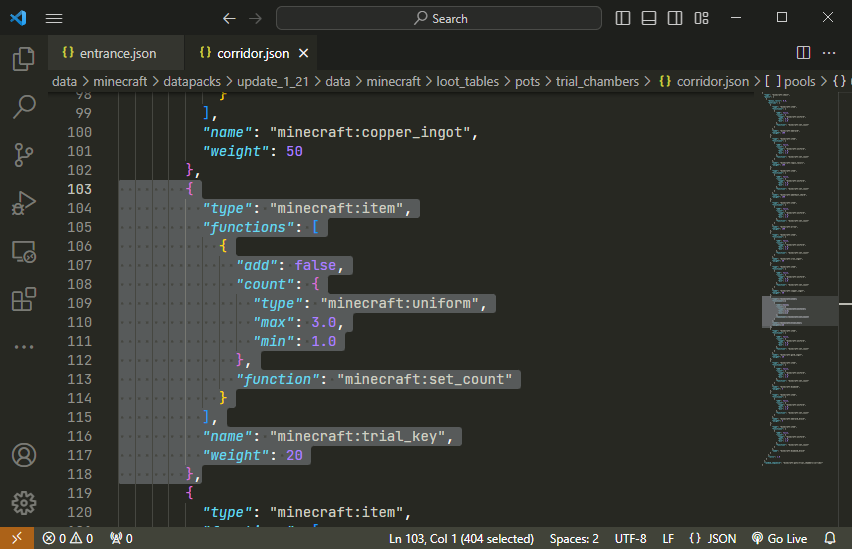
As per the 23w45a changelog, it states:
An item that can only be obtained from Trial Spawners
However, trial keys are also included in the loot tables for trial chamber entrance chests and corridor pots, making it possible to find in those containers.
Steps to Reproduce:
In game:
- Open a world with experiments enabled
- Place down a repeating command block
- Enter loot spawn ~ ~1 ~ loot minecraft:chests/trial_chambers/entrance or loot spawn ~ ~1 ~ loot minecraft:pots/trial_chambers/corridor into the command box
- Observe loot drops
Files:
- Navigate to the version jar
- On windows, you can open the run window (Win + R) and enter %appdata%\.minecraft\versions\<version> into the text box
- replace <version> with the affected version in question
- Open the jar with an archive software such as WinRAR (or make a copy of the jar and add .zip after the file extension and open it like a regular zip file)
- Navigate to data\minecraft\datapacks\update_1_21\loot_tables
- Open chests\trial_chambers\entrance.json and pots\trial_chambers\corridor.json
As per the 23w45a changelog, it states:
An item that can only be obtained from Trial Spawners
However, trial keys are also included in the loot tables for trial chamber entrance chests and corridor pots, making it possible to find in those containers.
Steps to Reproduce:
In game:
- Open a world with experiments enabled
- Place down a repeating command block
- Enter loot spawn ~ ~1 ~ loot minecraft:chests/trial_chambers/entrance or loot spawn ~ ~1 ~ loot minecraft:pots/trial_chambers/corridor into the command box
- Observe loot drops
Files:
- Navigate to the version jar
- On windows, you can open the run window (Win + R) and enter %appdata%\.minecraft\versions\<version> into the text box
- replace <version> with the affected version in question
- Open the jar with an archive software such as WinRAR (or make a copy of the jar and add .zip after the file extension and open it like a regular zip file)
- Navigate to data\minecraft\datapacks\update_1_21\loot_tables
- Open chests\trial_chambers\entrance.json and pots\trial_chambers\corridor.json
As per the 23w45a changelog, it states:
An item that can only be obtained from Trial Spawners
However, trial keys are also included in the loot tables for trial chamber entrance chests and corridor pots, making it possible to find in those containers.
Steps to Reproduce:
In game:
- Open a world with experiments enabled
- Place down a repeating command block
- Enter loot spawn ~ ~1 ~ loot minecraft:chests/trial_chambers/entrance or loot spawn ~ ~1 ~ loot minecraft:pots/trial_chambers/corridor into the command box
- Observe loot drops
Files:
- Navigate to the version jar
- On windows, you can open the run window (Win + R) and enter %appdata%\.minecraft\versions\<version> into the text box
- replace <version> with the affected version in question
- Open the jar with an archive software such as WinRAR (or make a copy of the jar and add .zip after the file extension and open it like a regular zip file)
- Navigate to data\minecraft\datapacks\update_1_21\loot_tables
- Open chests\trial_chambers\entrance.json and pots\trial_chambers\corridor.json and review entries
As per the 23w45a changelog, it states that trial keys are:
An item that can only be obtained from Trial Spawners
However, trial keys are also included in the loot tables for trial chamber entrance chests and corridor pots, making it possible to find in those containers.
Steps to Reproduce:
In game:
- Open a world with experiments enabled
- Place down a repeating command block
- Enter loot spawn ~ ~1 ~ loot minecraft:chests/trial_chambers/entrance or loot spawn ~ ~1 ~ loot minecraft:pots/trial_chambers/corridor into the command box
- Observe loot drops
Files:
- Navigate to the version jar
- On windows, you can open the run window (Win + R) and enter %appdata%\.minecraft\versions\<version> into the text box
- replace <version> with the affected version in question
- Open the jar with an archive software such as WinRAR (or make a copy of the jar and add .zip after the file extension and open it like a regular zip file)
- Navigate to data\minecraft\datapacks\update_1_21\loot_tables
- Open chests\trial_chambers\entrance.json and pots\trial_chambers\corridor.json and review entries
As per the 23w45a changelog, it states that trial key
s are:An item that can only be obtained from Trial Spawners
However, trial keys are also included in the loot tables for trial chamber entrance chests and corridor pots, making it possible to find in those containers.
Steps to Reproduce:
In game:
- Open a world with experiments enabled
- Place down a repeating command block
- Enter loot spawn ~ ~1 ~ loot minecraft:chests/trial_chambers/entrance or loot spawn ~ ~1 ~ loot minecraft:pots/trial_chambers/corridor into the command box
- Observe loot drops
Files:
- Navigate to the version jar
- On windows, you can open the run window (Win + R) and enter %appdata%\.minecraft\versions\<version> into the text box
- replace <version> with the affected version in question
- Open the jar with an archive software such as WinRAR (or make a copy of the jar and add .zip after the file extension and open it like a regular zip file)
- Navigate to data\minecraft\datapacks\update_1_21\loot_tables
- Open chests\trial_chambers\entrance.json and pots\trial_chambers\corridor.json and review entries
As per the 23w45a changelog, it states that a trial key is:
An item that can only be obtained from Trial Spawners
However, trial keys are also included in the loot tables for trial chamber entrance chests and corridor pots, making it possible to find in those containers.
Steps to Reproduce:
In game:
- Open a world with experiments enabled
- Place down a repeating command block
- Enter loot spawn ~ ~1 ~ loot minecraft:chests/trial_chambers/entrance or loot spawn ~ ~1 ~ loot minecraft:pots/trial_chambers/corridor into the command box
- Observe loot drops
Files:
- Navigate to the version jar
- On windows, you can open the run window (Win + R) and enter %appdata%\.minecraft\versions\<version> into the text box
- replace <version> with the affected version in question
- Open the jar with an archive software such as WinRAR (or make a copy of the jar and add .zip after the file extension and open it like a regular zip file)
- Navigate to data\minecraft\datapacks\update_1_21\loot_tables
- Open chests\trial_chambers\entrance.json and pots\trial_chambers\corridor.json and review entries
As per the 23w45a changelog, it states that a trial key is:
An item that can only be obtained from Trial Spawners
However, trial keys are also included in the loot tables for trial chamber entrance chests and corridor pots, making it possible to find in those containers.
Steps to Reproduce:
In game:
- Open a world with experiments enabled
- Place down a repeating command block
- Enter loot spawn ~ ~1 ~ loot minecraft:chests/trial_chambers/entrance or loot spawn ~ ~1 ~ loot minecraft:pots/trial_chambers/corridor into the command box
- Observe loot drops
Files:
- Navigate to the version jar
- On windows, you can open the run window (Win + R) and enter %appdata%\.minecraft\versions\<version> into the text box
- replace <version> with the affected version in question
- Open the jar with an archive software such as WinRAR (or make a copy of the jar and add .zip after the file extension and open it like a regular zip file)
- Navigate to data\minecraft\datapacks\update_1_21\loot_tables
- Open chests\trial_chambers\entrance.json and pots\trial_chambers\corridor.json and review entries
As per the 23w45a changelog, it states that a trial key is:
An item that can only be obtained from Trial Spawners
However, trial keys are also included in the loot tables for trial chamber entrance chests and corridor pots, making it possible to find in those containers.
Steps to Reproduce:
In game:
- Open a world with experiments enabled
- Place down a repeating command block
- Enter loot spawn ~ ~1 ~ loot minecraft:chests/trial_chambers/entrance or loot spawn ~ ~1 ~ loot minecraft:pots/trial_chambers/corridor into the command box, power the command block (or set to Always Active), and observe loot drops
Files:
- Navigate to the version jar
- On windows, you can open the run window (Win + R) and enter %appdata%\.minecraft\versions\<version> into the text box
- replace <version> with the affected version in question
- Open the jar with an archive software such as WinRAR (or make a copy of the jar and add .zip after the file extension and open it like a regular zip file)
- Navigate to data\minecraft\datapacks\update_1_21\loot_tables
- Open chests\trial_chambers\entrance.json and pots\trial_chambers\corridor.json and review entries
As per the 23w45a changelog, it states that a trial key is:
An item that can only be obtained from Trial Spawners
However, trial keys are also included in the loot tables for trial chamber entrance chests and corridor pots, making it possible to find in those containers.
Steps to Reproduce:
In game:
- Open a world with experiments enabled
- Place down a repeating command block
- Enter loot spawn ~ ~1 ~ loot minecraft:chests/trial_chambers/entrance or loot spawn ~ ~1 ~ loot minecraft:pots/trial_chambers/corridor
into the command box, power the command block (or set to Always Active), and observe loot drops
Files:
- Navigate to the version jar
- On windows, you can open the run window (Win + R) and enter %appdata%\.minecraft\versions\<version> into the text box
- replace <version> with the affected version in question
- Open the jar with an archive software such as WinRAR (or make a copy of the jar and add .zip after the file extension and open it like a regular zip file)
- Navigate to data\minecraft\datapacks\update_1_21\loot_tables
- Open chests\trial_chambers\entrance.json and pots\trial_chambers\corridor.json and review entries
As per the 23w45a changelog, it states that a trial key is:
An item that can only be obtained from Trial Spawners
However, trial keys are also included in the loot tables for trial chamber entrance chests and corridor pots, making it possible to find in those containers.
Steps to Reproduce:
In game:
- Open a world with experiments enabled
- Place down a repeating command block
- Enter loot spawn ~ ~1 ~ loot minecraft:chests/trial_chambers/entrance or loot spawn ~ ~1 ~ loot minecraft:pots/trial_chambers/corridor into the command box
- Power the command block (or set to Always Active), and observe loot drops
Files:
- Navigate to the version jar
- On windows, you can open the run window (Win + R) and enter %appdata%\.minecraft\versions\<version> into the text box
- replace <version> with the affected version in question
- Open the jar with an archive software such as WinRAR (or make a copy of the jar and add .zip after the file extension and open it like a regular zip file)
- Navigate to data\minecraft\datapacks\update_1_21\loot_tables
- Open chests\trial_chambers\entrance.json and pots\trial_chambers\corridor.json and review entries
As per the 23w45a changelog, it states th
at atrial keyis:An item that can only be obtained from Trial Spawners
However, trial keys are also included in the loot tables for trial chamber entrance chests and corridor pots, making it possible to find in those containers.
Steps to Reproduce:
In game:
- Open a world with experiments enabled
- Place down a repeating command block
- Enter loot spawn ~ ~1 ~ loot minecraft:chests/trial_chambers/entrance or loot spawn ~ ~1 ~ loot minecraft:pots/trial_chambers/corridor into the command box
- Power the command block (or set to Always Active), and observe loot drops
Files:
- Navigate to the version jar
- On windows, you can open the run window (Win + R) and enter %appdata%\.minecraft\versions\<version> into the text box
- replace <version> with the affected version in question
- Open the jar with an archive software such as WinRAR (or make a copy of the jar and add .zip after the file extension and open it like a regular zip file)
- Navigate to data\minecraft\datapacks\update_1_21\loot_tables
- Open chests\trial_chambers\entrance.json and pots\trial_chambers\corridor.json and review entries
As per the 23w45a changelog, it states the following about trial keys:
An item that can only be obtained from Trial Spawners
However, trial keys are also included in the loot tables for trial chamber entrance chests and corridor pots, making it possible to find in those containers.
Steps to Reproduce:
In game:
- Open a world with experiments enabled
- Place down a repeating command block
- Enter loot spawn ~ ~1 ~ loot minecraft:chests/trial_chambers/entrance or loot spawn ~ ~1 ~ loot minecraft:pots/trial_chambers/corridor into the command box
- Power the command block (or set to Always Active), and observe loot drops
Files:
- Navigate to the version jar
- On windows, you can open the run window (Win + R) and enter %appdata%\.minecraft\versions\<version> into the text box
- replace <version> with the affected version in question
- Open the jar with an archive software such as WinRAR (or make a copy of the jar and add .zip after the file extension and open it like a regular zip file)
- Navigate to data\minecraft\datapacks\update_1_21\loot_tables
- Open chests\trial_chambers\entrance.json and pots\trial_chambers\corridor.json and review entries
As per the 23w45a changelog, it states the following about trial keys:
An item that can only be obtained from Trial Spawners
However, trial keys are also included in the loot tables for trial chamber entrance chests and corridor pots, making it possible to find in those containers.
Steps to Reproduce:
In game:
- Open a world with experiments enabled
- Place down a repeating command block
- Enter loot spawn ~ ~1 ~ loot minecraft:chests/trial_chambers/entrance or loot spawn ~ ~1 ~ loot minecraft:pots/trial_chambers/corridor into the command box
- Power the command block (or set to Always Active), and observe loot drops
sas an itemFiles:
- Navigate to the version jar
- On windows, you can open the run window (Win + R) and enter %appdata%\.minecraft\versions\<version> into the text box
- replace <version> with the affected version in question
- Open the jar with an archive software such as WinRAR (or make a copy of the jar and add .zip after the file extension and open it like a regular zip file)
- Navigate to data\minecraft\datapacks\update_1_21\loot_tables
- Open chests\trial_chambers\entrance.json and pots\trial_chambers\corridor.json and review entries
As per the 23w45a changelog, it states the following about trial keys:
An item that can only be obtained from Trial Spawners
However, trial keys are also included in the loot tables for trial chamber entrance chests and corridor pots, making it possible to find in those containers.
Steps to Reproduce:
In game:
Open a world with experiments enabled- Place down a repeating command block
- Enter loot spawn ~ ~1 ~ loot minecraft:chests/trial_chambers/entrance or loot spawn ~ ~1 ~ loot minecraft:pots/trial_chambers/corridor into the command box
- Power the command block (or set to Always Active), and observe loot drops
Files:
- Navigate to the version jar
- On windows, you can open the run window (Win + R) and enter %appdata%\.minecraft\versions\<version> into the text box
- replace <version> with the affected version in question
- Open the jar with an archive software such as WinRAR (or make a copy of the jar and add .zip after the file extension and open it like a regular zip file)
- Navigate to data\minecraft
datapacks\update_1_21loot_tables- Open chests\trial_chambers\entrance.json and pots\trial_chambers\corridor.json and review entries
As per the 23w45a changelog, it states the following about trial keys:
An item that can only be obtained from Trial Spawners
However, trial keys are also included in the loot tables for trial chamber entrance chests and corridor pots, making it possible to find in those containers.
Steps to Reproduce:
In game:
Open a world with experiments enabled- Place down a repeating command block
- Enter loot spawn ~ ~1 ~ loot minecraft:chests/trial_chambers/entrance or loot spawn ~ ~1 ~ loot minecraft:pots/trial_chambers/corridor into the command box
- Power the command block (or set to Always Active), and observe loot drops
Files:
- Navigate to the version jar
- On windows, you can open the run window (Win + R) and enter %appdata%\.minecraft\versions\<version> into the text box
- replace <version> with the affected version in question
- Open the jar with an archive software such as WinRAR (or make a copy of the jar and add .zip after the file extension and open it like a regular zip file)
- Navigate to data\minecraft
datapacks\update_1_21loot_tables- Open chests\trial_chambers\entrance.json and pots\trial_chambers\corridor.json and review entries
As per the 23w45a changelog, it states the following about trial keys:
An item that can only be obtained from Trial Spawners
However, trial keys are also included in the loot tables for trial chamber entrance chests and corridor pots, making it possible to find in those containers.
Steps to Reproduce:
In game:
Open a world with experiments enabled- Place down a repeating command block
- Enter loot spawn ~ ~1 ~ loot minecraft:chests/trial_chambers/entrance or loot spawn ~ ~1 ~ loot minecraft:pots/trial_chambers/corridor into the command box
- Power the command block (or set to Always Active), and observe loot drops
Files:
- Navigate to the version jar
- On windows, you can open the run window (Win + R) and enter %appdata%\.minecraft\versions\<version> into the text box
- replace <version> with the affected version in question
- Open the jar with an archive software such as WinRAR (or make a copy of the jar and add .zip after the file extension and open it like a regular zip file)
- Navigate to data\minecraft\\
datapacks\update_1_21}loot_table
{s- Open chests\trial_chambers\entrance.json and pots\trial_chambers\corridor.json and review entries
As per the 23w45a changelog, it states the following about trial keys:
An item that can only be obtained from Trial Spawners
However, trial keys are also included in the loot tables for trial chamber entrance chests and corridor pots, making it possible to find in those containers.
Steps to Reproduce:
In game:
Open a world with experiments enabled- Place down a repeating command block
- Enter loot spawn ~ ~1 ~ loot minecraft:chests/trial_chambers/entrance or loot spawn ~ ~1 ~ loot minecraft:pots/trial_chambers/corridor into the command box
- Power the command block (or set to Always Active), and observe loot drops
Files:
- Navigate to the version jar
- On windows, you can open the run window (Win + R) and enter %appdata%\.minecraft\versions\<version> into the text box
- replace <version> with the affected version in question
- Open the jar with an archive software such as WinRAR (or make a copy of the jar and add .zip after the file extension and open it like a regular zip file)
- Navigate to data\minecraft\\
datapacks\update_1_21}loot_table
{s- Open chests\trial_chambers\entrance.json and pots\trial_chambers\corridor.json and review entries
As per the 23w45a changelog, it states the following about trial keys:
An item that can only be obtained from Trial Spawners
However, trial keys are also included in the loot tables for trial chamber entrance chests and corridor pots, making it possible to find in those containers.
Steps to Reproduce:
In game:
Open a world with experiments enabled- Place down a repeating command block
- Enter loot spawn ~ ~1 ~ loot minecraft:chests/trial_chambers/entrance or loot spawn ~ ~1 ~ loot minecraft:pots/trial_chambers/corridor into the command box
- Power the command block (or set to Always Active), and observe loot drops
Files:
- Navigate to the version jar
- On windows, you can open the run window (Win + R) and enter %appdata%\.minecraft\versions\<version> into the text box
- replace <version> with the affected version in question
- Open the jar with an archive software such as WinRAR (or make a copy of the jar and add .zip after the file extension and open it like a regular zip file)
- Navigate to data\minecraft\\
datapacks\update_1_21}{}loot_table
{s- Open chests\trial_chambers\entrance.json and pots\trial_chambers\corridor.json and review entries
As per the 23w45a changelog, it states the following about trial keys:
An item that can only be obtained from Trial Spawners
However, trial keys are also included in the loot tables for trial chamber entrance chests and corridor pots, making it possible to find in those containers.
Steps to Reproduce:
In game:
Open a world with experiments enabled- Place down a repeating command block
- Enter loot spawn ~ ~1 ~ loot minecraft:chests/trial_chambers/entrance or loot spawn ~ ~1 ~ loot minecraft:pots/trial_chambers/corridor into the command box
- Power the command block (or set to Always Active), and observe loot drops
Files:
- Navigate to the version jar
- On windows, you can open the run window (Win + R) and enter %appdata%\.minecraft\versions\<version> into the text box
- replace <version> with the affected version in question
- Open the jar with an archive software such as WinRAR (or make a copy of the jar and add .zip after the file extension and open it like a regular zip file)
- Navigate to data\minecraft
\\datapacks\update_1_21}{}loot_table
{s- Open chests\trial_chambers\entrance.json and pots\trial_chambers\corridor.json and review entries
As per the 23w45a changelog, it states the following about trial keys:
An item that can only be obtained from Trial Spawners
However, trial keys are also included in the loot tables for trial chamber entrance chests and corridor pots, making it possible to find in those containers.
Steps to Reproduce:
In game:
Open a world with experiments enabled- Place down a repeating command block
- Enter loot spawn ~ ~1 ~ loot minecraft:chests/trial_chambers/entrance or loot spawn ~ ~1 ~ loot minecraft:pots/trial_chambers/corridor into the command box
- Power the command block (or set to Always Active), and observe loot drops
Files:
- Navigate to the version jar
- On windows, you can open the run window (Win + R) and enter %appdata%\.minecraft\versions\<version> into the text box
- replace <version> with the affected version in question
- Open the jar with an archive software such as WinRAR (or make a copy of the jar and add .zip after the file extension and open it like a regular zip file)
- Navigate to data\minecraft
\datapacks\update_1_21loot_tables- Open chests\trial_chambers\entrance.json and pots\trial_chambers\corridor.json and review entries
As per the 23w45a changelog, it states the following about trial keys:
An item that can only be obtained from Trial Spawners
However, trial keys are also included in the loot tables for trial chamber entrance chests and corridor pots, making it possible to find in those containers.
Steps to Reproduce:
In game:
Open a world with experiments enabled- Place down a repeating command block
- Enter loot spawn ~ ~1 ~ loot minecraft:chests/trial_chambers/entrance or loot spawn ~ ~1 ~ loot minecraft:pots/trial_chambers/corridor into the command box
- Power the command block (or set to Always Active), and observe loot drops
Files:
- Navigate to the version jar
- On windows, you can open the run window (Win + R) and enter %appdata%\.minecraft\versions\<version> into the text box
- replace <version> with the affected version in question
- Open the jar with an archive software such as WinRAR (or make a copy of the jar and add .zip after the file extension and open it like a regular zip file)
- Navigate to data\minecraft
\datapacks\update_1_21\loot_tables- Open chests\trial_chambers\entrance.json and pots\trial_chambers\corridor.json and review entries
While
MC-267380was resolved as fixed, and thus opening chests from a distance now works, editing signs beyond the default attack range still does not work.Steps to Reproduce:
- Obtain a sign and place it at normal distance
- Edit interface opens as normal
- Run the following command to apply the attribute:
/attribute @s minecraft:player.block_interaction_range modifier add 0-0-0-0-0 player.block_interaction_range 64 add
- Place a sign beyond the default interaction range
- Click the sign again to prompt another edit and observe it still instantly closes
P.S. run the following command to remove the attribute after testing:
/attribute @s minecraft:player.block_interaction_range modifier remove 0-0-0-0-0
Cannot edit signs beyond defaultattack reachCannot edit signs beyond default block reach
While
MC-267380was resolved as fixed, and thus opening chests from a distance now works, editing signs beyond the defaultattack range still does not work.Steps to Reproduce:
- Obtain a sign and place it at normal distance
- Edit interface opens as normal
- Run the following command to apply the attribute:
/attribute @s minecraft:player.block_interaction_range modifier add 0-0-0-0-0 player.block_interaction_range 64 add
- Place a sign beyond the default interaction range
- Click the sign again to prompt another edit and observe it still instantly closes
P.S. run the following command to remove the attribute after testing:
/attribute @s minecraft:player.block_interaction_range modifier remove 0-0-0-0-0While
MC-267380was resolved as fixed, and thus opening chests from a distance now works, editing signs beyond the default block range still does not work.Steps to Reproduce:
- Obtain a sign and place it at normal distance
- Edit interface opens as normal
- Run the following command to apply the attribute:
/attribute @s minecraft:player.block_interaction_range modifier add 0-0-0-0-0 player.block_interaction_range 64 add
- Place a sign beyond the default interaction range
- Click the sign again to prompt another edit and observe it still instantly closes
P.S. run the following command to remove the attribute after testing:
/attribute @s minecraft:player.block_interaction_range modifier remove 0-0-0-0-0
While
MC-267380was resolved as fixed, and thus opening chests from a distance now works, editing signs beyond the default block rangestill does not work.Steps to Reproduce:
- Obtain a sign and place it at normal distance
- Edit interface opens as normal
- Run the following command to apply the attribute:
/attribute @s minecraft:player.block_interaction_range modifier add 0-0-0-0-0 player.block_interaction_range 64 add
- Place a sign beyond the default
interaction range
- Click the sign again to prompt another edit and observe it still instantly closes
P.S. run the following command to remove the attribute after testing:
/attribute @s minecraft:player.block_interaction_range modifier remove 0-0-0-0-0While
MC-267380was resolved as fixed, and thus opening chests from a distance now works, editing signs beyond the default block reach still does not work.Steps to Reproduce:
- Obtain a sign and place it at normal distance
- Edit interface opens as normal
- Run the following command to apply the attribute:
/attribute @s minecraft:player.block_interaction_range modifier add 0-0-0-0-0 player.block_interaction_range 64 add
- Place a sign beyond the default block reach
- Click the sign again to prompt another edit and observe it still instantly closes
P.S. run the following command to remove the attribute after testing:
/attribute @s minecraft:player.block_interaction_range modifier remove 0-0-0-0-0
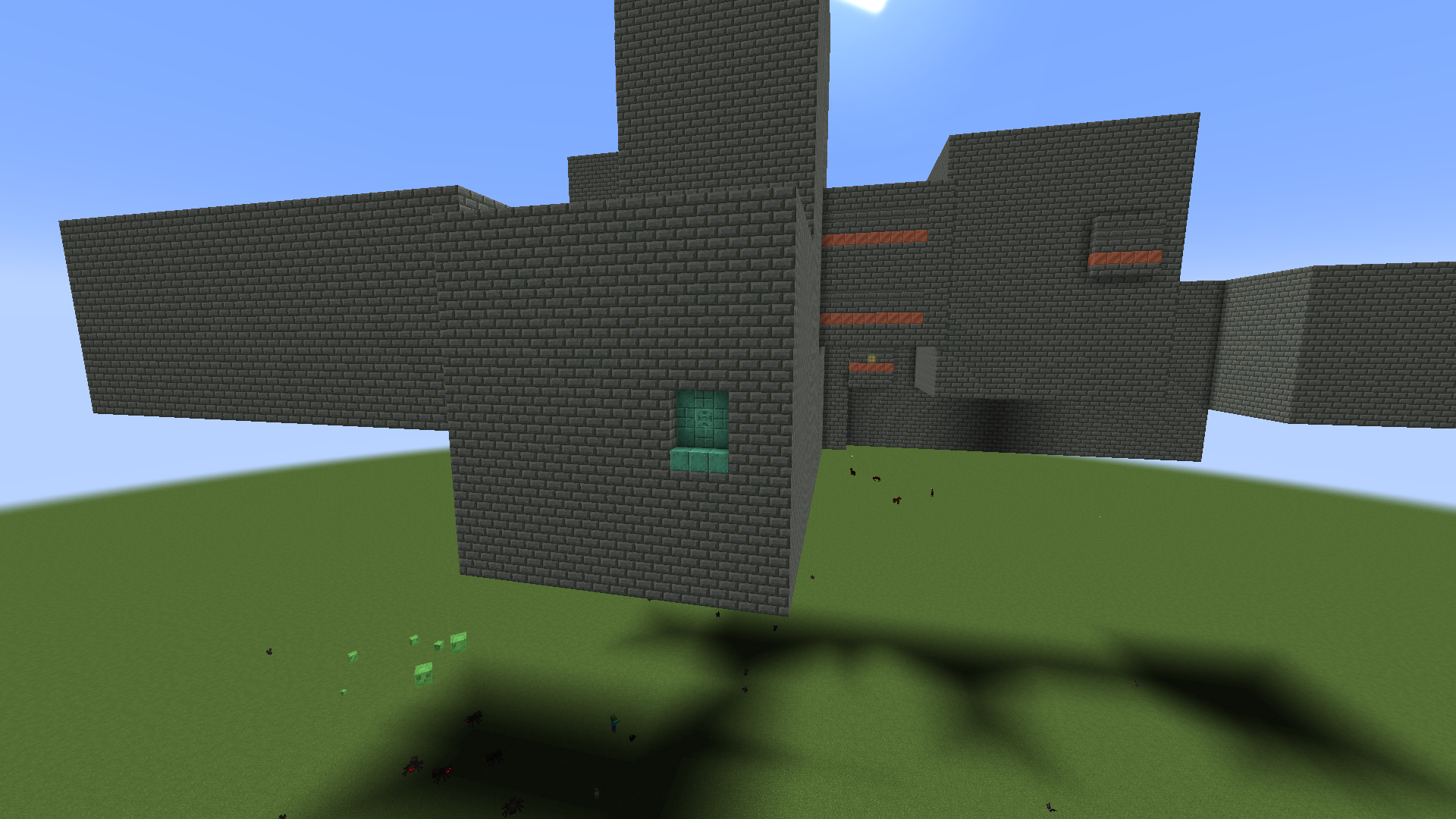
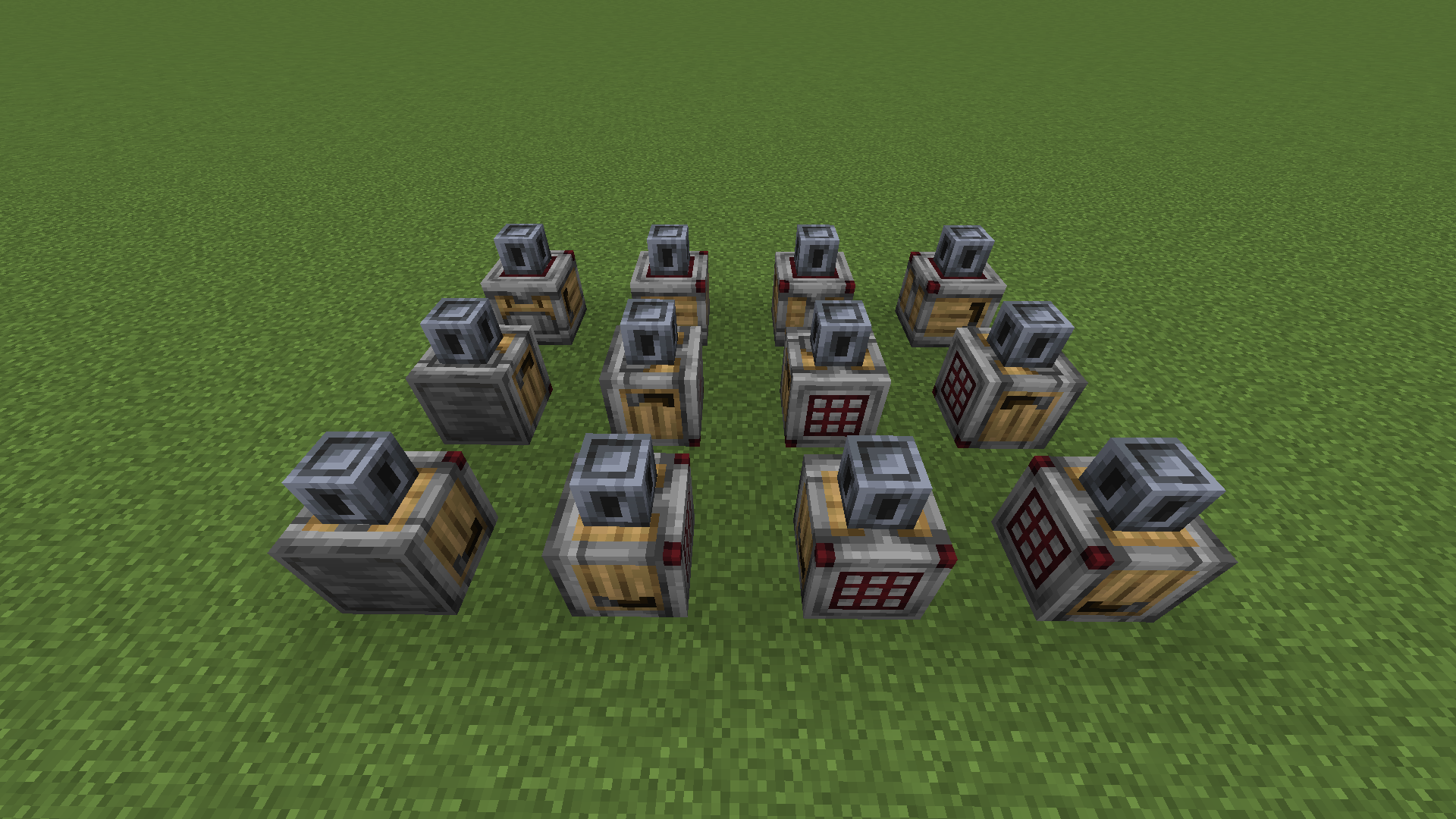
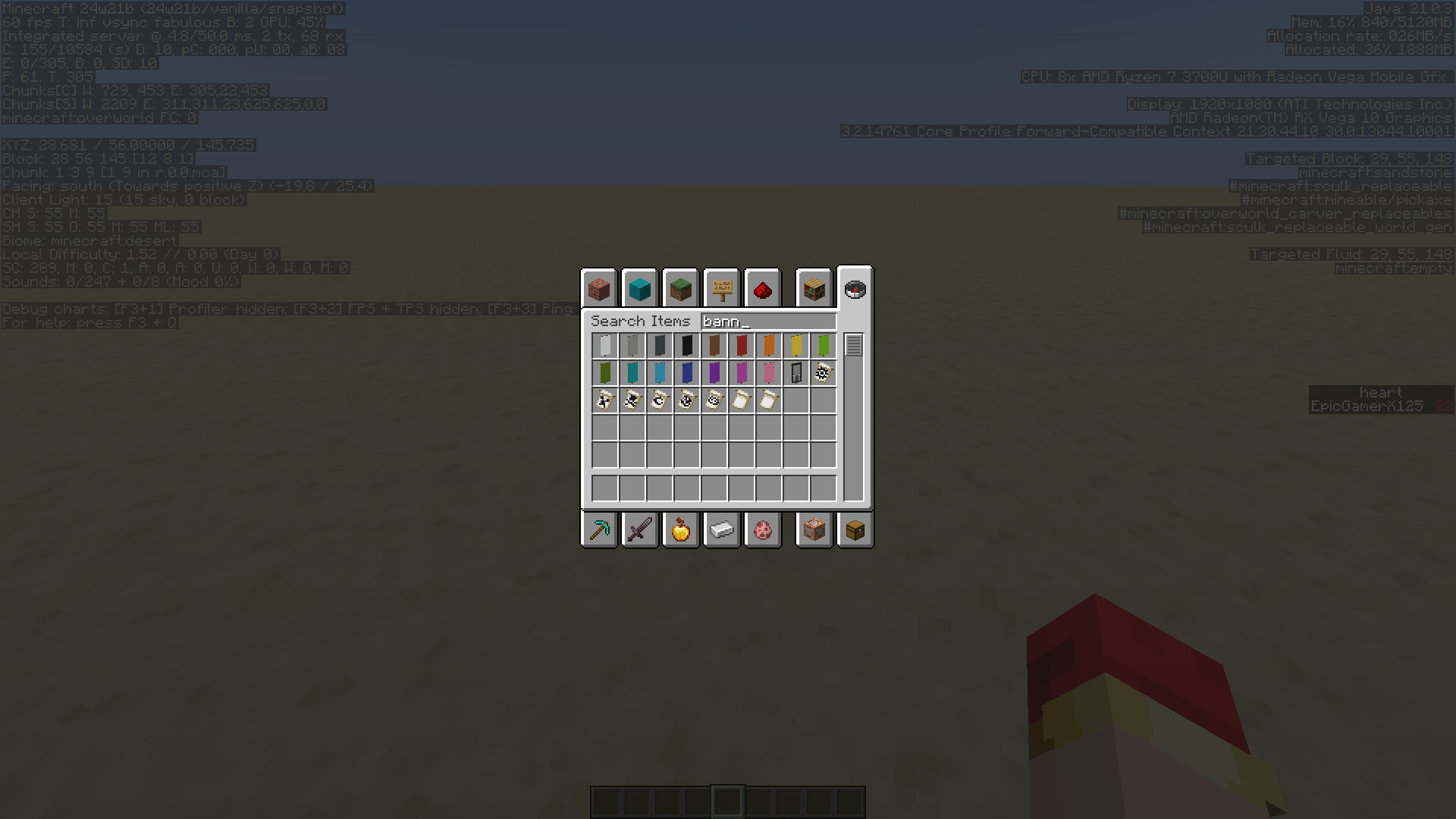

Before th
e latestsnapshot,thecomparator would always read the disc inthejukebox regardless of whether the jukebox was playing or not. As of this week's snapshot, which also introduced the new data driven jukebox songs, this is no longer the case.Steps to Reproduce:
- Place down a jukebox
- Insert a music disc (11 or mellohi is the easiest to reproduce with because of short duration length)
- Wait for song to finish
Before this week's snapshot, a comparator would always read the disc in a jukebox regardless of whether the jukebox was playing or not. As of this week's snapshot, which also introduced the new data driven jukebox songs, this is no longer the case.
Steps to Reproduce:
- Place down a jukebox
- Insert a music disc (11 or mellohi is the easiest to reproduce with because of short duration length)
- Wait for song to finish
Sliding down honey blocks is slower than in previous versions.
The game crashes when you try to open the survival inventory while debug hitboxes are enabled with the Fabulous graphics setting selected.
Steps to Reproduce:
- Open your survival inventory
- Opens as normal
- Enable hitboxes with F3 + B
- Open your inventory again
The game crashes when you try to open the survival inventory while debug hitboxes are enabled with the Fabulous graphics setting selected.
Steps to Reproduce:
- Set graphics setting to Fabulous!
- Open your survival inventory
- Opens as normal
- Enable hitboxes with F3 + B
- Open your inventory again
The game crashes when you try to open the survival inventory while debug hitboxes are enabled with the Fabulous graphics setting selected.
Steps to Reproduce:
- Set graphics setting to Fabulous!
- Open your survival inventory
- Opens as normal
- Enable hitboxes with F3 + B
- Open your inventory again
The game crashes when you try to open the survival inventory while debug hitboxes are enabled with the Fabulous! graphics setting selected.
Steps to Reproduce:
- Set graphics setting to Fabulous!
- Open your survival inventory
- Opens as normal
- Enable hitboxes with F3 + B
- Open your inventory again
I have attached the crash reports of last week's snapshot and this weeks snapshot that just generated a few minutes ago.
Attached now
It's any time I reload or change resource packs. I removed all packs and screen still goes black.
This crash report generated when the game crashed while reloading packs without additional packs running
hs_err_pid10624.log
Feel free to check this F3+C crash report as well (without additional packs on)
crash-2021-05-06_20.22.41-client.txt
I can confirm this too
I added a video clip of me recreating the issue. This is taken in pre-release 3
The paper doll up-down rotation is inverted, not head not moving properly.
I added a video simulating reproducing the issue
Mangrove boat also cannot be placed with dispenser
Can confirm as well that the jigsaw just has to exist in the world. I loaded a world from a previous snapshot that already had jigsaws placed and it crashed as well.
Basically, feature/change requests should be posted on feedback.minecraft.net. This is a bug tracker for reporting game bugs.
I would like to request this ticket to be separated from mine, as end crystals not passing on its data for cause of explosion is probably a separate issue and is probably the reason why it displays the non-player explosion death message. After further testing I've modified my ticket and concluded that end crystals are a separate issue that should be tracked here.
I tested it with a creeper and it does display the proper death by creeper.
Affects 22w45a. Because of fixing
MC-256917the message is now "<Player> blew up"This issue also affects llamas
You need to enable the update_1_20 data pack upon creating a world to access the 1.20 features.
Can confirm. Used a setup with scaffolding and a piston breaking the base.
Can confirm. Should be clarified that you should mount the pig while still climbing to reproduce the issue.
Can confirm in 1.19.3 and 23w05a
When looking in the en_us.json file, none of the above listed translation strings are actually defined in the file, which is probably the reason why they display like this.
For the explosion one there's a definition for death.attack.explosion.player.item but not death.attack.explosion.item.
Here's a full table of affected damage types and their corresponding displayed death messages.
minecraft:mob_attack_no_aggro
minecraft:mob_projectile
minecraft:player_attack
Can confirm
I cannot reproduce this. Did you place another sign on the sign? Because the sign editing GUI that opens from that would be the sign you just placed on the other sign.
duplicate of
MC-266063duplicate of
MC-266053is this about placing and break sounds? if so, duplicate of
MC-266063duplicate of
MC-266056duplicate of
MC-266052can confirm
duplicate of
MC-266287duplicate of
MC-108, WAIcan confirm
Observers detect block state changes. A copper bulb being powered is a block state change like pistons extending, droppers triggering, hoppers being locked, and note blocks being played. Copper bulbs being lit is also a block state change, so observers are able to detect that too, albeit the power state also changes since you have to power the bulb to trigger the lit state. Other block state change events like a player flipping a trapdoor, grass growing over dirt, and tuning a note block are also detected by an observer. There is a difference between a block being "powered" and a "powered block state" changing. It has nothing to do with whether blocks are powered. This is intended behavior.
Observers detect all block state changes and there is no such thing as priority. For example, note blocks have instrument, note, and powered, and walls have east, north, south, up, waterlogged, and west. Changing any of those trigger an observer.
Multiple block states changing at once count toward one block state change event, but still count toward triggering an observer. Powering a closed fence gate for example sets the powered state to true and the open state to true, and an observer sees that as a block state change. An observer will still also detect if an open fence gate gets powered, in which case just the powered state changes to true, and a player closing an open powered fence gate, in which just the open state sets to false. Any block state changes are detectable by an observer, regardless of how many block state changes happen at once.
Block state changes also include the block itself changing, such as grass growing over dirt in my last comment example. Other examples include tilling dirt and copper oxidizing. Same with breaking and placing blocks, which just changes the block to and from air.
duplicate of
MC-266886dupe of
MC-265021, actuallyThat's not really a room; that's the space in front of the entrance door to the entrance room. It often just generates buried. It's more obvious if you place the structure with commands.
I would think this is probably a feature request, as the visuals of copper trapdoors are similar to those of oak, dark oak, and iron trapdoors, which use the standard trapdoor models. To get around the issue you are having, you can make the models of copper trapdoors in your pack parent the orientable trapdoor models, which spruce, birch, jungle, acacia, etc. trapdoors use. You may also have to edit the block states file to differentiate top and bottom open trapdoors.
Like I said in my comment, oak, dark oak, and iron trapdoors do it too, not just the copper ones.
That's the wrong syntax. Outside curly braces are now just used for custom data that you can store on an object (hence the wrapping "minecraft:custom_data" node). Item properties have been migrated to components and the syntax uses square brackets. The proper command is written the following:
/give @s minecraft:written_book[minecraft:written_book_content={pages:[{text:'"Hi"'}],author:"EpicGamerX125",title:{text:"Hello World"},resolved:1b}]It has all the same rotations as a crafter, yet displays identical for all twelve orientations.
That file has the deobfuscated class names.
can confirm; easiest fix is to simply remove the waxed bulbs from the criteria, as those just get the waxed removed when scraping
The warden digging down is it despawning, not dying.
WAI based on resolution of
MC-270047duplicate of
MC-271398duplicate of
MC-271402duplicate of
MC-271402, fixed in next versionDuplicate of
MC-271403, WAIslicedlime's videos are not a source of intended behavior; he simply states the current behavior of features.
He is a Mojang employee, but his videos are unofficial, and he makes them in his spare time off work.
Aside from that, it could still be WAI from the behavior of non-player entities teleporting instantly, just the note of slicedlime's videos not being a WAI source.
cannot reproduce
The tick command has permission level 4, which is not accessible to command blocks and data packs by default. To utilize them in data packs, you need to run on a dedicated server with function_permission_level=4 set in server.properties.
A Mojang employee; they can do that since they have access to them.
The translation strings were changed from item.minecraft.music_disc_<disc_name>.desc to jukebox_song.minecraft.<disc_name>.
The translation strings were changed from item.minecraft.music_disc_<disc_name>.desc to jukebox_song.minecraft.<disc_name>. Duplicate of
MC-272378.Would
MC-275249describe your issue?The game crashes when less than three block IDs are specified. The game crashed when I removed the bedrock layer of the classic flat preset, and explicitly adding 2 additional separate layers of air to the void preset loaded fine.
2024-10-30 23-32-20.mp4
Duplicate of
MC-277929Upon further testing, the layer preview does not update its layer type count past what it has already displayed previously. Adding additional layers cuts off layers below in the preview, but they are still present in the preset box when you go to edit again. If you click recreate on a superflat world that has more layer types, it shows all properly but cuts off at the bottom when adding more layer types, still showing only the initial number of layer types. Removing one layer type from the recreated superflat crashes as well as that is less than what the preview shows, since the preview cannot display a layer that does not exist.
2024-10-31 12-46-12.mp4
Fixed in 25w03a along with the entity variant component changes