 MADLAD3718
- thelitningbolt
- thelitningbolt
- America/New_York
- Yes
- No
 MCPE-118898MCPE-119900MCPE-119906MCPE-119941MCPE-125936MCPE-129202






Opening any world with ray tracing activated and using a custom PBR resource pack will result in block shading and block reflections breaking.
Perfect mirror blocks no longer reflect anything + block shading is broken:


Water reflections are still functional but non-perfect mirror blocks have broken reflections. In this example ice blocks have reflections that cut off in random places and seem to be affected by refraction in some form.

Block shading is completely functional without ray traced lighting.
Ray Tracing On:

Ray Tracing Off:

There is no sign of this happening in any official marketplace maps.

Steps to recreate:
1. Download a community-sourced PBR resource pack (This one for example)
2. Apply it to a world and observe results.
Block reflections + shading is broken withray tracing activated.Block reflections + shading is broken with custom PBR resource packs.
Opening any world with ray tracing activated and using a custom PBR resource pack will result in block shading and block reflections breaking.
Perfect mirror blocks no longer reflect anything + block shading is broken:
Water reflections are still functional but
non-perfect mirrorblockshavebroken reflections. In this example ice blocks have reflections that cut off in random places and seem to be affected by refraction in some form.
Block shading is completely functional without ray traced lighting.
Ray Tracing On:
Ray Tracing Off:
There is no sign of this happening in any official marketplace maps.
Steps to recreate:
1. Download a community-sourced PBR resource pack (This one for example)
2. Apply it to a world and observe results.Opening any world with ray tracing activated and using a custom PBR resource pack will result in block shading and block reflections breaking.
Perfect mirror blocks no longer reflect anything + block shading is broken:
Water reflections are still functional but any reflective block has broken reflections. In this example ice blocks have reflections that cut off in random places and seem to be affected by refraction in some form.
Block shading is completely functional without ray traced lighting.
Ray Tracing On:
Ray Tracing Off:
There is no sign of this happening in any official marketplace maps.
Steps to recreate:
1. Download a community-sourced PBR resource pack (This one for example)
2. Apply it to a world and observe results.
Placing a banner in certain locations consistently causes a BSOD every time it is done.
[Here|https://drive.google.com/file/d/1b4rhdve66Ih9O09kRGkBDFo_uE_p1ziY/view?usp=sharing] is the world in question that I was playing on and below is a screenshot of the exact location to place the banner in order to cause the BSOD. Below the location is the exact banners I was in the process of using. This has also occurred on several other worlds.
I am confident that this bug is reproducible and hope that it can be fixed at short notice. Good luck!
Placing a banner in certain locations consistently causes a BSOD every time it is done. Here is the world in question that I was playing on and below is a screenshot of the exact location to place the banner in order to cause the BSOD. Below the location is the exact banners I was in the process of using. This has also occurred on several other worlds.
I am confident that this bug is reproducible and hope that it can be fixed at short notice. Good luck!
Placing a banner in certain locations consistently causes a BSOD every time it is done. Here is the world in question that I was playing on and below is a screenshot of the exact location to place the banner in order to cause the BSOD. Below the location is the exact banners I was in the process of using. This has also occurred on several other worlds.
I am confident that this bug is reproducible and hope that it can be fixed at short notice. Good luck!
UPDATE - The bug only happens with banners that were directly acquired from a loom after adding a few patterns.
This bug has recently happened to yet another person but on the latest beta as well.
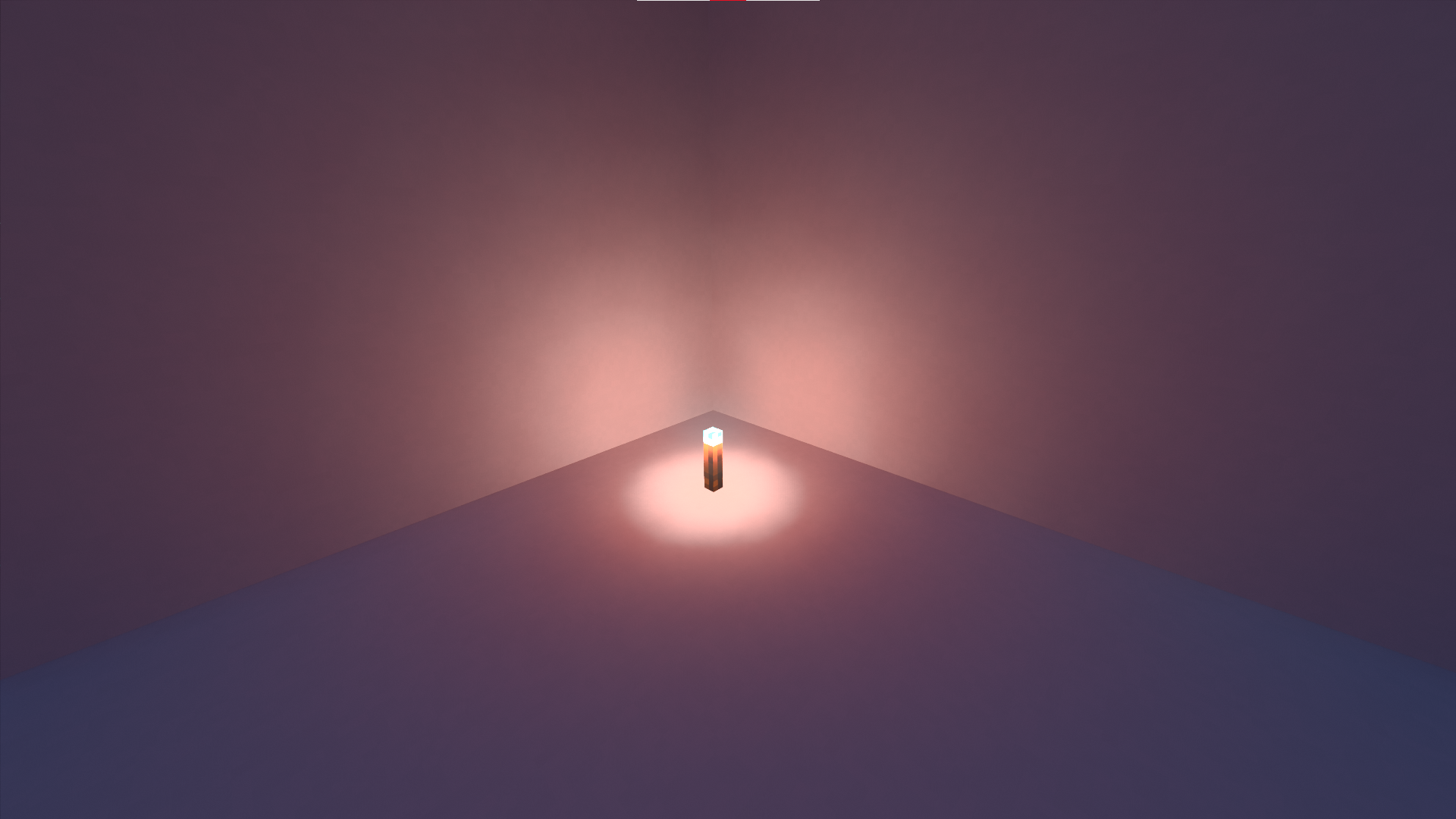
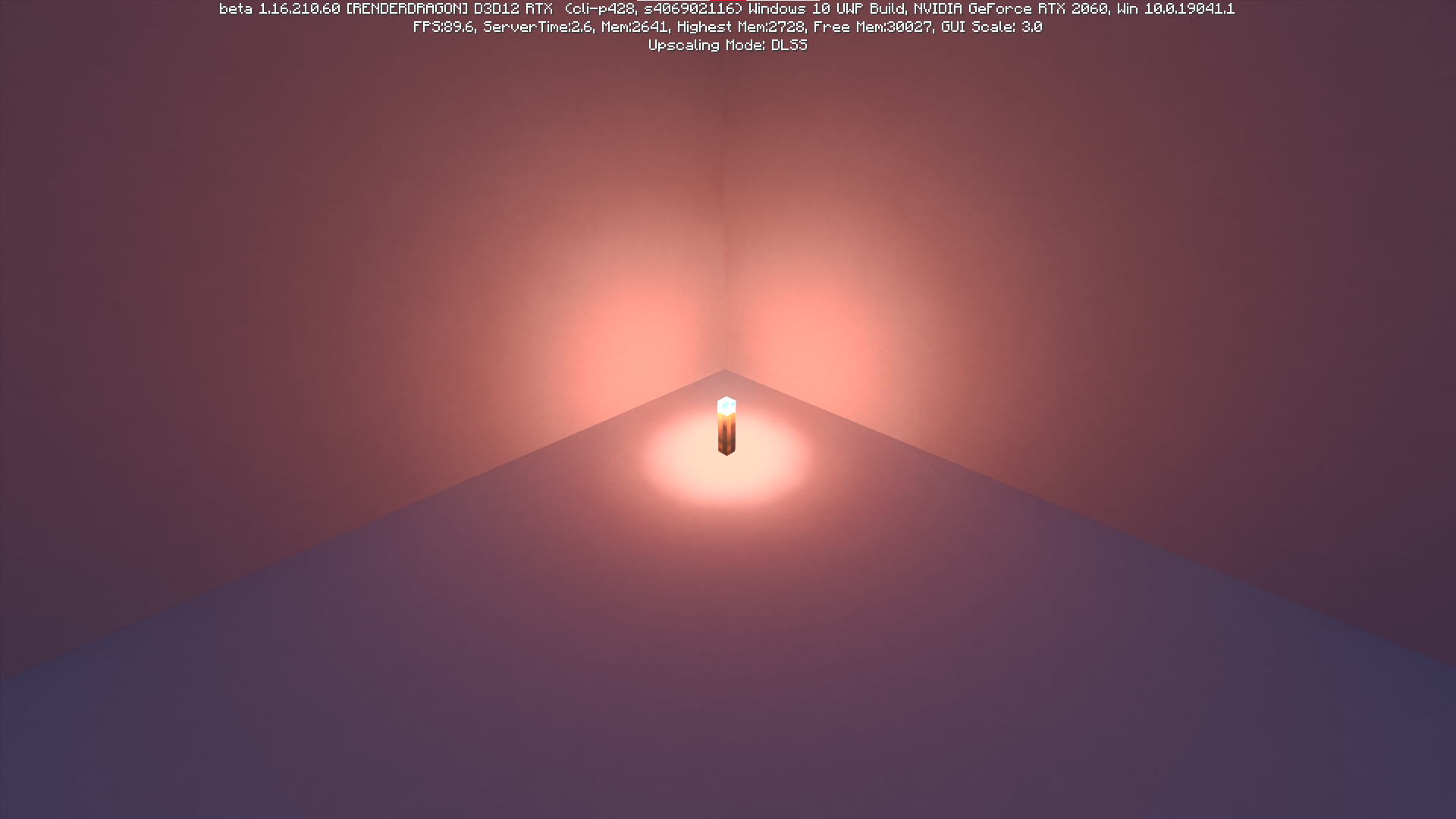
Soul Torches currently have the wrong RGB values in their hard-coded point lights. This means that it can't be changed through resource packs and will always emit red light no matter what the texture set determines.


At night, underwater god rays originate from the opposite angle of the moon, leading to an unnatural look as there is no visual light source that they originate from. Attached is a video demonstrating the issue that I have increased the brightness of for visibility.
Steps to Reproduce:
- Enter any world with Ray Tracing on
- Set the time to 16000
- Go underwater and look at the direction of god ways relative to the moon
Observed Results:
The underwater god rays originate from the opposite angle of the moon
Expected Results:
The god rays should originate from the same angle as the moon, as that is where the physical light source is visually located.
You can download the PBR resource pack I used to take the video and demonstrate the issue here:
https://www.mediafire.com/file/r4iatv86doxtxfo/Defined_PBR_v1.0.4.mcpack/file
At night, underwater god rays originate from the opposite angle of the moon, leading to an unnatural look as there is no visual light source that they originate from. Attached is a video demonstrating the issue that I have increased the brightness of for visibility.
Steps to Reproduce:
- Enter any world with Ray Tracing on
- Set the time to 16000
- Go underwater and look at the direction of god
ways relative to the moonObserved Results:
The underwater god rays originate from the opposite angle of the moon
Expected Results:
The god rays should originate from the same angle as the moon, as that is where the physical light source is visually located.
You can download the PBR resource pack I used to take the video and demonstrate the issue here:
https://www.mediafire.com/file/r4iatv86doxtxfo/Defined_PBR_v1.0.4.mcpack/fileAt night, underwater god rays originate from the opposite angle of the moon, leading to an unnatural look as there is no visual light source that they originate from. Attached is a video demonstrating the issue that I have increased the brightness of for visibility.
Steps to Reproduce:
- Enter any world with Ray Tracing on
- Set the time to 16000
- Go underwater and look at the direction of god rays relative to the moon
Observed Results:
The underwater god rays originate from the opposite angle of the moon
Expected Results:
The god rays should originate from the same angle as the moon, as that is where the physical light source is visually located.
You can download the PBR resource pack I used to take the video and demonstrate the issue here:
https://www.mediafire.com/file/r4iatv86doxtxfo/Defined_PBR_v1.0.4.mcpack/file
Underwater God RaysOriginate From The Opposite Angle Relative To The Moon At NightMoon Lighting Originates From The Opposite Angle Relative To The Moon At Night
At night, underwater god rays originate from the opposite angle of the moon, leading to an unnatural look as there is no visual light source that they originate from. Attached is a video demonstrating the issue that I have increased the brightness of for visibility.
Steps to Reproduce:
- Enter any world with Ray Tracing on
- Set the time to 16000
- Go underwater and look at the direction of god rays relative to the moon
Observed Results:
The underwater god rays originate from the opposite angle of the moon, and the shadows are in the reverse direction
Expected Results:
The god rays should originate from the same angle as the moon and the shadows should be displayed at the right angle, as that is where the physical light source is visually located, and is also how it functions above ground.
You can download the PBR resource pack I used to take the video and demonstrate the issue here:
https://www.mediafire.com/file/r4iatv86doxtxfo/Defined_PBR_v1.0.4.mcpack/file
Moon Lighting Originates From The Opposite Angle Relative To The Moon At Night Underwater
This bug still happens even if the game is not minimized; if I go to interact with another window on my second monitor, then reload a world turning ray tracing on results in a completely black screen, while traditional rendering still works fine.
Affects 1.16.220.50
When playing with Ray Tracing on, glass has a very noticeable loss of transparency at a certain distance that has a significant impact on the gameplay experience. Simply removing this would result in a much better experience while playing the game and would also help creators with making large builds that make use of super long god rays.
Steps to Reproduce:
- Join this world https://www.mediafire.com/file/c2njspr70a5u07r/Builds_and_Stuff.mcworld/file using the PBR resource pack provided below, with Ray Tracing on and at 8 chunks ray tracing render distance
- Go to the coordinates 104 64 127
- Set the time to 23700
- Move back and forth from 106 64 127 to 104 64 127
Observed Results:
The glass as the end of the tunnel loses transparency with Ray Tracing on, plunging the previously fully lit hallway into almost complete darkness.
Expected Results:
The glass should retain it's transparency in order to keep the tunnel fully lit at all times. With Ray Tracing off it does not lose it's transparency.
You can download the PBR resource pack I used to take these screenshots and demonstrate the issue here:
https://www.mediafire.com/file/r4iatv86doxtxfo/Defined_PBR_v1.0.4.mcpack/file
When playing with Ray Tracing on, glass has a very noticeable loss of transparency at a certain distance that has a significant impact on the gameplay experience. Simply removing this would result in a much better experience while playing the game and would also help creators with making large builds that make use of super long god rays.
Steps to Reproduce:
- Join this world https://www.mediafire.com/file/
c2njspr70a5u07r/Builds_and_Stuff.mcworld/file using the PBR resource pack provided below, with Ray Tracing on and at 8 chunks ray tracing render distance- Go to the coordinates 104 64 127
- Set the time to 23700
- Move back and forth from 106 64 127 to 104 64 127
Observed Results:
The glass as the end of the tunnel loses transparency with Ray Tracing on, plunging the previously fully lit hallway into almost complete darkness.
Expected Results:
The glass should retain it's transparency in order to keep the tunnel fully lit at all times. With Ray Tracing off it does not lose it's transparency.
You can download the PBR resource pack I used to take these screenshots and demonstrate the issue here:
https://www.mediafire.com/file/r4iatv86doxtxfo/Defined_PBR_v1.0.4.mcpack/fileWhen playing with Ray Tracing on, glass has a very noticeable loss of transparency at a certain distance that has a significant impact on the gameplay experience. Simply removing this would result in a much better experience while playing the game and would also help creators with making large builds that make use of super long god rays.
Steps to Reproduce:
- Join this world https://www.mediafire.com/file/zz7p0p96slj5ro1/Builds_and_Stuff.mcworld/file using the PBR resource pack provided below, with Ray Tracing on and at 8 chunks ray tracing render distance
- Go to the coordinates 104 64 127
- Set the time to 23700
- Move back and forth from 106 64 127 to 104 64 127
Observed Results:
The glass as the end of the tunnel loses transparency with Ray Tracing on, plunging the previously fully lit hallway into almost complete darkness.
Expected Results:
The glass should retain it's transparency in order to keep the tunnel fully lit at all times. With Ray Tracing off it does not lose it's transparency.
You can download the PBR resource pack I used to take these screenshots and demonstrate the issue here:
https://www.mediafire.com/file/r4iatv86doxtxfo/Defined_PBR_v1.0.4.mcpack/file
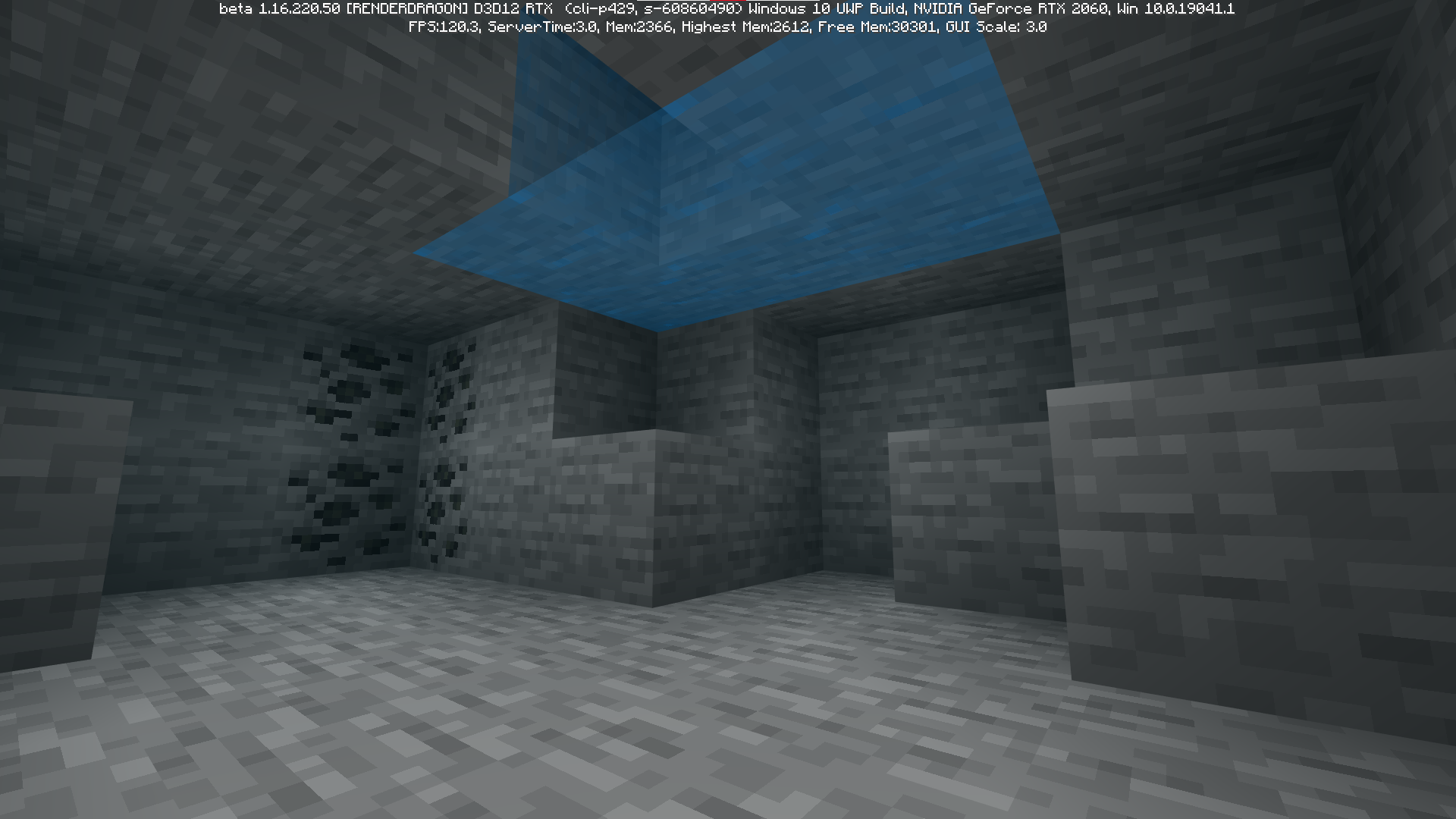
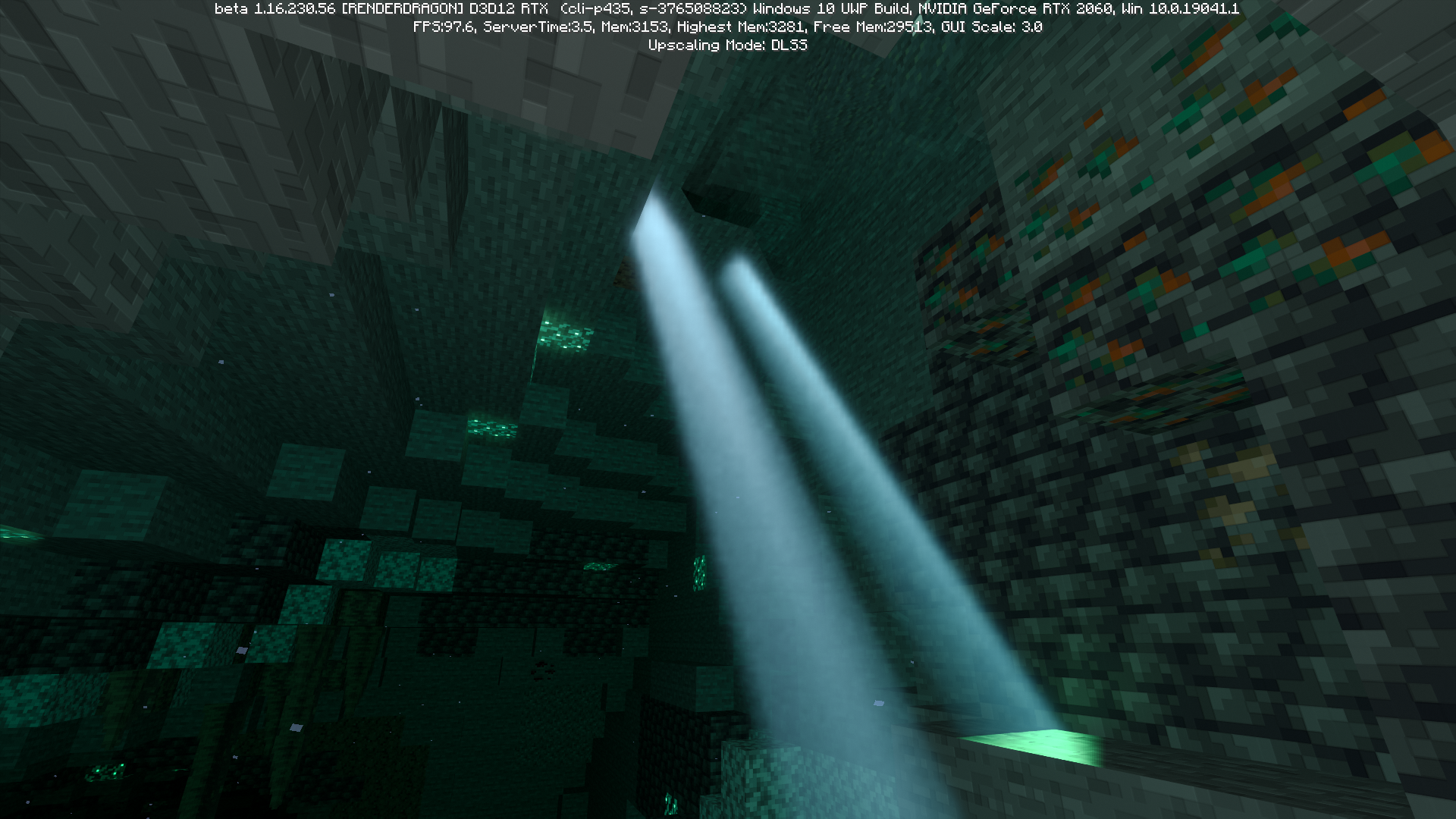
In underwater caves with Ray Tracing on, certain water formations such as having one air block present causes god rays to form despite sunlight having no physical path to the water (being blocked by 40 or so blocks of stone). This is a very jarring and surprising thing to see while playing the game and is just confusing.
Steps to Reproduce:
- Join the attached world with Ray Tracing on and using the PBR resource pack provided below.
Go to the coordinates 1157 27 60Observed Results:
Despite there being no path for sunlight to enter the waterlogged cave, underwater god rays still appear.
Expected Results:
No god rays should be present as there is no physical path for sunlight to reach the cave.
You can download the PBR resource pack I used to take these screenshots and demonstrate the issue here:
https://www.mediafire.com/file/r4iatv86doxtxfo/Defined_PBR_v1.0.4.mcpack/fileIn underwater caves with Ray Tracing on, certain water formations such as having one air block present causes god rays to form despite sunlight having no physical path to the water (being blocked by 40 or so blocks of stone). This is a very jarring and surprising thing to see while playing the game and is just confusing.
Steps to Reproduce:
- Join the attached world with Ray Tracing on and using the PBR resource pack provided below.
- Set the time to 2000
- Go to the coordinates 1157 27 60
Observed Results:
Despite there being no path for sunlight to enter the waterlogged cave, underwater god rays still appear.
Expected Results:
No god rays should be present as there is no physical path for sunlight to reach the cave.
You can download the PBR resource pack I used to take these screenshots and demonstrate the issue here:
https://www.mediafire.com/file/r4iatv86doxtxfo/Defined_PBR_v1.0.4.mcpack/file
Tallgrass emits light even when specified not to with Ray Tracing on
Tallgrass emitslight even when specified not to with Ray Tracing onTallgrass and Spore Blossoms emit light even when specified not to with Ray Tracing on
Occasionally tallgrass generates underground, and with the absence of light sources it is very obvious that for some reason tallgrass emits a very slight amount of light. This happens despite the MER map being completely black in the emissive channel, and even happens when the MER is specified as [ 0, 0, 255 ] in the texture set file.
Steps to Reproduce:
- Join the attached world with Ray Tracing on while using the PBR resource pack linked below
- Go to the coordinates 472 72 -45
- Place tallgrass on the dirt in the middle of the concrete
Observed Results:
There is a very slight amount of green light emitted from the tallgrass, which is visible on the concrete nearby. This happens despite the tallgrass_mer.png file having no data whatsoever in the green channel.
Expected Results:
The tallgrass should not emit any sort of light due to it being specified to be non-emissive in the MER file.
Spore Blossoms:
To reproduce the issue for Spore Blossoms apply the attached PBR resources in a Ray Tracing resource pack and place a spore blossom in a place where the flower portion collides with the side of a block. It will start glowing despite being specified not to glow.
You can download the PBR resource pack I used to take these screenshots and demonstrate the issue here:
https://www.mediafire.com/file/r4iatv86doxtxfo/Defined_PBR_v1.0.4.mcpack/file
Occasionally tallgrass generates underground, and with the absence of light sources it is very obvious that for some reason tallgrass emits a very slight amount of light. This happens despite the MER map being completely black in the emissive channel, and even happens when the MER is specified as [ 0, 0, 255 ] in the texture set file.
Steps to Reproduce:
- Join the attached world with Ray Tracing on while using the PBR resource pack linked below
- Go to the coordinates 472 72 -45
- Place tallgrass on the dirt in the middle of the concrete
Observed Results:
There is a very slight amount of green light emitted from the tallgrass, which is visible on the concrete nearby. This happens despite the tallgrass_mer.png file having no data whatsoever in the green channel.
Expected Results:
The tallgrass should not emit any sort of light due to it being specified to be non-emissive in the MER file.
Spore Blossoms:
To reproduce the issue for Spore Blossoms apply the attached PBR resources in a Ray Tracing resource pack and place a spore blossom in a place where the flower portion collides with the side of a block. It will start glowing despite being specified not to glow.
You can download the PBR resource pack I used to take these screenshots and demonstrate the issue here:
https://www.mediafire.com/file/r4iatv86doxtxfo/Defined_PBR_v1.0.4.mcpack/file


Occasionally tallgrass generates underground, and with the absence of light sources it is very obvious that for some reason tallgrass emits a very slight amount of light. This happens despite the MER map being completely black in the emissive channel, and even happens when the MER is specified as [ 0, 0, 255 ] in the texture set file.
Steps to Reproduce:
- Join the attached world with Ray Tracing on while using the PBR resource pack linked below
- Go to the coordinates 472 72 -45
- Place tallgrass on the dirt in the middle of the concrete
Observed Results:
There is a very slight amount of green light emitted from the tallgrass, which is visible on the concrete nearby. This happens despite the tallgrass_mer.png file having no data whatsoever in the green channel.
Expected Results:
The tallgrass should not emit any sort of light due to it being specified to be non-emissive in the MER file.
Spore Blossoms:To reproduce the issue for Spore Blossoms apply the attached PBR resources in a Ray Tracing resource pack and place a spore blossom in a place where the flower portion collides with the side of a block. It will start glowing despite being specified not to glow.
You can download the PBR resource pack I used to take these screenshots and demonstrate the issue here:
https://www.mediafire.com/file/r4iatv86doxtxfo/Defined_PBR_v1.0.4.mcpack/file


In the 1.16.30.52 changelog, it was explicitly stated that blocks with flipbook textures had gotten support for animated PBR maps. In this version it does in fact function correctly, which I used the version files that I had kept on hand for use with a third party version switcher to demonstrate and test. Since that version something has broken the functionality (possibly the new texture set system). Attached I have 2 videos that record the same block in the same world, with the exact same MER and height maps other than the heightmap formatting change.
Steps to Reproduce:
- Open a world in version 1.16.30.53 with Ray Tracing on, using the provided Smoker Resources - 1.16.30.53 pack
- Place and light a smoker in the world, observing how the emissivity animates
- Open the same world in version 1.16.220.50+ with Ray Tracing on, using the provided Smoker Resources - 1.16.220.50 pack
- Observe the lit smoker in the world and how the emissivity no longer animates
Observed Results:
As the changelog stated, animated PBR maps functioned correctly in version 1.16.30.53, with the emissivity animating correctly. In version 1.16.201 and version 1.16.220.50, this does not happen. The emission map only uses the first frame of the animation, leading to a weirdly static fire on the smoker.
Expected Results:
The functionality of the feature has been present in previous versions of the game, and is currently not on the official Ray Tracing known issues list. Due to this, it is expected that the feature work properly to allow for resource pack creators to use it as a powerful creative tool once again.
In the 1.16.30.52 changelog, it was explicitly stated that blocks with flipbook textures had gotten support for animated PBR maps. In this version it does in fact function correctly, which I used the version files that I had kept on hand for use with a third party version switcher to demonstrate and test. Since that version something has broken the functionality (possibly the new texture set system). Attached I have 2 videos that record the same block in the same world, with the exact same MER and height maps other than the heightmap formatting change.
Steps to Reproduce:
- Open a world in version 1.16.30.53 with Ray Tracing on, using the provided Smoker Resources - 1.16.30.53 pack
- Place and light a smoker in the world, observing how the emissivity animates
- Open the same world in version 1.16.220.50+ with Ray Tracing on, using the provided Smoker Resources - 1.16.220.50 pack
- Observe the lit smoker in the world and how the emissivity no longer animates
Observed Results:
As the changelog stated, animated PBR maps functioned correctly in version 1.16.30.53, with the emissivity animating correctly. In version 1.16.201 and version 1.16.220.50+, this does not happen. The emission map only uses the first frame of the animation, leading to a weirdly static fire on the smoker.
Expected Results:
The functionality of the feature has been present in previous versions of the game, and is currently not on the official Ray Tracing known issues list. Due to this, it is expected that the feature work properly to allow for resource pack creators to use it as a powerful creative tool once again.
Blocks with flipbook textures don't animate their PBRmapsBlocks with flipbook textures don't animate their PBR textures
Entitieswith custom entity materials (such as the oneson featured servers)are completely black with Ray Tracing on
When joining any server any
entity withcustom entitymaterials (such as The Hive's ones)will render as completely black with Ray Tracing on, while the geometry retains full functionality. This significantly hinders the gameplay experience for people who play on featured servers with ray tracing on due to them not being able to tell what the entity in question is supposed to resemble.Steps to Reproduce:
- Join a
server containing entities that use custom materials (such as The Hive)with Ray Tracing on- Enter an area that contains
thoseentities (such as the main hub in The Hive)Observed Results:
The entities have functioning geometry but are completely black
Expected Results:
The entities display their textures properly, allowing players to actually tell what they're supposed to be. This is what happens with Ray Tracing off.
You can download the PBR resource pack I used to take these screenshots and demonstrate the issue here:
https://www.mediafire.com/file/r4iatv86doxtxfo/Defined_PBR_v1.0.4.mcpack/fileWhen joining any server any custom entity on featured servers will render as completely black with Ray Tracing on, while the geometry retains full functionality. This significantly hinders the gameplay experience for people who play on featured servers with ray tracing on due to them not being able to tell what the entity in question is supposed to resemble.
Steps to Reproduce:
- Join a featured server such as The Hive with Ray Tracing on
- Enter an area that contains custom entities (such as the main hub in The Hive)
Observed Results:
The entities have functioning geometry but are completely black
Expected Results:
The entities display their textures properly, allowing players to actually tell what they're supposed to be. This is what happens with Ray Tracing off.
You can download the PBR resource pack I used to take these screenshots and demonstrate the issue here:
https://www.mediafire.com/file/r4iatv86doxtxfo/Defined_PBR_v1.0.4.mcpack/file
Entities on some featured servers are completely black with Ray Tracing on
When joining
anyserveranycustom entity on featured servers will render as completely black with Ray Tracing on, while the geometry retains full functionality. This significantly hinders the gameplay experience for people who play on featured servers with ray tracing on due to them not being able to tell what the entity in question is supposed to resemble.Steps to Reproduce:
- Join a featured server such as The Hive with Ray Tracing on
- Enter an area that contains custom entities (such as the main hub in The Hive)
Observed Results:
The entities have functioning geometry but are completely black
Expected Results:
The entities display their textures properly, allowing players to actually tell what they're supposed to be. This is what happens with Ray Tracing off.
You can download the PBR resource pack I used to take these screenshots and demonstrate the issue here:
https://www.mediafire.com/file/r4iatv86doxtxfo/Defined_PBR_v1.0.4.mcpack/fileWhen joining featured servers with custom entities those entities will render as completely black with Ray Tracing on, while the geometry retains full functionality. This significantly hinders the gameplay experience for people who play on featured servers with ray tracing on due to them not being able to tell what the entity in question is supposed to resemble.
Steps to Reproduce:
- Join a featured server such as The Hive with Ray Tracing on
- Enter an area that contains custom entities (such as the main hub in The Hive)
Observed Results:
The entities have functioning geometry but are completely black
Expected Results:
The entities display their textures properly, allowing players to actually tell what they're supposed to be. This is what happens with Ray Tracing off.
You can download the PBR resource pack I used to take these screenshots and demonstrate the issue here:
https://www.mediafire.com/file/r4iatv86doxtxfo/Defined_PBR_v1.0.4.mcpack/file
When joining certain featured servers with custom entities those entities will render as completely black with Ray Tracing on, while the geometry retains full functionality. This significantly hinders the gameplay experience for people who play on featured servers with ray tracing on due to them not being able to tell what the entity in question is supposed to resemble.
Steps to Reproduce:
- Join a featured server such as The Hive with Ray Tracing on
- Enter an area that contains custom entities (such as the main hub in The Hive)
Observed Results:
The entities have functioning geometry but are completely black
Expected Results:
The entities display their textures properly, allowing players to actually tell what they're supposed to be. This is what happens with Ray Tracing off.
You can download the PBR resource pack I used to take these screenshots and demonstrate the issue here:
https://www.mediafire.com/file/r4iatv86doxtxfo/Defined_PBR_v1.0.4.mcpack/file
![[MCQA] v-weszaj](../../../data/avatars/users/18941.svg)
MADLAD3718 The resource pack you've attached doesn't enable RTX and can't be used to reproduce the issue.
This bug is still an issue in 1.16.200.52
tysm for the update on the issue, that documentation was vital.
When I was able to reproduce it the crash occurred whether ray tracing was on or off. In both cases I had a ray tracing capable pack applied.
Sadly still affects the latest betas all the way up to 1.16.210.56.
Stress Inducer this update introduced a completely new rendering engine and lighting system. It is also possible to get around the increased latency by doing the following:
1. Open file explorer and type %localappdata% into the address bar
2. Go to the Packages folder
3. Find the folder that starts with Microsoft.MinecraftUWP
4. Go to LocalState, games, com.mojang, minecraftpe and open the options.txt file
5. Find gfx_vsync in the file and change the value from 1 to 0
The current workaround is disabling and reapplying the behavior pack before re-entering a world.
A current workaround is disabling and reapplying the behavior pack before re-entering a world.
I was only able to reliably reproduce the issue after it happened. Right after the BSOD I rejoined the world and placed the exact same banner in the exact same place several times. Each time it would repeat the whole thing.
It has gotten way better, but only partially fixed. Placing blocks straight upwards while flying lasts a lot longer than the previous beta but still eventually get out of the player's reach and stops the placement. Placing blocks in a sideways line also is slightly better but still stops placement after just a few blocks.
Affects Beta 1.17.20.20
I would much prefer if the fog scaled properly with render distance instead of being at a set distance. I had actually thought that this was not a bug and a fix for nether fog always being really close to the player.
I don't know if mine will be useful, but I took the screenshots with my own resource pack. Here is the download.
https://www.mediafire.com/file/7rm4nmgtr57o2ys/Defined_PBR_1.1.7.mcpack/file
I was able to apply PBR maps to them myself, so I believe this isn't an issue in normal resource packs, although it does cease to function properly when loaded through a subpack.
A current workaround is adding the "isotropic": false, component to copper ore in the blocks.json file in a resource pack. Originally in the experimental_caves_and_cliffs resource pack it is set to true.
This issue only occurs after Ray Tracing has been turned on in a given game instance; minimizing and reopening the game before ever turning it on and turning it on again will result in it working, but minimizing and reopening again after that results in the same issue.
For some reason the rendering engine switches to DX11 after minimizing the game, which is what causes the black screen and ray tracing to stop functioning.
Here is the link to the resource pack I used to take screenshots of the issue, but it does affect all packs as regardless of using a ray tracing compatible one the engine still switches to DX11.
https://www.mediafire.com/file/r4iatv86doxtxfo/Defined_PBR_v1.0.4.mcpack/file
Steps to reproduce:
Can confirm this happens as well.
Through a bit of research we were able to find the exact cause of this; The Rendering Engine switches to DX11 after minimizing and reopening the game, which breaks DXR. There is a bug report describing this exact issue here:
MCPE-118775.This issue still happens in beta 1.16.220.50, and it would be a great quality of life feature to have the world preview thumbnails be taken with Ray Tracing on.
Affects beta 1.18.20.21
Affects beta 1.18.20.21
Another bug report here (MCPE-104207) cites the exact same issue.
You can download the PBR resource pack I used to take these screenshots and demonstrate the issue here:
https://www.mediafire.com/file/r4iatv86doxtxfo/Defined_PBR_v1.0.4.mcpack/file
I wasn't able to get any screenshots for the beta, but I do recall this happening on beta 1.16.210.61 (when The Hive had the right protocol number to connect to it with beta clients).
Affects release 1.16.210
Affects release 1.16.210
Affects release 1.17.0
Affects release 1.17.0
Affects release 1.17.0
Affects beta 1.16.220.52
Affects Beta 1.17.30.21
Affects Beta 1.18.20.21
Affects Beta 1.18.20.21
Playing with an RTX 2060 and an AMD R5 2600. With Ray Tracing on in the same world, with the same render distance and at the same position/looking direction, having Vsync on lowers the game's framerate by 20fps rather than having it off.
I have discovered that this issue is due to having vsync on, turning it off in the options.txt file will give you back that lost performance.
This also affects spore blossoms
This issue has been fixed in beta 1.16.230.50.
Could this be changed in order to have it function? It would be extremely useful to have this feature in custom biomes that have variating ground textures.
Input lag is much lower now with vsync on, but performance is much worse in release 1.16.220. (Still getting the same ~20fps drop as before).
I was able to reproduce the issue in release 1.16.220 by
Multiple people have pointed out to me that performance gets a lot worse when vsync is on while they are playing with Ray Tracing on. Unfortunately this is a widespread issue.
Affects beta 1.17.30.21
Affects beta 1.17.10.21
The fogs in these biomes seem to switch with each other, as well as the biome particles.
This seems to be an issue caused by z-fighting, I've experienced this many times myself.
I was able to reproduce this issue in beta 1.17.0.52 using the exact steps mentioned in the previous comment. I have attached a few screenshots.
I was able to reproduce this issue in my own personal world using the steps above, and have attached a screenshot of it's occurrence.
@Cory Breen that was a technical demonstration and was not a confirmation of the feature working, it is currently not implemented on any of the new consoles.
I wasn't able to get a screenshot or more footage as of yet, but it did occur again in beta 1.17.0.50.
It would be greatly appreciated for this functionality to be added to the game.
PBR textures for the conduit still do not function.
Affects beta 1.18.20.21
Affects beta 1.18.20.21
Interestingly enough, I was not able to reproduce the issue again. It must've been an error with one specific world being created. It should be fine to close this issue now, if that's how reports are ended.
Fixed in beta 1.17.0.56
Particles are also offset when the Spyglass is used.
It also seems that the distance of this fog can't be changed through resource packs either.
I should've mentioned that this offset is visually apparent when you look to the side after casting.
This has happened to myself on many occasions, and I have not been able to find a method to reproduce it. All I know is that it seems to happen in random specific locations and at random times.
It would be great if the fog inside of clouds were to be visible when you are standing inside of them, hoping for this bug to be fixed eventually.
Affects beta 1.17.20.20
Affects beta 1.18.20.21
Affects beta 1.18.20.21
Affects beta 1.18.20.21
Affects beta 1.18.20.21
I have experienced this bug no matter which PBR resource pack I apply.
Unfortunately the creator of the video claims that it has been lost, but the content contained was very straightforward.
I've had this occasionally happen to myself as well.
This is an issue in any resource pack that had a water texture with pixels that had less than 55% opacity. I checked this value using photoshop, and had been editing the alpha channel of a .tga water texture.
Affects release 1.18.12
Affects beta 1.17.30.21
Affects beta 1.18.20.21
Affects beta 1.18.20.21
Affects beta 1.18.20.21
Affects beta 1.17.30.21
The entities on The Hive have been fixed, but other featured servers still have this issue
Entities and block entities (such as chests) are culled when off screen with the legacy lighting. Since lighting is calculated in worldspace with Ray Tracing, this behaviour should be disabled when Ray Tracing is on. The problem is that it isn't disabled.
Affects beta 1.18.20.21
Affects beta 1.18.20.21
Affects beta 1.18.20.21
I've attached a screenshot comparison with two different windows 10 devices, both using the exact same video settings. I've also attached the addon featured in the screenshot. The block I am highlighting there is the Chroma Lightstrip block, which can be found in the creative inventory for testing.
I believe this is an issue to do with the resource pack, try this one and you'll see that PBR textures for all blocks are functional: https://www.mediafire.com/file/ngisqn3mkjn4c44/Defined_PBR_v1.1.5.mcpack/file
I believe it was something to do with a bug that was in beta 1.17.0.52, which caused all liquids under y=0 to be rendered improperly. It was fixed in the following beta.
Affects myself as well in beta 1.17.40.21, I've attached a screenshot. Here is the PBR resource pack I was using: https://www.mediafire.com/file/ngisqn3mkjn4c44/Defined_PBR_v1.1.5.mcpack/file
I've found a reliable way to reproduce the issue, updated issue name and description.
This issue is most likely due to the top and bottom faces of glass panes not culling when they are placed on top of each other.
Interestingly those cull correctly.
For those of you who are currently affected by this, try updating windows. This has previously fixed it for a few!
Affects Beta 1.18.20.21
Still not fixed with Ray Tracing on
I can confirm this affects beta 1.18.0.21 as well
It actually looks to be the same issue
This issue appears to have been fixed in beta 1.18.0.24
The issue is still visible without changing the Render Method, as you can observe the ambient occlusion disappearing from behind blocks like vines when moving a small distance away from its location. Toggling between the raw path tracer output and the final denoised output is how we discovered that the denoiser is not effectively retaining shadow, reflection and ambient occlusion quality.
Since the Render Method option isn't actually available to change in the vanilla UI, we believe that it is an internal parameter accessible to developers through a specific RTX tweaks menu. Since this is true, the only way we could find and change the option was through a third party program that could edit the values stored in memory by another program, called Cheat Engine. The way you would observe the major issues that the denoiser brings compared to the raw path tracer is by changing the Render Method, which can turn off the denoiser.
I have attached a Cheat Table file to this bug report, with which you can open through Cheat Engine. After opening the file, it will include the memory pointer to the Render Method option, and to make it work you will initially need to attach Cheat Engine to the Minecraft process under "Select a process to open > Processes > Minecraft.Windows.exe". The pointers included in the Cheat Table will automatically reveal the location and value of the Render Method option, so using that you should be able to set it to 1 and observe the game without the denoiser. This specific cheat table is only compatible with the release 1.17.41 version of the game.
I previously created a report for this issue and how it affects Ray Tracing in the game here, there should be plenty of attached images on this report.
MCPE-119904As of beta 1.18.0.25 I have good reason to believe that now most if not all ray tracing capable devices (even ones that worked in beta 1.18.0.24) can no longer activate ray tracing and are marked as unsupported in the game ui.
Upon reinstalling the new beta it seems to be functioning again. Unfortunately I was not able to note any differences in the installation method that could've caused it.
Turning off vsync is a known fix for this, here is a link to an example PBR resource pack that implements the vsync option into video settings to make it much more accessible to be turned off. https://www.mediafire.com/file/ngisqn3mkjn4c44/Defined_PBR_v1.1.5.mcpack/file
I can confirm this still affects beta 1.18.10.21. I have attached a screenshot of the issue occurring in this version.
Affects release 1.18.31 and preview 1.19.0.31
This issue still affects 1.18.2 even with updated drives and OS, join Mineplex with Ray Tracing on to reproduce it.
Affects release 1.18.2, disabling vsync in game still results in around twice the framerate than the default does.
Interestingly this issue still affects the game all the way up to the recent versions, and is still directly caused by the Beautiful Skies option being turned off.
This issue still occurs in beta 1.18.10.24, and I have attached a water texture that causes it. I previously found that any pixel that had less than 55% opacity in the alpha channel of a .tga water texture would cast a shadow underwater, preventing any god rays from forming. I've attached the water texture I used to reproduce the issue here.
Affects release 1.19.10.
Affects beta 1.18.10.24. A workaround to this issue was found recently as well. By setting the Light Block's blockshape component in the blocks.json file to lantern, torch or end_rod it is possible to force the game to use a point light at the location of the Light Block, giving them functionality again. I've attached an example blocks.json file that fixes this.
I have found that this bug enables players to create an X-Ray, allowing them to see under chunks when their head is inside a block that has fallen onto them.
Affects beta 1.18.20.21
Affects beta 1.18.20.21
Affects beta 1.18.20.21
Affects beta 1.18.20.21
I have found that the absolute minimum alpha before the water texture breaks is 149. Any alpha value lower than that will cause the pixel to cast a shadow and prevent volumetric fog or caustics from rendering.
I can confirm the LiveKernelEvent problem affects myself as well, and after a long discussion with Nvidia support I discovered that by turning Vsync off for Minecraft in the Nvidia control panel the crash would no longer occur. As weedelbhoy1 has stated, it is a random occurrence, usually happening after leaving a ray tracing world and waiting in the menu for a while.
In the video you link ibxToyCat was using Defined PBR, but I have also found that this occurs with any RTX resource pack.
When the game causes this display crash, the specific errror caused is as follows:
Display driver nvlddmkm stopped responding and has successfully recovered.
Occasionally the driver does not successfully recover.
Through looking around in some of the public GeForce forums I've found that giving the nvlddmkm file in the windows folder full permissions under admins and users seemed to have stopped the issue from occurring again. According to the thread, the display driver crash was a product of windows detecting a GPU freeze and attempting to reset display output in order to regain responsiveness.
I've found that it is possible to create a workaround for the issue through a resource pack. Utilizing the ability to make transparent pixels emit light (which should be considered as a feature due to how incredibly useful it has been), it is possible to make those pixels emit more light in the proper colour than the very point light that is applied to the block itself. I've attached example files to demonstrate this fix.
(The albedo for the soul torch is in 64x64 in order to fix another bug, where the soul torch faces were otherwise being offset from their proper location on the block)
A better title for this issue would be "Texture variations only support MER colour arrays" since I've discovered that they do in fact load an MER only if it is set through a colour array value in the texture set. They still do not support MER images nor do they support heightmaps or normals.
I've edited the previous video to more clearly point out the issue. I believe it is sufficient enough to properly showcase what is wrong with the image: https://youtu.be/SZhCuKbNQUE
Affects hotfix 1.18.31, although personally I was not able to reproduce it through conventional methods anymore. On specific devices/environments it can be caused still.
Affects Beta/Preview 1.19.0.30/31. I believe increasing the frequency of Irradiance Cache updates in game could help reduce the issues that are worked around by resetting it at specific times of day.
Affects Release 1.18.31.
I can confirm this still affects the game in Preview 1.19.0.35.
I was using resouce pack of my own creation, that had made no changes to the animated texture file itself.
I have attached the resource pack, but it occurs while using other packs as well.
Updating any nearby blocks does not remove the point light.
This is an issue with the PBR resource pack you are using. Make sure yours is updated to it's most recent release and that it supports the new 1.19 blocks, and you should no longer see this issue.
Still affects Preview 1.19.20.24. Please do not resolve this issue as it still occurs despite it's listing on the changelog.
I can confirm that this has been fixed.
This issue appears to be fixed as of Preview 1.19.20.24
It turns out that lanterns were the culprit for the point lights, I've updated this report accordingly.
This has been fixed in Preview 1.19.30.22.
I've attached my RTX resource pack to the report. This occurs with multiple other packs that I don't typically use regularly as well, according to the many accounts from the community I've witnessed.
I've already attatched an example water texture file that should cause this bug, but have now also created a custom resource pack that showcases the issue. You can take a look at the alpha channel of the targa water texture image in the resource pack in order to see the correlation between alpha value and water texture shadow.
My bad, I didn't know that was specifically what you were looking for. The pack I uploaded to the report can be used in conjunction with any other resource pack that activates Ray Tracing, and simply has to be placed above the base PBR resource pack in your resource pack stack. I'll attach my own PBR resource pack which you can apply to a world under the RTX Water Texture Bug pack to showcase the issue.
The setting is a value stored in Minecraft's memory and editable through cheat engine. The reason why it's there in the first place is because it is available in the developer's IMGUI menus for use with Ray Tracing. Since those are inaccessible in release builds of the game, the next best thing is using a program with the cqapability to change the value through editing Minecraft's application memory. Cheat Engine is one of those, and upon loading one of the cheat tables I previously attached to this post with the corresponding Minecraft version you'll gain access to changing the value. Since this was introduced in a 1.19 beta it would be best to use the 1.18.32 cheat table to see how it functioned properly beforehand. If you'd like a much more accessible way to access and change the sun azimuth in the latest versions of Minecraft then Render Bender would be your best option, available through https://github.com/SpeedyCodes/RenderBender
Nothing about the world has been modified with a third party program. All that is required to reprodue this bug is to try and use the Sun Azimuth value in the developer RTX IMGUI menu, and the only way to achieve the same thing in release versions of the game is through a third party program that simply changes one variable stored in memory. No significant or permenant alterations are being made here, and the setting itself is officially available in non-release versions of the game. Since a third party tool is not necessary to reproduce the issue in non-release versions of the game, it shouldn't be considered invalid.
This issue is different from the one you are describing.
This occurs with any Ray Tracing resource pack. It typically only starts happening after playing the game/having it open for a short while beforehand, and while another program is open at the same time. In my specific case using Photoshop seemed to increase the occurances of the crash but in other player's cases they did not have Photoshop open.
Seems to be fixed in Preview 1.19.40.24
From what I can recall it seemed to occur more often when Minecraft wasn't focussed, although I haven't been able to specifically test for that with how random the occurance of the issue is.
Just had it occur again, it was as soon as I switched focus to discord from Minecraft, which was using Ray Tracing and actively in a server world.
Affects release 1.19.50, and chunk load errors appear to be happening as well
Silentwisperer also experienced this issue in their latest video, while using Defined PBR (which uses 16x16 PBR textures). It appears that the game is reading from PBR materials as if they were the albedo texture for certain blocks instead of reading the proper texture.
I have not experienced this issue post 1.19.70 previews. Fix seems to have also worked on my end.
This issue is still present in release 1.19.62 and can still be reproduced by following the procedure outlined in this report.
No. That issue describes the z-fighting experienced by the different surfaces of the pot. This issue is similar to the issues with chests, trapped chests, ender chests and piston arms as all of these objects don't support PBR textures.
Would you mind providing more information on the reasoning behind not fixing this issue?
I would have an example if these blocks could apply PBR textures, but in order to get the same effect their models must be recreated and converted to blocks to demonstrate PBR capabilities. At the moment they function the same as entities and never apply any of the PBR textures that they are assigned.
Would you mind providing some context behind the decision to not fix this issue?
Myself as well as many others would still like to get sort of calrification at all on why this issue won't be fixed. Evidently the model can be slightly edited in order to avoid any z-fighting on it's surfaces so from a third person perspective it doesn't seem reasonable not to fix this. Would appreciate any actual information on it though so that we have more than speculation to go off of.
Affects latest preview 1.19.80.22.
Was this issue incorrectly resolved? 1.19.72 isn't available on Windows, and neither the previous hotfix 1.19.71 or the latest preview 1.19.80.22 have fixed the issue.
Can confirm this report has been resolved erroneously, as the issue has not been fixed in 1.19.73.
I've been able to observe its occurance in Preview 1.19.80.23.
Even in preview 1.20.10.21 this issue is still present when Ray Tracing is enabled.