Cannot import Worlds and Resource/Behavior Packs in iOS 13 and above
You can import worlds and resource packs in iOS 13 and above by using the Files app and the Notes app. Note that doing this will create an extra copy of the world in the game's storage (MCPE-161293). You will need to manually delete the extra copy.
- Download the world/pack.
- Open the Files app and navigate to the "Downloads" folder.
- Press and hold on the pack or world to bring up a menu, then select "copy."
- Open the Notes app and create a new note.
- Tap in the note to bring up the edit menu, then select "paste." The file link will be pasted into the note.
- Tap on the file to bring up a screen showing an icon, the file size, number of files, and "Preview Content" button.
- In the lower left corner of the screen, tap the the "share" icon.
- Select Minecraft from the list of apps in the bottom row of the share options.
Once you see the "import successful" message in Minecraft, you can safely delete the world/packs from Notes and Downloads, because Minecraft copies the files to the appropriate game folder when it imports them.
The bug
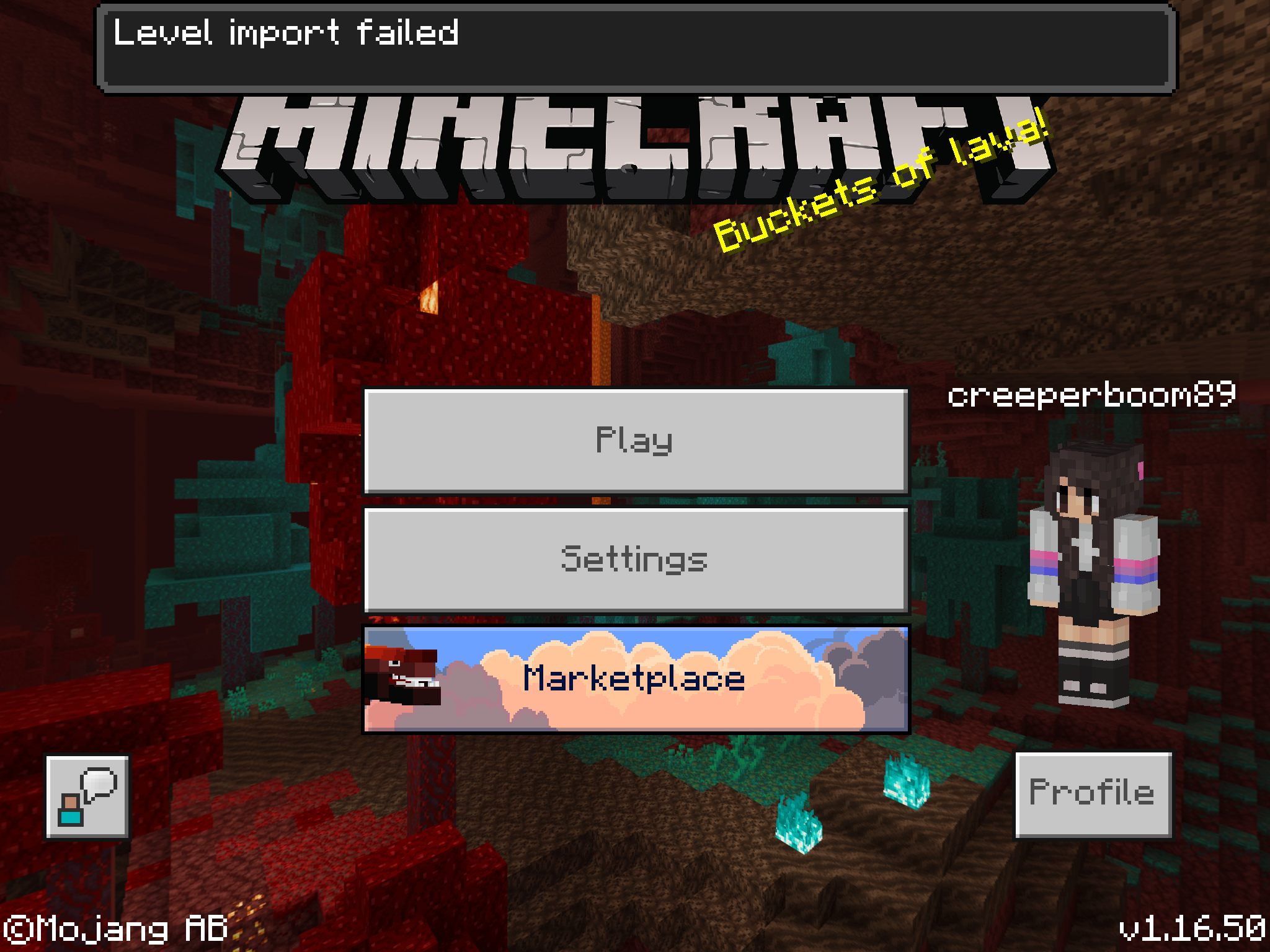
Importing worlds on iOS 13 fails everytime you use the files application. Making worlds difficult to import.
How to reproduce
- Download a .mcworld file type world or resource/behavior pack
- Open the files application
- Press the file
→  "Level import failed" or "import failed"
Linked Issues
is duplicated by42
 BDS-16000If I try to add a “mod” it’s says failed to import......Duplicate
 MCPE-47572iPad OS 13 issueDuplicateMCPE-49010Unable to import .mc(pack/world/template/addon) to MinecraftDuplicateMCPE-49349Copy to minecraft does not appear in .mcpack filesDuplicateMCPE-49417Minecraft addons DuplicateMCPE-50961Mcpack files cannot be opened in iOS 13 / iPadOS 13DuplicateMCPE-51273I do not have “Copy to Minecraft” button, when I try to import world, resourcepack, etc.DuplicateMCPE-51368Importing mcpack in iOS 13DuplicateMCPE-52654Tapping behaviour/resource packs direct from the download no longer works without moving the pack into the files. DuplicateMCPE-53406unable to import map to minecraft (IOS)DuplicateMCPE-53661iOS 13 importing worlds textures and behavior packsDuplicateMCPE-54215I can't download mods and resource packs of the internet on Minecraft PEDuplicateMCPE-55711No longer able to import Worlds and Resource Packs in iosDuplicateMCPE-60702You cant import stuff into minecraft like addonDuplicateMCPE-60703Import world to Bedrock option not appearingDuplicateMCPE-61057No More "Copy To Minecraft" Button In AddOn AppsDuplicateMCPE-63452Unable to import .mcpack and .mcworldDuplicateMCPE-67786Level Imports Fail EverytimeDuplicateMCPE-72300Can't import .mcworld fileDuplicateMCPE-74665Issue When Attempting to Import Addons that differentiate from MarketplaceDuplicateMCPE-75225Minecraft fails to import anything DuplicateMCPE-79553Will not let me import filesDuplicateMCPE-81652Still not resolved. Level Import failed on iOSDuplicateMCPE-83738Importing doesnt work on iosDuplicateMCPE-84275Addons not importingDuplicateMCPE-85729Not letting me import my mapsDuplicateMCPE-96286Can't import resource packsDuplicateMCPE-102118I can't import MCPE mapsDuplicateMCPE-102554I can't download any mods or maps for my Minecraft on my iPhone DuplicateMCPE-122421I want to import a shader but it says the import has failedDuplicateMCPE-126501Importing Texture packs needs to be fixedDuplicateMCPE-126922Not letting me download behavior or resource packsDuplicateMCPE-127849Not important but I was trying to download a pokemon mod for my friends birthday and it said failed to load ever time I tried.DuplicateMCPE-128321Import failedDuplicateMCPE-136130.mcpack file "Failed to import"DuplicateMCPE-138426Every level import failingDuplicateMCPE-139593Resource Pack importing may not be working.DuplicateMCPE-148404Import failDuplicateMCPE-156695Behavior packs has failed to load after the mega release of 1.19 updateDuplicateMCPE-160414Issues with addonsDuplicateMCPE-164813i cant import minecraft external files from iOS/iPadOS files appDuplicateMCPE-164828Villager trading blocksDuplicate


- Unresolved
 CallMeChris
- Kevin Castro
- 34
- 21
- Community Consensus
- 260351
- iOS
- iOS 13.0 Developer Beta (IPSW)
- import
1.21.20.21 Preview - 1.21.1 Hotfix
1.21.20.21 Preview 1.19.10.21 Preview 1.17.11 Hotfix 1.17.10 1.14.1 Hotfix 1.11.4 1.12.1 1.13.0 1.14.30 Hotfix 1.14.60 Hotfix 1.16.0 1.16.20 1.16.50 Hotfix (iOS) 1.16.40 Hotfix 1.16.100 1.16.101 Hotfix 1.16.210 1.16.221 Hotfix 1.17.41 Hotfix 1.19.0 1.19.11 Hotfix 1.19.50 1.20.12 Hotfix 1.20.40.22 Preview 1.20.30 1.20.40.24 Preview 1.20.32 Hotfix 1.20.40 1.20.62 Hotfix 1.20.80.20 Preview 1.21.1 Hotfix
Created Issue:
[Reported to Apple] iOS 13 Share Sheet No Open in Minecraft Option
Problem: New Share Sheet (No Open in Minecraft)
Attachments2
- Unresolved
- Open
- Unconfirmed
- iOS
- iOS 13.0 Developer Beta (IPSW)
- 1.11.4
![[MCPE Mod] Celesian](../../../data/avatars/users/81635.png)
is duplicated by
![[Mojang] Mega_Spud (Jay Wells)](../../../data/avatars/users/92696.png)
is duplicated by
is duplicated by
I’m also having the same issue. The only way I was able to get past the freeze was by:
- Deleting Minecraft (after backing up my files)
- Re-installing Minecraft
- Choosing not to sign into my Microsoft account
Obviously that limits the functionality of the game, no longer allowing me to play online for one thing.
I’m on an iPad 10.3” running IOS 13.3 with Minecraft v1.14.1, hoping the gets fixed soon.
I’m also having the same issue. The only way I was able to get past the freeze was by:
Deleting Minecraft (after backing up my files)
Re-installing Minecraft
Choosing not to sign into my Microsoft account
Obviously that limits the functionality of the game, no longer allowing me to play online for one thing.
I’m on an iPad 10.5” running IOS 13.3 with Minecraft v1.14.1, hoping the gets fixed soon.
![[Mod] OcelotOnesie](../../../data/avatars/users/43220.png)
is duplicated by
is duplicated by
is duplicated by
is duplicated by

is duplicated by
![[Bot] Arisa](../../../data/avatars/users/43007.png)
![[Mod] GoldenHelmet](../../../data/avatars/users/18951.svg)
WorkaroundYou can import worlds and resource packs in iOS 13 by using the Files app and the Notes app.
- Download the world/pack.
- Open the Files app and navigate to the "Downloads" folder.
- Press and hold on the pack or world to bring up the action menu, then select "copy."
- Open the Notes app and create a new note.
- Tap in the note to bring up the edit menu, then select "paste." The file link will be pasted into the note.
- Tap on the file to bring up a screen showing an icon, the file size, number of files, and "Preview Content" button.
- In the upper right corner of the screen, tap the the "send" icon.
- Select Minecraft from the list of apps in the bottom row of the send options.
Original Title
[Reported to Apple] iOS 13 Share Sheet No Open in Minecraft OptionProblem: New Share Sheet (No Open in Minecraft)
WorkaroundYou can import worlds and resource packs in iOS 13 by using the Files app and the Notes app.
- Download the world/pack.
- Open the Files app and navigate to the "Downloads" folder.
- Press and hold on the pack or world to bring up
the actionmenu, then select "copy."- Open the Notes app and create a new note.
- Tap in the note to bring up the edit menu, then select "paste." The file link will be pasted into the note.
- Tap on the file to bring up a screen showing an icon, the file size, number of files, and "Preview Content" button.
- In the upper right corner of the screen, tap the the "send" icon.
- Select Minecraft from the list of apps in the bottom row of the send options.
Original Title
[Reported to Apple] iOS 13 Share Sheet No Open in Minecraft OptionProblem: New Share Sheet (No Open in Minecraft)
WorkaroundYou can import worlds and resource packs in iOS 13 by using the Files app and the Notes app.
- Download the world/pack.
- Open the Files app and navigate to the "Downloads" folder.
- Press and hold on the pack or world to bring up a menu, then select "copy."
- Open the Notes app and create a new note.
- Tap in the note to bring up the edit menu, then select "paste." The file link will be pasted into the note.
- Tap on the file to bring up a screen showing an icon, the file size, number of files, and "Preview Content" button.
- In the upper right corner of the screen, tap the the "send" icon.
- Select Minecraft from the list of apps in the bottom row of the send options.
Original Title
[Reported to Apple] iOS 13 Share Sheet No Open in Minecraft OptionProblem: New Share Sheet (No Open in Minecraft)
[Reported to Apple] iOS 13 Share Sheet No Open in Minecraft OptionCannot import worlds and packs in iOS 13
WorkaroundYou can import worlds and resource packs in iOS 13 by using the Files app and the Notes app.
- Download the world/pack.
- Open the Files app and navigate to the "Downloads" folder.
- Press and hold on the pack or world to bring up a menu, then select "copy."
- Open the Notes app and create a new note.
- Tap in the note to bring up the edit menu, then select "paste." The file link will be pasted into the note.
- Tap on the file to bring up a screen showing an icon, the file size, number of files, and "Preview Content" button.
- In the upper right corner of the screen, tap the the "send" icon.
- Select Minecraft from the list of apps in the bottom row of the send options.
Original Title
[Reported to Apple] iOS 13 Share Sheet No Open in Minecraft OptionProblem: New Share Sheet (No Open in Minecraft)
WorkaroundYou can import worlds and resource packs in iOS 13 by using the Files app and the Notes app.
- Download the world/pack.
- Open the Files app and navigate to the "Downloads" folder.
- Press and hold on the pack or world to bring up a menu, then select "copy."
- Open the Notes app and create a new note.
- Tap in the note to bring up the edit menu, then select "paste." The file link will be pasted into the note.
- Tap on the file to bring up a screen showing an icon, the file size, number of files, and "Preview Content" button.
- In the upper right corner of the screen, tap the the "send" icon.
- Select Minecraft from the list of apps in the bottom row of the send options.
Once you see the "import successful" message in Minecraft, you can safely delete the world/packs from Notes and Downloads, because Minecraft copies the files to the appropriate game folder when it imports them.Original Title
[Reported to Apple] iOS 13 Share Sheet No Open in Minecraft OptionProblem: New Share Sheet (No Open in Minecraft)
WorkaroundYou can import worlds and resource packs in iOS 13 by using the Files app and the Notes app.
- Download the world/pack.
- Open the Files app and navigate to the "Downloads" folder.
- Press and hold on the pack or world to bring up a menu, then select "copy."
- Open the Notes app and create a new note.
- Tap in the note to bring up the edit menu, then select "paste." The file link will be pasted into the note.
- Tap on the file to bring up a screen showing an icon, the file size, number of files, and "Preview Content" button.
- In the upper right corner of the screen, tap the the "send" icon.
- Select Minecraft from the list of apps in the bottom row of the send options.
Once you see the "import successful" message in Minecraft, you can safely delete the world/packs from Notes and Downloads, because Minecraft copies the files to the appropriate game folder when it imports them.Original Title
[Reported to Apple] iOS 13 Share Sheet No Open in Minecraft OptionProblem: New Share Sheet (No Open in Minecraft)
WorkaroundYou can import worlds and resource packs in iOS 13 by using the Files app and the Notes app.
- Download the world/pack.
- Open the Files app and navigate to the "Downloads" folder.
- Press and hold on the pack or world to bring up a menu, then select "copy."
- Open the Notes app and create a new note.
- Tap in the note to bring up the edit menu, then select "paste." The file link will be pasted into the note.
- Tap on the file to bring up a screen showing an icon, the file size, number of files, and "Preview Content" button.
- In the upper right corner of the screen, tap the the "send" icon.
- Select Minecraft from the list of apps in the bottom row of the send options.
Once you see the "import successful" message in Minecraft, you can safely delete the world/packs from Notes and Downloads, because Minecraft copies the files to the appropriate game folder when it imports them.
Original Title
[Reported to Apple] iOS 13 Share Sheet No Open in Minecraft OptionProblem: New Share Sheet (No Open in Minecraft)
is duplicated by
is duplicated by
WorkaroundYou can import worlds and resource packs in iOS 13 by using the Files app and the Notes app.
- Download the world/pack.
- Open the Files app and navigate to the "Downloads" folder.
- Press and hold on the pack or world to bring up a menu, then select "copy."
- Open the Notes app and create a new note.
- Tap in the note to bring up the edit menu, then select "paste." The file link will be pasted into the note.
- Tap on the file to bring up a screen showing an icon, the file size, number of files, and "Preview Content" button.
- In the
upper right corner of the screen, tap the the "send" icon.- Select Minecraft from the list of apps in the bottom row of the s
endoptions.Once you see the "import successful" message in Minecraft, you can safely delete the world/packs from Notes and Downloads, because Minecraft copies the files to the appropriate game folder when it imports them.
Original Title
[Reported to Apple] iOS 13 Share Sheet No Open in Minecraft OptionProblem: New Share Sheet (No Open in Minecraft)
WorkaroundYou can import worlds and resource packs in iOS 13 by using the Files app and the Notes app.
- Download the world/pack.
- Open the Files app and navigate to the "Downloads" folder.
- Press and hold on the pack or world to bring up a menu, then select "copy."
- Open the Notes app and create a new note.
- Tap in the note to bring up the edit menu, then select "paste." The file link will be pasted into the note.
- Tap on the file to bring up a screen showing an icon, the file size, number of files, and "Preview Content" button.
- In the lower left corner of the screen, tap the the "share" icon.
- Select Minecraft from the list of apps in the bottom row of the share options.
Once you see the "import successful" message in Minecraft, you can safely delete the world/packs from Notes and Downloads, because Minecraft copies the files to the appropriate game folder when it imports them.
Original Title
[Reported to Apple] iOS 13 Share Sheet No Open in Minecraft OptionProblem: New Share Sheet (No Open in Minecraft)
is duplicated by

WorkaroundYou can import worlds and resource packs in iOS 13 by using the Files app and the Notes app.
- Download the world/pack.
- Open the Files app and navigate to the "Downloads" folder.
- Press and hold on the pack or world to bring up a menu, then select "copy."
- Open the Notes app and create a new note.
- Tap in the note to bring up the edit menu, then select "paste." The file link will be pasted into the note.
- Tap on the file to bring up a screen showing an icon, the file size, number of files, and "Preview Content" button.
- In the lower left corner of the screen, tap the the "share" icon.
- Select Minecraft from the list of apps in the bottom row of the share options.
Once you see the "import successful" message in Minecraft, you can safely delete the world/packs from Notes and Downloads, because Minecraft copies the files to the appropriate game folder when it imports them.
Original Title
[Reported to Apple] iOS 13 Share Sheet No Open in Minecraft OptionProblem: New Share Sheet (No Open in Minecraft)
WorkaroundYou can import worlds and resource packs in iOS 13 by using the Files app and the Notes app.
- Download the world/pack.
- Open the Files app and navigate to the "Downloads" folder.
- Press and hold on the pack or world to bring up a menu, then select "copy."
- Open the Notes app and create a new note.
- Tap in the note to bring up the edit menu, then select "paste." The file link will be pasted into the note.
- Tap on the file to bring up a screen showing an icon, the file size, number of files, and "Preview Content" button.
- In the lower left corner of the screen, tap the the "share" icon.
- Select Minecraft from the list of apps in the bottom row of the share options.
Once you see the "import successful" message in Minecraft, you can safely delete the world/packs from Notes and Downloads, because Minecraft copies the files to the appropriate game folder when it imports them.
The bug
Importing worlds on iOS 13 fails everytime you use the files application. Making worlds difficult to import.
To reproduce:
- Download a .mcworld file type world
- Open the files application
- Press the file
→
WorkaroundYou can import worlds and resource packs in iOS 13 by using the Files app and the Notes app.
- Download the world/pack.
- Open the Files app and navigate to the "Downloads" folder.
- Press and hold on the pack or world to bring up a menu, then select "copy."
- Open the Notes app and create a new note.
- Tap in the note to bring up the edit menu, then select "paste." The file link will be pasted into the note.
- Tap on the file to bring up a screen showing an icon, the file size, number of files, and "Preview Content" button.
- In the lower left corner of the screen, tap the the "share" icon.
- Select Minecraft from the list of apps in the bottom row of the share options.
Once you see the "import successful" message in Minecraft, you can safely delete the world/packs from Notes and Downloads, because Minecraft copies the files to the appropriate game folder when it imports them.
The bug
Importing worlds on iOS 13 fails everytime you use the files application. Making worlds difficult to import.
To reproduce:
- Download a .mcworld file type world or resource/behavior pack
- Open the files application
- Press the file
→
Cannot importworlds andpacks in iOS 13Cannot import Worlds and Resource/Behavior Packs in iOS 13 and above
is duplicated by
WorkaroundYou can import worlds and resource packs in iOS 13 by using the Files app and the Notes app.
- Download the world/pack.
- Open the Files app and navigate to the "Downloads" folder.
- Press and hold on the pack or world to bring up a menu, then select "copy."
- Open the Notes app and create a new note.
- Tap in the note to bring up the edit menu, then select "paste." The file link will be pasted into the note.
- Tap on the file to bring up a screen showing an icon, the file size, number of files, and "Preview Content" button.
- In the lower left corner of the screen, tap the the "share" icon.
- Select Minecraft from the list of apps in the bottom row of the share options.
Once you see the "import successful" message in Minecraft, you can safely delete the world/packs from Notes and Downloads, because Minecraft copies the files to the appropriate game folder when it imports them.
The bug
Importing worlds on iOS 13 fails everytime you use the files application. Making worlds difficult to import.
To reproduce:
- Download a .mcworld file type world or resource/behavior pack
- Open the files application
- Press the file
→
WorkaroundYou can import worlds and resource packs in iOS 13 by using the Files app and the Notes app.
- Download the world/pack.
- Open the Files app and navigate to the "Downloads" folder.
- Press and hold on the pack or world to bring up a menu, then select "copy."
- Open the Notes app and create a new note.
- Tap in the note to bring up the edit menu, then select "paste." The file link will be pasted into the note.
- Tap on the file to bring up a screen showing an icon, the file size, number of files, and "Preview Content" button.
- In the lower left corner of the screen, tap the the "share" icon.
- Select Minecraft from the list of apps in the bottom row of the share options.-
These workarounds no longer function. I am updating with a new workaround...Once you see the "import successful" message in Minecraft, you can safely delete the world/packs from Notes and Downloads, because Minecraft copies the files to the appropriate game folder when it imports them.
The bug
Importing worlds on iOS 13 fails everytime you use the files application. Making worlds difficult to import.
How to reproduce
- Download a .mcworld file type world or resource/behavior pack
- Open the files application
- Press the file
→
WorkaroundYou can import worlds and resource packs in iOS 13 by using the Files app and the Notes app.
- Download the world/pack.
- Open the Files app and navigate to the "Downloads" folder.
- Press and hold on the pack or world to bring up a menu, then select "copy."
- Open the Notes app and create a new note.
- Tap in the note to bring up the edit menu, then select "paste." The file link will be pasted into the note.
- Tap on the file to bring up a screen showing an icon, the file size, number of files, and "Preview Content" button.
- In the lower left corner of the screen, tap the the "share" icon.
- Select Minecraft from the list of apps in the bottom row of the share options.-
These workarounds no longer function. I am updating with a new workaround...Once you see the "import successful" message in Minecraft, you can safely delete the world/packs from Notes and Downloads, because Minecraft copies the files to the appropriate game folder when it imports them.
The bug
Importing worlds on iOS 13 fails everytime you use the files application. Making worlds difficult to import.
How to reproduce
- Download a .mcworld file type world or resource/behavior pack
- Open the files application
- Press the file
→
WorkaroundYou can import worlds and resource packs in iOS 13 by using the Files app and the Notes app.
-Download the world/pack.
- Open the Files app and navigate to the "Downloads" folder.
- Press and hold on the pack or world to bring up a menu, then select "copy."
- Open the Notes app and create a new note.
- Tap in the note to bring up the edit menu, then select "paste." The file link will be pasted into the note.
- Tap on the file to bring up a screen showing an icon, the file size, number of files, and "Preview Content" button.
- In the lower left corner of the screen, tap the the "share" icon.
- Select Minecraft from the list of apps in the bottom row of the share options.-
These workarounds no longer function. I am updating with a new workaround...Once you see the "import successful" message in Minecraft, you can safely delete the world/packs from Notes and Downloads, because Minecraft copies the files to the appropriate game folder when it imports them.
The bug
Importing worlds on iOS 13 fails everytime you use the files application. Making worlds difficult to import.
How to reproduce
- Download a .mcworld file type world or resource/behavior pack
- Open the files application
- Press the file
→
WorkaroundYou can import worlds and resource packs in iOS 13 by using the Files app and the Notes app.
-Download the world/pack.
- Open the Files app and navigate to the "Downloads" folder.
- Press and hold on the pack or world to bring up a menu, then select "copy."
- Open the Notes app and create a new note.
- Tap in the note to bring up the edit menu, then select "paste." The file link will be pasted into the note.
- Tap on the file to bring up a screen showing an icon, the file size, number of files, and "Preview Content" button.
- In the lower left corner of the screen, tap the the "share" icon.
- Select Minecraft from the list of apps in the bottom row of the share options.-
These workarounds no longer function. I am updating with a new workaround...Once you see the "import successful" message in Minecraft, you can safely delete the world/packs from Notes and Downloads, because Minecraft copies the files to the appropriate game folder when it imports them.
The bug
Importing worlds on iOS 13 fails everytime you use the files application. Making worlds difficult to import.
How to reproduce
- Download a .mcworld file type world or resource/behavior pack
- Open the files application
- Press the file
→
WorkaroundYou can import worlds and resource packs in iOS 13 by using the Files app and the Notes app.
-Download the world/pack.
Open the Files app and navigate to the "Downloads" folder.
Press and hold on the pack or world to bring up a menu, then select "copy."
Open the Notes app and create a new note.
Tap in the note to bring up the edit menu, then select "paste." The file link will be pasted into the note.
Tap on the file to bring up a screen showing an icon, the file size, number of files, and "Preview Content" button.
In the lower left corner of the screen, tap the the "share" icon.
Select Minecraft from the list of apps in the bottom row of the share options.-
These workarounds no longer function. I am updating with a new workaround...Once you see the "import successful" message in Minecraft, you can safely delete the world/packs from Notes and Downloads, because Minecraft copies the files to the appropriate game folder when it imports them.
The bug
Importing worlds on iOS 13 fails everytime you use the files application. Making worlds difficult to import.
How to reproduce
- Download a .mcworld file type world or resource/behavior pack
- Open the files application
- Press the file
→
WorkaroundYou can import worlds and resource packs in iOS 13 by using the Files app and the Notes app.
-Download the world/pack.
Open the Files app and navigate to the "Downloads" folder.
Press and hold on the pack or world to bring up a menu, then select "copy."
Open the Notes app and create a new note.
Tap in the note to bring up the edit menu, then select "paste." The file link will be pasted into the note.
Tap on the file to bring up a screen showing an icon, the file size, number of files, and "Preview Content" button.
In the lower left corner of the screen, tap the the "share" icon.
Select Minecraft from the list of apps in the bottom row of the share options.-
These workarounds no longer function. I am updating with a new workaround...Once you see the "import successful" message in Minecraft, you can safely delete the world/packs from Notes and Downloads, because Minecraft copies the files to the appropriate game folder when it imports them.
The bug
Importing worlds on iOS 13 fails everytime you use the files application. Making worlds difficult to import.
How to reproduce
- Download a .mcworld file type world or resource/behavior pack
- Open the files application
- Press the file
→
WorkaroundYou can import worlds and resource packs in iOS 13 by using the Files app and the Notes app.
Once you see the "import successful" message in Minecraft, you can safely delete the world/packs from Notes and Downloads, because Minecraft copies the files to the appropriate game folder when it imports them.
The bug
Importing worlds on iOS 13 fails everytime you use the files application. Making worlds difficult to import.
How to reproduce
- Download a .mcworld file type world or resource/behavior pack
- Open the files application
- Press the file
→
WorkaroundYou can import worlds and resource packs in iOS 13 by using the Files app and the Notes app.
Once you see the "import successful" message in Minecraft, you can safely delete the world/packs from
Notes and Downloads, because Minecraft copies the files to the appropriate game folder when it imports them.The bug
Importing worlds on iOS 13 fails everytime you use the files application. Making worlds difficult to import.
How to reproduce
- Download a .mcworld file type world or resource/behavior pack
- Open the files application
- Press the file
→
WorkaroundYou can import worlds and resource packs in iOS 13 by using the Files app and the Notes app.
New workaround. (The old one broke)
- Download an app called "Documents by readdle"
- Find the world/resource/behavior pack
- 3D/Haptic touch on it
- Then press "Documents".
- Find the file then press share
- Press copy to minecraft.
Once you see the "import successful" message in Minecraft, you can safely delete the world/packs from Documents and Downloads, because Minecraft copies the files to the appropriate game folder when it imports them.
The bug
Importing worlds on iOS 13 fails everytime you use the files application. Making worlds difficult to import.
How to reproduce
- Download a .mcworld file type world or resource/behavior pack
- Open the files application
- Press the file
→
WorkaroundYou can import worlds and resource packs in iOS 13 by using the
Files app and the Notesapp.
New workaround. (The old one broke)
- Download an app called "Documents by readdle"
- Find the world/resource/behavior pack
- 3D/Haptic touch on it
- Then press "Documents".
- Find the file then press share
- Press copy to minecraft.
Once you see the "import successful" message in Minecraft, you can safely delete the world/packs from Documents and Downloads, because Minecraft copies the files to the appropriate game folder when it imports them.
The bug
Importing worlds on iOS 13 fails everytime you use the files application. Making worlds difficult to import.
How to reproduce
- Download a .mcworld file type world or resource/behavior pack
- Open the files application
- Press the file
→
WorkaroundYou can import worlds and resource packs in iOS 13 by using the Documents by readdle app.
New workaround. (The old one broke)
- Download an app called "Documents by readdle"
- Find the world/resource/behavior pack
- 3D/Haptic touch on it
- Then press "Documents".
- Find the file then press share
- Press copy to minecraft.
Once you see the "import successful" message in Minecraft, you can safely delete the world/packs from Documents and Downloads, because Minecraft copies the files to the appropriate game folder when it imports them.
The bug
Importing worlds on iOS 13 fails everytime you use the files application. Making worlds difficult to import.
How to reproduce
- Download a .mcworld file type world or resource/behavior pack
- Open the files application
- Press the file
→
WorkaroundYou can import worlds and resource packs in iOS 13 by using the Documents by readdle app.
New workaround. (The old one broke)
Download an app called "Documents by readdle"Find the world/resource/behavior pack- 3D/Haptic touch on it
Then press "Documents".Findthefile then press share- Press copy to minecraft.
Once you see the "import successful" message in Minecraft, you can safely delete the world/packs from
Documents and Downloads, because Minecraft copies the files to the appropriate game folder when it imports them.The bug
Importing worlds on iOS 13 fails everytime you use the files application. Making worlds difficult to import.
How to reproduce
- Download a .mcworld file type world or resource/behavior pack
- Open the files application
- Press the file
→
WorkaroundYou can import worlds and resource packs in iOS 13 by using the Files app and the Notes app.
- Download the world/pack.
- Open the Files app and navigate to the "Downloads" folder.
- Press and hold on the pack or world to bring up a menu, then select "copy."
- Open the Notes app and create a new note.
- Tap in the note to bring up the edit menu, then select "paste." The file link will be pasted into the note.
- Tap on the file to bring up a screen showing an icon, the file size, number of files, and "Preview Content" button.
- In the lower left corner of the screen, tap the the "share" icon.
- Select Minecraft from the list of apps in the bottom row of the share options.
Once you see the "import successful" message in Minecraft, you can safely delete the world/packs from Notes and Downloads, because Minecraft copies the files to the appropriate game folder when it imports them.
The bug
Importing worlds on iOS 13 fails everytime you use the files application. Making worlds difficult to import.
How to reproduce
- Download a .mcworld file type world or resource/behavior pack
- Open the files application
- Press the file
→
WorkaroundYou can import worlds and resource packs in iOS 13 and above by using the Files app and the Notes app.
- Download the world/pack.
- Open the Files app and navigate to the "Downloads" folder.
- Press and hold on the pack or world to bring up a menu, then select "copy."
- Open the Notes app and create a new note.
- Tap in the note to bring up the edit menu, then select "paste." The file link will be pasted into the note.
- Tap on the file to bring up a screen showing an icon, the file size, number of files, and "Preview Content" button.
- In the lower left corner of the screen, tap the the "share" icon.
- Select Minecraft from the list of apps in the bottom row of the share options.
Once you see the "import successful" message in Minecraft, you can safely delete the world/packs from Notes and Downloads, because Minecraft copies the files to the appropriate game folder when it imports them.
The bug
Importing worlds on iOS 13 fails everytime you use the files application. Making worlds difficult to import.
How to reproduce
- Download a .mcworld file type world or resource/behavior pack
- Open the files application
- Press the file
→
image.png
is duplicated by
is duplicated by
is duplicated by
is duplicated by
is duplicated by
is duplicated by
is duplicated by
is duplicated by
is duplicated by
is duplicated by
is duplicated by
is duplicated by
is duplicated by
is duplicated by
is duplicated by
is duplicated by
relates to
is duplicated by
is duplicated by
is duplicated by
is duplicated by
is duplicated by
is duplicated by
is duplicated by
is duplicated by
WorkaroundYou can import worlds and resource packs in iOS 13 and above by using the Files app and the Notes app.
- Download the world/pack.
- Open the Files app and navigate to the "Downloads" folder.
- Press and hold on the pack or world to bring up a menu, then select "copy."
- Open the Notes app and create a new note.
- Tap in the note to bring up the edit menu, then select "paste." The file link will be pasted into the note.
- Tap on the file to bring up a screen showing an icon, the file size, number of files, and "Preview Content" button.
- In the lower left corner of the screen, tap the the "share" icon.
- Select Minecraft from the list of apps in the bottom row of the share options.
Once you see the "import successful" message in Minecraft, you can safely delete the world/packs from Notes and Downloads, because Minecraft copies the files to the appropriate game folder when it imports them.
The bug
Importing worlds on iOS 13 fails everytime you use the files application. Making worlds difficult to import.
How to reproduce
- Download a .mcworld file type world or resource/behavior pack
- Open the files application
- Press the file
→
WorkaroundYou can import worlds and resource packs in iOS 13 and above by using the Files app and the Notes app. Note that doing this will create an extra copy of the world in the game's storage (MCPE-161293). You will need to manually delete the extra copy.
- Download the world/pack.
- Open the Files app and navigate to the "Downloads" folder.
- Press and hold on the pack or world to bring up a menu, then select "copy."
- Open the Notes app and create a new note.
- Tap in the note to bring up the edit menu, then select "paste." The file link will be pasted into the note.
- Tap on the file to bring up a screen showing an icon, the file size, number of files, and "Preview Content" button.
- In the lower left corner of the screen, tap the the "share" icon.
- Select Minecraft from the list of apps in the bottom row of the share options.
Once you see the "import successful" message in Minecraft, you can safely delete the world/packs from Notes and Downloads, because Minecraft copies the files to the appropriate game folder when it imports them.
The bug
Importing worlds on iOS 13 fails everytime you use the files application. Making worlds difficult to import.
How to reproduce
- Download a .mcworld file type world or resource/behavior pack
- Open the files application
- Press the file
→
![[Mod] markderickson](../../../data/avatars/users/18946.svg)
relates to
Thank you for your report!
We're already tracking this issue at MCPE-47250, so I will resolve and link this ticket as a duplicate.
If you would like to add a vote and any extra information to the main ticket it would be appreciated.
If you haven't already, you might like to make use of the search feature to see if the issue has already been mentioned.
Quick Links:
📓 Issue Guidelines – 💬 Community Support – 📧 Customer Support – 📖 Game Wiki
Thank you for your report!
We're actually already tracking this issue at MCPE-47250, so we will resolve and link this ticket as a duplicate.
If you would like to add a vote and any extra information to the main ticket it would be appreciated.
If you haven't already, you might like to make use of the search feature, to see if the issue has already been mentioned.
Quick Links:
📓 Issue Guidelines – 💬 Mojang Support – 📧 Suggestions – 📖 Minecraft Wiki
Thank you for your report!
We're actually already tracking this issue at MCPE-47250, so we will resolve and link this ticket as a duplicate.
If you would like to add a vote and any extra information to the main ticket it would be appreciated.
If you haven't already, you might like to make use of the search feature, to see if the issue has already been mentioned.
Quick Links:
📓 Issue Guidelines – 💬 Mojang Support – 📧 Suggestions – 📖 Minecraft Wiki
Thank you for your report!
We're actually already tracking this issue at MCPE-47250, so we will resolve and link this ticket as a duplicate.
If you would like to add a vote and any extra information to the main ticket it would be appreciated.
If you haven't already, you might like to make use of the search feature, to see if the issue has already been mentioned.
Quick Links:
📓 Issue Guidelines – 💬 Mojang Support – 📧 Suggestions – 📖 Minecraft Wiki

This is the same as MCPE-47250 so it can be closed as a dupe but here are my steps I've used to fix this issue.
How to install mods on iOS
1. Download your addon/behaviour pack.
2. Download an app called Documents. (Find it in the App Store.)
3. Enable in Files the ability to see and access the Documents app within Files.
4. Move or copy the downloaded pack into the Documents section in the Files app.
5. Go into the Documents app and replace the old file extension, (.mcpack, .mcworld, or .mcaddon) to *.zip*.
6. Go back into Files in the Documents section and unzip the file by tapping on it.
7. Find the appropriate folder that came from the unzipped file. (A Resource/Behaviour Pack or World)
8. Go into On My iPad/iPhone > Minecraft > games > com.mojang >
If it is a Resource or Behaviour Pack
9a. Drop it into the resource_packs folder or behaviour_packs folder depending on what it is.
10a. Restart Minecraft.
If it is a World
9b. Move the entire world file into minecraftWorlds.
10b. Restart Minecraft.
Feel free to message me on Discord @Amphy#9133 if you need any help or if anything not working.
This is the same as MCPE-47250 so it can be closed as a dupe but here are my steps I've used to fix this issue.
How to install mods on iOS
1. Download your addon/behaviour pack.
2. Download an app called Documents. (Find it in the App Store.)
3. Enable in Files the ability to see and access the Documents app within Files.
4. Move or copy the downloaded pack into the Documents section in the Files app.
5. Go into the Documents app and replace the old file extension, (.mcpack, .mcworld, or .mcaddon) to *.zip*.
6. Go back into Files in the Documents section and unzip the file by tapping on it.
7. Find the appropriate folder that came from the unzipped file. (A Resource/Behaviour Pack or World)
8. Go into On My iPad/iPhone > Minecraft > games > com.mojang >
If it is a Resource or Behaviour Pack
9a. Drop it into the resource_packs folder or behaviour_packs folder depending on what it is.
10a. Restart Minecraft.
If it is a World
9b. Move the entire world file into minecraftWorlds.
10b. Restart Minecraft.
Feel free to message me on Discord @Amphy#9133 if you need any help or if anything not working.

@CGT: This is a known bug, and your issue appears to be a duplicate. See MCPE-47250 for details and some possible workarounds.
Still exists in 1.14.20.
Also since it got buried below. I’ll repost it here. This is a temporary fix for the bug and information you may need to download it.
Alright for anybody that badly wants this glitch fixed like I do, a gracious modder has fixed it and it’s simply a resource pack, dosen’t even disable cheats that means. The site where you can download it is found here https://sites.google.com/view/avsites/bedrock-tweaks/resource-packs. Just scroll down to Utility and then tap Quick Crafting to download it.
If you are effected by MCPE-47250 I can help you download it and install it properly. Just message me on Discord Amphy#9133 and I’ll gladly help!
Thank you for your report!
We're actually already tracking this issue at MCPE-47250, so I resolved and linked this ticket as a duplicate.
If you would like to add a vote and any extra information to the main ticket it would be appreciated.
If you haven't already, you might like to make use of the search feature to see if the issue has already been mentioned.
Quick Links:
📓 Issue Guidelines – 💬 Community Support – 📧 Customer Support – 📖 Game Wiki
Thank you for your report!
We're actually already tracking this issue at MCPE-47250, so I resolved and linked this ticket as a duplicate.
If you would like to add a vote and any extra information to the main ticket it would be appreciated.
If you haven't already, you might like to make use of the search feature to see if the issue has already been mentioned.
Quick Links:
📓 Issue Guidelines – 💬 Community Support – 📧 Customer Support – 📖 Game Wiki
Thank you for your report!
We're actually already tracking this issue at MCPE-47250, so I will resolve and link this ticket as a duplicate.
If you would like to add a vote and any extra information to the main ticket it would be appreciated.
If you haven't already, you might like to make use of the search feature to see if the issue has already been mentioned.
Quick Links:
📓 Issue Guidelines – 💬 Community Support – 📧 Customer Support – 📖 Game Wiki
Thank you for your report!
We're actually already tracking this issue at MCPE-47250.
If you would like to add a vote and any extra information to the main ticket it would be appreciated.
Please don't forget to use the search feature before logging a bug report to see if the bug has already been mentioned. The less time the volunteers spend linking duplicates the more time we can spend confirming and updating bugs.
Quick Links:
📓 Issue Guidelines – 💬 Community Support – 📧 Customer Support – 📖 Game Wiki
Thank you for your report!
We're actually already tracking this issue at MCPE-47250.
If you would like to add a vote and any extra information to the main ticket it would be appreciated.
Please don't forget to use the search feature before logging a bug report to see if the bug has already been mentioned. The less time the volunteers spend linking duplicates the more time we can spend confirming and updating bugs.
Quick Links:
📓 Issue Guidelines – 💬 Community Support – 📧 Customer Support – 📖 Game Wiki
Thank you for your report!
We're tracking this issue in MCPE-47250, so this ticket is being resolved and linked as a duplicate.
A workaround has been provided on the main ticket. If you would like to add a vote and any extra information to the main ticket it would be appreciated.
If you haven't already, you might like to make use of the search feature to see if the issue has already been mentioned.
Quick Links:
📓 Issue Guidelines – 💬 Community Support – 📧 Customer Support – ✍️ Feedback and Suggestions – 📖 Game Wiki
Thank you for your report!
We're actually already tracking this issue at MCPE-47250, so I will resolve and link this ticket as a duplicate.
If you would like to add a vote and any extra information to the main ticket it would be appreciated.
If you haven't already, you might like to make use of the search feature to see if the issue has already been mentioned.
Quick Links:
📓 Issue Guidelines – 💬 Community Support – 📧 Customer Support – ✍️ Feedback and Suggestions – 📖 Game Wiki
Thank you for your report!
We're tracking this issue in MCPE-47250, so this ticket is being resolved and linked as a duplicate.
If you would like to add a vote and any extra information to the main ticket it would be appreciated.
If you haven't already, you might like to make use of the search feature to see if the issue has already been mentioned.
Quick Links:
📓 Issue Guidelines – 💬 Community Support – 📧 Customer Support – ✍️ Feedback and Suggestions – 📖 Game Wiki
Duplicate of MCPE-47250. Please search in the future if you haven't already.
@Boris Your issue is MCPE-47250.
Thank you for your report!
We're actually already tracking this issue at MCPE-47250, so I will resolve and link this ticket as a duplicate.
If you would like to add a vote and any extra information to the main ticket it would be appreciated.
If you haven't already, you might like to make use of the search feature to see if the issue has already been mentioned.
Quick Links:
📓 Bug Tracker Guidelines – 💬 Community Support – 📧 Mojang Support
📓 Project Summary – ✍️ Feedback and Suggestions – 📖 Game Wiki
Hello!
Does MCPE-47250 describe your issue?
Thank you for your report!
We're tracking this issue in MCPE-47250, so this ticket is being resolved and linked as a duplicate.
If you would like to add a vote and any extra information to the main ticket it would be appreciated.
If you haven't already, you might like to make use of the search feature to see if the issue has already been mentioned.
Quick Links:
📓 Bug Tracker Guidelines – 💬 Community Support – 📧 Mojang Support
📓 Project Summary – ✍️ Feedback and Suggestions – 📖 Game Wiki
– I am a bot. This action was performed automatically! Please report any issues in Discord or Reddit
This duplicates MCPE-47250.
duplicate of MCPE-47250
duplicate of MCPE-47250
duplicate of MCPE-47250
duplicate of MCPE-47250
Thank you for your report!
We're actually already tracking this issue at MCPE-47250, so I will resolve and link this ticket as a duplicate.
If you would like to add a vote and any extra information to the main ticket it would be appreciated.
If you haven't already, you might like to make use of the search feature to see if the issue has already been mentioned.
Quick Links:
📓 Bug Tracker Guidelines – 💬 Community Support – 📧 Mojang Support
📓 Project Summary – ✍️ Feedback and Suggestions – 📖 Game Wiki
Does MCPE-47250 describe your issue?
Thank you for your report!
We're tracking this issue in MCPE-47250, so this ticket is being resolved and linked as a duplicate.
If you would like to add a vote and any extra information to the main ticket it would be appreciated.
If you haven't already, you might like to make use of the search feature to see if the issue has already been mentioned.
Quick Links:
📓 Bug Tracker Guidelines – 💬 Community Support – 📧 Mojang Support
📓 Project Summary – ✍️ Feedback and Suggestions – 📖 Game Wiki
Please see the workaround panel on MCPE-47250.
Thank you for your report!
We're tracking this issue in MCPE-47250, so this ticket is being resolved and linked as a duplicate.
If you would like to add a vote and any extra information to the main ticket it would be appreciated.
If you haven't already, you might like to make use of the search feature to see if the issue has already been mentioned.
Quick Links:
📓 Bug Tracker Guidelines – 💬 Community Support – 📧 Mojang Support
📓 Project Summary – ✍️ Feedback and Suggestions – 📖 Game Wiki
– I am a bot. This action was performed automatically! Please report any issues on Discord or Reddit
Thank you for your report!
We're tracking this issue in MCPE-47250, so this ticket is being resolved and linked as a duplicate.
If you would like to add a vote and any extra information to the main ticket it would be appreciated.
If you haven't already, you might like to make use of the search feature to see if the issue has already been mentioned.
Quick Links:
📓 Bug Tracker Guidelines – 💬 Community Support – 📧 Mojang Support
📓 Project Summary – ✍️ Feedback and Suggestions – 📖 Game Wiki
Thank you for your report!
We're tracking this issue in MCPE-47250, so this ticket is being resolved and linked as a duplicate.
If you would like to add a vote and any extra information to the main ticket it would be appreciated.
If you haven't already, you might like to make use of the search feature to see if the issue has already been mentioned.
Quick Links:
📓 Bug Tracker Guidelines – 💬 Community Support – 📧 Mojang Support
📓 Project Summary – ✍️ Feedback and Suggestions – 📖 Game Wiki
Thank you for your report!
We're tracking this issue in MCPE-47250, so this ticket is being resolved and linked as a duplicate.
If you would like to add a vote and any extra information to the main ticket it would be appreciated.
If you haven't already, you might like to make use of the search feature to see if the issue has already been mentioned.
Quick Links:
📓 Bug Tracker Guidelines – 💬 Community Support – 📧 Mojang Support
📓 Project Summary – ✍️ Feedback and Suggestions – 📖 Game Wiki
Thank you for your report!
We're tracking this issue in MCPE-47250, so this ticket is being resolved and linked as a duplicate.
If you would like to add a vote and any extra information to the main ticket it would be appreciated.
If you haven't already, you might like to make use of the search feature to see if the issue has already been mentioned.
Quick Links:
📓 Bug Tracker Guidelines – 💬 Community Support – 📧 Mojang Support
📓 Project Summary – ✍️ Feedback and Suggestions – 📖 Game Wiki
Thank you for your report!
We're tracking this issue in MCPE-47250, so this ticket is being resolved and linked as a duplicate.
If you would like to add a vote and any extra information to the main ticket it would be appreciated.
If you haven't already, you might like to make use of the search feature to see if the issue has already been mentioned.
Quick Links:
📓 Bug Tracker Guidelines – 💬 Community Support – 📧 Mojang Support
📓 Project Summary – ✍️ Feedback and Suggestions – 📖 Game Wiki
Thank you for your report!
We're tracking this issue in MCPE-47250, so this ticket is being resolved and linked as a duplicate.
If you would like to add a vote and any extra information to the main ticket it would be appreciated.
If you haven't already, you might like to make use of the search feature to see if the issue has already been mentioned.
Quick Links:
📓 Bug Tracker Guidelines – 💬 Community Support – 📧 Mojang Support
📓 Project Summary – ✍️ Feedback and Suggestions – 📖 BDS Wiki – 📖 FAQs
Thank you for your report!
We're tracking this issue in MCPE-47250, so this ticket is being resolved and linked as a duplicate.
If you would like to add a vote and any extra information to the main ticket it would be appreciated.
If you haven't already, you might like to make use of the search feature to see if the issue has already been mentioned.
Quick Links:
📓 Bug Tracker Guidelines – 💬 Community Support – 📧 Mojang Support
📓 Project Summary – ✍️ Feedback and Suggestions – 📖 Game Wiki
Does MCPE-47250 describe your issue? Please clarify the device that you experiences this on.
Yes, this is a duplicate report. Resolving and linking to MCPE-47250.
![[Mod] EVGENSYPERPRO](../../../data/avatars/users/92853.png)
Thank you for your report!
We're tracking this issue in MCPE-47250, so this ticket is being resolved and linked as a duplicate.
If you would like to add a vote and any extra information to the main ticket it would be appreciated.
If you haven't already, you might like to make use of the search feature to see if the issue has already been mentioned.
Quick Links:
📓 Bug Tracker Guidelines – 💬 Community Support – 📧 Mojang Support
📓 Project Summary – ✍️ Feedback and Suggestions – 📖 Game Wiki
Steps to reproduce
- Import a world or pack on iPhone using the workaround described in MCPE-47250.
- Delete the world or pack from the world list or Settings>Storage inside Minecraft.
- Navigate to the device settings for Minecraft, e.g. Settings (app)>General>iPhone Storage>Minecraft
Expected result
You do not find a copy of the world or pack there.
Observed result
The world or pack is shown in the list of internal storage along with various settings and cache files. It remains there after several restarts of the game. See demonstration here:
https://youtube.com/shorts/ALqzkY7RU1w?feature=share
Note: I was not able to reproduce this using the steps above on Windows, but I have previously found old copies of mcworld files in C:\Users\owner\AppData\Local\Packages\Microsoft.MinecraftUWP_8wekyb3d8bbwe\LocalCache\minecraftpe as described here.
Thank you for your report!
We're tracking this issue in MCPE-47250, so this ticket is being resolved and linked as a duplicate.
If you would like to add a vote and any extra information to the main ticket it would be appreciated.
If you haven't already, you might like to make use of the search feature to see if the issue has already been mentioned.
Quick Links:
📓 Bug Tracker Guidelines – 💬 Community Support – 📧 Mojang Support
📓 Project Summary – ✍️ Feedback and Suggestions – 📖 Game Wiki
Thank you for your report!
We're tracking this issue in MCPE-47250, so this ticket is being resolved and linked as a duplicate.
If you would like to add a vote and any extra information to the main ticket it would be appreciated.
If you haven't already, you might like to make use of the search feature to see if the issue has already been mentioned.
Quick Links:
📓 Bug Tracker Guidelines – 💬 Community Support – 📧 Mojang Support
📓 Project Summary – ✍️ Feedback and Suggestions – 📖 Game Wiki
– I am a bot. This action was performed automatically! The ticket was resolved by one of our moderators, and I left this message to give more information to you.
Villages in Bedrock Edition require at least one linked bed. Once a bed is linked to a villager, then villagers can detect and link to workstations. Likewise, when you destroy all of the beds (or if the village has only one bed and you sleep in it), then you destroy the village itself and all of the workstation links. This issue is tracked at MCPE-73804.
When you replace the beds the villagers will create a new village and begin "finding" the old workstations in an undefined order that is not based on distance or history. This is intended: see MCPE-47250.
Resolving this report as a duplicate of MCPE-73804.
what
iOS 13s share sheet doesn’t display Minecraft for .mcaddon and .mcpack (Already reported to Apple)
[^IMG_1777.MP4]
oh okay, didn't know what share sheets were, but ios 13 is still and beta so stuff like this is likely to occur, that and possibly the game hasn't been updated to yet support share sheets
This makes importing packs, worlds, etc to minecraft very hard and I hope it gets fixed soon
Supposedly this is the same issue as a post I made even though they are nothing in any way similar.
So here is my post from above since I spent 1 hour making it and yet this post which is supposedly the same has absolutely no info at all and is completely useless to describe said same bug.
Note I am on an iPad Pro 12.9" Gen 1 on iPadOS 13 using MCBE version 1.12.1. I don't know if this bug is iPadOS exclusive or if it effects iOS as well.
What happens: When downloading a resource/behaviour pack from an online resource, when you tap on said download from where ever you tap it from, (whether it's Safari's built in downloader or in the Files app itself,) the download will open Minecraft but will 100% always fail to import.
What's supposed to happen: When you tap on a resource/behaviour pack downloaded it should open Minecraft and import fully without any movement of files, (I'll explain later.) This used to happen either prior to 1.12.X or before iPadOS 13 came out, either one of these updates could have created this issue and I'm not sure which. I have no way of figuring out which one is it though as both Minecraft and iPadOS can't be downgraded to test.
How to recreate: Find any resource/behaviour pack online that will work in the game on the current version of Minecraft. I tested it with this resource pack and it works on 1.12.1. Download it then tap on the file to boot up Minecraft and to attempt to install. It will say something like, "failed to install resource/behaviour pack." The resource/behaviour pack will not be installed.
How to fix: You have to open the Files app and find the download of the resource/behaviour pack, (usually it's in Downloads on iCloud Drive,) tap and hold, copy, then go into "On My iPad", open "Minecraft", (note that from here on out the app may be extremely laggy and may even crash. Be patient and careful. Making a mistake editing the games files without knowing what you are doing could result in your game being broken and critical data such as entire worlds to be lost.) Open "games", open "com.mojang", then open either "behaviour_packs" or "resource_packs" depending on what you downloaded. When in that file tap and hold then paste the downloaded file, once it has been pasted, tap on the download to open Minecraft again, while inside said file, and then wait for it to download. It will work now like it usually would.
If there are any questions or clarification needed, please comment. This issue isn't huge by any means but it is extremely dangerous as it forces people to go into the games code to add resource and behaviour packs. This is how it's done on Java but the Bedrock userbase, espiccialy the userbase of the iOS and iPadOS versions is much much younger and far more prone to destroying their game while editing critical game files.
Any updates?
Same issue. Latest IOS and minecraft 1.14.100
I’m also having the same issue. The only way I was able to get past the freeze was by:
1. Deleting Minecraft (after backing up my files)
2. Re-installing Minecraft
3. Choosing not to sign into my Microsoft account
Obviously that limits the functionality of the game, no longer allowing me to play online for one thing.
I’m on an iPad 10.3” running IOS 13.3 with Minecraft v1.14.1, hoping the gets fixed soon.
im also having that issue
We discovered this same issue while using the Tynker app on an iPad running iPadOS 13, which lets users export mods as a resource pack or texture pack. We came up with our own workaround, which I will try to post here when I have time, assuming there is interest.
I see the phrase "reported to Apple" in the title and in some comments. Where can I learn more about what was reported to Apple? Is there a reference number or link?
I think I've also seen (elsewhere?) that this is a bug with iOS, but not with Minecraft. Can someone explain how we know this for certain?
Is this still an issue in the latest version (Minecraft and iOS?)
Yes it is, I use this platform to test bugs like these platform spefic bugs and this is still here.
@thecrafter06: please do not alter panels that have been added by bug tracker staff.
I have restored the original workaround panel because it still works fine for me, and it uses default iOS apps. The bug tracker staff cannot vouch for 3rd party apps.
You may discuss workarounds on the Mojira Bug Tracker Discord and ask for help on the
Community Support Discord.
Shouldn't the panel say iOS 13 and above? iOS 14 released to public a few days ago.
Thanks, I was not aware.
Workaround video: https://youtu.be/tZO3QrUKX10
It only seems to only fail when you use the Files app. If it is imported through any other app such as Notes, Shortcuts, Messages, or Mail, it will import successfully.
A new workaround is at https://youtu.be/bPsZ8qFM-f4
Also on 1.19.73
It works if you put the pack into the minecraft folder.
Probably caused by the app not requesting permission to access the location of the file.
Using a shortcut or notes works because it gives minecraft access to the file.
Requesting back ownership of this issue since the owner is my old deleted account.
Appears that it's been fixed as I can import packs normally again
Is anyone able to reproduce this still? I haven't for a while now, seems as if it was fixed.