 kelianor
- kelianor
- JIRAUSER769960
- Europe/Moscow
- Yes
- No
 Low
Low MCPE-178280
![[Mojang] Bartosz Bok](../../../data/avatars/users/10122.svg)
 MC-268105
 NormalMCPE-179059
 WEB-6922MC-270184
 MCL-24379










Placing light sources seem to cause a memory leak
Steps to Reproduce:
- Start placing a
lot of light sources- Notice that RAM fills up more than without placing
lightObserved Results:
The RAM fills up more with placement of light sources than without itExpected Results:
The RAM shouldn't fill up more with placement of light sources than without itPlacing light sources seem to cause a memory leak
Steps to Reproduce:
- Start placing a bunch of torches underwater.
- Notice that RAM fills up more than without placing them.
Observed Results:
The RAM fills up more with placement of light sources than without it.Expected Results:
The RAM shouldn't fill up more with placement of light sources than without it.
Even thoughthe demo mode has expiered,blocks that you attempt to placedisappear from your inventorySteps to reproduce:
- Create a new demo world
- Get yourself a few blocks
- Change 'Time' in level.dat_old and level.dat to 120485
- Notice that despite a block not actually
abeing placed, it disappears from your inventoryExpected result:
Blocks that failed to place
wouldn't disapper from inventory.Observed result:
Blocks that failed to place disapper from inventory.
After the demo mode has expiered, if you try to place a block, it will disappear from your inventory.
Steps to reproduce:
- Create a new demo world
- Get yourself a few blocks
- Change 'Time' in level.dat_old and level.dat to 120485
- Notice that despite a block not actually being placed, it disappears from your inventory
Expected result:
Blocks that failed to place shouldn't disappear from inventory
Observed result:
Blocks that failed to place disappear from inventory.
Blocks placed after demo mode has expiered disappear from inventory on client-side
After the demo mode has expiered, if you try to place a block, it will disappear from your inventory.
Steps to reproduce:
- Create a new demo world
- Get yourself a few blocks
- Change 'Time' in level.dat_old and level.dat to 120485
- Notice that despite a block not actually being placed, it disappears from your inventory
Expected result:
Blocks that failed to place shouldn't disappear from inventory
Observed result:
Blocks that failed to place disappear from inventory
.After the demo mode has expiered, if you try to place a block, it will disappear from your inventory.
Steps to reproduce:
- Create a new demo world
- Get yourself a few blocks
- Change 'Time' in level.dat_old and level.dat to 120485
- Notice that despite a block not actually being placed, it disappears from your inventory on client-side
Expected result:
Blocks that failed to place shouldn't disappear from inventory on client-side
Observed result:
Blocks that failed to place disappear from inventory on client-side
Note:
If you reload the world the items will appear.
After the demo mode has expi
ered, if you try to place a block, it will disappear from your inventory.Steps to reproduce:
- Create a new demo world
- Get yourself a few blocks
- Change 'Time' in level.dat_old and level.dat to 120485
- Notice that despite a block not actually being placed, it disappears from your inventory on client-side
Expected result:
Blocks that failed to place shouldn't disappear from inventory on client-side
Observed result:
Blocks that failed to place disappear from inventory on client-side
Note:
If you reload the world the items will appear.
After the demo mode has expired, if you try to place a block, it will disappear from your inventory.
Steps to reproduce:
- Create a new demo world
- Get yourself a few blocks
- Change 'Time' in level.dat_old and level.dat to 120485
- Notice that despite a block not actually being placed, it disappears from your inventory on client-side
Expected result:
Blocks that failed to place shouldn't disappear from inventory on client-side
Observed result:
Blocks that failed to place disappear from inventory on client-side
Note:
If you reload the world the items will reappear.
After the demo mode has expired, if you try to place a block, it will disappear from your inventory.
Steps to reproduce:
- Create a new demo world
- Get yourself a few blocks
- Change 'Time' in level.dat_old and level.dat to 120485
- Notice that despite a block not actually being placed, it disappears from your inventory on client-side
Expected result:
Blocks that failed to place shouldn't disappear from inventory on client-side
Observed result:
Blocks that failed to place disappear from inventory on client-side
Note:
If you reload the world the items will reappear.
Testing:
[^testing.txt]
After the demo mode has expired, if you try to place a block, it will disappear from your inventory.
Steps to reproduce:
- Create a new demo world
- Get yourself a few blocks
- Change 'Time' in level.dat_old and level.dat to 120485
- Notice that despite a block not actually being placed, it disappears from your inventory on client-side
Expected result:
Blocks that failed to place shouldn't disappear from inventory on client-side
Observed result:
Blocks that failed to place disappear from inventory on client-side
Note:
If you reload the world the items will reappear.
Testing:
[^testing.txt]
testing.txt
Testing
Minecraft Snapshot 17w43b:...
LWJGL 3
We've finally updated to use the newest version of LWJGL. This fixed a lot of long-standing bugs on Mac OS and Linux, and should make for a much more stable playing experience. test However, we've already identified the following issues which you may encounter:
- Fullscreen mode on Mac OS X has a high chance of hard crashing, so we disabled this until we can find a workaround.
- There may be some cases in the game where key inputs are sent twice, for example pressing a hotbar key whilst hovering over an item in the creative inventory search tab.
- On Mac OS X, the game icon is no longer a grass block. Again, working on it!
...
Testing
[Minecraft Snapshot 17w43b...
LWJGL 3
We've finally updated to use the newest version of LWJGL. This fixed a lot of long-standing bugs on Mac OS and Linux, and should make for a much more stable playing experience. The biggest benefit you'll experience is that fullscreen mode now defaults to borderless windowed, so that snapping in and out of fullscreen mode is very quick! However, we've already identified the following issues which you may encounter:
- Fullscreen mode on Mac OS X has a high chance of hard crashing, so we disabled this until we can find a workaround.
- There may be some cases in the game where key inputs are sent twice, for example pressing a hotbar key whilst hovering over an item in the creative inventory search tab.
- On Mac OS X, the game icon is no longer a grass block. Again, working on it!
...
Elder guardian doesn't check if a player is alive to apply mining fatigue, causing effect applying animation to display infinitly
.Elder guardian doesn't check if a player is alive to apply mining fatigue, causing effect applying animation to display indefinitly
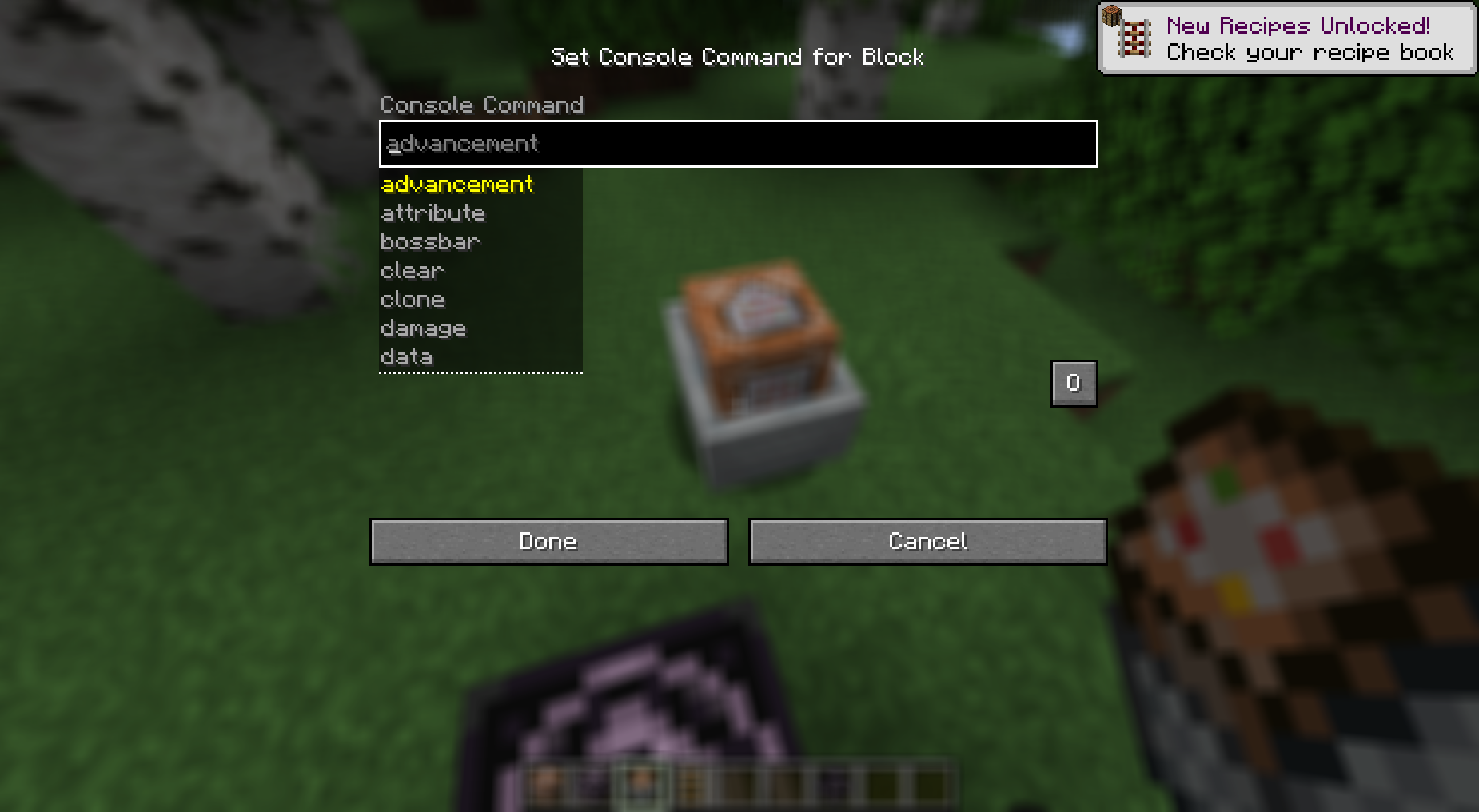
Refer to the screenshot above for a visual guide on how to arrange the command blocks.
How to reproduce:
- Place a normal command block facing a chain command block.
- Input the following command into the chain command block:
/summon elder_guardian
- Input the following command into the normal command block:
/kill @p
- Switch your game mode to survival, and activate the normal command block using a button.
Observed results:
The elder guardian ghost will spawn indefinitely even after the player dies.
Expected results:
The elder guardian ghost will not appear upon death.
Elder guardian doesn't check if a player is alive to apply mining fatigue, causing effect applying animation to display indefin
itlyRefer to the screenshot
abovefor a visual guide on how to arrange the command blocks.How to reproduce:
- Place a normal command block facing a chain command block.
- Input the following command into the chain command block:
/summon elder_guardian
- Input the following command into the normal command block:
/kill @p
- Switch your game mode to survival, and activate the normal command block using a button.
Observed results:
The elder guardian ghost will spawn indefinitely even after the player dies.
Expected results:
The elder guardian ghost will not appear upon death.
Elder guardian doesn't check if a player is alive to apply mining fatigue, causing effect applying animation to display indefinetly
Refer to the screenshot for a visual guide on how to arrange the command blocks.
How to reproduce:
- Place a normal command block facing a chain command block.
- Input the following command into the chain command block:
/summon elder_guardian
- Input the following command into the normal command block:
/kill @p
- Switch your game mode to survival, and activate the normal command block using a button.
Observed results:
The elder guardian ghost will spawn indefinitely even after the player dies.
Expected results:
The elder guardian ghost will not appear upon death.
Elder guardian doesn't check if a player is alive to apply mining fatigue, causing effect applying animation to display indefinetly
Refer to the screenshot for a visual guide on how to arrange the command blocks.
How to reproduce:
- Place a normal command block facing
achain command block.- Input the following command into the chain command block:
/summon elder_guardian
- Input the following command into the normal command block:
/kill @p
- Switch your game mode to survival, and activate the normal command block using a button.
Observed results:
The elder guardian ghost will spawn indefinitely even after the player dies.
Expected results:
The elder guardian ghost will not appear upon death.
Elder guardian doesn't check if a player is alive to apply mining fatigue, causing effect applying animation to display indefinetly
Refer to the screenshot for a visual guide on how to arrange the command blocks.
How to reproduce:
- Place a normal command block facing the always active chain command block.
- Input the following command into the chain command block:
/summon elder_guardian
- Input the following command into the normal command block:
/kill @p
- Switch your game mode to survival, and activate the normal command block using a button.
Observed results:
The elder guardian ghost will spawn indefinitely even after the player dies.
Expected results:
The elder guardian ghost will not appear upon death.
Underwater music no longer seems to play in oceans or lakes
Steps to reproduce:
- Create a new flat world with commands enabled
- Run following commands in an order:
/difficulty peaceful /fillbiome ~-10 ~-1 ~-10 ~10 ~10 ~10 minecraft:warm_ocean /fill ~-10 ~ ~-10 ~10 ~10 ~10 minecraft:water/effect give @s minecraft:water_breathing infinite /gamemode survival
- Notice that underwater music doesn't play
- Repeat the same steps on 24w03b: underwater music plays
Observed result:
Underwater music never plays underwater
Expected result:
Underwater music should always play underwater
Underwater music no longer seems to play in oceans or lakes
Steps to reproduce:
- Create a new flat world with commands enabled
- Run following commands in an order:
/difficulty peaceful /effect give @s minecraft:water_breathing infinite /gamemode survival /fillbiome ~-10 ~-1 ~-10 ~10 ~10 ~10 minecraft:warm_ocean /fill ~-10 ~ ~-10 ~10 ~10 ~10 minecraft:water
- Notice that underwater music doesn't play
- Repeat the same steps on 24w03b: underwater music plays
Observed result:
Underwater music never plays underwater
Expected result:
Underwater music should always play underwater
Underwater music no longer seems to play in oceans or lakes
Steps to reproduce:
- Create a new flat world with commands enabled
- Run following commands in an order:
/difficulty peaceful /effect give @s minecraft:water_breathing infinite /gamemode survival /fillbiome ~-10 ~-1 ~-10 ~10 ~10 ~10 minecraft:warm_ocean /fill ~-10 ~ ~-10 ~10 ~10 ~10 minecraft:water
Notice that underwater music doesn't play- Repeat the same steps on 24w03b: underwater music plays
Observed result:
Underwater music never plays underwater
Expected result:
Underwater music should always play underwater
Underwater music no longer seems to play in oceans or lakes
Steps to reproduce:
- Create a new flat world with commands enabled
- Run following commands in an order:
/difficulty peaceful /effect give @s minecraft:water_breathing infinite /gamemode survival /fillbiome ~-10 ~-1 ~-10 ~10 ~10 ~10 minecraft:warm_ocean /fill ~-10 ~ ~-10 ~10 ~10 ~10 minecraft:water
- Re-enter the world
- Notice that underwater music doesn't play
- Repeat the same steps on 24w03b: underwater music plays
Observed result:
Underwater music never plays underwater
Expected result:
Underwater music should always play underwater
Underwater music no longer seems to play in oceans or lakes
Steps to reproduce:
- Create a new flat world with commands enabled
Run following commands in an order:/difficulty peaceful /effect give @s minecraft:water_breathing infinite /gamemode survival /fillbiome ~-10 ~-1 ~-10 ~10 ~10 ~10 minecraft:warm_ocean /fill ~-10 ~ ~-10 ~10 ~10 ~10 minecraft:water
- Re-enter the world
- Notice that underwater music doesn't play
- Repeat the same steps on 24w03b: underwater music plays
Observed result:
Underwater music never plays underwater
Expected result:
Underwater music should always play underwater
Underwater music no longer seems to play in oceans or lakes
Steps to reproduce:
- Run following commands in an order:
/difficulty peaceful /effect give @s minecraft:water_breathing infinite /gamemode survival /fill ~-10 ~-1 ~-10 ~10 ~-1 ~10 minecraft:grass_block /fillbiome ~-10 ~-1 ~-10 ~10 ~10 ~10 minecraft:warm_ocean /fill ~-10 ~ ~-10 ~10 ~10 ~10 minecraft:water
- Re-enter the world
- Notice that underwater music doesn't play
- Repeat the same steps on 24w03b: underwater music plays
Observed result:
Underwater music never plays underwater
Expected result:
Underwater music should always play underwater
Underwater music no longer seems to play in oceans or lakes
Steps to reproduce:
Runfollowing commands inanorder:/difficulty peaceful /effect give @s minecraft:water_breathing infinite /gamemode survival /fill ~-10 ~-1 ~-10 ~10 ~-1 ~10 minecraft:grass_block /fillbiome ~-10 ~-1 ~-10 ~10 ~10 ~10 minecraft:warm_ocean /fill ~-10 ~ ~-10 ~10 ~10 ~10 minecraft:water
- Re-enter the world
- Notice that underwater music doesn't play
- Repeat the same steps on 24w03b: underwater music plays
Observed result:
Underwater music never plays underwater
Expected result:
Underwater music should always play underwater
Underwater music no longer seems to play in oceans or lakes
Steps to reproduce:
- Move away from your buildings and run the following commands in order:
/difficulty peaceful /effect give @s minecraft:water_breathing infinite /gamemode survival /fill ~-10 ~-1 ~-10 ~10 ~-1 ~10 minecraft:grass_block /fillbiome ~-10 ~-1 ~-10 ~10 ~10 ~10 minecraft:warm_ocean /fill ~-10 ~ ~-10 ~10 ~10 ~10 minecraft:water
- Re-enter the world
- Notice that underwater music doesn't play
- Repeat the same steps on 24w03b: underwater music plays
Observed result:
Underwater music never plays underwater
Expected result:
Underwater music should always play underwater
Underwater music no longer seems to play"Shuniji", "Dragon Fish" and "Axolotl" no longer play underwater
Underwater music no longer
seems toplay in oceans or lakesSteps to reproduce:
- Move away from your buildings and run the following commands in order:
/difficulty peaceful /effect give @s minecraft:water_breathing infinite /gamemode survival /fill ~-10 ~-1 ~-10 ~10 ~-1 ~10 minecraft:grass_block /fillbiome ~-10 ~-1 ~-10 ~10 ~10 ~10 minecraft:warm_ocean /fill ~-10 ~ ~-10 ~10 ~10 ~10 minecraft:water
- Re-enter the world
- Notice that underwater music doesn't play
- Repeat the same steps on 24w03b: underwater music plays
Observed result:
Underwatermusic never plays underwaterExpected result:
Underwatermusic shouldalwaysplay underwaterUnderwater music ("Shuniji", "Dragon Fish" and "Axolotl") is no longer played in oceans or lakes
Steps to reproduce:
- Move away from your buildings and run the following commands in order:
/difficulty peaceful /effect give @s minecraft:water_breathing infinite /gamemode survival /fill ~-10 ~-1 ~-10 ~10 ~-1 ~10 minecraft:grass_block /fillbiome ~-10 ~-1 ~-10 ~10 ~10 ~10 minecraft:warm_ocean /fill ~-10 ~ ~-10 ~10 ~10 ~10 minecraft:water
- Re-enter the world
- Notice that underwater music doesn't play
- Repeat the same steps on 24w03b: underwater music plays
Observed result:
"Shuniji", "Dragon Fish" and "Axolotl" music never plays underwater
Expected result:
"Shuniji", "Dragon Fish" and "Axolotl" music should play underwater
Underwater music ("Shuniji", "Dragon Fish" and "Axolotl") is no longer played in oceans or lakes
Steps to reproduce:
- Move away from your buildings and run the following commands in order:
/difficulty peaceful /effect give @s minecraft:water_breathing infinite /gamemode survival/fill ~-10 ~-1 ~-10 ~10 ~-1 ~10 minecraft:grass_block /fillbiome~-10 ~-1~-10 ~10 ~10 ~10 minecraft:warm_ocean/fill ~-10 ~ ~-10 ~10 ~10 ~10 minecraft:water
- Re-enter the world
- Notice that underwater music doesn't play
- Repeat the same steps on 24w03b: underwater music plays
Observed result:
"Shuniji", "Dragon Fish" and "Axolotl" music never play
sunderwaterExpected result:
"Shuniji", "Dragon Fish" and "Axolotl" music should play underwater
Underwater music ("Shuniji", "Dragon Fish" and "Axolotl") is no longer played in oceans or lakes, instead a normal music is played.
Steps to reproduce:
- Move away from your buildings and run the following commands in order:
/fill ~-10 ~-1 ~-10 ~10 ~-1 ~10 minecraft:grass_block /fill ~-10 ~ ~-10 ~10 ~10 ~10 minecraft:water /fillbiome ~-10 ~-1 ~-10 ~10 ~10 ~10 minecraft:warm_ocean /effect give @s minecraft:water_breathing infinite /gamemode survival
- Re-enter the world
- Notice that underwater music doesn't play
- Repeat the same steps on 24w03b: underwater music plays
Observed result:
"Shuniji", "Dragon Fish" and "Axolotl" music is never played underwater, instead a normal music is played.
Expected result:
"Shuniji", "Dragon Fish" and "Axolotl" are the only music that should be played underwater.
Pasting any copied text from minecraft into another app can sometimes freeze it.
Steps to reproduce:
- Goto "Settings" -> "Credits & attribution" -> "Attribution" and copy the link.
- Open any other application and try to paste the copied text in there
- Notice that the application can sometimes freeze for a few seconds
Expected result:
The other application wouldn't freeze after pasting any copied text from minecraft
Observed result:
The other application freezes after pasting any copied text from minecraft
Note:
This only happens with minecraft
Pasting any copied text from minecraft into another app can sometimes freeze it.
Steps to reproduce:
- Goto "Settings" -> "Credits & attribution" -> "Attribution" and copy the link.
- Open any other application and try to paste the copied text in there
- Notice that the application can sometimes freeze for a few seconds
Expected result:
The other application wouldn't freeze after pasting any copied text from minecraft
Observed result:
The other application freezes after pasting any copied text from minecraft
Note:
Th
is only happens withminecraftPasting any copied text from minecraft into another app can sometimes freeze it.
Steps to reproduce:
- Goto "Settings" -> "Credits & attribution" -> "Attribution" and copy the link.
- Open any other application and try to paste the copied text in there
- Notice that the application can sometimes freeze for a few seconds
Expected result:
The other application wouldn't freeze after pasting any copied text from minecraft
Observed result:
The other application freezes after pasting any copied text from minecraft
Note:
The application unfreezes after closing minecraft
OS: Ubuntu 22.04 LTS
OS: Ubuntu 22.04 LTS
GPU: Integrated, Intel UHD 630
Visual fireisnt shown on the first tickFire animation isnt shown on the first tick
If you summon an entity with HasVisualFire nbt tag set to 1, while the game is frozen (/tick freeze) that visual fire will not be shown until you run /tick step 1t
Steps to reproduce:
- Run the following commands in order
/tick freeze /summon minecraft:cow ^ ^ ^1 {NoAI:1, HasVisualFire:1}Notice that fire animation isn't shown
- Run
/tick step 1tFire animation is shown
Found while testing
If you summon an entity with HasVisualFire nbt tag set to 1, while the game is frozen (/tick freeze) that visual fire will not be shown until you run /tick step 1t
Steps to reproduce:
- Run the following commands in order
/tick freeze /summon minecraft:cow ^ ^ ^1 {NoAI:1, HasVisualFire:1}Notice that fire animation isn't shown
- Run
/tick step 1tFire animation is shown
Found while testing
If you summon an entity with HasVisualFire nbt tag set to 1, while the game is frozen (/tick freeze) that visual fire will not be shown until you run /tick step 1t
Steps to reproduce:
- Run the following commands in order
/tick freeze /summon minecraft:cow ^ ^ ^1 {NoAI:1, HasVisualFire:1}Notice that fire animation isn't shown
- Run
/tick step 1tFire animation is shown
Found while testing
If you summon an entity with HasVisualFire nbt tag set to 1, while the game is frozen (/tick freeze) that visual fire will not be shown until you run /tick step 1t
Steps to reproduce:
- Run the following commands in order
/tick freeze /summon minecraft:cow ^ ^ ^1 {NoAI:1, HasVisualFire:1}Notice that fire animation isn't shown
- Run
/tick step 1tFire animation is shown
Discovered while testing MC-268496
If you summon an entity with HasVisualFire nbt tag set to 1, while the game is frozen (/tick freeze) that visual fire will not be shown until you run /tick step 1t
Steps to reproduce:
- Run the following commands in order
/tick freeze /summon minecraft:cow ^ ^ ^1 {NoAI:1, HasVisualFire:1}Notice that fire animation isn't shown
- Run
/tick step 1tFire animation is shown
Despite the laucnher having a minimal limit on how small the game window can be at start being 300x260 px, Minecraft itself can be resized to any size you want, causing bugs like
MC-268490Steps to reproduce:
- Open the Minecraft launcher, click on installations tab and click on any installation.
- In the opened window set the window size to 0x0. "Minimal resolution is 300x260." message appears.
- Open minecraft and try to resize minecraft to be as small as possible. Minecraft window can be smaller than 300x260 px.{}
Observed result:
Minecraft window doesn't have a minimal width and height and can be smaller than 300x260 px{}
Expected result:
Minecraft window should have a minimal width and height being set to 300x260 px
Despite the laucnher having a minimal limit on how small the game window can be at start being 300x260 px, Minecraft itself can be resized to any size you want, causing bugs like
MC-268490Steps to reproduce:
- Open the Minecraft launcher, click on installations tab and click on any installation.
- In the opened window set the window size to 0x0. "Minimal resolution is 300x260." message appears.
- Open minecraft and try to resize minecraft to be as small as possible. Minecraft window can be smaller than 300x260
px.{}Observed result:
Minecraft window doesn't have a minimal width and height and can be smaller than 300x260 px{}
Expected result:
Minecraft window should have a minimal width and height being set to 300x260
pxDespite the laucnher having a minimal limit on how small the game window can be at start being 300x260 px, Minecraft itself can be resized to any size you want, causing bugs like
MC-268490Steps to reproduce:
- Open the Minecraft launcher, click on installations tab and click on any installation.
- In the opened window set the window size to 0x0. "Minimal resolution is 300x260." message appears.
- Open minecraft and try to resize minecraft to be as small as possible. Minecraft window can be smaller than 300x260
Observed result:
Minecraft window doesn't have a minimal width and height and can be smaller than 300x260
Expected result:
Minecraft window should have a minimal width and height being set to 300x260
Despite the laucnher having a minimal limit on how small the game window can be at start being 300x260 px, Minecraft itself can be resized to any size you want, causing bugs like
MC-268490Steps to reproduce:
- Open the Minecraft launcher, click on installations tab and click on any installation.
- In the opened window set the window size to 0x0. "Minimal resolution is 300x260." message appears.
- Open minecraft and try to resize minecraft to be as small as possible. Minecraft window can be smaller than 300x260
Observed result:
Minecraft window doesn't have a minimal width and height and can be smaller than 300x260
Expected result:
Minecraft window should have a minimal width and height being set to 300x260
Fix:
The following code is based on a decompiled version of 24w14a using official mappings.
com.mojang.blaze3d.platform.Window.javapublic final class Window implements AutoCloseable { ... public Window(WindowEventHandler $$0, ScreenManager $$1, DisplayData $$2, @Nullable String $$3, String $$4) { ... GLFW.glfwMakeContextCurrent(this.window); GL.createCapabilities(); this.setMode(); this.refreshFramebufferSize(); GLFW.glfwSetFramebufferSizeCallback(this.window, this::onFramebufferResize); GLFW.glfwSetWindowPosCallback(this.window, this::onMove); GLFW.glfwSetWindowSizeCallback(this.window, this::onResize); GLFW.glfwSetWindowFocusCallback(this.window, this::onFocus); GLFW.glfwSetCursorEnterCallback(this.window, this::onEnter); } ... }As we can see when the window is created, there is no restriction set to window size, this can be simply fixed by adding the following code at the end of Window function.
GLFW.glfwSetWindowSizeLimits(this.window, 300, 260, GLFW.GLFW_DONT_CARE, GLFW.GLFW_DONT_CARE); // Based on GLFW documentation https://www.glfw.org/docs/3.3/window_guide.html#window_sizelimits
Despite the laucnher having a minimal limit on how small the game window can be at start being 300x260 px, Minecraft itself can be resized to any size you want, causing bugs like
MC-268490Steps to reproduce:
- Open the Minecraft launcher, click on installations tab and click on any installation.
- In the opened window set the window size to 0x0. "Minimal resolution is 300x260." message appears.
- Open minecraft and try to resize minecraft to be as small as possible. Minecraft window can be smaller than 300x260
Observed result:
Minecraft window doesn't have a minimal width and height and can be smaller than 300x260
Expected result:
Minecraft window should have a minimal width and height being set to 300x260
Fix:
The following code is based on a decompiled version of 24w14a using official mappings.
com.mojang.blaze3d.platform.Window.javapublic final class Window implements AutoCloseable { ... public Window(WindowEventHandler $$0, ScreenManager $$1, DisplayData $$2, @Nullable String $$3, String $$4) { ... GLFW.glfwMakeContextCurrent(this.window); GL.createCapabilities(); this.setMode(); this.refreshFramebufferSize(); GLFW.glfwSetFramebufferSizeCallback(this.window, this::onFramebufferResize); GLFW.glfwSetWindowPosCallback(this.window, this::onMove); GLFW.glfwSetWindowSizeCallback(this.window, this::onResize); GLFW.glfwSetWindowFocusCallback(this.window, this::onFocus); GLFW.glfwSetCursorEnterCallback(this.window, this::onEnter); } ... }As we can see when the window is created, there is no restriction set to window size, this can be simply fixed by adding the following code at the end of Window function.
GLFW.glfwSetWindowSizeLimits(this.window, 300, 260, GLFW.GLFW_DONT_CARE, GLFW.GLFW_DONT_CARE); // Based onGLFWdocumentationhttps://www.glfw.org/docs/3.3/window_guide.html#window_sizelimitsDespite the laucnher having a minimal limit on how small the game window can be at start being 300x260 px, Minecraft itself can be resized to any size you want, causing bugs like
MC-268490Steps to reproduce:
- Open the Minecraft launcher, click on installations tab and click on any installation.
- In the opened window set the window size to 0x0. "Minimal resolution is 300x260." message appears.
- Open minecraft and try to resize minecraft to be as small as possible. Minecraft window can be smaller than 300x260
Observed result:
Minecraft window doesn't have a minimal width and height and can be smaller than 300x260
Expected result:
Minecraft window should have a minimal width and height being set to 300x260
Fix:
The following code is based on a decompiled version of 24w14a using official mappings.
com.mojang.blaze3d.platform.Window.javapublic final class Window implements AutoCloseable { ... public Window(WindowEventHandler $$0, ScreenManager $$1, DisplayData $$2, @Nullable String $$3, String $$4) { ... GLFW.glfwMakeContextCurrent(this.window); GL.createCapabilities(); this.setMode(); this.refreshFramebufferSize(); GLFW.glfwSetFramebufferSizeCallback(this.window, this::onFramebufferResize); GLFW.glfwSetWindowPosCallback(this.window, this::onMove); GLFW.glfwSetWindowSizeCallback(this.window, this::onResize); GLFW.glfwSetWindowFocusCallback(this.window, this::onFocus); GLFW.glfwSetCursorEnterCallback(this.window, this::onEnter); } ... }As we can see, when the window is created, there is no restriction set to window size, this can be simply fixed by adding the following code at the end of Window function.
GLFW.glfwSetWindowSizeLimits(this.window, 300, 260, GLFW.GLFW_DONT_CARE, GLFW.GLFW_DONT_CARE); // Based of GLFW window guide https://www.glfw.org/docs/3.3/window_guide.html#window_sizelimits
Despite the laucnher having a minimal limit on how small the game window can be at start being 300x260 px, Minecraft itself can be resized to any size you want, causing bugs like
MC-268490Steps to reproduce:
- Open the Minecraft launcher, click on installations tab and click on any installation.
- In the opened window set the window size to 0x0. "Minimal resolution is 300x260." message appears.
- Open minecraft and try to resize minecraft to be as small as possible. Minecraft window can be smaller than 300x260
Observed result:
Minecraft window doesn't have a minimal width and height and can be smaller than 300x260
Expected result:
Minecraft window should have a minimal width and height being set to 300x260
Fix:
The following code is based on a decompiled version of
24w14ausing official mappings.com.mojang.blaze3d.platform.Window.javapublic final class Window implements AutoCloseable { ... public Window(WindowEventHandler $$0, ScreenManager $$1, DisplayData $$2, @Nullable String $$3, String $$4) { ...GLFW.glfwMakeContextCurrent(this.window); GL.createCapabilities();this.setMode();this.refreshFramebufferSize(); GLFW.glfwSetFramebufferSizeCallback(this.window, this::onFramebufferResize); GLFW.glfwSetWindowPosCallback(this.window, this::onMove); GLFW.glfwSetWindowSizeCallback(this.window, this::onResize); GLFW.glfwSetWindowFocusCallback(this.window, this::onFocus); GLFW.glfwSetCursorEnterCallback(this.window, this::onEnter); } ... }As we can see, when the window is created, there is no restriction set to window size, this can be simply fixed by adding the following code at the end of Window function.
GLFW.glfwSetWindowSizeLimits(this.window, 300, 260, GLFW.GLFW_DONT_CARE, GLFW.GLFW_DONT_CARE); // Based of GLFW window guide https://www.glfw.org/docs/3.3/window_guide.html#window_sizelimitsDespite the laucnher having a minimal limit on how small the game window can be at start being 300x260 px, Minecraft itself can be resized to any size you want, causing bugs like
MC-268490Steps to reproduce:
- Open the Minecraft launcher, click on installations tab and click on any installation.
- In the opened window set the window size to 0x0. "Minimal resolution is 300x260." message appears.
- Open minecraft and try to resize minecraft to be as small as possible. Minecraft window can be smaller than 300x260
Observed result:
Minecraft window doesn't have a minimal width and height and can be smaller than 300x260
Expected result:
Minecraft window should have a minimal width and height being set to 300x260
Fix:
The following code is based on a decompiled version of 1.20.5 Pre-Release 1 using official mappings.
com.mojang.blaze3d.platform.Window.javapublic final class Window implements AutoCloseable { ... public Window(WindowEventHandler $$0, ScreenManager $$1, DisplayData $$2, @Nullable String $$3, String $$4) { ... this.window = GLFW.glfwCreateWindow(this.width, this.height, $$4, this.fullscreen && $$6 != null ? $$6.getMonitor() : 0L, 0L); if ($$6 != null) { VideoMode $$7 = $$6.getPreferredVidMode(this.fullscreen ? this.preferredFullscreenVideoMode : Optional.empty()); this.windowedX = this.x = $$6.getX() + $$7.getWidth() / 2 - this.width / 2; this.windowedY = this.y = $$6.getY() + $$7.getHeight() / 2 - this.height / 2; } else { int[] $$8 = new int[1]; int[] $$9 = new int[1]; GLFW.glfwGetWindowPos(this.window, $$8, $$9); this.windowedX = this.x = $$8[0]; this.windowedY = this.y = $$9[0]; } GLFW.glfwMakeContextCurrent(this.window); GL.createCapabilities(); this.setMode(); this.refreshFramebufferSize(); GLFW.glfwSetFramebufferSizeCallback(this.window, this::onFramebufferResize); GLFW.glfwSetWindowPosCallback(this.window, this::onMove); GLFW.glfwSetWindowSizeCallback(this.window, this::onResize); GLFW.glfwSetWindowFocusCallback(this.window, this::onFocus); GLFW.glfwSetCursorEnterCallback(this.window, this::onEnter); } ... }As we can see, when the window is created, there is no restriction set to window size, this can be simply fixed by adding the following code at the end of Window function.
GLFW.glfwSetWindowSizeLimits(this.window, 300, 260, GLFW.GLFW_DONT_CARE, GLFW.GLFW_DONT_CARE); // Based of GLFW window guide https://www.glfw.org/docs/3.3/window_guide.html#window_sizelimits
Despite the laucnher having a minimal limit on how small the game window can be at start being 300x260 px, Minecraft itself can be resized to any size you want, causing bugs like
MC-268490Steps to reproduce:
- Open the Minecraft launcher, click on installations tab and click on any installation.
- In the opened window set the window size to 0x0. "Minimal resolution is 300x260." message appears.
- Open minecraft and try to resize minecraft to be as small as possible. Minecraft window can be smaller than 300x260
Observed result:
Minecraft window doesn't have a minimal width and height and can be smaller than 300x260
Expected result:
Minecraft window should have a minimal width and height being set to 300x260
Fix:
The following code is based on a decompiled version of 1.20.5 Pre-Release 1 using official mappings.
com.mojang.blaze3d.platform.Window.javapublic final class Window implements AutoCloseable { ... public Window(WindowEventHandler $$0, ScreenManager $$1, DisplayData $$2, @Nullable String $$3, String $$4) { ... this.window= GLFW.glfwCreateWindow(this.width,this.height, $$4, this.fullscreen && $$6 != null ? $$6.getMonitor() : 0L, 0L); if ($$6 != null) { VideoMode $$7 = $$6.getPreferredVidMode(this.fullscreen ? this.preferredFullscreenVideoMode : Optional.empty()); this.windowedX = this.x = $$6.getX() + $$7.getWidth() / 2 - this.width / 2; this.windowedY = this.y = $$6.getY() + $$7.getHeight() / 2 - this.height / 2; } else { int[] $$8 = new int[1]; int[] $$9 = new int[1]; GLFW.glfwGetWindowPos(this.window, $$8, $$9); this.windowedX = this.x = $$8[0]; this.windowedY = this.y = $$9[0]; } GLFW.glfwMakeContextCurrent(this.window); GL.createCapabilities(); this.setMode(); this.refreshFramebufferSize(); GLFW.glfwSetFramebufferSizeCallback(this.window, this::onFramebufferResize); GLFW.glfwSetWindowPosCallback(this.window, this::onMove); GLFW.glfwSetWindowSizeCallback(this.window, this::onResize); GLFW.glfwSetWindowFocusCallback(this.window, this::onFocus); GLFW.glfwSetCursorEnterCallback(this.window, this::onEnter); } ... }As we can see, when the window is created, there is no restriction set to window size, this can be simply fixed by adding the following code at the end of Window function.
GLFW.glfwSetWindowSizeLimits(this.window, 300, 260, GLFW.GLFW_DONT_CARE, GLFW.GLFW_DONT_CARE); // Based of GLFW window guide https://www.glfw.org/docs/3.3/window_guide.html#window_sizelimitsDespite the laucnher having a minimal limit on how small the game window can be at start being 300x260 px, Minecraft itself can be resized to any size you want, causing bugs like
MC-268490Steps to reproduce:
- Open the Minecraft launcher, click on installations tab and click on any installation.
- In the opened window set the window size to 0x0. "Minimal resolution is 300x260." message appears.
- Open minecraft and try to resize minecraft to be as small as possible. Minecraft window can be smaller than 300x260
Observed result:
Minecraft window doesn't have a minimal width and height and can be smaller than 300x260
Expected result:
Minecraft window should have a minimal width and height being set to 300x260
Fix:
The following code is based on a decompiled version of 1.20.5 Pre-Release 1 using official mappings.
com.mojang.blaze3d.platform.Window.javapublic final class Window implements AutoCloseable { ... public Window(WindowEventHandler $$0, ScreenManager $$1, DisplayData $$2, @Nullable String $$3, String $$4) { ... GLFW.glfwMakeContextCurrent(this.window); GL.createCapabilities(); this.setMode(); this .refreshFramebufferSize(); GLFW.glfwSetFramebufferSizeCallback(this.window, this::onFramebufferResize); GLFW.glfwSetWindowPosCallback(this.window, this::onMove); GLFW.glfwSetWindowSizeCallback(this.window, this::onResize); GLFW.glfwSetWindowFocusCallback(this.window, this::onFocus); GLFW.glfwSetCursorEnterCallback(this.window, this::onEnter); } ... }As we can see, when the window is created, there is no restriction set to window size, this can be simply fixed by adding the following code at the end of Window function.
GLFW.glfwSetWindowSizeLimits(this.window, 300, 260, GLFW.GLFW_DONT_CARE, GLFW.GLFW_DONT_CARE); // Based of GLFW window guide https://www.glfw.org/docs/3.3/window_guide.html#window_sizelimits
Despite the laucnher having a minimal limit on how small the game window can be at start being 300x260 px, Minecraft itself can be resized to any size you want, causing bugs like
MC-268490Steps to reproduce:
- Open the Minecraft launcher, click on installations tab and click on any installation.
- In the opened window set the window size to 0x0. "Minimal resolution is 300x260." message appears.
- Open minecraft and try to resize minecraft to be as small as possible. Minecraft window can be smaller than 300x260
Observed result:
Minecraft window doesn't have a minimal width and height and can be smaller than 300x260
Expected result:
Minecraft window should have a minimal width and height being set to 300x260
Fix:
The following code is based on a decompiled version of 1.20.5 Pre-Release 1 using official mappings.
com.mojang.blaze3d.platform.Window.javapublic final class Window implements AutoCloseable { ... public Window(WindowEventHandler $$0, ScreenManager $$1, DisplayData $$2, @Nullable String $$3, String $$4) { ... GLFW.glfwMakeContextCurrent(this.window); GL.createCapabilities(); this.setMode(); this.refreshFramebufferSize(); GLFW.glfwSetFramebufferSizeCallback(this.window, this::onFramebufferResize); GLFW.glfwSetWindowPosCallback(this.window, this::onMove); GLFW.glfwSetWindowSizeCallback(this.window, this::onResize); GLFW.glfwSetWindowFocusCallback(this.window, this::onFocus); GLFW.glfwSetCursorEnterCallback(this.window, this::onEnter); } ... }As we can see, when the window is created, there is no restriction set to window size, this can be simply fixed by adding the following code at the end of Window function.
GLFW.glfwSetWindowSizeLimits(this.window, 300, 260, GLFW.GLFW_DONT_CARE, GLFW.GLFW_DONT_CARE); // Based of GLFW window guide https://www.glfw.org/docs/3.3/window_guide.html#window_sizelimits
Can confrim, 2024-02-15 01-42-16.mkv
Fixed in 24w11a
The last language option is not deselectedwhen using arrow key navigationThe last language option is not deselected if you reach the bottom of the list and exit the menu
In languages option if you hold down arrow key and then press done the last language option will be applied.
Steps to reproduce:
- Open "Options" > "Language.." and hold down arrow key.
- When you reach the botton and "Font settings..." button will be selected, click "Done button". The last language option applies.
Observed result:
The last language option is not deselected, when
arrow key navigationchangesfocuschangesto other element, causing applying this language.Expected result:
The last language option should be deselected, when
arrow key navigation changes focusto other elementIn languages option if you hold the down arrow key and then press done, the last language option will be applied.
Steps to reproduce:
- Open "Options" > "Language.." and hold the down arrow key.
- When you reach the botton and "Font settings..." button will be selected, click "Done button". The last language option applies.
Observed result:
The last language option is not deselected, when you change the focus from the languages list to another element using arrow key navigation.
Expected result:
The last language option should be deselected, when you change the focus from the languages list to another element using arrow key navigation.
If you press a recipe that contains an item that you don't have, its red tint will render on top of compact effects menu tooltip.
Steps to reproduce:
- Give yourself any effect
- Set your gamemode to survival
- Open inventory and press on any recipe that contains at item that you don't have
- Resize the game window until the compact effects screen appears and hover over the effect
- Notice that the effect tooltip renders behind a recipe red tint
If you press a recipe that contains an item that you don't have, its red tint will render on top of compact effects menu tooltip.
Steps to reproduce:
- Give yourself any effect (Hero Of The Village has the longest effect name, so it might be easier to reproduce the issue with it)
- Set your gamemode to survival
- Open inventory and press on any recipe that contains at item that you don't have
- Resize the game window until the compact effects screen appears and hover over the effect
- Notice that the effect tooltip renders behind a recipe red tint
If you press
arecipe that contains an item that you don't have, its red tint will render on top of compact effects menu tooltip.Steps to reproduce:
- Give yourself any effect (Hero Of The Village has the longest effect name, so it might be easier to reproduce the issue with it)
- Set your gamemode to survival
- Open inventory and press on any recipe that contains at item that you don't have
- Resize the game window until the compact effects screen appears and hover over the effect
- Notice that the effect tooltip renders behind a recipe red tint
If you press on a crafting recipe that contains an item that you don't have, its red tint will render on top of compact effects menu tooltip.
Steps to reproduce:
- Give yourself any effect (Hero Of The Village has the longest effect name, so it might be easier to reproduce the issue with it)
- Set your gamemode to survival
- Open inventory and press on any recipe that contains at item that you don't have
- Resize the game window until the compact effects screen appears and hover over the effect
- Notice that the effect tooltip renders behind a recipe red tint
Can confirm on Android
The Minecraft 24w09a changelog mentions that blurred background is not applied to container blocks. However some blocks and entities do use a blur as a background texture, this includes:
- Command blocks
- Jigsaw blocks
- Structure blocks
- Command block minecarts
The Minecraft 24w09a changelog
mentions that blurred background is not applied to container blocks. However some blocks and entities do use a blur as a background texture, this includes:
- Command blocks
- Jigsaw blocks
- Structure blocks
- Command block minecarts
The Minecraft 24w09a changelog says that blurred background is not applied to container blocks. However some blocks and entities do use a blur as a background texture, this includes:
- Command blocks
- Jigsaw blocks
- Structure blocks
- Command block minecarts
The Minecraft 24w09a changelog says that blurred background is not applied to container blocks. However some blocks and entities do use a blur as a background texture, this includes:
- Command blocks
- Jigsaw blocks
- Structure blocks
- Command block minecarts
Duplicate of https://bugs.mojang.com/browse/MC-262560
If you type in an item name without a namespace in a command block or chat, and then autocomplete it, some parts of item name won't be replaced fully.
Steps to reproduce:
- Open chat and type in the following command
/give @s oak_log 64
Select oak_log and press tab- Notice that item name is not replaced fully by an item name with a namespace
If you type in an item name without a namespace in a command block or chat, and then autocomplete it, some parts of item name won't be replaced fully.
Steps to reproduce:
- Open chat and type in the following command
/give @s oak_log 64
- Click on a center of the word oak_log and press tab to add a minecraft namespace
- Notice that item name is not replaced fully by an item name with a minecraft namespace
If you type in an item name without a namespace in a command block or chat, and then autocomplete it, some parts of item name won't be replaced fully.
Steps to reproduce:
- Open chat and type in the following command
/give @s oak_log 64
- Click on a center of the word oak_log and press tab to add a minecraft namespace
- Notice that item name is not replaced fully by an item name with a minecraft namespace, leaving minecraft:oak_logg
If you type in an item name without a namespace in a command block or chat, and then autocomplete it, some parts of item name won't be replaced fully.
Steps to reproduce:
- Open chat and type in the following command
/give @s oak_log 64- Click on a center of the word oak_log and press tab to add a minecraft namespace
- Notice that item name is not replaced fully by an item name with a minecraft namespace, leaving minecraft:oak_logg
If you type in an item name without a namespace in a command block or chat, and then autocomplete it, some parts of item name won't be replaced fully.
Steps to reproduce:
- Open chat and type in the following command
/give @s oak_log 64
- Click on a center of the word oak_log and press tab to add a minecraft namespace
- Notice that item name is not replaced fully by an item name with a minecraft namespace, leaving /give @s minecraft:oak_logg 64
If you type in an item name without a namespace in a command block or chat, and then autocomplete it, some parts of item name won't be replaced fully.
Steps to reproduce:
- Open chat and type in the following command
/give @s oak_log 64
- Click on
a centerof the word oak_log and press tab to add a minecraft namespace- Notice that item name is not replaced fully by an item name with a minecraft namespace, leaving /give @s minecraft:oak_logg 64
If you type in an item name without a namespace in a command block or chat, and then autocomplete it, some parts of item name won't be replaced fully.
Steps to reproduce:
- Open chat and type in the following command
/give @s oak_log 64
- Click on the end of the word oak_log and press tab to add a minecraft namespace
- Notice that item name is not replaced fully by an item name with a minecraft namespace, leaving /give @s minecraft:oak_logg 64
Autocompleting id without a namespace doesn't replace the id fullyBrigadier doesn't replace characters after cursor when using command suggestions
If you type in an item name without a namespace in a command block or chat, and then autocomplete it, some parts of item name won't be replaced fully.Steps to reproduce:
- Open chat and type in the following command
/give @s oak_log 64
Click on the end of the word oak_log and press tab to add a minecraft namespace- Notice that item name is not replaced fully by an item name with a minecraft namespace, leaving /give @s minecraft:oak_logg 64
When using command suggestions, literal characters are not deleted fully, leaving its characters after cursor
Steps to reproduce:
- Open chat and type in any command
- Set the cursor position to be after /
- Select any command from command suggestions
- Notice that characters after cursor are not deleted
Expected result:
When using command suggestions, literal characters should be deleted fully
Observed result:
When using command suggestions, literal characters are not deleted fully, leaving its characters after cursor
Brigadier doesn't replacecharacters after cursor when using command suggestionsLiteral characters after cursor are not deleted when using command suggestions
When using command suggestions, literal characters are not deleted fully, leaving its characters after cursor
Steps to reproduce:
- Open chat and type in any command
- Set the cursor position to be a
fter /- Select any command from command suggestions
- Notice that characters after cursor
arenot deletedExpected result:
When using command suggestions, literal characters should be deleted fully
Observed result:
When using command suggestions, literal characters are not deleted fully, leaving its characters after cursor
When using command suggestions, literal characters are not deleted fully, leaving its characters after the cursor unchanged
Steps to reproduce:
- Open chat and type in any command
- Set the cursor position to be at the start of the command
- Select any command from command suggestions
- Notice that literal characters after cursor remain unchanged
Expected result:
When using command suggestions, literal characters should be deleted fully
Observed result:
When using command suggestions, literal characters are not deleted fully, leaving its characters after the cursor unchanged
Literal characters after the cursor are not deleted when using command suggestions
Literalcharacters afterthecursorare not deleted when using command suggestionsAutocompleted command suggestions don't replace arguments fully, leaving its characters after cursor unchanged
When using command suggestions,
literal characters are not deleted fully, leaving its characters after the cursor unchangedSteps to reproduce:
- Open chat and type in any command
- Set the cursor position to be at the start of the command
- Select any command from command suggestions
- Notice that literal characters after cursor remain unchanged
Expected result:
When using command suggestions,
literal charactersshould bedeleted fullyObserved result:
When using command suggestions,
literalcharacters are not deleted fully, leaving its characters after the cursor unchangedWhen using command suggestions, argument is not replaced fully, leaving its characters after the cursor unchanged, causing command syntax errors
Steps to reproduce:
- Open chat and type in any command
- Set the cursor position to be at the start of the command
- Select any command from command suggestions
- Notice that literal characters after cursor remain unchanged
Expected result:
When using command suggestions, argument should be replaced fully
Observed result:
When using command suggestions, argument characters are not deleted fully, leaving its characters after the cursor unchanged, causing command syntax errors.
When using command suggestions, argument is not replaced fully, leaving its characters after the cursor unchanged, causing command syntax errors
Steps to reproduce:
- Open chat and type in any command
- Set the cursor position to be at the start of the command
- Select any command from command suggestions
- Notice that
literalcharacters after cursor remain unchangedExpected result:
When using command suggestions, argument should be replaced fully
Observed result:
When using command suggestions, argument characters are not deleted fully, leaving its characters after the cursor unchanged, causing command syntax errors.
When using command suggestions, argument is not replaced fully, leaving its characters after the cursor unchanged, causing command syntax errors
Steps to reproduce:
- Open chat and type in any command
- Set the cursor position to be at the start of the command
- Select any command from command suggestions list
- Notice that function name characters after cursor remain unchanged, causing syntax errors
Expected result:
When using command suggestions, argument should be replaced fully
Observed result:
When using command suggestions, argument characters are not deleted fully, leaving its characters after the cursor unchanged, causing command syntax errors.
Suspicious stew no longer gives effectsin survivalSuspicious stew no longer gives an effect when eaten in survival
Suspicious stew no longer gives an effect when eaten in survival
Steps to reproduce:
- Set your gamemode to creative at give yourself any suspicious stew from the "Foo
nd & Drinks" tab.- Eat the suspicious stew
Suspicious stew effect applies
- Repeat the same steps but in survival mode
Suspicious stew effect doesn't apply
Suspicious stew no longer gives an effect when eaten in survival
Steps to reproduce:
- Set your gamemode to creative at give yourself any suspicious stew from the "Food & Drinks" creative inventory tab.
- Eat the suspicious stew
- Repeat the same steps but in survival mode
New minecraft.net homepage shows Linux, Xbox and Playstation as a Minecraft: Education Editon supported systems, even though it isnt
The updated minecraft.net homepage shows
linux as a Minecraft: Education Editon supported system, when its actually isn'tThe updated minecraft.net homepage shows Linux, Xbox, Playstation and Nintendo Switch as a Minecraft: Education Editon supported systems, when its actually isn't
New minecraft.net homepage shows Linux, Xbox, Nintendo Switch and Playstation as a Minecraft: Education Editon supported systems, even though it isnt
If a window is minimized or covered fully by another window at startup, buttons text and background won't be rendered, it started to appear since some ui drawing optimizations have been made in 24w11a
Steps to reproduce:
- Start Minecraft
- As soon as it opens, minimize the window
- Unminimize the window after a few second
- Notice that buttons text and background isn't rendered.
Notes:
- In demo mode the text is rendered, while in normal mode it isn't
- Mutter (the GNOME compositor) seems to have an optimization, where if the window is fully covered by another window or the window is minimized, it contents won't be rendered, which might have caused this issue
If a window is minimized or covered fully by another window at startup, buttons text and background won't be rendered, it started to appear since some ui drawing optimizations have been made in 24w11a
Steps to reproduce:
- Start Minecraft
- As soon as it opens, minimize the window
- Unminimize the window after a few second
- Notice that buttons text and background isn't rendered.
Note
s:
- Mutter (the GNOME compositor) seems to have an optimization, where if the window is fully covered by another window or the window is minimized, it contents won't be rendered, which might have caused this issue
If a window is minimized or covered fully by another window at startup, buttons text and background won't be rendered, it started to appear since some ui drawing optimizations have been made in 24w11a
Steps to reproduce:
- Start Minecraft
- As soon as it opens, minimize the window
- Unminimize the window after a few second
- Notice that buttons text and background isn't rendered.
Note:
- Mutter (the GNOME compositor) seems to have an optimization, where if the window is fully covered by another window or the window is minimized (you can press f3+2 in game, minimize minecraft window and after a few seconds unminimize it and look at fps graph to observe it), it contents won't be rendered, which might have caused this issue
If a window is minimized or covered fully by another window at startup, buttons text and background won't be rendered, it started to appear since some ui drawing optimizations have been
made in 24w11aSteps to reproduce:
- Start Minecraft
- As soon as it opens, minimize the window
- Unminimize the window after a few second
- Notice that buttons text and background isn't rendered.
Note:
- Mutter (the GNOME compositor) seems to have an optimization, where if the window is fully covered by another window or the window is minimized (you can press f3+2 in game, minimize minecraft window and after a few seconds unminimize it and look at fps graph to observe it), it contents won't be rendered, which might have caused this issue
If a window is minimized or covered fully by another window at startup, buttons text and background won't be rendered, it started to appear since some ui drawing optimizations have been added in 24w11a
Steps to reproduce:
- Start Minecraft
- As soon as it opens, minimize the window
- Unminimize the window after a few second
- Notice that buttons text and background isn't rendered.
Note:
- Mutter (the GNOME compositor) seems to have an optimization, where if the window is fully covered by another window or the window is minimized (you can press f3+2 in game, minimize minecraft window and after a few seconds unminimize it and look at fps graph to observe it), it contents won't be rendered, which might have caused this issue
Buttons background/textisn't shown if they weren't rendered at startupButtons background and text aren't shown on GNOME if they weren't rendered at startup
If a window is minimized or covered fully by another window at startup, buttons text and background won't be rendered, it started to appear since some ui drawing optimizations have been added in 24w11a
Steps to reproduce:
- Start Minecraft
- As soon as it opens, minimize the window
- Unminimize the window after a few second
- Notice that buttons text and background isn't rendered.
Note:
- Mutter (the GNOME compositor) seems to have an optimization, where if the window is fully covered by another window or the window is minimized (you can
press f3+2 ingame,minimizeminecraft window and after a few seconds unminimize it and look at fps graph to observe it), it contents won't be rendered, which might have caused this issueIf a window is minimized or covered fully by another window at startup, buttons text and background won't be rendered, it started to appear since some ui drawing optimizations have been added in 24w11a
Steps to reproduce:
- Start Minecraft
- As soon as it opens, minimize the window
- Unminimize the window after a few second
- Notice that buttons text and background isn't rendered.
Note:
- Mutter (the GNOME compositor) seems to have an optimization, where if the window is fully covered by another window or the window is minimized (you can observe it by looking at ing game fps graph (f3+2) after the game was minimized or covered by another window for a few seconds), it contents won't be rendered, which might have caused this issue
mutter 42.9
GNOME Shell 42.9 on Wayland
Ubuntu 22.04.4 LTS
If a window is minimized or covered fully by another window at startup, buttons text and background won't be rendered, it started to appear since some ui drawing optimizations have been added in 24w11a
Steps to reproduce:
- Start Minecraft
- As soon as it opens, minimize the window
- Unminimize the window after a few second
- Notice that buttons text and background isn't rendered.
Note:
- Mutter (the GNOME compositor) seems to have an optimization, where if the window is fully covered by another window or the window is minimized (you can observe it by looking at ing
game fps graph (f3+2) after the game was minimized or covered by another window for a few seconds), it contents won't be rendered, which might have caused this issue
If
a window isminimizedor coveredfully by another window at startup,buttonstext and background won't be rendered, it started to appear since some ui drawing optimizations have been added in 24w11aSteps to reproduce:
- Start Minecraft
- As soon as it opens, minimize the window
- Unminimize the window after a few second
- Notice that
buttonstext and background isn't rendered.Note:
- Mutter (the GNOME compositor) seems to have an optimization, where if the window is fully covered by another window or the
windowis minimized (you can observe it by looking at ingame fps graph (f3+2) after the game was minimized or covered by another window for a few seconds), it contents won't be rendered, which might have caused this issueIf you minimize or cover minecraft window fully by another window at startup,the text and background of buttons won't be rendered, it started to appear since some ui drawing optimizations have been added in 24w11a
Steps to reproduce:
- Start Minecraft
- As soon as it opens, minimize the window
- Unminimize the window after a few seconds
- Notice that text and background of buttons isn't rendered.
Note:
- Mutter (the GNOME compositor) seems to have an optimization, where if the window is fully covered by another window or the it is minimized (you can observe it by looking at ingame fps graph (f3+2) after the game was minimized or covered by another window for a few seconds), it contents won't be rendered, which might have caused this issue
Buttonsbackground and text aren't shown on GNOME if they weren't rendered at startupThe background and text of buttons aren't shown on GNOME if they weren't rendered at startup
If you minimize or cover minecraft window fully by another window at startup,the text and background of buttons won't be rendered, it started to appear since some ui drawing optimizations have been added in 24w11a
Steps to reproduce:
- Start Minecraft
- As soon as it opens, minimize the window
- Unminimize the window after a few seconds
- Notice that text and background of buttons isn't rendered.
Note:
- Mutter (the GNOME compositor) seems to have an optimization, where if the window is fully covered by another window or the it is minimized (you can observe it by looking at ingame fps graph (f3+2) after the game was minimized or covered by another window for a few seconds), it contents won't be rendered, which might have caused this issue
- It doesnt affect "Welcome to Minecraft" screen at all
If you minimize or cover minecraft window fully by another window at startup,the text and background of buttons won't be rendered, it started to appear since some ui drawing optimizations have been added in 24w11a
Steps to reproduce:
- Start Minecraft
- As soon as it opens, minimize the window
- Unminimize the window after a
fewseconds- Notice that text and background of buttons isn't rendered.
Note:
- Mutter (the GNOME compositor) seems to have an optimization, where if the window is fully covered by another window or the it is minimized (you can observe it by looking at ingame fps graph (f3+2) after the game was minimized or covered by another window for a few seconds), it contents won't be rendered, which might have caused this issue
- It doesnt affect "Welcome to Minecraft" screen at all
If you minimize or cover minecraft window fully by another window at startup,the text and background of buttons won't be rendered, it started to appear since some ui drawing optimizations have been added in 24w11a
Steps to reproduce:
- Start Minecraft
- As soon as it opens, minimize the window
- Unminimize the window after about 15 seconds
- Notice that text and background of buttons isn't rendered.
Note:
- Mutter (the GNOME compositor) seems to have an optimization, where if the window is fully covered by another window or the it is minimized (you can observe it by looking at ingame fps graph (f3+2) after the game was minimized or covered by another window for a few seconds), it contents won't be rendered, which might have caused this issue
- It doesnt affect "Welcome to Minecraft" screen at all
If you minimize or cover minecraft window fully by another window at startup,the text and background of buttons won't be rendered, it started to appear since some ui drawing optimizations have been added in 24w11a
Steps to reproduce:
- Start Minecraft
- As soon as it opens, minimize the window
- Unminimize the window after about
15 seconds- Notice that text and background of buttons isn't rendered.
Note:
- Mutter (the GNOME compositor) seems to have an optimization, where if the window is fully covered by another window or the it is minimized (you can observe it by looking at ingame fps graph (f3+2) after the game was minimized or covered by another window for a few seconds), it contents won't be rendered, which might have caused this issue
- It doesnt affect "Welcome to Minecraft" screen at all
If you minimize or cover minecraft window fully by another window at startup,the text and background of buttons won't be rendered, it started to appear since some ui drawing optimizations have been added in 24w11a
Steps to reproduce:
- Start Minecraft
- As soon as it opens, minimize the window
- Unminimize the window after about 5-10 seconds
- Notice that text and background of buttons isn't rendered.
Note:
- Mutter (the GNOME compositor) seems to have an optimization, where if the window is fully covered by another window or the it is minimized (you can observe it by looking at ingame fps graph (f3+2) after the game was minimized or covered by another window for a few seconds), it contents won't be rendered, which might have caused this issue
- It doesnt affect "Welcome to Minecraft" screen at all
If you minimize or cover minecraft window fully by another window at startup,the text and background of buttons won't be rendered, it started to appear since some ui drawing optimizations have been added in 24w11a
Steps to reproduce:
- Start Minecraft
- As soon as it opens, minimize the window
- Unminimize the window after about 5-10 seconds
- Notice that text and background of buttons isn't rendered.
Note:
- Mutter (the GNOME compositor) seems to have an optimization, where if the window is fully covered by another window or the it is minimized (you can observe it by looking at ingame fps graph (f3+2) after the game was minimized or covered by another window for a few seconds), it contents won't be rendered, which might have caused this issue
- It doesnt affect "Welcome to Minecraft" screen, Minecraft logo, Minecraft version and type text, accessibility and language settings icons at all
If you minimize or cover minecraft window fully by another window at startup,the text and background of buttons won't be rendered, it started to appear since some ui drawing optimizations have been added in 24w11a
Steps to reproduce:
- Start Minecraft
- As soon as it opens, minimize the window
- Unminimize the window after about 5-10 seconds
- Notice that text and background of buttons isn't rendered.
Note:
- Mutter (the GNOME compositor) seems to have an optimization, where if the window is fully covered by another window or the it is minimized (you can observe it by looking at ingame fps graph (f3+2) after the game was minimized or covered by another window for a few seconds), it contents won't be rendered, which might have caused this issue
- It doesnt affect "Welcome to Minecraft" screen, Minecraft logo, Minecraft version and type text, accessibility and language settings icons
at all
The background and text of buttons aren't shown on GNOME desktop environment if they weren't rendered at startup
If you minimize or cover minecraft window fully by another window at startup,the text and background of buttons won't be rendered, it started to appear since some ui drawing optimizations have been added in 24w11a
Steps to reproduce:
- Start Minecraft
- As soon as it opens, minimize the window
- Unminimize the window after about 5-10 seconds
- Notice that text and background of buttons isn't rendered.
Note:
- Mutter (the GNOME compositor) seems to have an optimization, where if the window is fully covered by another window or the it is minimized (you can observe it by looking at ingame fps graph (f3+2) after the game was minimized or covered by another window for a few seconds), it contents won't be rendered, which might have caused this issue
It doesnt affect"Welcome to Minecraft" screen, Minecraft logo, Minecraft version and type text, accessibility and language settings iconsIf you minimize or cover minecraft window fully by another window at startup,the text and background of buttons won't be rendered, it started to appear since some ui drawing optimizations have been added in 24w11a
Steps to reproduce:
- Start Minecraft
- As soon as it opens, minimize the window
- Unminimize the window after about 5-10 seconds
- Notice that text and background of buttons isn't rendered.
Notes:
- Mutter (the GNOME compositor) seems to have an optimization, where if the window is fully covered by another window or the it is minimized (you can observe it by looking at ingame fps graph (f3+2) after the game was minimized or covered by another window for a few seconds), it contents won't be rendered, which might have caused this issue
- "Welcome to Minecraft" screen, Minecraft logo, Minecraft version and type text, accessibility and language settings icons are not affected
- Resizing window resolves the issue
The background and text of buttons aren't shown on systems with GNOME desktop environment if they weren't rendered at startup
If you minimize or cover minecraft window fully by another window at startup,the text and background of buttons won't be rendered, it started to appear since some ui drawing optimizations have been added in 24w11a
Steps to reproduce:
- Start Minecraft
- As soon as it opens, minimize the window
- Unminimize the window after about 5-10 seconds
- Notice that text and background of buttons isn't rendered.
Notes:
- Mutter (the GNOME compositor) seems to have an optimization, where if the window is fully covered by another window or the it is minimized (you can observe it by looking at ingame fps graph (f3+2) after the game was minimized or covered by another window for a few seconds), it contents won't be rendered, which might have caused this issue
- "Welcome to Minecraft" screen, Minecraft logo, Minecraft version and type text, accessibility and language settings icons are not affected
Resizing window resolves the issueIf you minimize or cover minecraft window fully by another window at startup,the text and background of buttons won't be rendered, it started to appear since some ui drawing optimizations have been added in 24w11a
Steps to reproduce:
- Start Minecraft
- As soon as it opens, minimize the window
- Unminimize the window after about 5-10 seconds
- Notice that text and background of buttons isn't rendered.
Notes:
- Mutter (the GNOME compositor) seems to have an optimization, where if the window is fully covered by another window or the it is minimized (you can observe it by looking at ingame fps graph (f3+2) after the game was minimized or covered by another window for a few seconds), it contents won't be rendered, which might have caused this issue
- "Welcome to Minecraft" screen, Minecraft logo, Minecraft version and type text, accessibility and language settings icons are not affected
- It affects both buttons with animated background and without
- Resizing window fixes the issue
If you minimize or cover
minecraft window fully by another window at startup,the text and background of buttons won't be rendered, it started to appear since some ui drawing optimizations have been added in 24w11aSteps to reproduce:
- Start Minecraft
- As soon as it opens, minimize the window
- Unminimize the window after about 5-10 seconds
- Notice that text and background of buttons isn't rendered.
Notes:
- Mutter (the GNOME compositor) seems to have an optimization, where if the window is fully covered by another window or the it is minimized (you can observe it by looking at ingame fps graph (f3+2) after the game was minimized or covered by another window for a few seconds), it contents won't be rendered, which might have caused this issue
- "Welcome to Minecraft" screen, Minecraft logo, Minecraft version and type text, accessibility and language settings icons are not affected
- It affects both buttons with animated background and without
- Resizing window fixes the issue
If you minimize or cover Minecraft window fully by another window at startup, the text and background of buttons won't be rendered, it started to appear since some ui drawing optimizations have been added in 24w11a.
Steps to reproduce:
- Start Minecraft.
- As soon as it opens, minimize the window.
- Unminimize the window after about 5-10 seconds.
- Notice that text and background of buttons isn't rendered.
Notes:
- Mutter (the GNOME compositor) seems to have an optimization, where if the window is fully covered by another window or the it is minimized (you can observe it by looking at ingame fps graph (f3+2) after the game was minimized or covered by another window for a few seconds 2024-03-31 22-34-37.mkv
), it contents won't be rendered, which might have caused this issue.
- "Welcome to Minecraft" screen, Minecraft logo, Minecraft version and type text, accessibility and language settings icons are not affected.
- It affects both buttons with animated background and without.
- Resizing the window fixes the issue.
The background and text of buttons aren't shown on systems with GNOME desktop environment if they weren't rendered at startupThe background and text of buttons are transparent if Minecraft window wasn't rendered at startup
If you minimize or cover Minecraft window fully by another window at startup, the text and background of buttons w
on't be rendered, it started to appear since some ui drawing optimizations have been added in 24w11a.Steps to reproduce:
- Start Minecraft.
- As soon as it opens, minimize the window.
- Unminimize the window after about 5-10 seconds.
- Notice that text and background of buttons
isn't rendered.Notes:
- Mutter (the GNOME compositor) seems to have an optimization, where if the window is fully covered by another window or the it is minimized (you can observe it by looking at ingame fps graph (f3+2) after the game was minimized or covered by another window for a few seconds 2024-03-31 22-34-37.mkv
- "Welcome to Minecraft" screen, Minecraft logo, Minecraft version and type text, accessibility and language settings icons are not affected.
- It affects both buttons with animated background and without.
- Resizing the window fixes the issue.
If you minimize or cover Minecraft window fully by another window at startup, the text and background of buttons will be transparent, it started to appear since some ui drawing optimizations have been added in 24w11a.
Steps to reproduce:
- Start Minecraft.
- As soon as it opens, minimize the window.
- Unminimize the window after about 5-10 seconds.
- Notice that text and background of buttons are transparent.
Notes:
- Mutter (the GNOME compositor) seems to have an optimization, where if the window is fully covered by another window or the it is minimized (you can observe it by looking at ingame fps graph (f3+2) after the game was minimized or covered by another window for a few seconds 2024-03-31 22-34-37.mkv
- "Welcome to Minecraft" screen, Minecraft logo, Minecraft version and type text, accessibility and language settings icons are not affected.
- It affects both buttons with animated background and without.
- Resizing the window fixes the issue.
"The biggest benefit you'll experience is that fullscreen mode now defaults to borderless windowed, so that snapping in and out of fullscreen mode is very quick!" https://minecraft.net/en-us/article/minecraft-snapshot-17w43a
The new borderless fullscreen feature is not actually borderless, it's just regular fullscreen. This results in delayed window switching (in fact, it's even slower than it was in 1.12.2), and the inability to screenshot with PrtSc.
In fullscreen mode, there is no way to take a screenshot without using the game's own screenshot functionality (F2). The PrtSc key simply copies a black image to the clipboard, rather than an image of what's shown in-game.
Steps to reproduce:
- Open any application in a small window mode
- Startup Minecraft in fullscreen
- Switch to that other application in small window
- Notice that instead of that application appearing on top of Minecraft window you-re switching to that window
"The biggest benefit you'll experience is that fullscreen mode now defaults to borderless windowed, so that snapping in and out of fullscreen mode is very quick!" https://minecraft.net/en-us/article/minecraft-snapshot-17w43a
The new borderless fullscreen feature is not actually borderless, it's just regular fullscreen. This results in delayed window switching (in fact, it's even slower than it was in 1.12.2), and the inability to screenshot with PrtSc.
In fullscreen mode, there is no way to take a screenshot without using the game's own screenshot functionality (F2). The PrtSc key simply copies a black image to the clipboard, rather than an image of what's shown in-game.
Steps to reproduce:
- Open any application in a small window mode
- Startup Minecraft in fullscreen
Switch to that other application in small window- Notice that instead of that application appearing on top of Minecraft window you-re switching to that window
"The biggest benefit you'll experience is that fullscreen mode now defaults to borderless windowed, so that snapping in and out of fullscreen mode is very quick!" https://minecraft.net/en-us/article/minecraft-snapshot-17w43a
The new borderless fullscreen feature is not actually borderless, it's just regular fullscreen. This results in delayed window switching (in fact, it's even slower than it was in 1.12.2), and the inability to screenshot with PrtSc.
In fullscreen mode, there is no way to take a screenshot without using the game's own screenshot functionality (F2). The PrtSc key simply copies a black image to the clipboard, rather than an image of what's shown in-game.
Steps to reproduce:
- Open any application in a small window mode
- Startup Minecraft in fullscreen
- Use alt+tab to switch to that other application in small window
- Notice that instead of that application appearing on top of Minecraft window you-re switching to that window
"The biggest benefit you'll experience is that fullscreen mode now defaults to borderless windowed, so that snapping in and out of fullscreen mode is very quick!" https://minecraft.net/en-us/article/minecraft-snapshot-17w43a
The new borderless fullscreen feature is not actually borderless, it's just regular fullscreen. This results in delayed window switching (in fact, it's even slower than it was in 1.12.2), and the inability to screenshot with PrtSc.
In fullscreen mode, there is no way to take a screenshot without using the game's own screenshot functionality (F2). The PrtSc key simply copies a black image to the clipboard, rather than an image of what's shown in-game.
Steps to reproduce:
- Open any application in a small window mode
- Startup Minecraft in fullscreen
- Use alt+tab to switch to that other application in small window
- Notice that instead of that application appearing on top of Minecraft window you-re switching to that window
Invalid. You need to enable "Update 1.21" in experiments tab before creating a world
Player model inside inventory is animated every tick instead of every frame, making it look laggy, which is especially noticable with low tick rate.
Steps to reproduce:
- Equip an elytra
- Set tick rate to 5 (/tick rate
1)- As soon ad you start flying open inventory.
- Notice that player model animation inside inventory depends on tick rate.
Player model inside inventory is animated every tick instead of every frame, making it look laggy, which is especially noticable with low tick rate.
Steps to reproduce:
- Equip an elytra
- Set tick rate to 5 (/tick rate 5)
- As soon ad you start flying open inventory.
- Notice that player model animation inside inventory depends on tick rate.
Playermodel inside inventory is animated every tick instead of every frame, making it look laggyEntity model inside inventory is animated every tick instead of every frame, making it look laggy
Playermodel inside inventory is animated every tick instead of every frame, making it look laggy, which is especially noticable with low tick rate.Steps to reproduce:
- Equip an elytra
- Set tick rate to 5 (/tick rate 5)
- As soon a
dyou start flying open inventory.- Notice that player model animation inside inventory depends on tick rate.
Entities model inside inventory is animated every tick instead of every frame, making it look laggy, which is especially noticable with low tick rate.
Steps to reproduce:
- Equip an elytra
- Set tick rate to 5 (/tick rate 5)
- As soon as you start flying open inventory.
- Notice that player model animation inside inventory depends on tick rate.
Entities model inside inventory is animated every tick instead of every frame, making it look laggy, which is especially noticable with low tick rate.
Steps to reproduce:
- Equip an elytra
- Set tick rate to 5 (/tick rate 5)
- As soon as you start flying open inventory.
- Notice that
playermodel animation inside inventory depends on tick rate.Entities model inside inventory is animated every tick instead of every frame, making it look laggy, which is especially noticable with low tick rate.
Steps to reproduce:
With an elytra:
- Equip an elytra
- Set tick rate to 5 (/tick rate 5)
- As soon as you start flying open inventory.
- Notice that entity's model animation inside inventory depends on tick rate.
With a camel:
- Set tick rate to 5 (/tick rate 5)
- Run the fiollowing command
/summon camel ^ ^ ^2- Open camel's inventory with shift+right click
- Notice that entity's model animation inside inventory depends on tick rate.
Entities model inside inventory is animated every tick instead of every frame, making it look laggy, which is especially noticable with low tick rate.
Steps to reproduce:
With an elytra:
- Equip an elytra
- Set tick rate to 5 (/tick rate 5)
- As soon as you start flying open inventory.
- Notice that entity's model animation inside inventory depends on tick rate.
With a camel:
- Set tick rate to 5 (/tick rate 5)
- Run the fiollowing command
/summon camel ^ ^ ^2- Open camel's inventory with shift+right click
- Notice that entity's model animation inside inventory depends on tick rate.
Entities model inside inventory is animated every tick instead of every frame, making it look laggy, which is especially noticable with low tick rate.
Steps to reproduce:
With an elytra:
- Equip an elytra
- Set tick rate to 5 (/tick rate 5)
- As soon as you start flying open inventory.
- Notice that entity's model animation inside inventory depends on tick rate.
With a camel:
- Set tick rate to 5 (/tick rate 5)
- Run the fiollowing command
/summon camel ^ ^ ^2- Open camel's inventory with shift+right click
- Notice that entity's model animation inside inventory depends on tick rate.
Entities model inside inventory is animated every tick instead of every frame, making it look laggy, which is especially noticable with low tick rate.
Steps to reprod1.uce:
With an elytra:
- Equip an elytra
- Set tick rate to 5 (/tick rate 5)
- As soon as you start flying open inventory.
- Notice that entity's model animation inside inventory depends on tick rate.
With a camel:
- Set tick rate to 5 (/tick rate 5)
- Run the fiollowing command
/summon camel ^ ^ ^2- Open camel's inventory with shift+right click
- Notice that entity's model animation inside inventory depends on tick rate.
Entities model inside inventory
isanimated every tick instead of every frame, making it look laggy, which is especially noticable with low tick rate.Steps to reprod
1.uce:With an elytra:
- Equip an elytra
- Set tick rate to 5 (/tick rate 5)
- As soon as you start flying open inventory.
- Notice that entity's model animation inside inventory depends on tick rate.
With a camel:
- Set tick rate to 5 (/tick rate 5)
- Run the fiollowing command
/summon camel ^ ^ ^2- Open camel's inventory with shift+right click
- Notice that entity's model animation inside inventory depends on tick rate.
Entities model inside inventory are animated every tick instead of every frame, making it look laggy, which is especially noticable with low tick rate.
Steps to reproduce:
With an elytra:
- Equip an elytra
- Set tick rate to 5 (/tick rate 5)
- As soon as you start flying open inventory.
- Notice that entity's model animation inside inventory depends on tick rate.
With a camel:
- Set tick rate to 5 (/tick rate 5)
- Run the fiollowing command
/summon camel ^ ^ ^2- Open camel's inventory with shift+right click
- Notice that entity's model animation inside inventory depends on tick rate.
Entit
iesmodel inside inventoryareanimated every tick instead of every frame, making it look laggy, which is especially noticable with low tick rate.Steps to reproduce:
With an elytra:
- Equip an elytra
- Set tick rate to 5 (/tick rate 5)
- As soon as you start flying open inventory.
- Notice that entity's model animation inside inventory depends on tick rate.
With a camel:
- Set tick rate to 5 (/tick rate 5)
- Run the fiollowing command
/summon camel ^ ^ ^2- Open camel's inventory with shift+right click
- Notice that entity's model animation inside inventory depends on tick rate.
Entity model inside inventory is animated every tick instead of every frame, making it look laggy, which is especially noticable with low tick rate.
Steps to reproduce:
With an elytra:
- Equip an elytra
- Set tick rate to 5 (/tick rate 5)
- As soon as you start flying open inventory.
- Notice that entity's model animation inside inventory depends on tick rate.
With a camel:
- Set tick rate to 5 (/tick rate 5)
- Run the fiollowing command
/summon camel ^ ^ ^2- Open camel's inventory with shift+right click
- Notice that entity's model animation inside inventory depends on tick rate.
During first boot Minecraft will always default to English (US) instead of system language. For comparison Minecraft Launcher and Minecraft: Bedrock Editon will use system language if their settings are missing.
Steps to reproduce:
1. Set your system language to be anything other than English (US).
2. Renane or delete options.txt from your Minecraft instance folder and start up Minecraft.
3. Notice that Minecraft will use English (US) instead of your system languageDuring first boot Minecraft will always default to English (US) instead of system language. For comparison Minecraft Launcher and Minecraft: Bedrock Editon will use system language if their settings are missing.
Steps to reproduce:
1. Set your system language to be anything other than English (US).
2. Rename or delete options.txt from your Minecraft instance folder and start up Minecraft.
3. Notice that Minecraft will use English (US) instead of your system language
MinecraftusesEnglish (US)instead of systemlanguageif options.txtaremissingMinecraft defaluts to English (US) when language field in options.txt is missing
During first boot Minecraft
willalways default to English (US) instead of system language. For comparison Minecraft Launcher and Minecraft: Bedrock Editon will use system language if their settings are missing.Steps to reproduce:
1. Set your system language to be anything other than English (US).
2.Rename or deleteoptions.txt fromyour Minecraft instance folderand start up Minecraft.
3. Notice that Minecraft will use English (US) instead of your system languageDuring the first boot Minecraft always defaults to English (US) instead of system language. For comparison Minecraft Launcher and Minecraft: Bedrock Editon will use system language if their settings are missing.
Steps to reproduce:
1. Set your system language to be anything other than English (US).
2. Delete the lang parameter in options.txt of your Minecraft instance folder.
3. Notice that Minecraft will use English (US) instead of your system language.
During the first boot Minecraft always defaults to English (US) instead of system language. For comparison Minecraft Launcher and Minecraft: Bedrock Editon will use system language if their settings are missing.
Steps to reproduce:
1. Set your system language to be anything other than English (US).
2.Delete the lang parameter in options.txt of your Minecraft instance folder.
3. Notice that Minecraft will use English (US) instead of your system language.During the first boot Minecraft always defaults to English (US) instead of system language. For comparison Minecraft Launcher and Minecraft: Bedrock Editon will use system language if their settings are missing.
Steps to reproduce:
1. Set your system language to be anything other than English (US).lang parameter in options.txt of your Minecraft instance folder.
3. Notice that Minecraft will use English (US) instead of your system language.
During the first boot Minecraft always defaults to English (US) instead of system language. For comparison Minecraft Launcher and Minecraft: Bedrock Editon will use system language if their settings are missing.
Steps to reproduce:
1.Set your system language to be anything other than English (US).lang parameter inoptions.txtof your Minecraft instance folder.
3. Notice that Minecraft will use English (US) instead of your system language.During the first boot Minecraft always defaults to English (US) instead of system language. For comparison Minecraft Launcher and Minecraft: Bedrock Editon will use system language if their settings are missing.
Steps to reproduce:
1. Set your system language to be anything other than English (US).
2. Delete the options.txt file in your Minecraft instance folder or set the lang parameter in it to nothing.
3. Notice that Minecraft will use English (US) instead of your system language.
During the first boot Minecraft
alwaysdefaults to English (US) instead of system language. For comparison Minecraft Launcher and Minecraft: Bedrock Editon will use system language if their settings are missing.
Steps to reproduce:
1. Set your system language to be anything other than English (US).
2. Delete the options.txt file in your Minecraft instance folder or set the lang parameter in it to nothing.
3. Notice that Minecraft will use English (US) instead of your system language.During the first boot or when the language field in options.txt is missing, Minecraft defaults to English (US) instead of system language. For comparison Minecraft Launcher and Minecraft: Bedrock Editon will use system language if their settings are missing.
Steps to reproduce:
1. Set your system language to be anything other than English (US).
2. Delete the options.txt file in your Minecraft instance folder or set the lang parameter in it to nothing.
3. Notice that Minecraft will use English (US) instead of your system language.
Minecraft defaults to English (US) when the language field in options.txt is missing
During the first boot or when the language field in options.txt is missing, Minecraft defaults to English (US) instead of system language. For comparison Minecraft Launcher and Minecraft: Bedrock Editon will use system language if their settings are missing.
Steps to reproduce:
1. Set your system language to be anything other than English (US).
2. Delete the options.txt file in your Minecraft instance folder or set the lang parameter in it to nothing.
3. Notice that Minecraft will use English (US) instead of your system language.During the first boot or when the language field in options.txt is missing, Minecraft defaults to English (US) instead of system language. For comparison Minecraft Launcher and Minecraft: Bedrock Editon will use system language if their settings are missing.
Steps to reproduce:
- Set your system language to be anything other than English (US).
- Delete the options.txt file in your Minecraft instance folder or set the lang parameter in it to nothing.
- Notice that Minecraft will use English (US) instead of your system language.
Ubuntu 22.04 LTS
mutter 42.9
GNOME Shell 42.9 on Wayland
Ubuntu 22.04.4 LTS
Operating system's on-screen keyboardnevershows upif you select any text input fieldOn Xorg os on-screen keyboard shows up every time Minecraft window is focused
mutter 42.9
GNOME Shell 42.9 onWayland
Ubuntu 22.04.4 LTSmutter 42.9
GNOME Shell 42.9 on Xorg
Ubuntu 22.04.4 LTS
If you enableon-screen keyboardis your OS settings and selectany Minecrafttextinput fieldor open chat, the on-screen keyboard doesn't show up.Steps to reproduce:
- Enable the on-screen keyboard in system settings.
- Select any Minecraft text input field or open chat.
- Select any input field in any system app.
On Xorg, os on-screen keyboard only shows up every time Minecraft window is focused instead of showing when any Minecraft input field is focused.
Steps to reproduce:
- Switch to using Xorg when logging in (Apps that use Xwayland don't seem to show OSK).
- Enable the OSK in system settings.
- Open Minecraft, the OSK shows up every time the window is focused.
- Close the OSK and select any Minecraft input field, it doesn't show up.
- Open any system app, everything works as expected (the OSK only shows up when input field is focused).
Expected result:
The OSK should only show up when Minecraft input field is focused.
Observed result:
The OSK only shows up when Minecraft window is focused, when Minecraft input field is focused it doesn't show up.
On Xorg os on-screen keyboard shows up every time Minecraft window is focused, instead of when input field is focused
OnXorg os on-screen keyboard showsupevery time Minecraft window is focused, instead of wheninput field is focusedOn-screen keyboard doesn't show up when Minecraft's input field is focused
On Xorg, os on-screen keyboard only shows up every time Minecraft window is focused instead ofshowingwhenanyMinecraft input fieldis focused.Steps to reproduce:
- Switch to using Xorg when logging in (Apps that use Xwayland don't seem to show OSK).
- Enable the OSK in system settings.
- Open Minecraft, the OSK shows up every time the window is focused.
- Close the OSK and select any Minecraft input field
, itdoesn't show up.- Open any system app, everything works as expected (the OSK only shows up when input field is focused).
Expected result:
The OSK should only show up when Minecraft input field is focused.
Observed result:
The OSK only shows up when Minecraft window is focused, when Minecraft input field is focused it doesn't show up.
When you select any Minecraft input field (open chat, select the search bar to search through worlds) the OS on-screen keyboard (or in short OSK) doesn't show up, instead it unnecessary only shown up when Minecraft window itself is focused.
Steps to reproduce:
- Switch to using Xorg when logging in (Apps that use Xwayland don't seem to show OSK).
- Enable the OSK in system settings.
- Open Minecraft, the OSK shows up every time the window is focused.
- Close the OSK and select any Minecraft input field (open chat or select search bar to search through worlds). Notice that OSK doesn't show up.
- Open any system app, everything works as expected (the OSK only shows up when input field is focused).
Expected result:
The OSK should only show up when Minecraft input field is focused.
Observed result:
The OSK only shows up when Minecraft window is focused, when Minecraft input field is focused it doesn't show up.
Notes:
- On Wayland the OSK doesn't show up. [^2024-04-11 19-54-17.mp4]
- The OSK only shows up when Minecraft window itself is focused, not when Minecraft's input fields are in focus.
When you select any Minecraft input field (open chat, select the search bar to search through worlds) the OS on-screen keyboard (or in short OSK) doesn't show up, instead it unnecessary only shown up when Minecraft window itself is focused.
Steps to reproduce:
- Switch to using Xorg when logging in (Apps that use Xwayland don't seem to show OSK).
- Enable the OSK in system settings.
- Open Minecraft, the OSK shows up every time the window is focused.
- Close the OSK and select any Minecraft input field (open chat or select search bar to search through worlds). Notice that OSK doesn't show up.
- Open any system app, everything works as expected (the OSK only shows up when input field is focused).
Expected result:
The OSK should only show up when Minecraft input field is focused.
Observed result:
The OSK only shows up when Minecraft window is focused, when Minecraft input field is focused it doesn't show up.
Notes:
- On Wayland the OSK doesn't show up. [^2024-04-11 19-54-17.mp4]
- The OSK only shows up when Minecraft window itself is focused, not when Minecraft's input fields are in focus.
When you select any Minecraft input field (open chat, select the search bar to search through worlds) the OS on-screen keyboard (or in short OSK) doesn't show up, instead it unnecessary only shown up when Minecraft window itself is focused.
Steps to reproduce:
- Switch to using Xorg when logging in (Apps that use Xwayland don't seem to show OSK).
- Enable the OSK in system settings.
- Open Minecraft, the OSK shows up every time the window is focused.
- Close the OSK and select any Minecraft input field (open chat or select search bar to search through worlds). Notice that OSK doesn't show up.
- Open any system app, everything works as expected (the OSK only shows up when input field is focused).
Expected result:
The OSK should only show up when Minecraft input field is focused.
Observed result:
The OSK only shows up when Minecraft window is focused, when Minecraft input field is focused it doesn't show up.
Notes:
- On Wayland the OSK doesn't show up. [^2024-04-11 19-54-17.mp4]
- The OSK only shows up when Minecraft window itself is focused, not when Minecraft's input fields are in focus. [^2024-05-27 00-14-29.mp4]
On-screen keyboard doesn't show up when Minecraft'sinput field is focusedOn-screen keyboard doesn't show up when any Minecraft input field is focused
When you select any Minecraft input field (open chat, select the search bar to search through worlds) the OS on-screen keyboard (or in short OSK) doesn't show up, instead it unnecessary only shown up when Minecraft window itself is focused.
Steps to reproduce:
- Switch to using Xorg when logging in (Apps that use Xwayland don't seem to show OSK).
- Enable the OSK in system settings.
- Open Minecraft, the OSK shows up every time the window is focused.
- Close the OSK and select any Minecraft input field (open chat or select search bar to search through worlds). Notice that OSK doesn't show up.
- Open any system app, everything works as expected (the OSK only shows up when input field is focused).
Expected result:
The OSK should only show up when Minecraft input field is focused.
Observed result:
The OSK only shows up when Minecraft window is focused, when Minecraft input field is focused it doesn't show up.
Notes:
- On Wayland the OSK doesn't show up
.[^2024-04-11 19-54-17.mp4]- The OSK only shows up when Minecraft window itself is focused, not when Minecraft's input fields are in focus. [^2024-05-27 00-14-29.mp4]
When you select any Minecraft input field (open chat, select the search bar to search through worlds) the OS on-screen keyboard (or in short OSK) doesn't show up, instead it unnecessary only shown up when Minecraft window itself is focused.
Steps to reproduce:
- Switch to using Xorg when logging in (Apps that use Xwayland don't seem to show OSK).
- Enable the OSK in system settings.
- Open Minecraft, the OSK shows up every time the window is focused.
- Close the OSK and select any Minecraft input field (open chat or select search bar to search through worlds). Notice that OSK doesn't show up.
- Open any system app, everything works as expected (the OSK only shows up when input field is focused).
Expected result:
The OSK should only show up when Minecraft input field is focused.
Observed result:
The OSK only shows up when Minecraft window is focused, when Minecraft input field is focused it doesn't show up.
Notes:
- On Wayland the OSK doesn't show up (Might a mutter issue with Xorg apps). [^2024-04-11 19-54-17.mp4]
- The OSK only shows up when Minecraft window itself is focused, not when Minecraft's input fields are in focus. [^2024-05-27 00-14-29.mp4]
When you select any Minecraft input field (open chat, select the search bar to search through worlds) the OS on-screen keyboard (or in short OSK) doesn't show up, instead it unnecessary only shown up when Minecraft window itself is focused.
Steps to reproduce:
- Switch to using Xorg when logging in (Apps that use Xwayland don't seem to show OSK).
- Enable the OSK in system settings.
- Open Minecraft, the OSK shows up every time the window is focused.
- Close the OSK and select any Minecraft input field (open chat or select search bar to search through worlds). Notice that OSK doesn't show up.
- Open any system app, everything works as expected (the OSK only shows up when input field is focused).
Expected result:
The OSK should only show up when Minecraft input field is focused.
Observed result:
The OSK only shows up when Minecraft window is focused, when Minecraft input field is focused it doesn't show up.
Notes:
- On Wayland the OSK doesn't show up (Might a
mutter issue with Xorg apps). [^2024-04-11 19-54-17.mp4]- The OSK only shows up when Minecraft window itself is focused, not when Minecraft's input fields are in focus. [^2024-05-27 00-14-29.mp4]
When you select any Minecraft input field (open chat, select the search bar to search through worlds) the OS on-screen keyboard (or in short OSK) doesn't show up, instead it unnecessary only shown up when Minecraft window itself is focused.
Steps to reproduce:
- Switch to using Xorg when logging in (Apps that use Xwayland don't seem to show OSK).
- Enable the OSK in system settings.
- Open Minecraft, the OSK shows up every time the window is focused.
- Close the OSK and select any Minecraft input field (open chat or select search bar to search through worlds). Notice that OSK doesn't show up.
- Open any system app, everything works as expected (the OSK only shows up when input field is focused).
Expected result:
The OSK should only show up when Minecraft input field is focused.
Observed result:
The OSK only shows up when Minecraft window is focused, when Minecraft input field is focused it doesn't show up.
Notes:
- On Wayland the OSK doesn't show up (Might be a GNOME compositor issue). [^2024-04-11 19-54-17.mp4]
- The OSK only shows up when Minecraft window itself is focused, not when Minecraft's input fields are in focus. [^2024-05-27 00-14-29.mp4]
When you select any Minecraft input field (open chat, select the search bar to search through worlds) the OS on-screen keyboard (or in short OSK) doesn't show up, instead it unnecessary only shown up when Minecraft window itself is focused.
Steps to reproduce:
- Switch to using Xorg when logging in (Apps that use Xwayland don't seem to show OSK).
- Enable the OSK in system settings.
- Open Minecraft, the OSK shows up every time the window is focused.
- Close the OSK and select any Minecraft input field (open chat or select search bar to search through worlds). Notice that OSK doesn't show up.
- Open any system app, everything works as expected (the OSK only shows up when input field is focused).
Expected result:
The OSK should only show up when Minecraft input field is focused.
Observed result:
The OSK only shows up when Minecraft window is focused, when Minecraft input field is focused it doesn't show up.
Notes:
- On Wayland the OSK doesn't show up (Might be a GNOME compositor issue). [^2024-04-11 19-54-17.mp4]
- The OSK only shows up when Minecraft window itself is focused, not when Minecraft's input fields are in focus. [^2024-05-27 00-14-29.mp4]
When you select any Minecraft input field (open chat, select the search bar to search through worlds) the OS on-screen keyboard (or in short OSK) doesn't show up, instead it unnecessary only shown up when Minecraft window itself is focused.
Steps to reproduce:
- Switch to using Xorg when logging in (Apps that use Xwayland don't seem to show OSK).
- Enable the OSK in system settings.
- Open Minecraft, the OSK shows up every time the window is focused.
- Close the OSK and select any Minecraft input field (open chat or select search bar to search through worlds). Notice that OSK doesn't show up.
- Open any system app, everything works as expected (the OSK only shows up when input field is focused).
Expected result:
The OSK should only show up when Minecraft input field is focused.
Observed result:
The OSK only shows up when Minecraft window is focused, when Minecraft input field is focused it doesn't show up.
Notes:
- On Wayland the OSK doesn't show up (Might be an issue with Xwayland handling Xorg apps). [^2024-04-11 19-54-17.mp4]
- The OSK only shows up when Minecraft window itself is focused, not when Minecraft's input fields are in focus. [^2024-05-27 00-14-29.mp4]
On-screen keyboard doesn't automatically show up when any Minecraft input field is focused
When you select any Minecraft input field (open chat, select the search bar to search through worlds) the OS on-screen keyboard (or in short OSK) doesn't show up, instead it unnecessary only shown up when Minecraft window itself is focused.
Steps to reproduce:
- Switch to using Xorg when logging in (
Apps that use Xwayland don't seem to show OSK).- Enable the OSK in system settings.
- Open Minecraft, the OSK shows up every time the window is focused.
- Close the OSK and select any Minecraft input field (open chat
orselect search bar to search through worlds). Notice that OSK doesn't show up.- Open any system app, everything works as expected (the OSK only shows up when input field is focused).
Expected result:
The OSK should only show up when Minecraft input field is focused.
Observed result:
The OSK only shows up when Minecraft window is focused, when Minecraft input field is focused it doesn't show up.
Notes:
- On Wayland the OSK doesn't show up (Might be an issue with Xwayland handling Xorg apps). [^2024-04-11 19-54-17.mp4]
- The OSK only shows up when Minecraft window itself is focused, not when Minecraft's input fields are in focus. [^2024-05-27 00-14-29.mp4]
When you select any Minecraft input field (open chat, select the search bar to search through worlds, use creative inventory search and etc) the OS on-screen keyboard (or in short OSK) doesn't automatically show up, instead it is unnecessary only shown up when Minecraft window itself is focused.
Steps to reproduce:
- Switch to using Xorg when logging in (Xorg apps on Wayland don't seem to show the OSK).
- Enable the OSK in system settings.
- Open Minecraft, the OSK automatically shows up every time the window is focused.
- Close the OSK and select any Minecraft input field (open chat, select search bar to search through worlds and etc). Notice that OSK doesn't automatically show up.
- Open any system app, everything works as expected (the OSK only shows up when input field is focused).
Expected result:
The OSK should only show up when Minecraft input field is focused.
Observed result:
The OSK only shows up when Minecraft window is focused, when Minecraft input field is focused it doesn't automatically show up.
Notes:
- On Wayland the OSK doesn't show up (Might be an issue with Xwayland handling Xorg apps). [^2024-04-11 19-54-17.mp4]
- The OSK only shows up when Minecraft window itself is focused, not when Minecraft's input fields are in focus. [^2024-05-27 00-14-29.mp4]
When you select any Minecraft input field (open chat, select the search bar to search through worlds, use creative inventory search
and etc) the OS on-screen keyboard (or in short OSK) doesn't automatically show up, instead it is unnecessary only shown up when Minecraft window itself is focused.Steps to reproduce:
- Switch to using Xorg when logging in (Xorg apps on Wayland don't seem to show the OSK).
Enable the OSK in systemsettings.- Open Minecraft, the OSK automatically shows up every time the window is focused.
- Close the OSK and select any Minecraft input field (open chat, select search bar to search through worlds and etc). Notice that OSK doesn't automatically show up.
Openanysystem app, everythingworks as expected (the OSK only shows up when input field is focused).Expected result:
The OSK should only show up when Minecraft input field is focused.
Observed result:
The OSK only shows up when Minecraft window is focused, when Minecraft input field is focused it doesn't automatically show up.
Notes:
- On Wayland the OSK doesn't show up (
Might be an issue with Xwayland handling Xorg apps).[^2024-04-11 19-54-17.mp4]- The OSK only shows up when Minecraft window itself is focused, not when Minecraft's input fields are in focus. [^2024-05-27 00-14-29.mp4]
When you select any Minecraft input field (open chat, select the search bar to search through worlds, use creative inventory search, search through recipes in inventory) the OS on-screen keyboard (or in short OSK) doesn't automatically show up, instead it is unnecessary only shown up when Minecraft window itself is focused. (MC-)
Steps to reproduce:
- During login switch to using Xorg. (On Wayland the OSK doesn't show up
MC-273584).- In System Settings go to Accessibility and turn on On-screen keyboard.
- Open Minecraft, the OSK automatically shows up every time the window is focused. (MC-273585)
- Close the OSK and select any Minecraft input field (open chat, select search bar to search through worlds and etc). Notice that OSK doesn't automatically show up.
Expected result:
The OSK should only show up when Minecraft input field is focused.
Observed result:
The OSK only shows up when Minecraft window is focused, when Minecraft input field is focused it doesn't automatically show up.
Notes:
- On Wayland the OSK doesn't show up (
MC-273584). [^2024-04-11 19-54-17.mp4]- The OSK only shows up when Minecraft window itself is focused, not when Minecraft's input fields are in focus. (MC-273585) [^2024-05-27 00-14-29.mp4]
When you select any Minecraft input field (open chat, select the search bar to search through worlds, use creative inventory search, search through recipes in inventory) the OS on-screen keyboard (or in short OSK) doesn't automatically show up, instead it is unnecessary only shown up when Minecraft window itself is focused. (MC-)
Steps to reproduce:
- During login switch to using Xorg. (On Wayland the OSK doesn't show up
MC-273584).- In System Settings go to Accessibility and turn on On-screen keyboard.
- Open Minecraft, the OSK automatically shows up every time the window is focused. (MC-273585)
- Close the OSK and select any Minecraft input field (open chat, select search bar to search through worlds and etc). Notice that OSK doesn't automatically show up.
Expected result:
The OSK should only show up when Minecraft input field is focused.
Observed result:
The OSK only shows up when Minecraft window is focused, when Minecraft input field is focused it doesn't automatically show up.
Notes:
- On Wayland the OSK doesn't show up (
MC-273584).[^2024-04-11 19-54-17.mp4]- The OSK only shows up when Minecraft window itself is focused, not when Minecraft's input fields are in focus. (MC-273585)
[^2024-05-27 00-14-29.mp4]
When you select any Minecraft input field (open chat, select the search bar to search through worlds, use creative inventory search, search through recipes in inventory) the OS on-screen keyboard (or in short OSK) doesn't automatically show up, instead it is unnecessary only shown up when Minecraft window itself is focused. (MC-)
Steps to reproduce:
- During login switch to using Xorg. (On Wayland the OSK doesn't show up
MC-273584).- In System Settings go to Accessibility and turn on On-screen keyboard.
- Open Minecraft, the OSK automatically shows up every time the window is focused. (MC-273585)
- Close the OSK and select any Minecraft input field (open chat, select search bar to search through worlds and etc). Notice that OSK doesn't automatically show up.
Expected result:
The OSK should only show up when Minecraft input field is focused.
Observed result:
The OSK only shows up when Minecraft window is focused, when Minecraft input field is focused it doesn't automatically show up.
Notes:
- On Wayland the OSK doesn't show up (
MC-273584).- The OSK only shows up when Minecraft window itself is focused, not when Minecraft's input fields are in focus. (MC-273585).
When you select any Minecraft input field (open chat, select the search bar to search through worlds, use creative inventory search, search through recipes in inventory) the OS on-screen keyboard (or in short OSK) doesn't automatically show up, instead it is unnecessary only shown up when Minecraft window itself is focused. (MC-)
Steps to reproduce:
- During login switch to using Xorg. (On Wayland the OSK doesn't show up
MC-273584).- In System Settings go to Accessibility and turn on On-screen keyboard.
- Open Minecraft, the OSK automatically shows up every time the window is focused. (MC-273585)
- Close the OSK and select any Minecraft input field (open chat, select search bar to search through worlds and etc). Notice that OSK doesn't automatically show up.
Expected result:
The OSK should only show up when Minecraft input field is focused.
Observed result:
The OSK only shows up when Minecraft window is focused, when Minecraft input field is focused it doesn't automatically show up.
Notes:
- On Wayland the OSK doesn't show up (
MC-273584).- The OSK only shows up when Minecraft window itself is focused, not when Minecraft's input fields are in focus. (MC-273585).
When you select any Minecraft input field (open chat, select the search bar to search through worlds, use creative inventory search, search through recipes in inventory) the OS on-screen keyboard (or in short OSK) doesn't automatically show up, instead it is unnecessary only shown up when Minecraft window itself is focused. (MC-273585)
Steps to reproduce:
- During login switch to using Xorg. (On Wayland the OSK doesn't show up
MC-273584).- In System Settings go to Accessibility and turn on On-screen keyboard.
- Open Minecraft, the OSK automatically shows up every time the window is focused. (MC-273585)
- Close the OSK and select any Minecraft input field (open chat, select search bar to search through worlds and etc). Notice that OSK doesn't automatically show up.
Expected result:
The OSK should only show up when Minecraft input field is focused.
Observed result:
The OSK only shows up when Minecraft window is focused, when Minecraft input field is focused it doesn't automatically show up.
Notes:
- On Wayland the OSK doesn't show up (
MC-273584).- The OSK only shows up when Minecraft window itself is focused, not when Minecraft's input fields are in focus. (MC-273585).
When you select any Minecraft input field (open chat, select the search bar to search through worlds, use creative inventory search, search through recipes in inventory) the OS on-screen keyboard (or in short OSK) doesn't automatically show up, instead it is unnecessary only shown up when Minecraft window itself is focused. (MC-273585)
Steps to reproduce:
- During login switch to using Xorg. (On Wayland the OSK doesn't show up
MC-273584).- In System Settings
go to Accessibility andturn on On-screen keyboard.- Open Minecraft, the OSK automatically show
sup every time the window isfocused. (MC-273585)- Close the OSK and select any Minecraft input field (open chat, select search bar to search through worlds and etc). Notice that OSK doesn't automatically show up.
Expected result:
The OSK should only show up when Minecraft input field is focused.
Observed result:
The OSK only shows up when Minecraft window is focused, when Minecraft input field is focused it doesn't automatically show up.
Notes:
- On Wayland the OSK doesn't show up (
MC-273584).- The OSK only shows up when Minecraft window itself is focused
, not when Minecraft's input fields are in focus. (MC-273585).
When you select any Minecraft input field (open chat, select the search bar to search through worlds, use creative inventory search, search through recipes in inventory) the OS on-screen keyboard (or in short OSK) doesn't automatically show up.
Steps to reproduce:
- If you're on linux you will need to switch to Xorg before logging in.
- In System Settings turn on On-screen keyboard.
- Open Minecraft, the OSK should automatically show up even thoungh no input fields are focused. (MC-273585)
- Close the OSK and select any Minecraft input field (open chat, select search bar to search through worlds and etc). Notice that OSK doesn't automatically show up.
Expected result:
The OSK should only show up when Minecraft input field is focused.
Observed result:
The OSK only shows up when Minecraft window is focused, when Minecraft input field is focused it doesn't automatically show up.
Notes:
- On Wayland the OSK doesn't show up. (
MC-273584)- The OSK only shows up when Minecraft window itself is focused. (MC-273585)
When you select any Minecraft input field
(open chat, select the search bar to search through worlds, use creative inventory search, search through recipes in inventory) the OS on-screen keyboard (or in shortOSK)doesn't automatically show up.Steps to reproduce:
- I
f you're on linux you will need to switch to Xorg before logging in.- In System Settings turn on On-screen keyboard.
Open Minecraft, the OSK should automatically show up even thoungh no input fields are focused. (MC-273585)- Close the OSK and select any Minecraft input field (open chat, select search bar to search through worlds
and etc). Notice that OSK doesn't automatically show up.Expected result:
The OSK should
only show up when Minecraft input field is focused.Observed result:
The OSK
only showsup whenMinecraft window is focused, whenMinecraft input fieldisfocusedit doesn't automatically show up.Notes:
- On Wayland the OSK doesn't show up. (
MC-273584)- The OSK only shows up when Minecraft window itself is focused. (MC-273585)
When you select any Minecraft input field the OSK doesn't automatically show up.
Steps to reproduce:
- In System Settings turn on On-screen keyboard.
- Open Minecraft, the OSK should automatically show up even thoungh no input fields are focused. (MC-273585)
- Close the OSK and select any Minecraft input field (open chat, select the search bar to search through worlds, use creative inventory search, search through recipes in inventory). Notice that OSK doesn't automatically show up.
Expected result:
The OSK should automatically show up when any Minecraft input field is focused.
Observed result:
The OSK doesn't automatically show up when any Minecraft input fields are focused.
Notes:
- If you're on linux, you'll need to switch to Xorg before logging in.
- The OSK only shows up when Minecraft window itself is focused. (MC-273585)
On-screen keyboarddoesn't automatically show up when any Minecraft input field is focusedThe OSK doesn't automatically show up when any Minecraft input field is focused
When you select any Minecraft input field the OSK doesn't automatically show up.
Steps to reproduce:
- In System Settings turn on
On-screen keyboard.- Open Minecraft, the OSK should automatically show up even thoungh no input fields are focused. (MC-273585)
- Close the OSK and select any Minecraft input field (open chat, select the search bar to search through worlds, use creative inventory search, search through recipes in inventory). Notice that OSK doesn't automatically show up.
Expected result:
The OSK should automatically show up when any Minecraft input field is focused.
Observed result:
The OSK doesn't automatically show up when any Minecraft input fields are focused.
Notes:
- If you're on linux, you'll need to switch to Xorg before logging in.
- The OSK only shows up when Minecraft window itself is focused. (MC-273585)
When you select any Minecraft input field the OSK doesn't automatically show up.
Steps to reproduce:
- In System Settings turn on the on-screen keyboard.
- Open Minecraft, the OSK should automatically show up even thoungh no input fields are focused. (MC-273585)
- Close the OSK and select any Minecraft input field (open chat, select the search bar to search through worlds, use creative inventory search, search through recipes in inventory). Notice that OSK doesn't automatically show up.
Expected result:
The OSK should automatically show up when any Minecraft input field is focused.
Observed result:
The OSK doesn't automatically show up when any Minecraft input fields are focused.
Notes:
- If you're on linux, you'll need to switch to Xorg before logging in.
- The OSK only shows up when Minecraft window itself is focused. (MC-273585)
Can confirm
Could you please attach your world copy before the update as a zip file?
Duplicate of https://bugs.mojang.com/browse/MC-114265
The list that allow to pick a reason
sto report a post on the feedback site includes unnecessary reasons that don't relate to the feedback site.Steps to reproduce
- Go to the feedback site
- Click on any post
- Under the post there will be a report button, click it.
- Notice that it includes reasons that don't relate to the feedback site, this includes
: Cheating, Quitting Early, Unsporting behaviour.The list that allows to pick a reason to report a post on the feedback site includes unnecessary reasons that don't relate to the feedback site.
Steps to reproduce:
- Go to the feedback site
- Click on any post
- Under the post there will be a report button, click it.
- Notice that it includes reasons that don't relate to the feedback site, this includes: Cheating, Quitting Early, Unsporting behaviour.
Thanks for your report, however translation issues other than English (US) should be reported to the Minecraft: Java Edition translation project on crowdin. Therefore this issue is most likely going to be closed as Invalid.
Minecraft: Java Edition no longer has "Installation" tab
Steps to reproduce:
- Open the Minecraft launcher
- Switch to Java Editon tab
- Notice that Installations tab is missing
Notes:
This might only happen to users that don't own the game.Minecraft: Java Edition no longer has "Installation" tab before v2.26.2 it had it.
Steps to reproduce:
- Open the Minecraft launcher
- Switch to Java Editon tab
- Notice that Installations tab is missing
Notes:
This might be only happening to users that don't own the game.
Minecraft: Java Edition no longer has "Installation" tab before
v2.26.2 it had it.Steps to reproduce:
- Open the Minecraft launcher
- Switch to Java Editon tab
- Notice that Installation
stab is missingNotes:
This might be only happening to users that don't own the game.
Minecraft: Java Edition tab no longer has "Installation" tab, before v2.26.2 it had it.
Steps to reproduce:
- Open the Minecraft launcher.
- Switch to Java Editon tab.
- Notice that "Installation" tab is missing.
Expected result:
The "Installation" tab should be shown in Minecraft: Java Edition tab.
Observed result:
The "Installation" tab is not shown in the Minecraft: Java Edition tab.
Notes:
This might be only happening to users that don't own the game.
Minecraft: Java Edition tab no longer has "Installation" tab, before v2.26.2 it had it.
Steps to reproduce:
- Open the Minecraft launcher.
- Switch to Java Editon tab.
- Notice that "Installation" tab is missing.
Expected result:
The "Installation" tab should be shown in Minecraft: Java Edition tab.
Observed result:
The "Installation" tab is not shown in the Minecraft: Java Edition tab.
Notes:
This might be only happening to users that don't own the game.
Minecraft: Java Edition tab no longer has "Installation" tab, before v2.26.2 it had it.
Steps to reproduce:
- Open the Minecraft launcher.
- Switch to Java Editon tab.
- Notice that "Installation" tab is missing.
Expected result:
The "Installation" tab should be shown in Minecraft: Java Edition tab.
Observed result:
The "Installation" tab is not shown in the Minecraft: Java Edition tab.
Notes:
- This might be only happening to users that don't own the game.
- You can still play, but not download other versions of Minecraft: Java Edition on the Home page.
Minecraft: Java Edition tab no longer has "Installation" tab, before v2.26.2 it had it.Steps to reproduce:
Open theMinecraftlauncher.Switch to Java Editon tab.- Notice that "Installation" tab is missing.
Expected result:
The "Installation" tab should be shown in Minecraft: Java Edition tab.Observed result:
The "Installation" tab is not shown in the Minecraft: Java Edition tab.
Notes:
- This
might beonly happening to users that don't own the game.- You can still play
, but not download otherversionsofMinecraft: Java Edition onthe Home page.After the v2.26.2 update demo mode users can no longer access "Installation" tab in Minecraft: Java Edition tab, which means you can no longer switch between versions or change the amount of memory Minecraft can access and etc before buying the game
Steps to reproduce:
- Open the Minecraft launcher and login into a Microsoft account that doesn't own Minecraft: Java and Bedrock. (If you don't have one create a new one)
- Switch to Minecraft: Java Edition tab.
- Notice that "Installation" tab is missing.
Expected result:
Just like in versions prior to v2.26.2 the "Installation" tab should be shown for all users, no matter if they own the game or not.
Observed result:
After the v2.26.2 update demo mode users can no longer access "Installation" tab in Minecraft: Java Edition tab, which means you can no longer switch between versions or change the amount of memory Minecraft can access and etc before buying the game.
Notes:
- This is only happening to users that don't own the game.
- You can still play snapshots and stable releases by clicking play on the home page, but you can't download old versions, change Minecraft instance folder, change window resolution upon start and change java arguments.
Minecraft: Java Edition tabno longerhas "Installation" tab
Steps to reproduce:
- Set your language to
LOLCAT or Belarusian.- Go to Controls > Key binds
and scroll a bit.- Notice that key bind description text can overlap change key bind button.
Key bind description text can overlap "change key bind" button. This is especially noticeable when using languages such as LOLCAT and Belarusian.
Steps to reproduce:
- Apply MC-273502.zip
- Set your language to English.
- Go to Controls > Key binds.
- Notice that key bind description text can overlap "change key bind" button.
Key bind description text can overlap "change key bind" button
Steps to reproduce:
* Apply MC-273505.zip
* Set your language to English (US).
* Go to Controls.
* Notice that "Sprint: Toggle/Hold" uses the same translation key as "Sprint" key bind.Steps to reproduce:
- Apply MC-273505.zip
- Set your language to English (US).
- Go to Controls.
- Notice that "Sprint: Toggle/Hold" uses the same translation key as "Sprint" key bind.
Steps to reproduce:
- Apply [^MC-273503.zip] as a resource pack.
- Set your language to English (US).
- Go to Controls.
- Notice that "Sneak: Toggle/Hold" uses the same translation key as "Sneak" key bind.
Steps to reproduce:
- Apply MC-273504.zip
- Set your language to English (US).
- Go to Controls.
- Notice that "Sneak: Toggle/Hold" uses the same translation key as "Sneak" key bind.
If you enable the OSK in system settings and open Minecraft, you will notice that OSK shows up each time the Minecraft window is focused, even when there are no input fields.
Steps to reproduce:
- During login switch to using Xorg. (On Wayland the OSK doesn't show up
MC-273584).- In System Settings
go to Accessibility andturn on On-screen keyboard.- Open Minecraft
- Notice that the OSK shows up every time the Minecraft window is focused, even when there are no input fields.
Observed result:
The on-screen keyboard unnecessary shows up each time the Minecraft window is focused
Expected result:
The on-screen keyboard shouldn't show up each time the Minecraft window is focused, instead it should probably only show up when Minecraft input fields are
infocus. (MC-270651)If you enable the OSK in system settings and open Minecraft, you will notice that OSK shows up each time the Minecraft window is focused, even when there are no input fields.
Steps to reproduce:
- If you're on linux you need to switch to xorg before logging in.
- In System Settings turn on On-screen keyboard.
- Open Minecraft.
- Notice that the OSK shows up every time the Minecraft window is focused, even when there are no input fields.
Observed result:
The on-screen keyboard unnecessary shows up each time the Minecraft window is focused
Expected result:
The on-screen keyboard shouldn't show up each time the Minecraft window is focused, instead it should probably only show up when Minecraft input fields are focused. (MC-270651)
If you enable the OSK in system settings and open Minecraft, you will notice that OSK shows up each time the Minecraft window is focused, even when there are no input fields.
Steps to reproduce:
- I
f you're on linux you need to switch to xorg before logging in.- In System Settings turn on On-screen keyboard.
- Open Minecraft.
- Notice that the OSK shows up every time the Minecraft window is focused, even when there are no input fields.
Observed result:
The on-screen keyboard unnecessary shows up each time the Minecraft window is focused
Expected result:
The on-screen keyboard shouldn't show up each time the Minecraft window is focused, instead it should probably only show up when Minecraft input fields are focused. (MC-270651)
If you enable the OSK in system settings and open Minecraft, you will notice that OSK shows up each time the Minecraft window is focused, even when there are no input fields.
Steps to reproduce:
- In System Settings turn on On-screen keyboard.
- Open Minecraft.
- Notice that the OSK shows up every time the Minecraft window is focused, even when there are no input fields.
Observed result:
The on-screen keyboard unnecessary shows up each time the Minecraft window is focused
Expected result:
The on-screen keyboard shouldn't show up each time the Minecraft window is focused, instead it should probably only show up when Minecraft input fields are focused. (MC-270651)
Notes:
- If you're on linux you need to switch to xorg before logging in.
Theon-screen keyboardunnecessary shows up each time the Minecraft window is focusedThe OSK unnecessary shows up each time the Minecraft window is focused
If you enable the OSK in system settings and open Minecraft, you will notice that OSK shows up each time the Minecraft window is focused, even when there are no input fields.
Steps to reproduce:
- In
SystemSettings turn on On-screen keyboard.- Open Minecraft.
- Notice that the OSK shows up every time the Minecraft window is focused, even when there are no input fields.
Observed result:
The on-screen keyboard unnecessary shows up each time the Minecraft window is focused
Expected result:
The on-screen keyboard shouldn't show up each time the Minecraft window is focused, instead it should probably only show up when Minecraft input fields are focused. (MC-270651)
Notes:
- If you're on linux you need to switch to xorg before logging in.
If you enable the OSK in the system settings and open Minecraft, you will notice that OSK shows up each time the Minecraft window is focused, even when there are no input fields.
Steps to reproduce:
- In system settings turn on On-screen keyboard.
- Open Minecraft.
- Notice that the OSK shows up every time the Minecraft window is focused, even when there are no input fields.
Observed result:
The on-screen keyboard unnecessary shows up each time the Minecraft window is focused
Expected result:
The on-screen keyboard shouldn't show up each time the Minecraft window is focused, instead it should probably only show up when Minecraft input fields are focused. (MC-270651)
Notes:
- If you're on linux you need to switch to xorg before logging in.
If you enable the OSK in the system settings and open Minecraft, you will notice that OSK shows up each time the Minecraft window is focused, even when there are no input fields.
Steps to reproduce:
- In system settings turn on
On-screen keyboard.- Open Minecraft.
- Notice that the OSK shows up every time the Minecraft window is focused, even when there are no input fields.
Observed result:
The on-screen keyboard unnecessary shows up each time the Minecraft window is focused
Expected result:
The on-screen keyboard shouldn't show up each time the Minecraft window is focused, instead it should probably only show up when Minecraft input fields are focused. (MC-270651)
Notes:
- If you're on linux you need to switch to xorg before logging in.
If you enable the OSK in the system settings and open Minecraft, you will notice that OSK shows up each time the Minecraft window is focused, even when there are no input fields.
Steps to reproduce:
- In the system settings turn on on-screen keyboard.
- Open Minecraft.
- Notice that the OSK shows up every time the Minecraft window is focused, even when there are no input fields.
Observed result:
The on-screen keyboard unnecessary shows up each time the Minecraft window is focused
Expected result:
The on-screen keyboard shouldn't show up each time the Minecraft window is focused, instead it should probably only show up when Minecraft input fields are focused. (MC-270651)
Notes:
- If you're on linux you need to switch to xorg before logging in.
If you enable the OSK in the system settings and open Minecraft, you will notice that OSK shows up each time the Minecraft window is focused, even when there are no input fields.
Steps to reproduce:
- In the system settings turn on on-screen keyboard.
- Open Minecraft.
- Notice that the OSK shows up every time the Minecraft window is focused, even when there are no input fields.
Observed result:
The on-screen keyboard unnecessary shows up each time the Minecraft window is focused
Expected result:
The on-screen keyboard shouldn't show up each time the Minecraft window is focused, instead it should probably only show up when Minecraft input fields are focused. (MC-270651)
Notes:
- If you're
onlinux you need to switch to xorg before logging in.If you enable the OSK in the system settings and open Minecraft, you will notice that OSK shows up each time the Minecraft window is focused, even when there are no input fields.
Steps to reproduce:
- In the system settings turn on on-screen keyboard.
- Open Minecraft.
- Notice that the OSK shows up every time the Minecraft window is focused, even when there are no input fields.
Observed result:
The on-screen keyboard unnecessary shows up each time the Minecraft window is focused
Expected result:
The on-screen keyboard shouldn't show up each time the Minecraft window is focused, instead it should probably only show up when Minecraft input fields are focused. (MC-270651)
Notes:
- If you're using linux you will need to switch to xorg before logging in.
Might be a duplicate of
MCPE-98861?
Can confirm. This is most noticeable with a playing jukebox.
Does MCPE-155025 describe your issue?
Invalid. This parity issue predates the Buzzy Bees update.
Can Confirm in 1.21.2
I can't reproduce it in 1.21.2, hotbar size changes with the ui size. Is it still an issue in the latest stable release or beta?
This issue is probably Invalid, your issue seems to be a feature request.
Duplicates or relates to MCPE-178411
Would MCPE-47846 describe your issue?
Duplicates MCPE-120971 I had the same issue, where stone wouldn't immediatly show that it has been converted to moss.
I can't reproduce this issue. Are you sure you have enabled the "Redstone experiments" experiment. You can check if it's enabled by loading into world and running the following command as an operator: /datapack list if it doesn't show [redstone_experiments (feature)] you can enable the experiment only by using an nbt editor.
kelianor The previous reporter is deceased.
Edit by [Mod] turbo:
It seems that friendly creatures like new wolf variants and armadillos don't spawn at all in old (upgraded) chunks, not even in new chunks, only once in newly generated chunks.
Steps to Reproduce by kelianor in this comment
- Create a single-biome savanna world in 1.20.4 with commands enabled
- Set simulation and render distance to 16 or more.
- Once you load in a world, fly around spawn to load new chunks.
- Upgrade it to 1.20.5
- Place 2 always active repeating command blocks with commands bellow
/execute as @e[type=armadillo] run say MC-271088 is false /execute as @e[type=armadillo] run effect give @s glowing infinite - Run /tick sprint 2d and stay still.
Armadillos don't spawn. - Run /tick sprint stop otherwise chunks might not load
- Run /tp @s 30000 320 30000
- Repeat the same steps in 5, 6 points.
At least one armadillo shoud have spawned - Wait until all chunks are loaded and run /kill @e[type=armadillo]
New armadillos don't spawn.
Note by Seacraft Gaming in this comment
I originally thought that this was intended behavior, and occurs because of something called a "mob cap", which prevents mobs from passively spawning after reaching a maximum capacity. For friendly creatures (which includes armadillos), this cap is only 10, and is likely already filled by existing mobs in the area like sheep, pigs, horses, etc. Therefore, no additional friendly creatures can spawn. On top of that, friendly creature spawns are also quite infrequent.
I ran steps 1 and 2 as instructed (in 1.20.6), and, sure enough, nothing spawned. However, I then ran /kill @e[type=!player] to kill all the mob-cap-filling mobs. I was expecting some creatures to spawn, maybe run the kill command a couple more times and wait until an armadillo spawns, putting this report to rest. However, I found that, despite waiting multiple in-game days, no friendly creatures spawned at all. It is possible that friendly creature spawns are just that rare, but I am highly doubtful of that. It is also possible that this is a savanna-specific issue, but I am not sure and do not have the time to test it right now, and I do not see any reason for that to be the case.
Old Description
With the Armadillo // Wolf Armor Update officially releasing yesterday, I assumed that I would be able see these little critters and new wolf variants on my Minecraft realm once it updated.
Unfortunately, that didn't happen. Despite traveling to the Savannah biome on my server, no Armadillos spawned. I tried downloading my realm to my Minecraft single player mode as an attempt to sync the update into my realm. Once that didn't work, I tried optimizing my world. Once that didn't work, I attempted to load back into Minecraft via the Installations menu and customizing a "most recent launch" through there. I tried loading back into my Realm World once more and.... nothing. No armadillos; no new wolf variants.
If you want to try this bug out for yourself, just try to find an armadillo on your realm in a pre-existing Savannah biome. They won't be there. And if they are, please let me know what I am doing wrong, because I have tried everything aside from deleting this world from my realm (which I would prefer not to do since I've had it for 2+ years now.
Thanks.

kelianor This issue only seems to affect Linux, I couldn't reproduce this either.
![[Mod] Jarl-Penguin](../../../data/avatars/users/92849.png)
You can use values in between 40%, 50% and 70%, and/or do what kelianor mentioned.
As I'm unable to reproduce this, please answer kelianor's questions.
This issue is being temporarily resolved as Awaiting Response. Once the requested information has been delivered, the report will be reopened automatically.
Quick Links:
📓 Bug Tracker Guidelines – 💬 Community Support – 📧 Mojang Support (Technical Issues) – 📧 Microsoft Support (Account Issues)
📓 Project Summary – ✍️ Feedback and Suggestions – 📖 Game Wiki
Sure
Can confirm, it also causes player to jitter when colliding with blocks.
Affects 24w06a but you will have to delete options.txt before launching the game
Read the Part B of https://minecrafthopper.net/help/hosts-file/
Can confrim using these commands
Note: these "black pixels" are only visible at certain camera angles
/tick freeze /summon minecraft:cow ^ ^ ^1 {Health:0, NoAI:1, HasVisualFire:1,Glowing:1} /tick step 1tSeems to be a duplicate of MC-125936
Might be related to MC-267832
Affects 24w06a
Affects 24w06a
Affects 24w06a
Affects 24w06a
Relates to MC-268521
Probably WAI. If you place a redstone block next to the dripleaf doesn't tilt.
Duplicate of MCPE-173768
Affects 24w07a
Might be related to MC-121367
Might be caused by MC-121367
Can confirm
Cannot reproduceSorry, i can confrim it now
You probably forgot to turn off fresh animations resource pack
Duplicate of
MC-268800Duplicate of MC-254385
Can confirm, here is an updated command for 24w09a
It also seems to affect painting size tooltip, when using belarusian language.
Can confirm
Duplicate of
MC-56653I meant to click on the center of the word oak_log and press tab to add a minecraft namespace
Duplicate of
MC-268904It might be a GNOME thing, but in the launcher installations settings if you set the startup resolution option to be exactly the same as your monitor resolution, Minecraft will use borderless fullscreen (it also hides the gnome topbar!)
Affects 24w10a
Can confirm in 24w11a
It seems to be fixed on english homepage, but not with other languages
MC-157812 is about chunk loading, while my issue is about culling of blocks nex to chunk borders and you can reproduce it without using spectator mode
Can confirm in 24w12a, also it seems to affect survival mode too now.
Can confirm the issue with mouse cursor in 24w12a
Duplicates https://bugs.mojang.com/browse/MCL-22721
Affects 1.20.72
Requesting ownership of this issue since the owner has been inactive for more than a year
Requesting ownership of this issue since reporter has been inactive for 2 years
It seems like it isn't an adreno or mali gpu specific bug, as i can reproduce this bug on intel integrated graphics using unofficial mcpe launcher on linux.
Affects 24w13a
Relates to MC-95720
Most likely invalid. Nontheless i can confirm this issue
Affects 24w13a
Invalid, modded issue. You should try asking about this issue on minecraft community support discord
Affects 24w14a
Please only report 1 bug at a time
It seems like it has been added in Bedrock Edition 1.2.0
Yes, it does
For some reason i can no longer reproduce this on 1.20.5 pre-release 1 Fixed.mp4
Can confirm
Invalid, technical issue. Minecraft code is the same on all platforms (Java is cross-platform), only Java Runtime Enviroment and Java Native Libraries are different.
I think it was laggier on windows because it had more procceses running in background
Can confirm
I might be wrong but playstation apps have a storage limit regardless of how much storage left you have, you should probably open Minecraft and check the storage tab inside settings for unused worlds and resource packs.
Can confirm
Can confirm
Can confirm
Can confirm
Can confirm
Can confirm
Can confirm
Duplicates
MC-236884Could you please attach your world as a zip file?
Can confirm, it only seems to happen if you go there by yourself instead of teleporting
Affects 1.20.5
Affects 1.20.5
Affects 1.20.5
Can confirm
Can confirm
Affects 1.20.5
Can confirm
Can confirm
Can confirm, although the command in the description seems to be broken
Can confirm
Do you use an nvidia gpu? Apparently xwayland apps flicker on wayland with nvidia gpus and the only workaround for now is to either use xorg or a patched glfw library to force minecraft to use wayland.
The issue description states that it started to apper in 1.20.5 development cycle
Can confirm
I am unable to reproduce this issue. Could you please attach a video demonstarting the issue?
Can confirm
Can confirm
Duplicate of MC-138887
Does MC-254069 describe your issue?
Can confirm
Could you please attach your world as a zip file?
WAI. Activator rails dismount any entuties in a minecart. If you want to speed up a minecart you should use powered rails.
I am unable to reproduce the issue. Could you please attach a video demonstrating it?
Relates to
MC-271088Can confirm in singleplayer mode. It also seems like armadillos don't spawn at all, not even in the new chunks, only once in chunks that have been just generated.
Steps to reproduce:
/execute as @e[type=armadillo] run say MC-271088 is false /execute as @e[type=armadillo] run effect give @s glowing infiniteDuplicate of MC-205349
Duplicates
MC-272400Duplicate of MC-169167
Probably relates to
MC-271406Could you please attach a video showing the issue?
Duplicate of
MC-239268Can confirm
Can confirm
Can confirm
Can confirm
Can confirm
Can confirm
Could you please attach a video demonstrating the issue?
Can confirm in 1.21 pre-release 1.
Steps to reproduce:
I don't know, quite possibly it will.
@brezik.ad is it still an issue in 1.20.6 vanilla? 1.20.1 has been released almost a year ago so some things might have been changed since then.
Can confirm
Can confirm, but it only happens either on a server or when you open the world to the LAN.
Might have been fixed in 24w09a. 24w09a made so that when you try to join a single player world with less than 64 MB free disk space a warning screen would be shown, which might be applied to the server logs as well.
Affects 1.21 pre release 2. Possibly relates to
MC-272490Most likely working as Intended. Entities in rafts sit higher than in boats, which makes villagers eye level (blue line as shown on the screenshot) be inside a block, causing them to suffocate.
Can confirm. Another way to reproduce it is to open a chest while having disabled items in the hotbar (Disabled items would disappear) or by first clearing your inventory, then importing the disabled items and running /data get entity @s Inventory in the chat (Nothing will be returned).
While I'm not an author of this issue, here's how i was able to reproduce it.
Steps to reproduce:
Could you please attach a video demonstrating the issue?
Affects 1.21.
Affects 1.21
Affects 1.21
@Greymagic27 Unfortunately that didn't help. Maybe its only an issue on Linux or with users that don't own Minecraft?
Can confirm. Also caused by the fix of
MC-270047.Can confirm. It might be better to change the title to "Garbage Collector clears up RAM too often"
This issue is most likely Invalid. G1GC (Garbage Collector that Minecraft uses by default) can stop Minecraft for a little bit to clear unused memory.
@Irondog625 Please don't report unrelated issues in the comments, instead create a new issue in the MCL project.
Duplicate of
MC-266441Does
MC-239565explain your issue?I think it could be fixed like this: if you quickly click while holding an axe and a shield, the axe would be prioritized, but if you hold right click, shield would be prioritised.
Seems to be a duplicate of
MC-271088Unfortunately Minecraft doesn't actually use anti aliasing, meaning this issue will most likely be closed as invalid as its a feature request.
Can confirm. It might be easier to reproduce it by setting the key binds of Interact and swap items to be next to each other (like R and F)
Affects 1.21
Relates to
MC-273504Relates to MC-121367
Affects 1.21
Directional sound doesn't turn off stereo sound, it just makes the sound more realistic
Invalid. Your game is modified
Relates to
MC-273502Fixed in 1.21.0
Invalid, modified game.
You should probably tell about your issue at Minecraft Community Support discord https://discord.com/invite/58Sxm23
I'm unable to reproduce this issue on Ubuntu 22.04 LTS Gnome. Considering cinnamon wayland support is in alpha, you should probably report this issue on the cinnamon bug tracker.
Sorry for late reply. Before if you downloaded the demo version of the game and the performance wasn't great you could try installing mods or allocating more memory to minecraft, now you will need to first buy the game to do those things, and if it still didn't help, you will need to do a refund, which can take up a few days, which can be a bit annoying. This change might have also made it harder to test java editon demo mode specific bugs, since you can no longer access snapshots.
Is it still an issue in latest release or preview?
Can confirm in 1.21.0. But i was able to reproduce it with touch controls
Could you please attach a video demonstrating the issue?
Invalid, modified game.
Invalid, modified game.
Affects 1.21.1
Can confirm
WAI. From the wiki:
Looks like a lag issue
Do you have any active behaviour packs. You can view enabled behavior packs from the edit world menu.
Invalid. Resource packs can't change pbr textures of mobs.
Might be a duplicate of
MCPE-115808Is it still an issue in 1.21.1?
Is it still an issue in the latest preview/beta?
Is it still an issue in the latest preview or stable release?
Is it still an issue in the latest beta/preview?
Is it still an issue in the latest release or preview?
Is it still an issue in the latest preview/stable release?
Is it still an issue in the latest release/preview?
It seems like this bug got fixed, as i'm unable to reproduce it in 1.21.1
Do you have any resource packs on? If so, does disabling resource packs fixes the issue?
Can confirm in 1.21.1
You can try capturing the video with OBS or capture it on your phone.
In 24w21a a lot of datapack folder names have been changed. Maybe you forgot to change the name of "functions" folder to "function" ?
You should probably discuss the issue on Minecraft Community Support Discord
You should probably ask for help on minecraft community support discord.
Could you please attach your non upgraded copy of the world as a zip file?
Invalid. Feature requests should be posted either on Minecraft Feedback discord server or on the Minecraft feedback site. Please note if you do find an incorrect translation (not in a sense that its different to java) you can create a new issue.
Probably relates to
MCPE-171742Could you please attach a copy of the world?
You should probably ask for help on the minecraft community support discord.
Could you please attach a copy of your world?
Do you have any apps running in the background?
Could you please attach a copy of your world and the coordinates of where it happens?
Can confirm, although it happens very rarely.
Can confirm in 1.21.1.
You should probably ask for help on the minecraft community support discord.
Duplicate of
MCPE-181338Can confirm in 1.21.1 Android. Although it only happend once, when i was loading into a world.
Probably invalid, as this issue predates the buzzy bees update.
Invalid. Parity issues are only tracked with features, that have been added after the Buzzy bees update (1.15), while ambient water sounds have been added in the Update Aquatic (1.13).
Is it still an issue in the latest beta or stable release?
What do you mean by Minecraft doesnt work on Kirin processors? Like it crashes or it just can't be installed.
Could you please attach a copy of your world as a zip file?
Is it still an issue in the latest stable release/beta?
Could you please attach a copy of your world in which it is happening?
Probably Invalid. The fix of
MCPE-178387simply changed the new D-pad controls not reverted it as stated by the pinned comment onMCPE-178387Can confirm.
And no its probably not
MCPE-175116, since this bug only happens if you fall so high that you die. Might be caused by MCPE-180677Can confirm in 1.21.1
Can confirm in 1.21.1
Is it still an issue in the latest stable release or beta. Because it seems like in 1.21 the volume difference when rotating camera is not as big as it was before
Might be because on java all light emitting blocks have shadows while on bedrock they don't.
There's no need to comment which versions are affected as you're an owner of this issue and can edit "affected versions"
Could you please attach a video demonstrating the issue?
Would MCPE-121185 describe your issue?
Can confirm in 1.21.1. Here's how i was able to reproduce this issue.
I can't reproduce the issue in 1.21.1 (it seems like it got fixed). Is it still an issue for you in the latest beta or stable release?
Considering similar issues have been fixed
MC-267866i think it can be considered a valid issue.